

Featured Social Media Software:
In today’s digital world, Instagram is one of the most popular social media platforms. People use it to share pictures, stories, videos, and connect with others. However, sometimes you may forget to log out of your Instagram account when using someone else’s device, or you might feel that someone has unauthorized access to your account. Logging someone out of your Instagram account is essential in such cases to ensure your privacy and account security.
This article will provide you with comprehensive and actionable steps to remotely log someone out of your Instagram account from any device, along with additional tips on how to secure your profile.
Why It’s Important to Log Out of Instagram on Shared Devices
Leaving your Instagram account logged in on a shared device can lead to potential privacy risks. Someone else could access your personal messages, post on your behalf, or change your account settings. If you’re concerned about unauthorized access, following the steps to log out is crucial. Even if your account has not been compromised, it’s best practice to regularly review the devices that are logged in to your account.
How to Log Out of Instagram Remotely
If you realize that your Instagram account is still logged in on someone else’s device or you suspect suspicious activity, there are ways to log out remotely. Here’s how to do it step-by-step using both mobile and desktop devices.
Logging Out from the Instagram Mobile App (Android and iPhone)
- Open the Instagram App
Start by launching the Instagram app on your mobile device. - Go to Your Profile
Tap on your profile icon located in the lower-right corner of the app. - Access the Settings Menu
Click on the hamburger menu (three horizontal lines) at the top-right corner of your profile screen, and then select Settings. - Navigate to Security
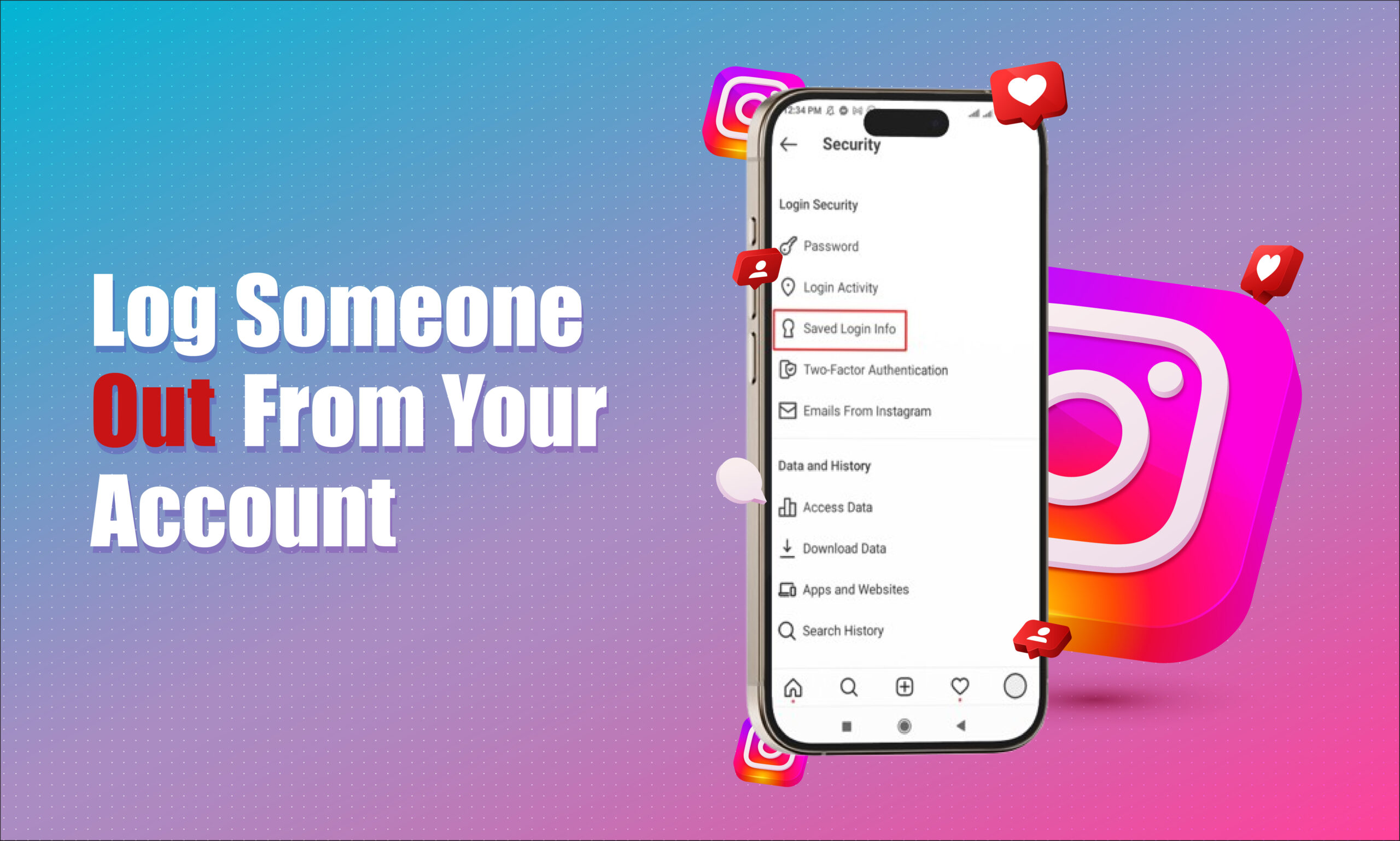
In the settings menu, scroll down and tap on Security. - Change Your Password
Under the Login Security section, tap Password. Enter your current password followed by your new password, then tap Save. - Automatic Log Out
Changing your password will automatically log out all other devices that were signed in with the old password. This is the most effective way to log out of Instagram remotely.
Logging Out from the Instagram Desktop Website
- Log In to Instagram on Your Browser
Open Instagram’s website on a desktop browser and sign in to your account. - Access the Security Settings
Click on your profile icon in the upper-right corner, then select Settings from the dropdown menu. - Select Change Password
In the settings sidebar, click on Change Password. Enter your current and new passwords and hit Change Password. - Force Log Out of All Devices
Just like with the mobile app, this action will force all devices logged into your Instagram account to log out, ensuring that no one else has access.
Two-Factor Authentication for Additional Security
Even though changing your password is the most effective way to log out of Instagram on other devices, enabling Two-Factor Authentication (2FA) adds an extra layer of security to your account. Once activated, even if someone gets hold of your password, they won’t be able to log in without the code sent to your mobile device.
How to Enable Two-Factor Authentication:
- Go to Settings
Open your Instagram app, tap the hamburger menu in the top-right corner, and navigate to Settings > Security > Two-Factor Authentication. - Choose Your 2FA Method
You can enable authentication via text message or through a third-party authentication app like Google Authenticator. Follow the on-screen instructions to complete the setup.
Checking If Your Account Is Compromised
If you suspect that someone else has been using your Instagram account, it’s important to check for any suspicious activity before logging out. Here are signs that your account might have been compromised:
- Unexpected Activity: Check if there are likes, follows, or comments on your profile that you don’t recognize.
- Unusual Login Locations: Instagram allows you to view where your account has been logged in from. Go to Settings > Security > Login Activity to see a list of all devices and locations that have accessed your account.
- New Accounts Followed: If you notice that you’re following unfamiliar accounts, it might be a sign that someone else is accessing your Instagram.
Steps to Take If Your Account Is Hacked
If you find that your account has been hacked or compromised, take these actions immediately:
- Change Your Password: As mentioned earlier, changing your password is the quickest way to log out all unauthorized users.
- Enable Two-Factor Authentication: This step ensures that even if someone guesses your password, they won’t be able to log back in without your authorization.
- Review Account Activity: Go through your login activity to see any unfamiliar devices and locations. If you notice suspicious activity, report it to Instagram.
- Revoke Access to Third-Party Apps: Sometimes, unauthorized access comes from third-party apps that have been linked to your Instagram account. Revoke access to apps that you don’t recognize by going to Settings > Security > Apps and Websites.
Protecting Your Instagram Account from Future Threats
To keep your Instagram account secure, follow these tips:
1. Use a Strong Password
Your Instagram password should be a mix of letters, numbers, and symbols to make it more difficult to guess. Avoid using common passwords like “password123” or personal information like your birthday.
2. Regularly Review Your Login Activity
Instagram’s Login Activity feature shows all the devices currently logged into your account. Regularly check this section to ensure that only trusted devices are logged in.
3. Log Out of Shared Devices Immediately
Always log out of your account after using a public or shared device, such as a friend’s phone or a public computer.
4. Monitor Your Email for Account Alerts
Instagram sends alerts when there are attempts to change your email or password. If you receive these notifications without making any changes, take immediate action to secure your account by changing your password.
5. Be Careful with Third-Party Apps
Third-party apps that request access to your Instagram account can sometimes compromise your security. Only use trusted apps and revoke access to any that seem suspicious or unnecessary.
Can You Log Out of Instagram Without Changing Your Password?
Unfortunately, Instagram does not provide an official feature to log out of all devices without changing your password. The most effective way to remotely log someone out of your account is by resetting your password, as this forces every device to log out except the one you’re currently using.
However, changing your password is a quick and easy process that ensures no unauthorized users remain logged into your account.
Conclusion
Logging someone out of your Instagram account is a simple yet crucial step to maintaining your online privacy and security. Whether you left your account logged in on a shared device or suspect that someone else is accessing it, following the steps in this guide will help you regain control of your profile.
In addition to logging out, adopting best practices like enabling two-factor authentication, using strong passwords, and regularly reviewing your login activity can keep your Instagram account secure. Take these steps to protect your personal information and enjoy using Instagram worry-free.
Frequently Asked Questionns (FAQs)
Can I see how many devices are logged into my Instagram account?
Yes, you can check this by going to Settings > Security > Login Activity. This shows the devices and locations where your account is logged in.
Does Instagram notify you if someone logs into your account?
Instagram sends an email to your registered email address when your account is logged into from a new device or location.
How do I remove someone from my Instagram account without changing my password?
Currently, the only way to log out all devices is by changing your password. This action will log out all other devices except the one you’re using.
Can I check who viewed my Instagram profile?
Instagram does not allow users to see who has viewed their profile, but you can check who viewed your stories or liked your posts.
What should I do if I suspect my Instagram account is hacked?
If you suspect a hack, change your password immediately, enable two-factor authentication, review your login activity, and report the issue to Instagram.

