

Featured Social Media Software:
If you’re searching for the easiest way to convert YouTube videos to high-quality MP3, you’re in the right place.
Don’t waste time on spammy sites and low-quality results — this guide will show you the cleanest, safest, and most effective way to turn your favorite YouTube videos into crystal-clear MP3s.
Let’s dive in!
Why People Download YouTube Videos as MP3
Sometimes, you don’t need the video — just the sound. Maybe it’s a song, a podcast, a motivational talk, or relaxing background music for studying. Here’s why so many people choose to download YouTube videos as MP3 files:
Listen Anytime, Even Offline
Once you have the audio on your device, you can listen without needing internet. Great for flights, commutes, or areas with weak signals.
Save Mobile Data
Streaming videos eats up a lot of data. MP3 files are much smaller, so they save your internet when you’re on the go.
Make Personal Playlists
You can organize your favorite audio clips into playlists on your phone or music app, just like Spotify or Apple Music — but without the ads.
No Distractions, Just Audio
Sometimes, watching a video can be distracting. MP3 lets you stay focused while working, exercising, or relaxing.
Easy to Use Anywhere
MP3 works on almost every device — phones, tablets, cars, and even old MP3 players.
What to Know Before Downloading
Before you download or convert a YouTube video to MP3, here are a few important things to understand:
YouTube Doesn’t Offer MP3 Downloads
You can’t download MP3s directly from YouTube. To get the audio, you’ll need a third-party converter — a website or app designed for this purpose.
Pick a Safe and Clean Tool
Choose a trusted tool that doesn’t install malware, pop-ups, or fake download buttons. Stay away from shady websites that ask for personal info or force you to download software.
Watch Out for Bad Quality
Some converters compress audio too much, which makes the sound dull, fuzzy, or even cuts parts of it. Always pick a tool that keeps the audio crisp and full.
Look for 320kbps MP3 Output
For the best sound quality, choose a tool that lets you download audio in 320kbps MP3 format. It keeps the sound sharp and close to what you’d hear in the original YouTube video.
Best Tools to Download YouTube Videos as MP3 (With Links)
Want to grab high-quality MP3s from YouTube? These free tools are reliable, easy to use, and offer great sound without the junk. No sketchy pop-ups, no logins — just clean conversions.
| Tool Name | Highlights | Link |
| YTMP3.cc | Simple interface, no ads, supports 320kbps quality | Visit YTMP3 |
| SnapInsta.app | Fast, converts to MP3 & MP4, no signup needed | Visit SnapInsta |
| MP3Download.to | Great for long videos, keeps high audio quality | Visit MP3Download.to |
| 320YTMP3.com | Built for top-quality 320kbps MP3s only | Visit 320YTMP3 |
| Y2Mate | Very reliable, mobile-friendly, supports many formats | Visit Y2Mate |
Pro Tip:
All of these tools are beginner-friendly and don’t require any special tech skills. If you can copy-paste a link, you’re good to go.
How to Download YouTube Videos as MP3 (Step by Step)
Getting high-quality MP3 audio from YouTube is easier than you think. Just follow these quick steps — no technical skills required.
Step 1: Copy the YouTube Video Link
Open the YouTube app or website
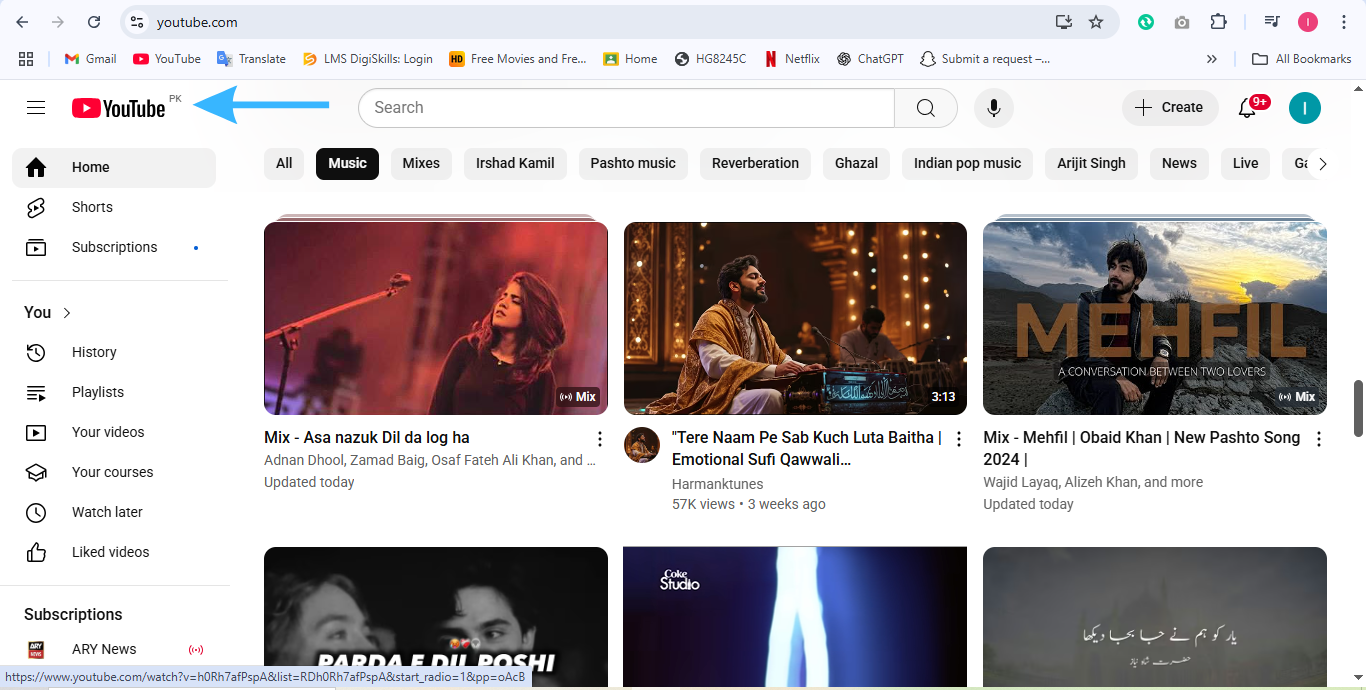
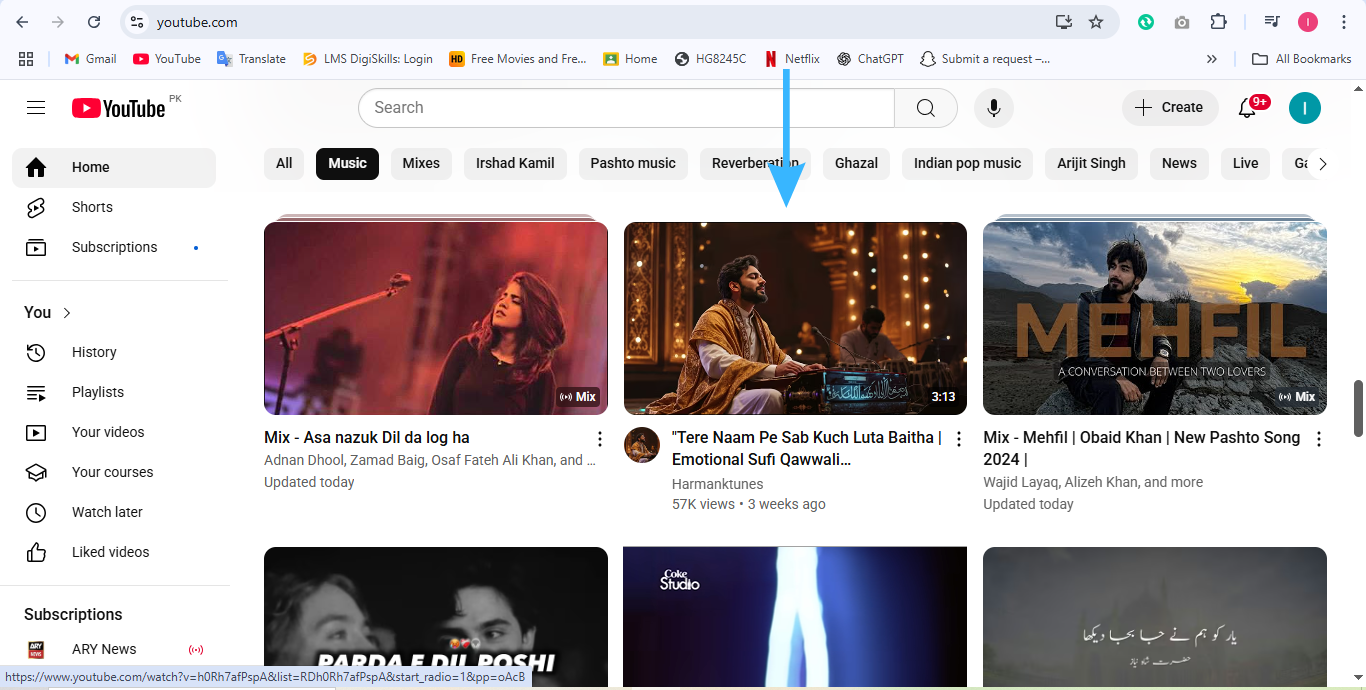
Find the video you want
Tap the “Share” button
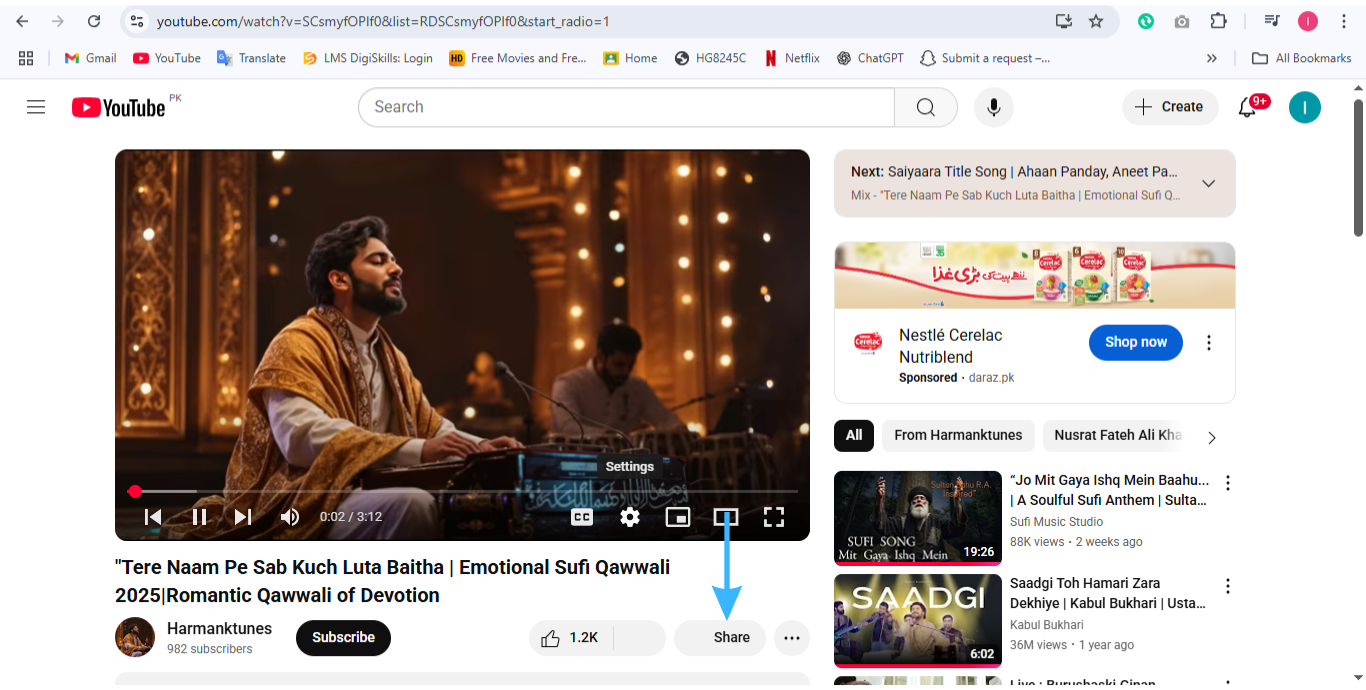
Select “Copy Link”
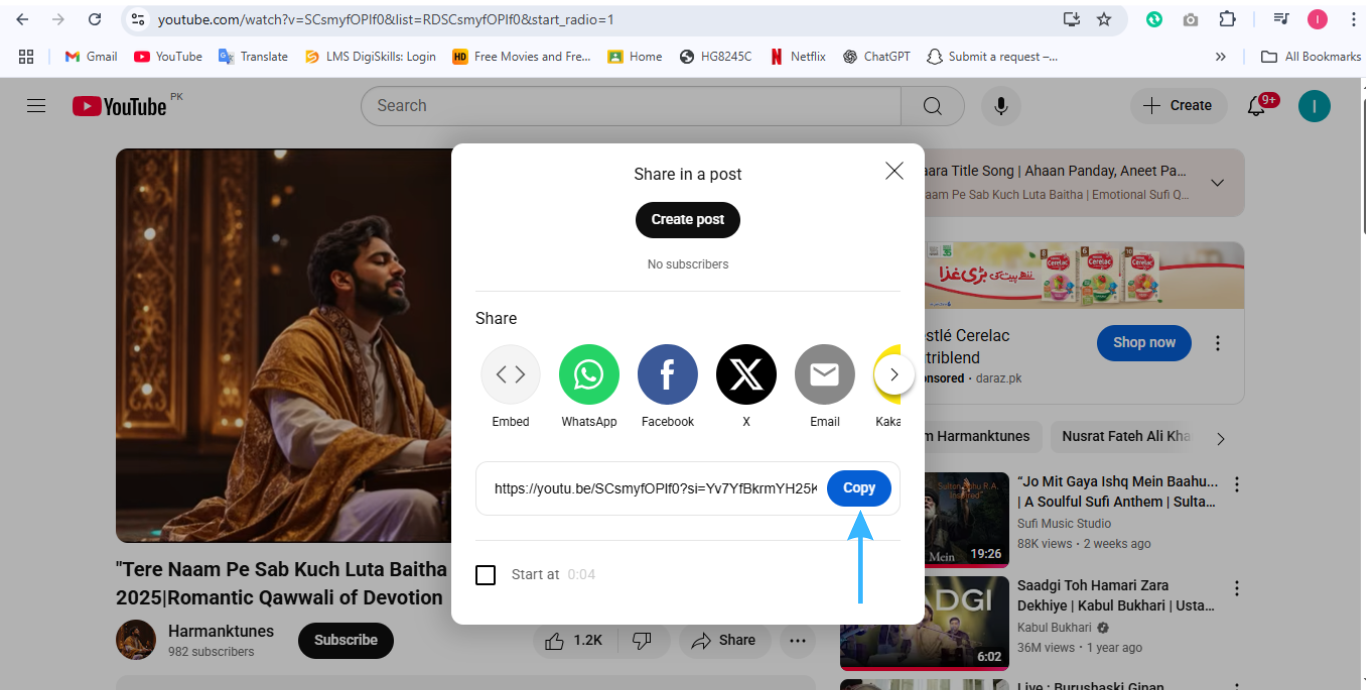
Step 2: Visit a Safe Converter Tool
Pick any tool from the trusted list above (like YTMP3 or Y2Mate)
Open the site in your browser
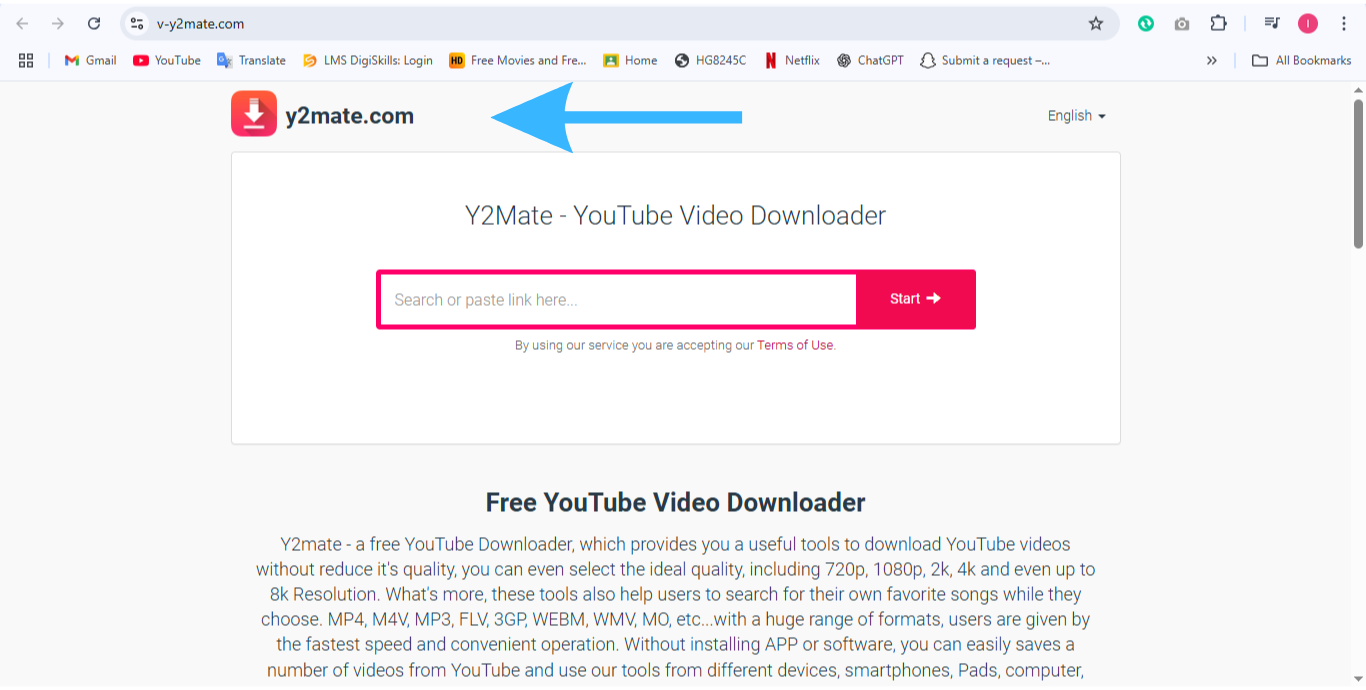
Step 3: Paste the Link
Look for a box that says “Enter video URL”
Paste your copied YouTube link
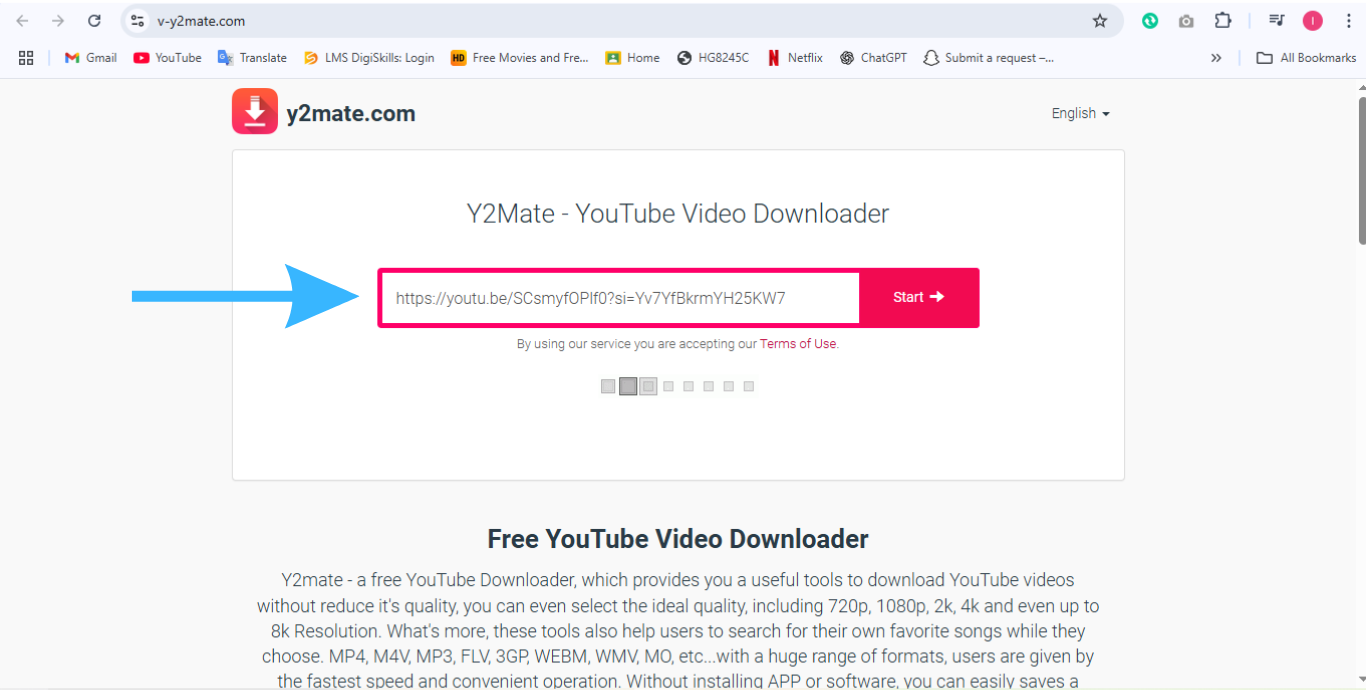
Step 4: Choose MP3 Or Audio Format (Preferably 320kbps)
Select MP3 or Audio as your output format
If available, always go with 320kbps for best sound quality
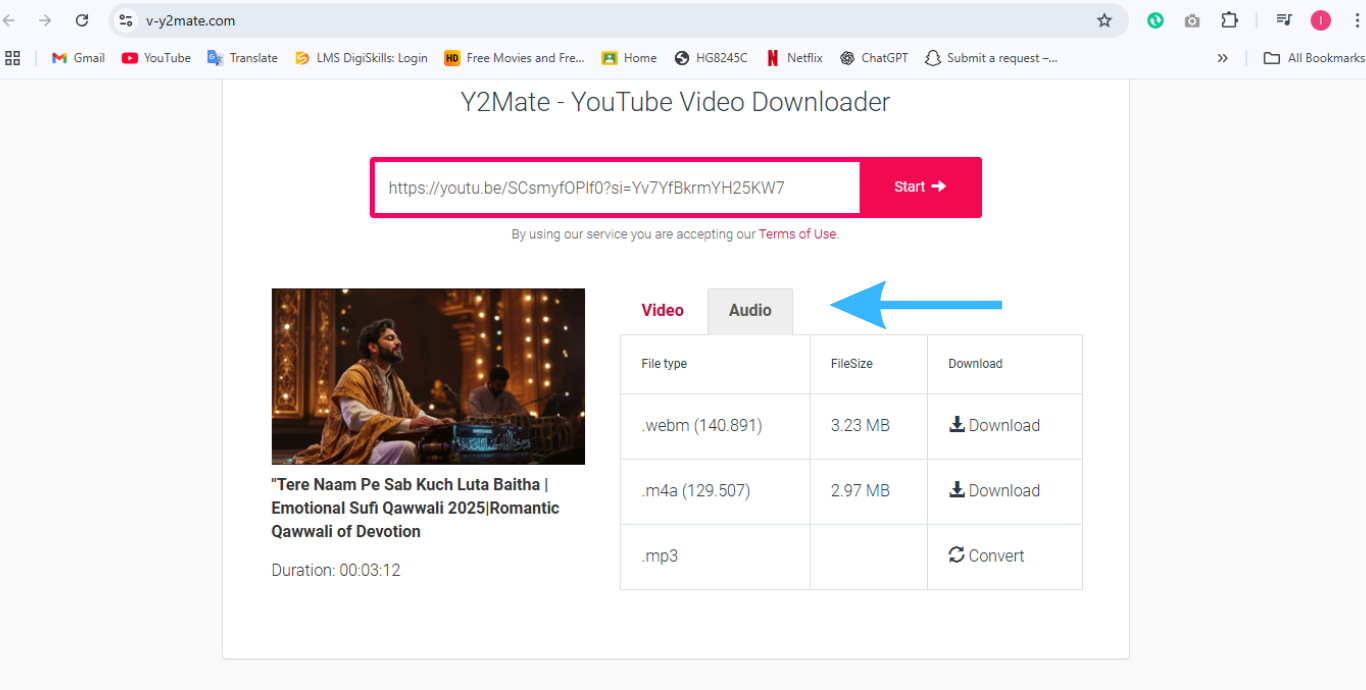
Step 5: Download and Enjoy
Click the Download button
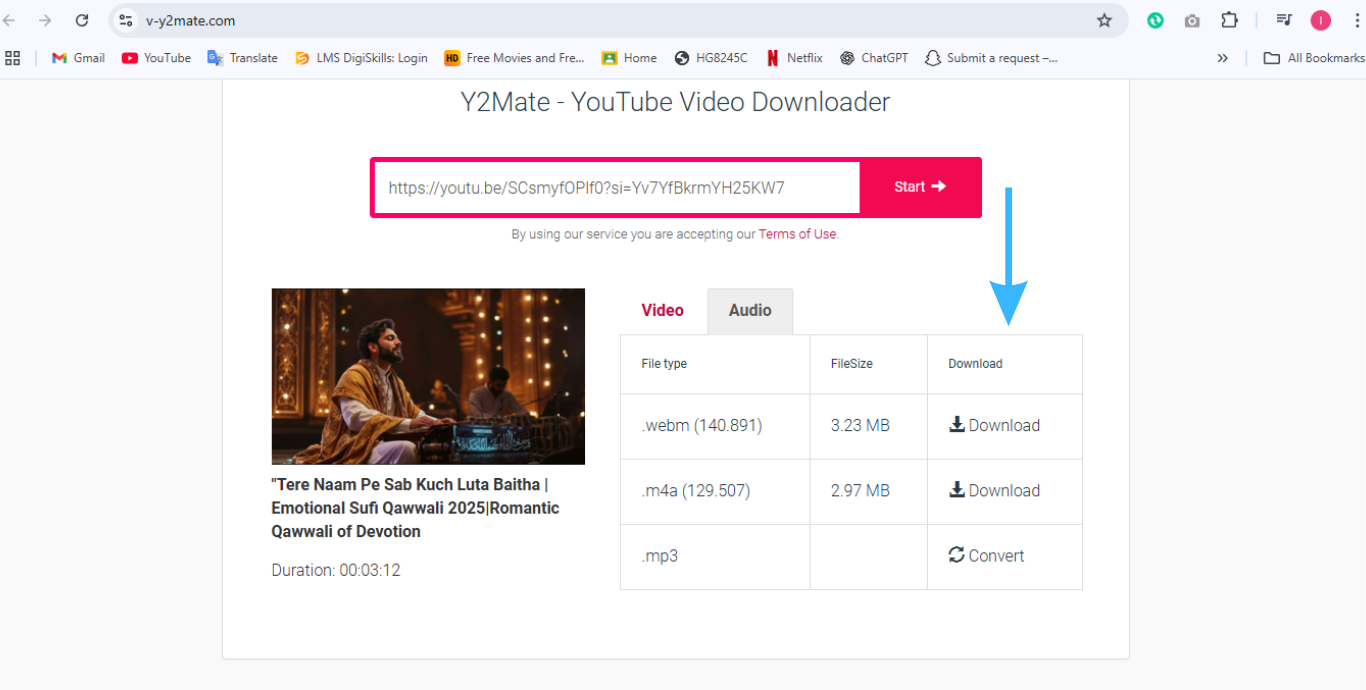
Wait for the file to process
Save the MP3 to your device
Plug in your headphones and enjoy music offline — no ads, no buffering!
Pro Tip:
Rename the file after downloading to keep your playlist organized.
How Can I Extract Audio from a YouTube Video Without Losing Quality?
Want crystal-clear MP3s? Don’t just click the first converter you find. If you want rich bass, clear vocals, and no weird background hiss, follow these smart tips:
1. Use Tools That Support High Bitrate (320kbps)
Not all converters give you top-tier audio. Always choose tools that clearly offer 320kbps or even FLAC format. Lower bitrates can ruin music detail.
Good examples:
- YTMP3,
- 320YTMP3
2. Avoid Low-Quality Compressors
Some websites shrink the file too much just to save space. The result?
- Flat bass
- Distorted vocals
- Harsh or tinny sounds
Stick with reliable, ad-free tools that don’t overcompress your music.
3. Choose Videos That Already Sound Good
The quality of your MP3 depends on the original YouTube video. Before downloading, check that:
- The video is at least 720p or higher
- The audio is clean, clear, and noisy-free
- Music or voices are balanced and loud enough
- If it sounds bad on YouTube, it’ll sound worse in MP3.
Summary of Best Practices
| ✅ Do This | ❌ Avoid This |
| Use 320kbps or FLAC | Downloading in 128kbps or lower |
| Choose trusted converters | Tools with too many popups/ads |
| Start with high-quality videos | Videos with background noise/messy sound |
What Format Should You Choose — MP3 or Something Else?
When you’re converting a YouTube video to audio, the format you pick makes a big difference in both sound quality and file size. Don’t worry — here’s a simple breakdown to help you choose the right one based on your needs.
Best Format for Most Users: MP3 (320kbps)
This is the go-to choice for 90% of people — and here’s why:
- Works everywhere (phones, laptops, car systems)
- Fast download time
- Great sound quality at small file size
Pro Tip:
- Always pick 320kbps MP3
- It gives you rich sound without taking too much space.
Want Studio-Like Quality? Use FLAC or WAV
Perfect for music producers, editors, or audio geeks who want every detail.
- Lossless audio — no quality lost during download
- Big files — takes more space
- Not supported on all phones and players
- Only choose these if you need perfect audio and don’t mind larger file sizes.
Low Storage or iPhone Users? Try M4A or AAC
Great balance between quality and space-saving.
- Smaller file size
- Optimized for Apple devices
- Slight compatibility issues with older Androids
- If you’re tight on storage but still want decent sound, AAC is your friend.
Recommendation Table: Best Format by Use Case
| Use Case | Best Format |
| Everyday music listening | MP3 (320kbps) |
| Music production/editing | FLAC or WAV |
| iPhones / Low storage | M4A or AAC |
In short:
- If you want quick, quality downloads, stick to MP3 at 320kbps.
- If you’re mixing tracks or need pro-level quality, use FLAC or WAV.
- And if your phone’s running out of space, go with M4A or AAC.
Pro Tips to Get the Best MP3 Quality
Want your YouTube-to-MP3 audio to sound amazing? Don’t just hit “download” — follow these smart tips to keep things crisp and clean:
Always Pick 320kbps (If Available)
This is the highest MP3 quality. It gives you full bass, clear vocals, and rich sound — close to what you’d hear on Spotify Premium.
Avoid Low-Quality Videos (Under 144p)
If a YouTube video is 144p or blurry, the audio is likely low bitrate, noisy, or distorted.
Tip:
- Choose videos that are at least 720p for cleaner sound.
Use Safe, Clean Websites
- Stay away from tools that:
- Bombard you with ads
- Open shady pop-ups
- Force app downloads
- Stick with the trusted converters listed earlier for a smoother experience.
Rename Your Files After Downloading
- Give each file a clear name like:
- Lofi_Study_Beats_2025.mp3
- It helps you stay organized, especially if you’re downloading multiple tracks.
Use the Same Converter Tool Regularly
Every converter processes audio differently. Once you find one that gives good quality (like 320YTMP3 or YTMP3.cc), stick with it for consistent results.
Why Quality Matters (Even for MP3)
You might think, “It’s just an MP3 — does it really matter?”
Yes, it does. And here’s why:
Low-Quality = Flat and Frustrating
Most free converters compress the audio to make the download faster. But that can hurt the sound in a few ways:
- Vocals become muffled
- Beats lose depth and bass
- Music sounds flat, lifeless, or even scratchy
- If you’ve ever felt like something was missing in your music — that’s why.
High-Quality MP3 = Better Every Time
When you choose 320kbps MP3s, you get:
- Richer, deeper sound — even in your cheapest earphones
- Better playback on Bluetooth devices like earbuds or speakers
- Less ear fatigue during long listening sessions
- Enjoyable music whether you’re studying, working out, or relaxing
Final Tip:
- Don’t settle for low quality just to save a few seconds.
- Good sound = better experience, every single time.
Mobile or PC? Both Work!
Good news — you don’t need a fancy setup to download YouTube videos as MP3. Here’s what you should know:
On Android or iPhone:
- Most converter tools work smoothly in your phone’s browser
- No app needed — just visit the website, paste the link, and download
- Great for quick access and listening on the go
Tip:
- Make sure to save the file in your phone’s music folder for easy access.
On PC or Laptop:
- Faster download speed
- Easier to rename, organize, or move files
- More space for large MP3 or FLAC files
- Ideal if you download music often or in bulk
Tip:
- Some tools also offer browser extensions or desktop apps to speed things up.
Bottom line:
- Use whatever device is most convenient for you
- both mobile and desktop work perfectly.
Final Thoughts
You don’t need to be tech-savvy to enjoy your favorite YouTube audio offline.
With the right tools and just a few simple steps, you can download high-quality MP3s in seconds — safely and easily.
Whether you’re:
- Studying with lo-fi beats
- Relaxing to a podcast
- Or vibing to your favorite artist on repeat
You deserve clear, clean, and top-quality sound — anytime, anywhere.
- So don’t settle for low-quality rips.
- Use the right methods — and enjoy audio that actually sounds good.
Frequently Asked Questions (FAQs)
Is it legal to download YouTube videos as MP3?
Downloading for personal use (like offline listening) is generally okay. ❌ But don’t reupload, sell, or distribute — that’s against YouTube’s terms.
What’s the best MP3 quality to choose?
Always go for 320kbps. It offers the best balance of file size and sound clarity.
Can I use these tools on my phone?
Yes! All the tools listed work perfectly on mobile browsers like Chrome, Safari, and Edge.
Will it harm my device?
Not if you stick to safe, ad-free tools. Avoid converters with spammy ads or forced app installs.
Can I convert full playlists?
Some tools (like MP3Download.to) support full playlist conversion. Just check each tool’s features before using.
Why is 128kbps not recommended?
Because it compresses audio heavily. You’ll notice lower bass, flatter sound, and unclear vocals. 320kbps keeps your music full and rich.
Can I extract just part of a video’s audio?
Yes — some tools let you trim the audio before downloading. If not, you can use free editors like Audacity or MP3Cut.net after downloading.
Are there any offline tools or software I can use?
Yes! Apps like 4K YouTube to MP3 or Any Video Converter let you convert videos offline on your PC or Mac with more control over quality.

