Skip to content
  • View the Winners of the uCompares Awards 2025
  • Reviews
  • Ad Networks
    • Best CPC Ad Networks
    • Best PPC Ad Networks
    • Best CPM Ad Networks
    • Push Notification Networks
    • Best Crypto Ad Networks
    • Best Display Ad Networks
    • Header Bidding Networks
    • Best Video Ad Networks
    • Best In-Image Ad Networks
    • Best Bitcoin Ad Networks
    • Best Pop Under Ad Networks
    • Ad Networks for Publishers
    • Ad Networks For Bloggers
  • Affiliate Networks
    • Best Affiliate Networks
    • Best CPA Networks
    • Best CPS Networks
    • Best CPL Networks
    • Best CPI Networks
    • Best PPD Networks
    • CPA Networks For Beginners
    • European CPA Networks
  • Affiliate Programs
  • Topics
    • Advertising
    • Affiliate Marketing
    • Crypto
    • Glossary
    • Guides
    • Interviews
    • Social Media
      • Instagram
      • Snapchat
      • TikTok
      • Facebook
      • Twitter
      • Whatsapp
      • Messenger
      • Telegram
      • YouTube
  • News
You are at:Home » Step-By-Step Guide: Windows Data Recovery For Beginners
Guides

Step-By-Step Guide: Windows Data Recovery For Beginners

uCompares StaffBy uCompares StaffSeptember 10, 2025
Share Facebook Twitter Pinterest LinkedIn Tumblr Email
Windows Data Windows Data Recovery

It is very frustrating when you lose important data on Windows computer. No matter if the data is lost due to accidental deletion, mistaken formatting, system crash, unexpected interruption during file transfer, or malware attacks, today we will walk you through a simple, step-by-step process to recover your files with the most ease, using a powerful yet easy-to-use Windows data recovery tool: MyRecover.

file-recovery-common

Common Data Loss Scenarios 

Before starting the recovery process, we will explore some common scenarios or reasons why you lost important files on Windows operating systems, which helps us choose the most effective recovery method in the future data recovery process.

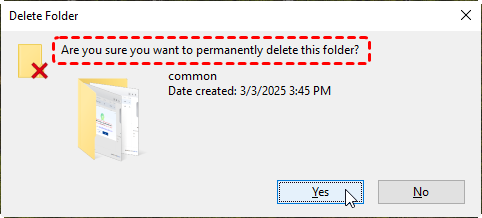
  • Accidental Deletion: Files deleted using “Shift + Delete” bypass the Recycle Bin and can appear permanently gone.
shift-permanently-delete

  • Drive or Partition Formatting: Whether done intentionally or by mistake, formatting wipes the data on the target drive.
  • System Crashes or Windows Update Failures: Unexpected shutdowns, blue screens, or failed updates can lead to missing or inaccessible files.
  • Hard Drive or SSD Corruption: File system errors or bad sectors on storage devices can cause data loss or unreadable files.
  • Virus or Malware Attacks: Malicious programs can delete, hide, or encrypt your data, making it impossible to access without recovery tools.
  • Sudden Stop While Transferring Files: Interruptions caused by system errors, power loss, or device disconnection during file transfer can leave files incomplete or corrupted.

Your Go-To Windows Data Recovery Software: Discover MyRecover

From the content mentioned earlier, we know there are many different causes of data loss. So, you might wonder: do you need to identify the exact reason before finding out and choosing a corresponding method? No, you don’t have to. The good news is: with MyRecover, you don’t need to be a tech expert or spend much time analyzing the behind reason.

MyRecover is designed with simplicity in mind, offering an all-in-one solution that works for various data loss scenarios,making file recovery easy and accessible for everyone. It supports data recovery from a wide range of storage devices, including HDDs, SSDs, USB drives, SD cards, and more. Whether your files were accidentally deleted, lost due to formatting, or affected by a system crash, you can get them back efficiently and safely.

Key Features of MyRecover:

  • Recover 1000+ file types, including documents, photos, videos, emails, and more
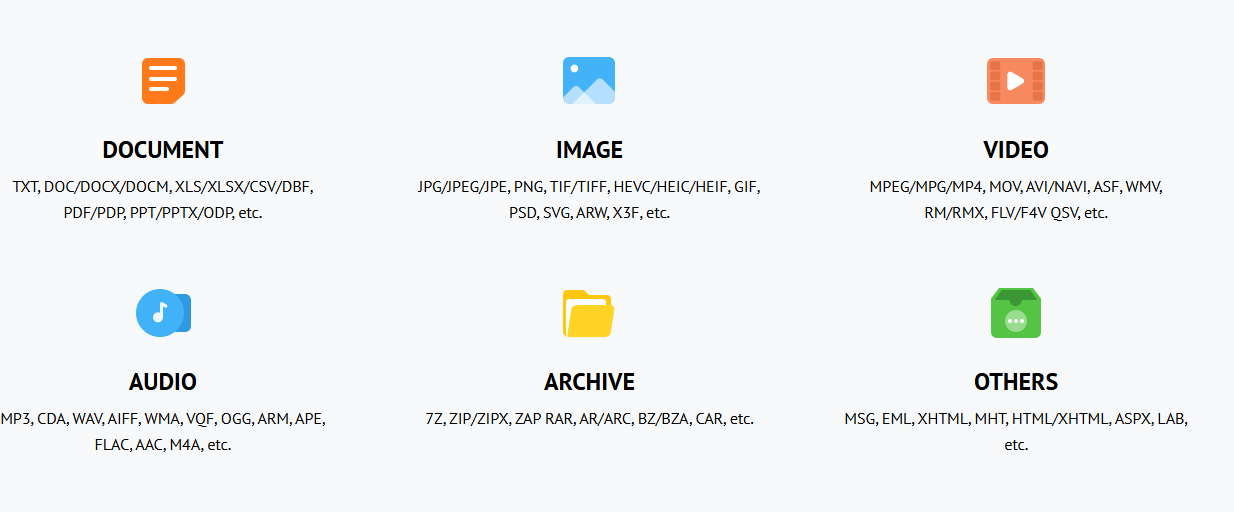
  • Fully compatible with NTFS, FAT32, exFAT, and ReFS file systems
  • Supports Windows 11, 10, 8.1, 8, 7, as well as Windows Server versions
  • Intuitive three-step recovery process, perfect for beginners and pros alike
  • Preview recoverable files before restoring them
  • Fast scanning speed with a high data recovery success rate.

Step-by-Step: How To Recover Lost Files Using MyRecover

Here’s how you can recover deleted files with MyRecover in just a few easy steps:

✅ Step 1: Download and Install MyRecover

Visit the official and get the software. Install it on your computer—but “do not install it on the same drive” where you lost the files to avoid overwriting data.

✅ Step 2: Select The Drive To Scan

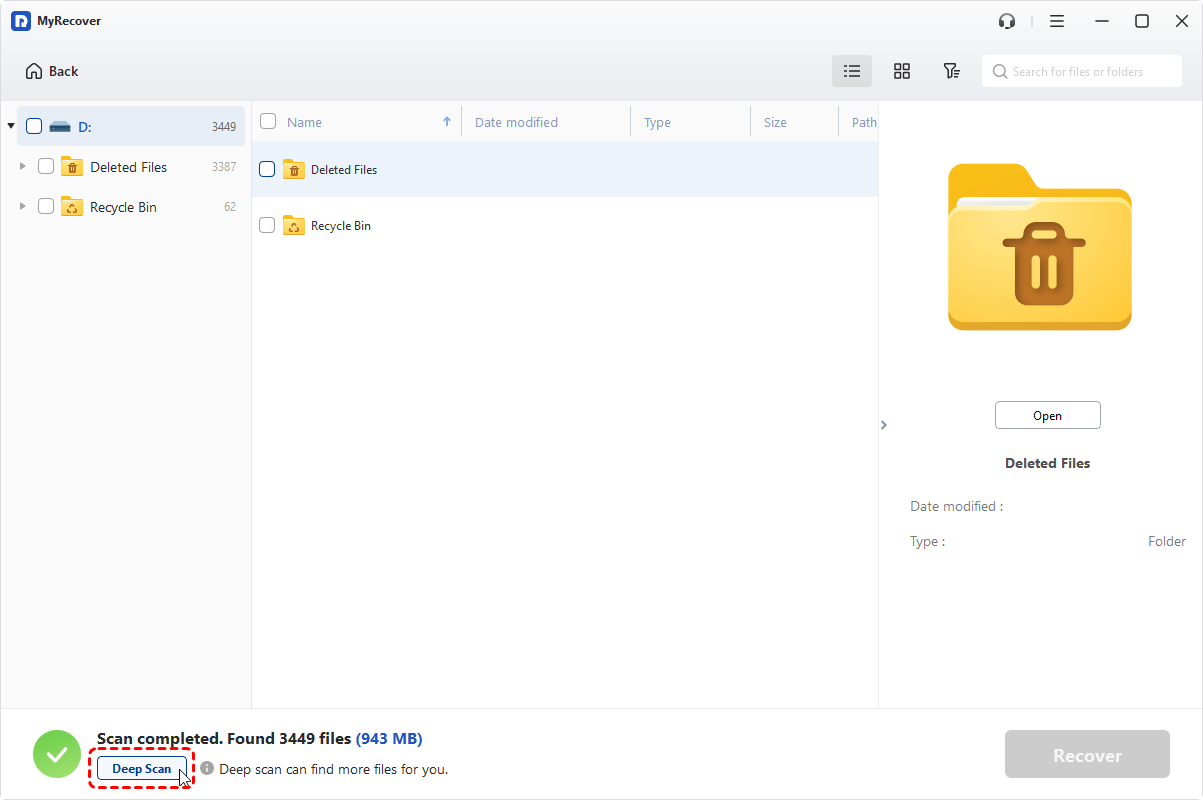
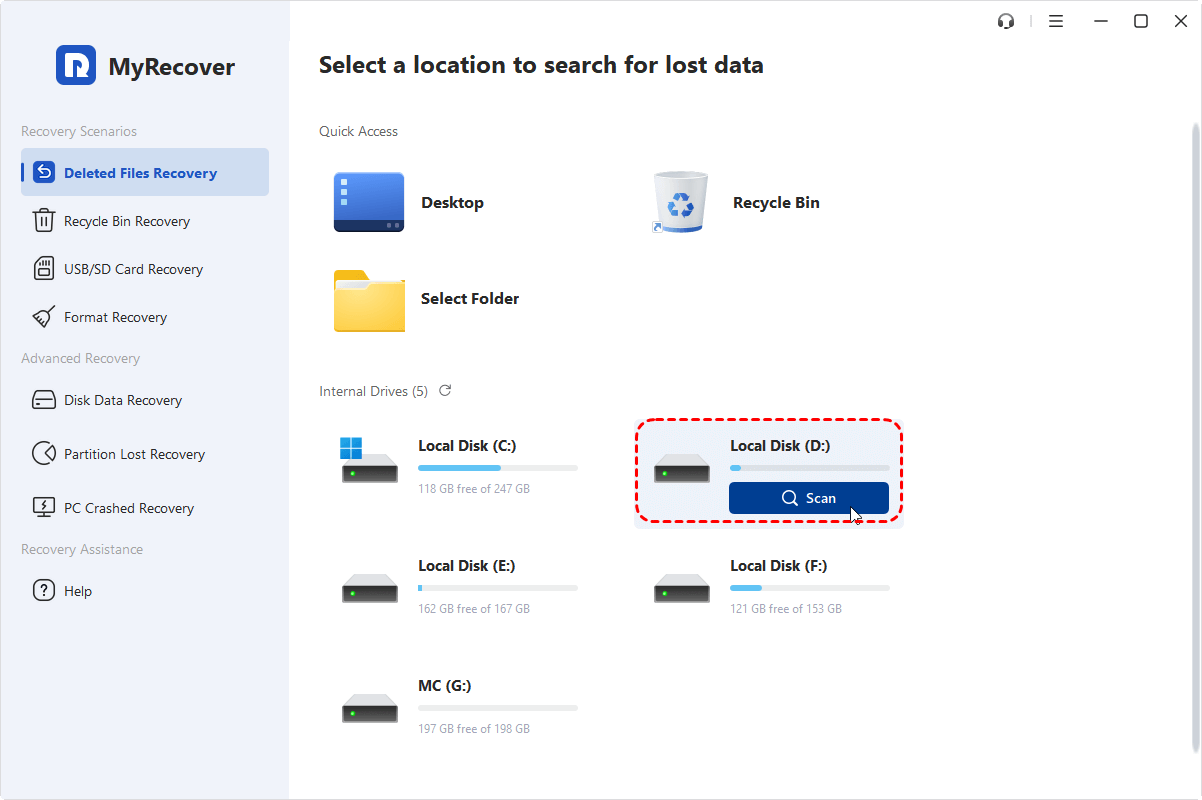
Open MyRecover. You’ll see a list of available drives and partitions. Select the drive where the data was lost (e.g., C: drive, external USB, etc.). Click “Scan” to begin searching for lost files. MyRecover will automatically perform a “Quick Scan” for recently deleted files. If necessary, you can also manually turn to “Deep Scan” to ensure maximum recovery results, which is proper for recovering data from formatted drive, corrupted partition and other complex cases.
select-drive-to-scan

deep-scan

✅ Step 3: Preview And Recover Files

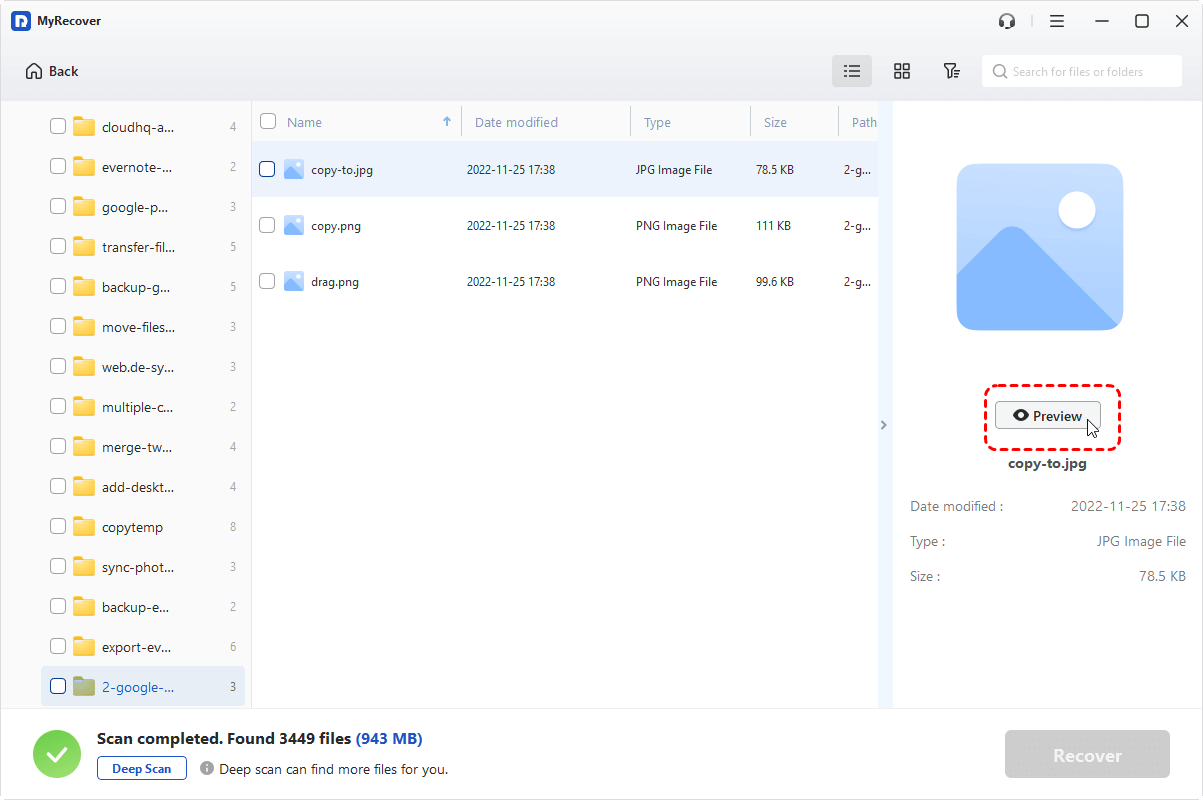
Once scanning is complete, MyRecover will list all recoverable files. You can browse them through and find what you want to recover. Or, to quickly locate the target files, you can filter by file type, name, or date, or use the “search bar” . Click to “preview” files (especially images, documents, and videos) to make a confirmation.
preview

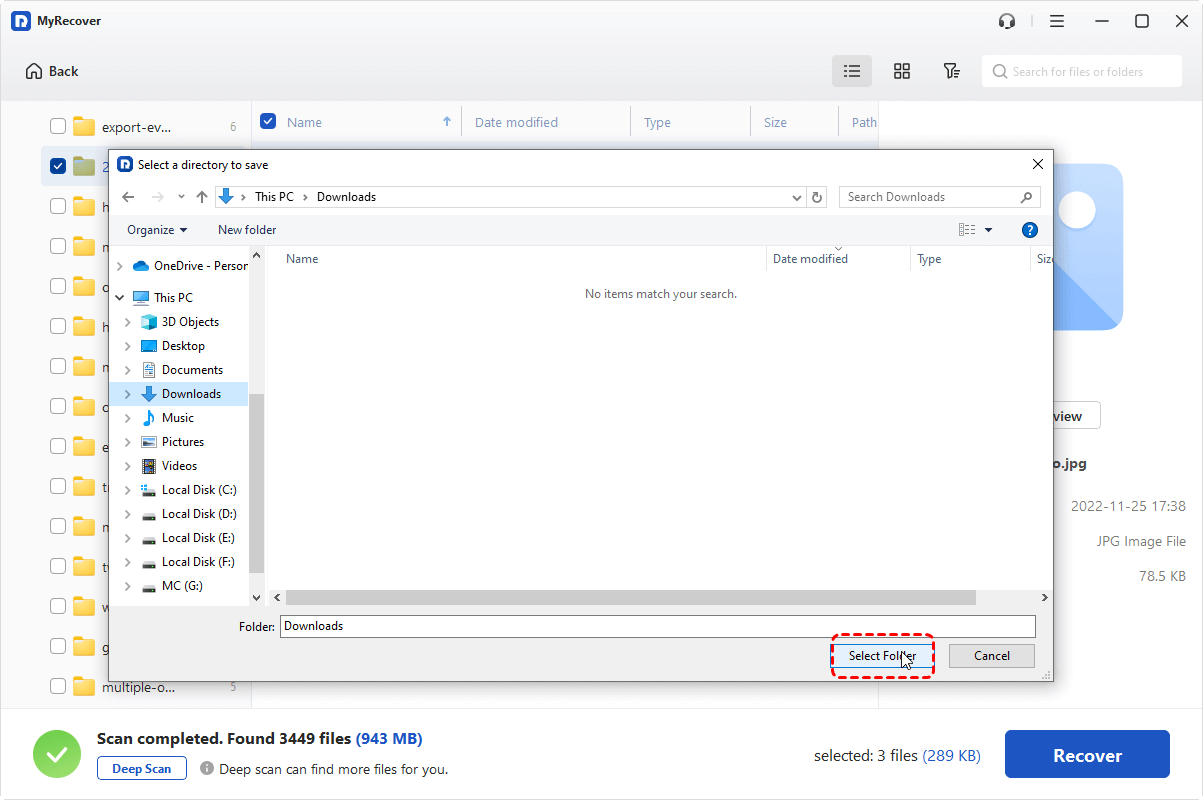
Finally, select the files you want and click “Recover”. Choose a different drive to save the recovered files.
select-a-directory-to-save

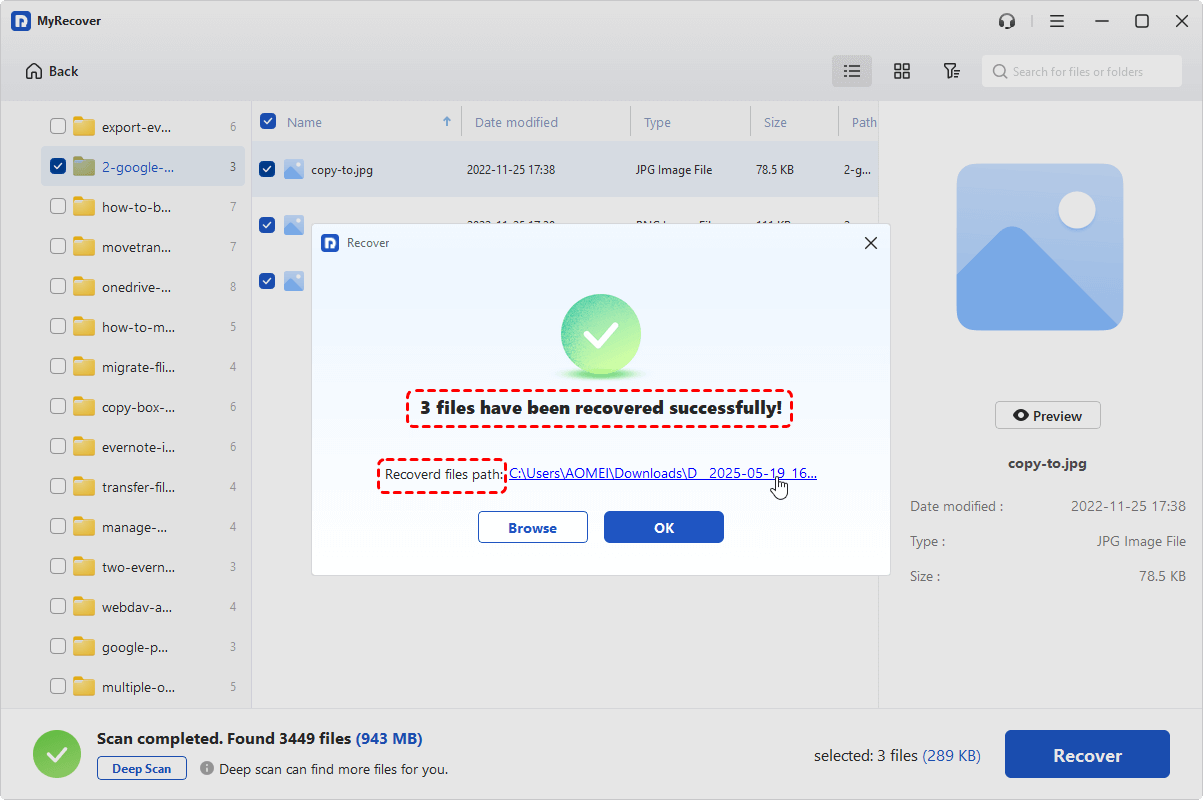
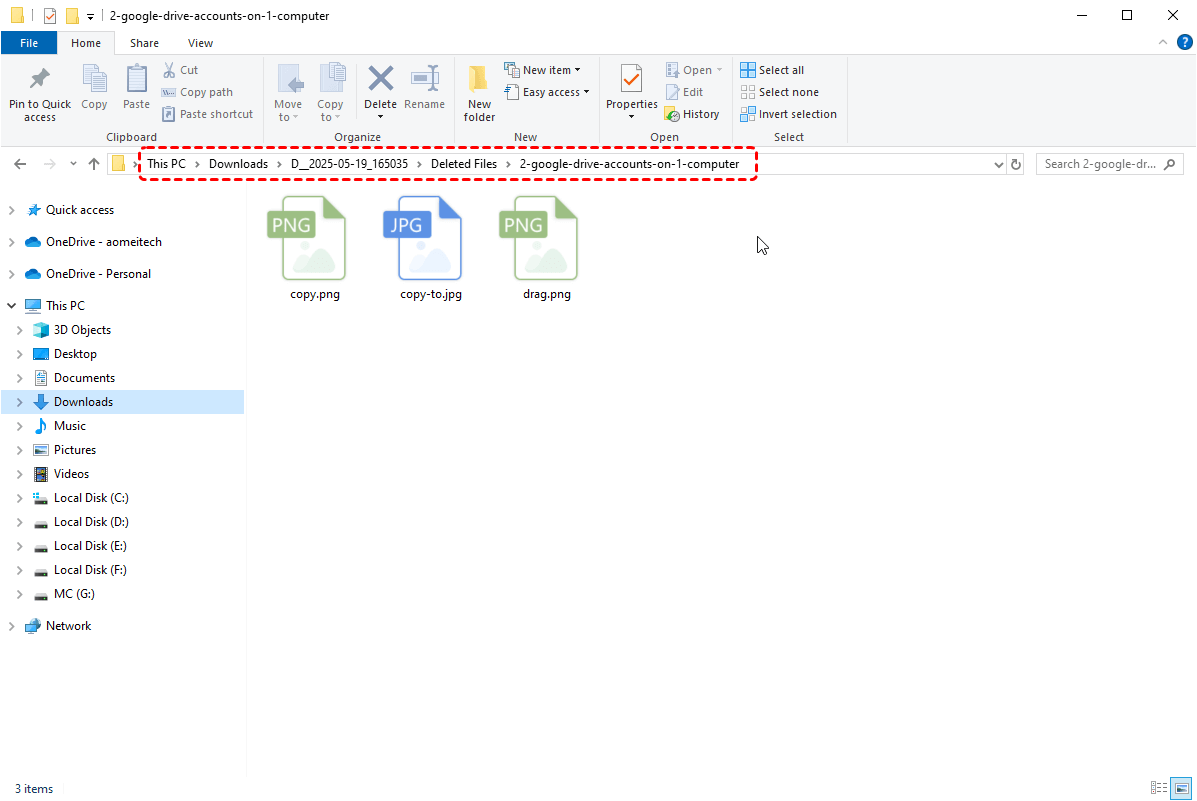
Upon completion of the recovery process, you can click on “Browse” button in the pop-out mini window to directly check out the recovered files in Windows File Explore.
recover-success

check-recovered-files

MyRecover, achieving a blance between ease of use and powerful performance, makes Windows data recovery as simple as possible. Whether you’ve lost work documents, precious family photos, videos, audios, or critical project files, MyRecover gives you peace of mind.


Share. Facebook Twitter Pinterest LinkedIn Tumblr Email
Previous ArticleHow to Easily Cancel LinkedIn Premium (Mobile + Desktop)
Next Article Spotify Music Festival 2025: Everything You Need to Know
uCompares Staff
  • Website

Related Articles

Guides

How to Build a Mobile Tech Affiliate Website in 2026

Guides

How to Increase Your Domain Authority In 2026

Guides

Earn Daily from Mobile Accessories with Affiliate Programs in 2026

Guides

How to Write an SEO-Friendly Article in WordPress in 2025?

Guides

Affiliate Marketing: Promote VPNs and Hosting Effectively in 2025

Guides

How to Build Trust for Affiliate Marketing Success in 2025

Add A Comment

Leave A Reply Cancel Reply

Recent Posts

10 Best Web Hosting Affiliate Programs 2026

November 12, 2025

15 Best Wealth Building Affiliate Programs In 2026

November 11, 2025

15 Best Internet Marketing Affiliate Programs in 2026

November 11, 2025

10 Best Dropshipping Affiliate Programs in 2026

November 10, 2025

Galaksion Review 2025

November 10, 2025

15 Best Vegan Affiliate Programs in 2026

November 10, 2025

15 Best Gold Trading App in 2026

November 7, 2025

15 Best CFD Broker in 2026

November 7, 2025

15 Best Demo Trading Account in 2026

November 7, 2025

Top 10 Best Crypto Broker in 2026

November 7, 2025

Let's Connect

Facebook Instagram Linkedin Pinterest Threads X-twitter

Affiliate Programs

  • Education Affiliate Programs
  • Cyber Security Affiliate Programs
  • Recurring Affiliate Programs
  • Luxury Affiliate Programs
  • Credit Card Affiliate Programs
  • Web Hosting Affiliate Programs
  • VPN Affiliate Programs
  • Insurance Affiliate Programs
  • Health Affiliate Programs
  • Antivirus Affiliate Programs
  • Travel Affiliate Programs
  • Loan Affiliate Programs
  • SAAS Affiliate Programs
  • Forex Affiliate Programs
  • Trading Affiliate Programs

Ad Networks

  • Best CPC Ad Networks
  • Best PPC Ad Networks
  • Best CPM Ad Networks
  • Best Push Notification Networks
  • Best Crypto Ad Networks
  • Best Bitcoin Ad Networks
  • Best Forex Ad Networks
  • Best Ad Networks for Publishers
  • Best Ad Networks For Bloggers
  • Best Ad Network For Advertisers
  • Best In-Image Ad Networks
  • Best Display Ad Networks
  • Best Native Ad Networks
  • Best Pop Under Ad Networks
  • Best Video Ad Networks

Affiliate Networks

  • Best Affiliate Networks
  • Best CPA Networks
  • Best CPL Networks
  • Best CPS Networks
  • Best CPI Networks
  • Best PPI Networks
  • Best PPD Networks
  • Affiliate Networks For Beginners
  • Affiliate Networks For Advertisers
  • Best European CPA Networks
  • Best Pay Per Call Networks
  • Best Incentive Affiliate Networks
  • Best Paywall Services
  • Best Ad Fraud Tools

Reviews

  • Bitmedia Review
  • CPA.House Review
  • Push.House Review
  • Pay2.House Review
  • Cloaking.House Review
  • AADS Review
  • Zeydoo Review
  • Adsterra Review
  • RollerAds Review
  • HilltopAds Review
  • Olavivo Review 2025
  • AffMagazine
  • AdCompares
  • Advertiser Review
  • Affvertising
© 2025 uCompares All Rights Reserved.
  • About
  • Contact
  • Advertise
  • uCompares Awards
  • Privacy Policy
  • Affiliate Disclosure