

What Does Turning Off Active Status on Instagram Mean in 2026 and Why Do Users Need It for Privacy Control?
Turning off Active Status on Instagram in 2026 means disabling the feature that shows your online presence or last active time to other users. It is used to improve privacy, reduce social pressure, and allow users to browse Instagram without being visible in direct messages or activity indicators. When turned off, your activity becomes hidden, but you also lose visibility of others’ online status.
Quick Steps to Disable Active Status on Instagram
There are times when you simply don’t want others to know when you were last online. The good news is that Instagram gives you full control over your privacy, allowing you to hide your activity status in just a few simple steps. This feature ensures you can browse, scroll, or chat on your own terms without being constantly visible to your followers.
This guide will walk you through exactly how to turn off Active Status on Instagram, what the feature really means, and how it works. So, without further delay, let’s dive right in.
Instagram’s Active Status Explained
Instagram includes a built-in option that shows whether you are currently online or when you were last active. You can only see the status of accounts that also follow you back, making it a mutual feature. While this is meant to make conversations more engaging, many users prefer to keep this information private.
There are two simple ways to know if someone is online on Instagram:
1. The Green Dot
When you see a small green dot on the lower-right side of a person’s profile picture, it means they are currently active. This appears across various sections of the app, including your message inbox.
2. The Direct Messages List
Another place to spot activity status is inside your DM list. Profiles you’ve recently interacted with will show the green dot when they’re online. In addition, you might notice the phrase “Active Now” at the top of a chat window, clearly indicating that the person is currently using Instagram.
How to Turn Off Active Status on Instagram
While the Active Status feature helps make Instagram more interactive by showing when users are online, not everyone wants their activity visible. Fortunately, Instagram provides a simple option to disable it whenever you like. Below is a step-by-step guide to turning off Active Status on both mobile devices and desktop.
Steps to Turn Off Active Status on Instagram (iPhone & Android)
The process is nearly identical on both iOS and Android devices, so you can follow the same instructions regardless of the phone you use:
- Step 1: Open the Instagram app on your smartphone.
- Step 2: Tap on your profile picture located at the bottom-right corner of the screen.
- Step 3: Tap the three horizontal lines (menu icon) at the top-right corner to access more options.
- Step 4: Go to Settings → Privacy → Activity Status.
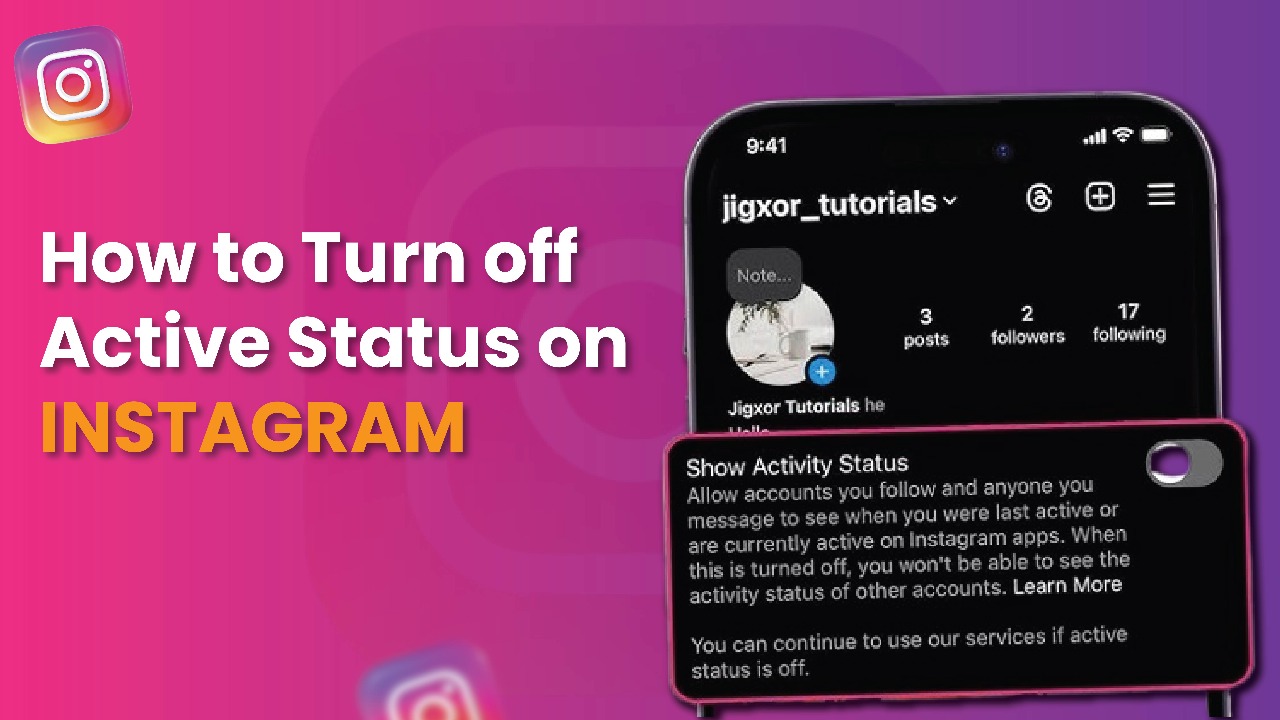
- Step 5: Locate the option labeled “Show Activity Status”. Toggle it off to hide your online presence.
Once this is done, your followers will no longer see when you were last active, and in return, you won’t be able to view their activity either.
How to Turn Off Active Status on Instagram (Desktop)
Disabling Active Status is just as easy when using Instagram on a computer:
- Step 1: Log into Instagram on your desktop browser.
- Step 2: Click on your profile picture in the top-right corner.
- Step 3: Open the menu by selecting the three horizontal lines.
- Step 4: Navigate to Settings → Privacy → Activity Status.
- Step 5: Switch off the “Show Activity Status” option.
And that’s it—you’re all set. With this setting turned off, you can enjoy browsing Instagram with more privacy and without constantly broadcasting your activity to others.
What Does Turning Off Activity Status Mean for Your Instagram Experience?
Once you disable your Activity Status on Instagram, your followers and friends will no longer be able to see when you’re online or when you were last active. This change enhances your privacy, but it also comes with a trade-off. Just as others can’t view your status, you also won’t be able to see theirs. That means no more green dots or “Active Now” notifications next to usernames in your messages.
When you open your Direct Messages, the only information visible will be the conversation itself—your last exchanged messages and any “seen” receipts. The real-time activity indicators will disappear entirely.
If your goal is to prevent only one specific person from monitoring your online status, turning off Activity Status for your whole account might not be the best option. Instead, you can manage interactions with that individual by using features like Restrict, which limits their ability to track your activity without affecting how others see you.
How to Restrict Interactions With a User
If you don’t want to completely turn off your Activity Status but still wish to limit what a specific person can see or do, Instagram’s Restrict feature is the perfect solution. It allows you to quietly control how one account interacts with you without blocking or unfollowing them.
Steps to Restrict a User on Instagram
- Step 1: Open the Instagram profile of the user you want to restrict.
- Step 2: Tap on the “Following” button located near the top of their profile, just above the photo grid.
- Step 3: From the menu that appears, select “Restrict”.
Once you hit the Restrict option, several changes take place automatically:
- The user will no longer see when you are online or when you’ve read their messages.
- Their messages will move to Message Requests instead of your main inbox.
- If they try to tag or mention you, Instagram will notify them that you limit who can do this.
- Comments they leave on your posts will remain hidden until you choose to approve them.
This feature helps maintain your privacy and peace of mind without alerting the other person that you’ve restricted them.
Alternatives to Turning Off Activity Status on Instagram
If you don’t want others to always know when you’re online but still wish to check your friends’ status from time to time, disabling Activity Status entirely might not be the best choice. Instead, Instagram offers several other tools that can help you manage privacy, notifications, and interactions more effectively.
Here are the top alternatives to consider:
Muting Users
Muting is a discreet way to pause updates from certain accounts without unfollowing or blocking them. When you mute someone, their posts, stories, or notes won’t appear in your feed, but they can still see your content and interact with you. Best of all, the muted user will never know about it.
How to mute someone on Instagram:
- Open the Instagram profile you want to mute.
- Tap the “Following” button at the top of their profile.
- From the menu, select “Mute.”
- Toggle on posts, stories, or notes depending on what you’d like to hide.
This option is perfect if you want a temporary break from someone’s updates without causing awkwardness.
Adjusting Instagram Notification Settings
If the main issue is constant alerts rather than visibility, tweaking your notification settings is a great solution. Instagram allows you to customize which notifications you receive—ranging from likes and comments to new followers and message requests.
You can either pause all notifications with a single switch or fine-tune them individually to suit your preferences. This way, you stay in control of your Instagram experience without turning off Activity Status.
Quiet Mode
Quiet Mode is designed for users who want uninterrupted time without completely stepping away from Instagram. Once enabled, it mutes all notifications for a set period of time, which you can customize to fit your schedule.
You’ll even get a reminder before Quiet Mode activates, so you’re always aware of when notifications will pause. This feature is especially useful for work hours, study sessions, or downtime when you don’t want distractions.
Blocking Users
Blocking is the most extreme option and is best reserved for situations where you no longer want any interaction with a specific account. Once blocked, the person won’t be able to find your profile, send you messages, or view your posts.
Steps to block someone on Instagram:
- Open the profile of the person you want to block.
- Tap the three dots in the top-right corner.
- Select “Block.”
This option provides complete control and is ideal if an account is bothering you or if you want to end all forms of communication with someone.
Master Framework Summary
- Understand Activity Status system
- Access privacy settings
- Disable online visibility
- Confirm mutual restriction effect
- Use alternatives like mute or restrict
- Monitor privacy preferences
- Adjust based on usage behavior
- Maintain balanced privacy control
Implementation Checklist
- Open Instagram settings
- Locate Activity Status option
- Disable visibility toggle
- Verify changes on mobile and desktop
- Test DM visibility changes
- Explore Restrict feature if needed
- Adjust notifications if required
- Maintain periodic privacy review
Expert Insight
Turning off Active Status on Instagram is a quick and effective way to take control of your privacy. While the feature helps make conversations more engaging by showing when users are online, not everyone is comfortable with constantly broadcasting their activity. By disabling it, you can scroll, post, and interact without feeling monitored. However, it’s important to remember that this change works both ways—you also won’t be able to see when others are active.
For those who don’t want to completely hide their activity, alternatives like Mute, Quiet Mode, Adjusting Notifications, or Restricting Users offer flexible ways to manage interactions without cutting yourself off entirely. Ultimately, the choice depends on how much visibility and privacy you want on the platform.
Frequently Asked Questions (FAQs)
What happens when I turn off Active Status on Instagram?
When you disable Active Status, others won’t be able to see when you’re online or when you were last active. At the same time, you won’t be able to view the activity status of other users.
Can I hide my activity status from only one person?
No, Instagram doesn’t allow you to turn off Active Status for specific users. However, you can use the Restrict feature to limit interactions with certain accounts without turning off your status for everyone.
Is Quiet Mode the same as turning off Active Status?
No, Quiet Mode only pauses your notifications during a set time frame, while turning off Active Status hides your online visibility from others.
Will someone know if I mute or restrict them?
No, Instagram doesn’t notify users when they’ve been muted or restricted. They’ll still be able to see your profile, but their interactions will be limited or hidden from you.
Can I turn Active Status back on after disabling it?
Yes, you can re-enable the feature at any time. Simply go back to Settings → Privacy → Activity Status and toggle it back on.

