

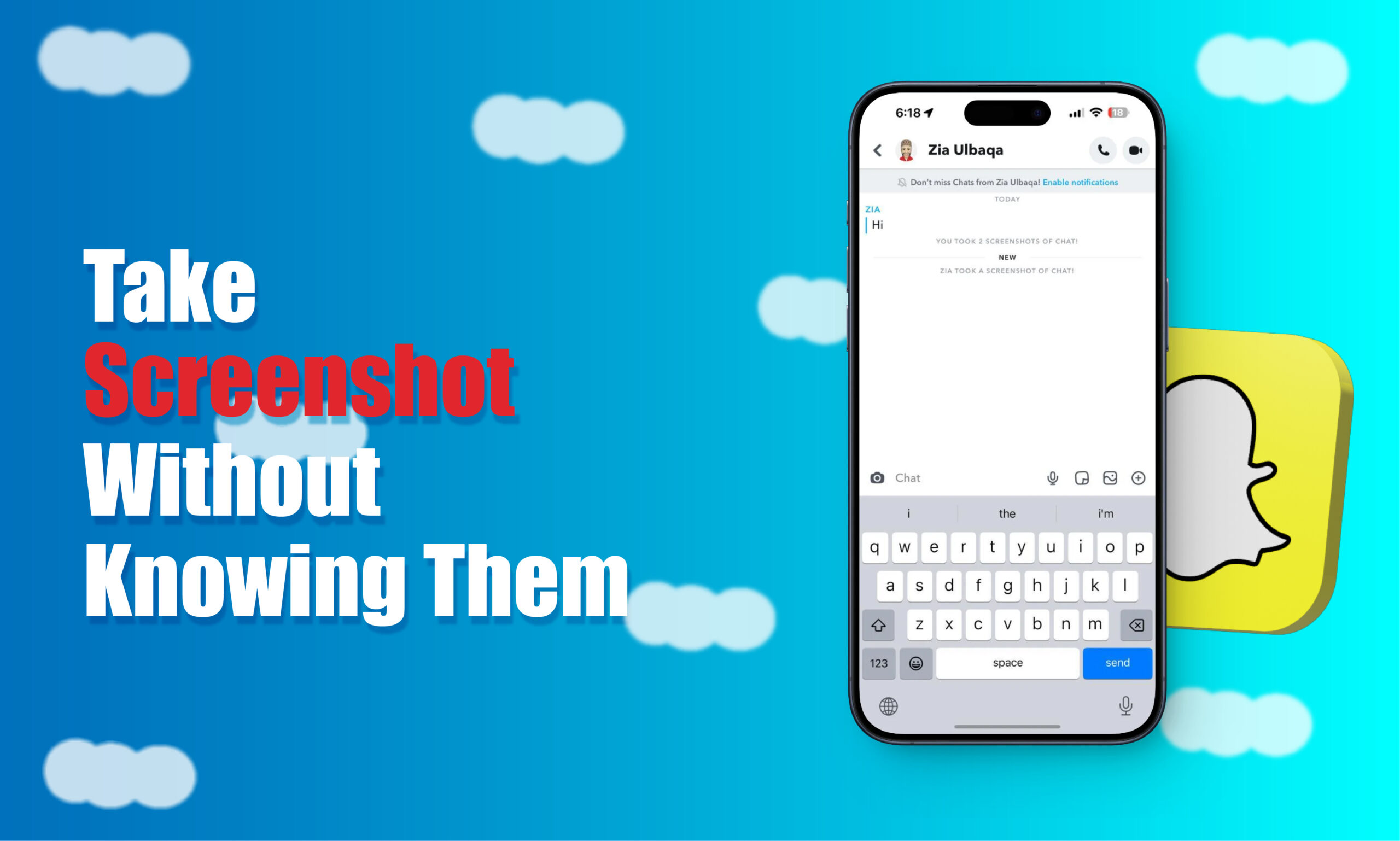
If you mean taking a screenshot of a Snapchat Snap or Chat without the sender being notified, there is no guaranteed, officially supported method that you can rely on in 2027. Snapchat explicitly provides screenshot indicators for Snaps and Chats, and its own safety guidance says people should assume that content can be captured.
If you need to preserve something legitimately, the safer approach is to use Snapchat’s built-in saving features where appropriate, ask the sender for permission, or save information that you own directly to your device. Avoid third-party apps or services that promise “undetectable” screenshots because they can create privacy, security, or account risks.
How Snapchat Screenshot Notifications Work
Snapchat treats screenshots as an important part of its privacy model. When someone captures certain Snapchat content, Snapchat can display a screenshot indicator associated with the relevant Snap or Chat.
Snapchat’s official explanation of Chat icons includes separate screenshot icons for a Snap without audio, a Snap with audio, and a Chat. This means screenshot activity can be represented differently depending on what was captured.
What Happens When You Screenshot a Snap?
A screenshot of a Snap can generate a screenshot indicator visible to the person who sent it.
The exact appearance can depend on the type of content and the current Snapchat interface, but the important point is that Snapchat treats screenshots as detectable activity.
For that reason, you should not assume that a screenshot is completely private simply because you do not immediately see a large push notification on your phone.
What Happens When You Screenshot a Chat?
Snapchat also identifies screenshots of Chats.
The platform’s official icon documentation includes a specific screenshot indicator for Chat messages.
This matters because a person may assume that screenshots are only relevant to disappearing photo or video Snaps. In reality, Snapchat’s screenshot indicators also cover Chat activity.
Does Snapchat Notify Someone About Every Type of Screen Capture?
You should not treat Snapchat’s screenshot behavior as a universal guarantee for every possible capture method.
There is an important distinction between:
- A normal screenshot
- Screen recording
- Capturing the screen with another device
- Saving content through Snapchat’s own features
- Copying information manually
- Viewing Snapchat on another device
Snapchat itself states that people who view Snaps, Chats, and other content can capture and copy it. Its Web guidance specifically reminds users that content can be captured whether they are using the app or desktop.
Therefore, the safest privacy assumption is:
If another person can see your Snapchat content, you should assume they may be able to preserve it.
Can You Screenshot Snapchat Without Notifying the Sender?
There is no guaranteed, officially supported method that Snapchat promises will prevent the sender from knowing that a screenshot was taken.
This is the most important answer for anyone searching for a “secret” screenshot technique.
Why There Is No Reliable Universal Trick
Snapchat controls its own application behavior and can change how screenshots, screen recordings, device events, and other forms of content capture are handled.
A technique that appears to work on one version of Snapchat may stop working after:
- An app update
- An operating-system update
- A device change
- A change in Snapchat’s privacy or detection systems
- A change in how the content is displayed
- A difference between mobile and Web versions
This is why articles promising a permanent “100% undetectable Snapchat screenshot method” are unreliable.
Why Airplane Mode Is Not a Guaranteed Solution
One frequently discussed technique is enabling airplane mode before taking a screenshot. However, it should not be treated as a guaranteed privacy mechanism.
Whether Snapchat has already synchronized relevant information, what the application stores locally, when it reconnects, and how the current app version handles the event can affect the result.
Even if someone does not immediately see a notification, that does not establish that the capture was permanently undetected.
Why Clearing the App Cache Is Not a Guaranteed Solution
Another commonly suggested technique involves clearing Snapchat’s cache after taking a screenshot. This should not be considered a reliable way to erase a screenshot event.
Application data, synchronization, account state, and server-side processing are not necessarily equivalent to a simple local cache file.
Deleting cached data therefore does not provide a dependable guarantee that Snapchat will not register an action.
Why Third-Party Screenshot Apps Are Risky
Third-party applications that claim they can capture Snapchat content without triggering notifications deserve particular caution.
An app asking you to:
- Enter your Snapchat password
- Disable security controls
- Install an unknown profile
- Grant unusual permissions
- Download an unofficial Snapchat client
- Provide authentication codes
should be treated as a potential security risk. A screenshot is not worth compromising your Snapchat account or device.
How to Save Snapchat Content Without Relying on Secret Screenshot Tricks
If the real goal is to preserve information rather than secretly capture someone else’s content, there are safer options.
Ask the Sender to Send It Again
The simplest approach is often the best. If someone sends you an important address, document, image, instruction, or reference, ask them to send it in a format that you can legitimately save.
For example, you could ask:
“Could you send that as a normal photo or message? I need to keep it for later.”
This avoids the uncertainty surrounding screenshot detection.
Use Snapchat’s Built-In Saving Features
Snapchat provides legitimate ways to save certain content.
For example, Snapchat allows Snaps to be saved in Chat in supported situations. Saved Snaps are stored on Snapchat’s servers rather than automatically being placed on your device, and Snapchat says they can later be exported to Camera Roll.
However, saving content can itself be visible to the person who posted it.
Snapchat specifically states that when a Snap is saved in certain Story contexts, the person who posted it can receive a screenshot icon in their read receipts.
So built-in saving is safer from a security perspective, but it is not necessarily a way to save content secretly.
Save Your Own Content to Memories or Camera Roll
If the content belongs to you, there is little reason to use a screenshot workaround. Snapchat provides native options for saving your own Stories and Snaps.
For example, Snapchat allows creators to save Stories to Memories and Camera Roll using the download controls available in the app.
This is the preferred approach for preserving content that you created yourself.
How to Screenshot Your Own Snapchat Content
If you are trying to save your own content, you can avoid the privacy question entirely by using Snapchat’s native saving features.
Save Your Own Story
Snapchat allows you to save your own Story through your profile.
The current process can involve:
- Open your Snapchat profile.
- Find the Story you created.
- Open the Story options.
- Select the available save or download option.
- Choose the appropriate destination when Snapchat provides the option.
Snapchat’s official support documentation confirms that creators can save their own Stories and individual Snaps to Memories or Camera Roll.
Save Your Own Snap
If you have just created a Snap and want a copy on your device, use Snapchat’s save controls rather than taking a screenshot of your own screen.
This generally preserves the original media more cleanly than a screen capture.
Save Your Own Content Before Posting
If you know you will need a permanent copy, save the original photo or video before uploading it to Snapchat.
This gives you:
- Better image quality
- Original resolution
- Easier editing
- No screenshot artifacts
- No dependency on Snapchat’s display interface
- A copy that remains available even if the Story expires
This is particularly useful for creators and businesses.
How to Save Information From a Snapchat Chat
Sometimes the user does not actually need a screenshot. They simply need to preserve information contained in a conversation.
Save the Message in Chat
For information that should remain available within the conversation, use Snapchat’s available Chat-saving functionality.
This is preferable to taking repeated screenshots when the information is text-based.
However, remember that saving messages can have visibility implications depending on the content and current Snapchat behavior.
Copy Text When Available
If the information is ordinary text and Snapchat allows it to be selected or copied, copying the relevant text can be more practical than taking a screenshot.
For example, if someone sends:
- An address
- A phone number
- A date
- A meeting time
- A product name
- A reference number
you may only need the text itself. Copying the information also makes it easier to search, organize, or store elsewhere.
Ask for a More Permanent Format
If a conversation contains important documents, instructions, or business information, ask the sender to send the material through an appropriate permanent channel.
For example, a document can be shared through email or a file-sharing service instead of relying on a disappearing Snap.
Stories create another common screenshot question.
Can Someone Know If You Screenshot a Snapchat Story?
Snapchat’s behavior around Stories can differ from the behavior associated with direct Snaps and Chats.
You should therefore avoid assuming that the absence of an obvious notification means that a Story screenshot is completely invisible.
Snapchat’s broader safety guidance explicitly tells users to be aware that other people can screenshot their Snaps.
Public Stories Require Extra Caution
Public content should be treated differently from private conversations in terms of expectations, but public visibility does not eliminate privacy concerns.
A person can still capture, copy, or redistribute content.
Snapchat’s Story privacy controls allow users to determine who can view certain Stories. Current settings can include options such as Friends or Custom, while public Stories can be visible more broadly.
Private Stories Are Not Screenshot-Proof
A Private Story limits who can view it, but it does not technically prevent viewers from preserving what they see.
Snapchat explicitly warns that people who can view Private Stories can screenshot or screen record them.
This is an important distinction:
Private visibility reduces the audience; it does not guarantee that viewers cannot save the content.
Can You Screenshot Snapchat on a Computer?
Snapchat is also available through the Web, and screenshot behavior should not be assumed to be identical to every mobile workflow.
Snapchat’s official Web guidance states that people who view Snaps, Chats, and other content can capture and copy it on both the app and desktop.
Why Desktop Does Not Guarantee Privacy
A computer provides more ways to capture information, including operating-system screenshot tools and external recording methods.
However, that does not mean the content is guaranteed to be captured without detection. The important privacy principle remains the same:
Do not treat another device or platform as a guaranteed way to avoid Snapchat’s detection or the sender’s awareness.
When Desktop Saving Makes Sense
Desktop workflows can be useful when:
- You are saving your own content.
- You need to organize information.
- You are working with business content.
- You need to copy ordinary text.
- You are reviewing content for legitimate purposes.
For private content belonging to someone else, asking for permission is still the safest approach.
iPhone vs. Android: Does the Method Change?
The physical screenshot process differs between iPhone and Android devices, but that does not mean one operating system provides a guaranteed invisible Snapchat screenshot method.
iPhone Screenshot Behavior
On an iPhone, the normal system screenshot function is integrated into iOS.
However, using the standard screenshot function does not create a guarantee that Snapchat cannot identify the capture.
The relevant issue is not simply which buttons are pressed. It is how the Snapchat app handles screenshot events.
Android Screenshot Behavior
Android devices also have system-level screenshot functionality.
The exact button combination can differ between manufacturers and Android versions.
Again, using a different device or button combination should not be confused with disabling Snapchat’s own screenshot awareness.
Why Device-Specific Tricks Become Outdated
A technique may work differently across:
- iOS versions
- Android versions
- Samsung devices
- Google Pixel devices
- Other Android manufacturers
- Snapchat app versions
- Snapchat Web
For this reason, claims that a particular phone model is permanently “safe” from Snapchat screenshot notifications should be treated skeptically.
What Are the Risks of Trying to Screenshot Snapchat Secretly?
The biggest risk is not necessarily the screenshot itself.
Privacy Risk
If someone sends you private content, capturing it without their knowledge can create a privacy conflict.
The content might contain:
- Personal conversations
- Private photographs
- Sensitive information
- Location information
- Business information
- Personal identifiers
Even if a technical method exists, the ethical and practical consequences can remain.
Account Security Risk
Third-party tools may request login credentials or account permissions.
This can expose your account to:
- Credential theft
- Phishing
- Malware
- Account takeover
- Unauthorized access
Device Security Risk
Unknown applications can potentially introduce malicious software or request permissions unrelated to their stated purpose.
A tool advertised as a “Snapchat screenshot bypass” should therefore be treated as untrusted unless you can independently establish its legitimacy.
Account Restriction Risk
Unofficial Snapchat clients, automation tools, modified applications, or other methods that interact with Snapchat outside normal supported functionality can potentially create account or security issues.
The safest approach is to use the official application and supported features.
Common Snapchat Screenshot Myths
A large amount of conflicting advice exists online. Understanding the common myths makes it easier to separate reliable information from outdated tricks.
Myth 1 — Airplane Mode Always Prevents Notifications
Airplane Mode is frequently presented as a universal solution. It is not a guarantee.
The app’s local state, synchronization, reconnection behavior, and current version can affect what happens.
Therefore, you should not use Airplane Mode as proof that the sender cannot find out.
Myth 2 — Clearing Snapchat’s Cache Erases the Screenshot
Clearing local cache does not mean that every event associated with your account has been erased.
Local application storage and Snapchat’s broader account and service infrastructure are different things.
Myth 3 — Using a Screen Recorder Is Always Invisible
Screen recording should not automatically be treated as a silent alternative.
Snapchat’s own guidance warns that content can be captured, and its privacy model is designed around the fact that viewers can preserve content.
Myth 4 — Snapchat Cannot Detect External Cameras
An external camera may not be the same type of software event as an in-app screenshot, but that does not make it a privacy-safe solution.
The person can still potentially discover or infer what happened, and you are still preserving their content without necessarily having permission.
Myth 5 — Private Stories Cannot Be Saved
This is incorrect.
Snapchat explicitly states that viewers of Private Stories can screenshot or screen record content.
Myth 6 — Disappearing Means Impossible to Save
Disappearing content is designed to expire under Snapchat’s rules, but Snapchat itself warns that recipients can capture content before it disappears.
What Should You Do If You Accidentally Screenshot a Snapchat?
Accidents happen.
You may press the wrong buttons, take a screenshot while troubleshooting, or capture something unintentionally.
Do Not Panic
An accidental screenshot does not automatically create a major problem.
First determine what was captured and whether Snapchat displays a screenshot indicator.
Be Honest If It Matters
If the content was sensitive and the sender may reasonably be concerned, explaining that the screenshot was accidental can be better than pretending it never happened.
Delete the Screenshot if You Do Not Need It
If you captured something accidentally and do not need it, remove the screenshot from your device.
Remember to check your device’s recently deleted or trash folder if the content is particularly sensitive.
Do Not Redistribute the Content
The most serious problem is often not that a screenshot exists, but that it gets shared with other people.
Do not forward private material without considering the sender’s privacy and the context in which it was shared.
How to Protect Your Own Snapchat Content From Screenshots
The same question can be approached from the other side: instead of asking how to screenshot secretly, what can you do if you do not want someone else preserving your content?
Share Only What You Are Comfortable Losing Control Of
Snapchat’s own safety guidance recommends thinking before sharing because other people can capture Snaps.
This is especially important for:
- Private photographs
- Sensitive conversations
- Personal documents
- Location information
- Financial details
- Passwords
- Verification codes
- Identity documents
Use Story Privacy Controls
Snapchat provides privacy settings that let you control who can view your Story.
Current settings can include Friends or Custom, while public Stories are intended for broader visibility.
Limiting the audience does not prevent screenshots, but it reduces who can access the content.
Use Private Stories Carefully
Private Stories are useful when you want to restrict your audience.
However, Snapchat explicitly says viewers can still screenshot or screen record Private Story content.
Therefore, Private Story should mean:
“Only these people can view it,”
not:
“Only these people can ever possess a copy.”
Avoid Sending Sensitive Credentials
Never send passwords, one-time authentication codes, recovery codes, or similar security credentials through Snapchat.
Even if screenshot detection works correctly, you should not depend on it as a security control.
How to Decide Whether You Should Screenshot Something
A simple decision framework can help.
If the Content Is Yours
Use Snapchat’s built-in saving tools or save the original file directly.
If the Content Is Public
Consider whether you genuinely need a screenshot and whether the content has usage or privacy restrictions.
If the Content Is Private
Ask the sender or use an available saving method that is transparent to them.
If the Content Contains Sensitive Information
Avoid saving it unless there is a legitimate reason.
If the Content Is Needed as Evidence
Preserve it responsibly and avoid unnecessary distribution. If the matter involves harassment, threats, fraud, or another serious issue, keep relevant evidence in a secure location and consider the appropriate reporting or legal channel.
This approach is more reliable than searching for a technical trick that may stop working after the next Snapchat update.
Troubleshooting Snapchat Screenshot Questions
Snapchat Says a Screenshot Was Taken, But I Did Not Mean to Take One
Check whether you accidentally pressed your device’s screenshot shortcut.
Also consider whether another authorized device or person using your account had access.
If the screenshot relates to sensitive content, handle the situation honestly and avoid sharing the captured material.
I Took a Screenshot and No Notification Appeared
Do not conclude that the screenshot is permanently invisible.
The absence of an immediate visible notification does not establish how Snapchat recorded or processed the event.
Interface behavior can change between versions.
Someone Says I Took a Screenshot but I Did Not
Review whether another device is signed into your account.
Also consider whether someone else had access to your phone.
Change your password and review account security if you suspect unauthorized account access.
Snapchat Screenshot Notifications Are Not Working
If you are testing your own account or trying to understand the feature, remember that Snapchat’s notification and icon behavior can differ according to content type and current app version.
Snapchat’s official icon documentation confirms screenshot indicators for Snaps and Chats.
I Want to Save a Snap for Later
If Snapchat provides a built-in save option, use that rather than searching for a hidden screenshot method.
For content you created yourself, save the original to Memories or Camera Roll.
I Want to Preserve a Chat
If the information is text, use available Chat-saving or copying functionality where appropriate.
For important information, ask the sender to provide it in a permanent format.
Expert Insights for Snapchat Privacy
The most useful way to understand Snapchat screenshot behavior is to stop thinking of screenshots as a purely technical problem.
There are three separate questions:
- Can the device capture the screen?
- Can Snapchat identify the capture?
- Should the content be captured in the first place?
The first question is generally easy. Modern smartphones and computers provide multiple ways to preserve displayed content.
The second question is controlled partly by Snapchat’s application behavior and can change with software updates.
The third question depends on privacy, context, consent, and the sensitivity of the content.
This is why a responsible guide should not promise a permanent “secret screenshot” technique.
Snapchat itself emphasizes that viewers can capture and copy content. Its Web support documentation explicitly warns users that content can be captured from the app or desktop, while its safety guidance tells users to think carefully before sharing something they would not want saved or shared.
The practical rule is therefore:
If something would cause a serious problem if the sender knew you saved it, treat it as something you should not capture without permission.
That principle remains useful even when Snapchat changes its software.
Frequently Asked Questions
Does Snapchat notify someone when you screenshot a Snap?
Snapchat provides screenshot indicators for Snaps, including separate indicators for Snaps with and without audio.
Does Snapchat notify someone when you screenshot a Chat?
Snapchat’s official Chat icon documentation includes a screenshot indicator for Chat screenshots.
Can you screenshot Snapchat without the sender knowing?
There is no guaranteed, officially supported method that promises to prevent the sender from being aware of a screenshot. Snapchat’s behavior can change with app and platform updates.
Does Airplane Mode stop Snapchat screenshot notifications?
Airplane Mode should not be treated as a guaranteed method for preventing Snapchat from registering or communicating screenshot activity. App synchronization and behavior can vary.
Does clearing Snapchat cache remove a screenshot notification?
Clearing local cache should not be treated as a guaranteed way to erase an account-level or service-level event. Local cache and Snapchat’s broader systems are not the same thing.
Does screen recording notify Snapchat?
You should not assume that screen recording is always invisible. Snapchat warns that content can be captured, and its privacy documentation emphasizes that users should not assume disappearing content cannot be preserved.
Can someone screenshot a Private Story?
Yes. Snapchat explicitly says that people who can view a Private Story can screenshot or screen record it.
Can Snapchat content be captured on a computer?
Yes. Snapchat’s official Web guidance states that people viewing Snaps, Chats, and other content can capture and copy it on desktop as well as in the app.
Can I save my own Snapchat Story?
Yes. Snapchat provides options for creators to save their own Stories and individual Snaps to Memories and Camera Roll.
Is there a safe third-party app that removes Snapchat screenshot notifications?
You should be cautious with any third-party service claiming to guarantee invisible Snapchat screenshots. Such tools may request sensitive credentials, use unsupported Snapchat clients, or introduce security risks.
Read More
Conclusion
The search for a way to screenshot Snapchat without notifying the sender often assumes there is a permanent technical trick. In practice, that is not a safe assumption. Snapchat officially documents screenshot indicators for Snaps and Chats, and its privacy guidance makes clear that people who can view content may capture it.
If your objective is to save something legitimately, use Snapchat’s built-in saving functionality when available, save your own original content directly, copy ordinary information where appropriate, or ask the sender to provide a version you can keep.
If your concern is privacy, remember that disappearing content is not the same as content that cannot be preserved. Private Stories restrict the audience, but Snapchat explicitly acknowledges that viewers can still screenshot or screen record them.
The safest rule for both sides is simple:
Do not share anything through Snapchat that you would be seriously uncomfortable having saved or shared by another viewer.
For users who need to preserve information, choose a transparent and secure saving method rather than relying on a screenshot workaround that may stop working after an app update.