

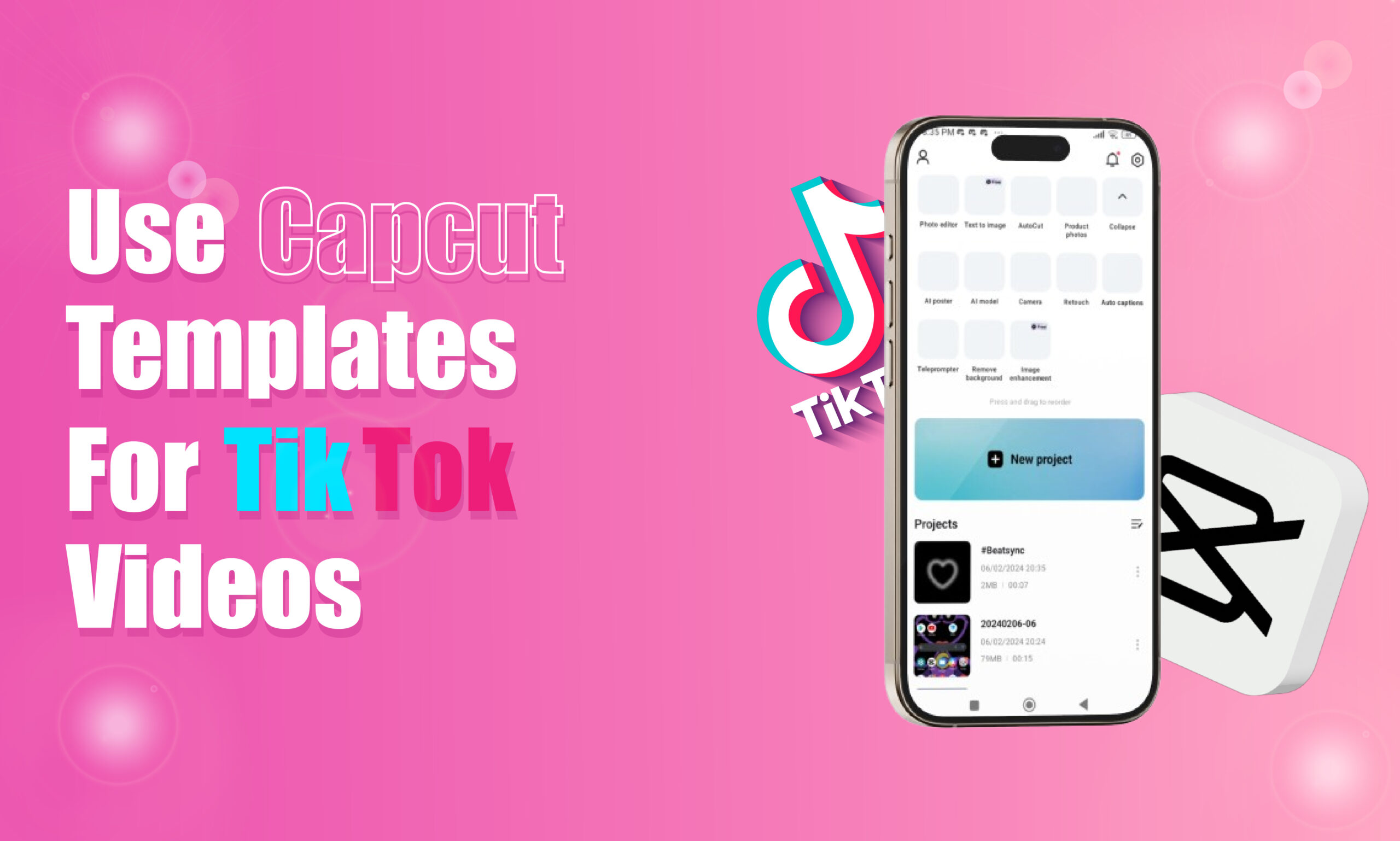
To use a CapCut template for a TikTok video, open a template from CapCut or TikTok, tap Use template in CapCut, select the photos or video clips you want to use, preview the automatically edited result, make any available adjustments, and export the finished video. You can then upload the video to TikTok, add your caption and settings, and publish it. Template availability, buttons, and editing options can vary by device, region, app version, and account.
CapCut templates make it easier to create TikTok videos without building every transition, effect, timing sequence, and text animation manually. A template provides a pre-designed editing structure that you can adapt by replacing its media with your own photos or video clips.
This guide explains how CapCut templates work, how to find and use them for TikTok, how to replace template clips, how to adjust the finished video, and what to do when a template does not work as expected. It also covers common mistakes, export considerations, and practical ways to make template-based TikToks feel more original.
What Are CapCut Templates?
CapCut templates are pre-designed video editing projects that contain elements such as transitions, effects, timing, animations, text styles, filters, and music or audio synchronization. Instead of creating these elements manually, you provide your own media and CapCut applies the template’s editing structure.
A template can be particularly useful when you want to create a TikTok quickly while maintaining a specific visual style. For example, a template may turn several ordinary photos into a fast-paced slideshow with transitions synchronized to a selected sound.
CapCut and TikTok are separate products, but they can work together as part of a short-form video workflow. A template may be discovered inside CapCut itself or through content on TikTok that points users toward a corresponding CapCut template.
How CapCut Templates Work
A typical template contains a predefined sequence with a certain number of media placeholders. When you select your own clips, CapCut maps those clips into the template.
The basic process is:
- Find a suitable CapCut template.
- Open the template.
- Select your photos or video clips.
- Let CapCut apply the template.
- Review the generated video.
- Make available edits or adjustments.
- Export the video.
- Upload it to TikTok.
The exact interface may change as CapCut releases new versions, so the wording or location of buttons can differ from the steps shown in older tutorials.
Why Use CapCut Templates for TikTok Videos?
CapCut templates can reduce the amount of manual editing required to produce a short-form video. They are especially useful when the creator wants a particular transition style, pacing pattern, or visual effect without designing the entire sequence from scratch.
Faster Video Creation
A template can handle repetitive editing tasks such as clip timing, transitions, and effects. This can be useful when you need to produce several videos using a similar format.
Easier Editing for Beginners
You do not need advanced knowledge of keyframes, masking, transitions, or timing to start with many templates. The template provides the basic structure, while you supply the content.
Consistent Visual Style
Using a similar editing structure across related videos can make a series feel more consistent. This can be useful for creators producing recurring formats, tutorials, product demonstrations, or themed content.
Trend-Based Editing
Some templates are designed around editing styles that are popular on short-form video platforms. Using a template can therefore make it easier to experiment with current editing patterns without recreating them manually.
What You Need Before Using a CapCut Template
Before starting, make sure you have the basic requirements needed for the workflow.
Required Items
- A compatible smartphone or supported device.
- The latest available version of CapCut where possible.
- A TikTok account if you plan to publish the finished video.
- Photos or video clips that match the template.
- Enough device storage for temporary editing and exported files.
- A stable internet connection when downloading templates or other online assets.
If a template requires a particular number or type of clips, choose your media before starting. This reduces the chance of creating an awkward sequence that requires extensive replacement later.
How To Find CapCut Templates for TikTok
There are several ways to discover templates, depending on what is available in your region and app version.
Find Templates Inside CapCut
Open CapCut and look for the Templates area. Browse through the available categories, recommendations, or trending options.
You can usually look for templates based on the style of video you want to create. For example, you might search for:
- Photo slideshow templates
- Travel templates
- Birthday templates
- Before-and-after templates
- Fashion templates
- Product showcase templates
- Beat-synced templates
- Transition templates
- Storytelling templates
Choose a template that fits your media rather than choosing one only because it is popular.
Find a Template Through TikTok
Some TikTok videos use or promote a CapCut template. Depending on the video and current platform features, you may see an option associated with CapCut that allows you to open the corresponding template.
If the option is available, select it and follow the prompt to continue in CapCut.
The availability of this workflow can vary by region, device, application version, and the particular TikTok video.
Choose a Template Based on Your Content
Before selecting a template, check how many clips it expects and what type of media works best.
For example, a template containing rapid transitions may work better with short action clips than with long, static recordings. A photo montage may require several portrait-oriented images with relatively similar framing.
Matching the template to your footage usually produces a cleaner result than trying to force unrelated media into a preset sequence.
How To Use CapCut Templates for TikTok Videos
Once you have selected a template, you can begin replacing its placeholders with your own content.
Step 1 — Open CapCut
Launch CapCut on your device and sign in if the application requires an account for the feature you are using.
From the main interface, open the Templates section or access the template through the supported TikTok workflow.
The exact navigation can change between CapCut versions, so look for the template-related option rather than relying on an exact button position from an older tutorial.
Step 2 — Select a Template
Browse the available templates and select the one that matches your intended TikTok.
Pay attention to:
- Number of required clips
- Video orientation
- Editing speed
- Transition style
- Text placement
- Music or audio
- Effects
- Overall duration
Preview the template when that option is available.
The goal is to determine whether your content can naturally fit the template before you spend time selecting and importing media.
Step 3 — Tap the Template Usage Option
After selecting a template, look for the option that allows you to use it with your own media. Depending on the interface, this may appear as Use template, Use template in CapCut, or similar wording.
Select the option and allow CapCut to open the template editing workflow.
Step 4 — Select Your Photos or Videos
CapCut will normally show media placeholders corresponding to the template.
Select the photos or video clips you want to use.
If the template requires five clips, for example, you may need to select five suitable pieces of media. Some templates may allow different numbers or types of media.
Choose content that matches the pacing of the template.
A close-up portrait may work well in one placeholder, while a wide establishing shot may work better in another. Even when CapCut handles the technical timing automatically, your media selection still affects the final quality.
Step 5 — Confirm Your Media Selection
After selecting the required media, confirm the selection so CapCut can generate the template-based video.
The application will generally apply the template’s predefined structure to your chosen content.
Depending on the template, CapCut may automatically apply:
- Transitions
- Effects
- Timing
- Animations
- Filters
- Text
- Audio synchronization
- Cropping
- Other visual adjustments
Wait for the preview to finish processing before evaluating the result.
Step 6 — Review the Generated Video
Watch the entire video from beginning to end.
Do not immediately export it simply because the template has been applied.
Check whether:
- The important parts of your clips are visible.
- Faces are not accidentally cropped.
- Text remains readable.
- Transitions occur at sensible moments.
- The video matches the intended TikTok format.
- The opening seconds are visually clear.
- The ending does not feel abruptly cut off.
- The selected media tells a coherent story.
A template can technically work while still producing a poor result if the source media does not fit its structure.
Step 7 — Replace Any Unsuitable Clips
If a particular clip does not work, use the available replacement or editing controls to substitute another photo or video.
For example, if a template zooms into the center of an image but the subject is positioned near the edge, the result may crop the subject incorrectly. Replacing the image with one that has better composition can solve the problem.
Step 8 — Make Available Edits
Depending on the template, CapCut may allow you to modify certain elements after the template has been applied.
Possible adjustments may include:
- Replacing media
- Editing text
- Adjusting clip positioning
- Changing some effects
- Trimming media
- Modifying available settings
- Adding additional edits after the template is generated
Not every template allows the same degree of customization. If an element is locked by the template, you may not be able to change it directly.
Step 9 — Check the Audio
Pay attention to the audio before exporting.
A template may contain music or sound associated with the original editing format. If you intend to publish the video on TikTok, consider whether the audio is appropriate for your intended post and whether you have the necessary rights or platform permission to use it.
Music availability and licensing can vary by country, account type, platform, and use case.
For commercial content, do not assume that an audio track is cleared for every type of use simply because it appears in a template.
Step 10 — Export the Video
When the video looks correct, use CapCut’s export option.
Review the available export settings and choose settings appropriate for your intended TikTok upload.
For most vertical TikTok content, maintaining a vertical aspect ratio and good image quality is important. Avoid unnecessary compression when the original footage is high quality.
After export, locate the finished file in your device’s gallery or media library.
Step 11 — Upload the Video to TikTok
Open TikTok and start the upload process. Select the exported video from your device and review it again inside TikTok.
Add the elements appropriate to your post, such as:
- Caption
- Relevant hashtags
- Cover selection
- Mentions
- Privacy settings
- Other available posting options
Preview the post before publishing.
Step 12 — Publish or Save the Video
If everything looks correct, publish the TikTok.
If you are not ready to publish, save the video according to your preferred workflow.
If the video is intended for a business, affiliate, or promotional account, check the applicable disclosure, advertising, copyright, and platform requirements before publishing.
How To Make CapCut Template Videos More Original
Using a template does not mean your final TikTok has to look identical to every other video using it.
Use Your Own Footage
Original footage is one of the simplest ways to differentiate a template-based video.
Instead of using generic stock images or repeatedly used clips, incorporate footage that directly relates to your experience, product, location, tutorial, or story.
Change the Story
A template controls editing structure, but your content can communicate a different idea.
For example, a transition template could be used for:
- A product transformation
- A travel sequence
- A tutorial
- A before-and-after demonstration
- A day-in-the-life video
- A business presentation
The same template can therefore support very different narratives.
Customize Text Where Available
If the template permits text editing, replace generic wording with concise information relevant to your audience.
Avoid filling every available text field with unnecessary words. Short text that reinforces the video’s central idea is generally easier to understand on a mobile screen.
Select Better Opening Footage
The first part of the video deserves particular attention.
If the template allows you to choose which clip appears first, use a visually clear opening that immediately communicates what the viewer is about to see.
A strong template cannot compensate for an unclear or irrelevant opening.
How To Choose the Right CapCut Template
Choosing the right template is often more important than choosing the most popular template.
Match the Template to the Number of Clips
If you only have three suitable photos, avoid a template designed around twelve rapid images unless you have additional relevant content.
Trying to fill placeholders with unrelated media can make the final video feel forced.
Match the Template to Your Video Purpose
Consider what you want the viewer to understand.
For a tutorial, a fast montage may be less useful than a template that leaves enough time for explanatory text. For a visual transformation, a transition-focused template may be more appropriate.
Check the Editing Pace
A fast template may work for energetic content but may make detailed information difficult to follow.
If viewers need to read text or understand a demonstration, choose a structure that gives each important visual enough time.
Consider Your Brand Style
For business or creator accounts, repeatedly using unrelated visual styles can make the content feel inconsistent.
Where possible, select templates that complement your normal fonts, colors, imagery, and tone.
CapCut Template Not Working? Common Fixes
Sometimes the template option does not appear, the template fails to load, or the final video does not behave as expected.
Template Option Is Missing
Possible causes include:
- The feature is unavailable in your region.
- CapCut or TikTok is outdated.
- The particular template is no longer available.
- The template is restricted to certain accounts or devices.
- The link or source video is no longer connected to the template.
Update the relevant applications and try opening another template.
If other templates work normally, the problem may be specific to the original template.
“Use Template” Does Not Appear
Not every TikTok video necessarily provides the same CapCut template functionality.
Try accessing templates directly through CapCut. If the feature is unavailable there as well, check whether your application version and region support it.
CapCut Template Will Not Load
A template may fail to load because of connectivity problems, temporary service issues, application problems, or template availability.
Try:
- Checking your internet connection.
- Closing and reopening CapCut.
- Updating CapCut.
- Trying another template.
- Restarting your device.
If only one template fails while other templates work, the issue may be associated with that particular template.
Your Photos Look Cropped Incorrectly
Templates often apply predetermined framing or movement.
If the important part of an image is outside the template’s visible area, replace it with a better-composed image or adjust the positioning when the template allows it.
For future projects, choose media with enough surrounding space to accommodate automated cropping.
The Video Looks Blurry
Blurry output can result from low-resolution source footage, aggressive compression, or export settings.
Start with high-quality original media and avoid repeatedly exporting and re-importing the same file.
The Music Is Missing
Audio can behave differently depending on the template, application, platform, region, and account.
Check whether the audio was included in the exported file and whether TikTok changes or removes it after upload.
If you are publishing commercial content, also check whether the audio is appropriate for your intended use.
The Template Requires More Clips Than You Have
Choose a different template or collect enough relevant footage to complete the existing one.
Do not fill missing slots with unrelated material simply to satisfy the required number of clips.
Common Mistakes When Using CapCut Templates
Choosing a Template Only Because It Is Trending
A trending template is not automatically suitable for your content.
The template should support the purpose of the video rather than determine the entire creative direction.
Using Low-Quality Source Media
A template cannot create detail that does not exist in the original footage.
Start with the highest-quality source media available and avoid unnecessary compression.
Ignoring the First Few Seconds
The beginning establishes what the video is about.
If the opening clip is visually confusing or unrelated to the topic, the template’s transitions will not solve the underlying problem.
Leaving Generic Text Unchanged
If the template includes text that refers to the original creator’s situation, replacing the media without changing relevant text can make your video appear unfinished.
Review every editable text element before export.
Overusing the Same Template
Repeatedly publishing nearly identical videos can make a profile feel repetitive.
Templates are useful production tools, but original ideas, footage, commentary, and presentation can provide more meaningful differentiation.
Forgetting to Review the Export
Always watch the complete exported video before publishing.
Small problems such as incorrect cropping, missing audio, unreadable text, or an awkward final frame can become obvious only after export.
How To Use CapCut Templates Without Losing Your Content Style
Templates are most useful when they support your content strategy rather than replace it.
Build Repeatable Content Formats
If you create content regularly, identify several template styles that fit your niche. For example, a creator might use one format for tutorials, another for product demonstrations, and another for visual storytelling.
This creates production consistency without requiring every video to have exactly the same appearance.
Combine Templates With Original Editing
You do not have to treat a template as the entire editing process. You can use the template for the initial structure and then add your own editing where the application allows it.
This can include additional text, voice-over, footage, captions, or other appropriate elements.
Prioritize Information Over Effects
Effects should support the message.
If a transition makes important information difficult to read, the transition is working against the purpose of the video. A simpler edit can sometimes communicate the same idea more clearly.
How To Verify Your TikTok Video Is Ready
Before publishing, run through a final quality check.
Content Check
Confirm that the video:
- Uses the correct photos or clips.
- Shows the intended subject clearly.
- Has a logical sequence.
- Contains accurate text.
- Does not include accidental private information.
Technical Check
Confirm that:
- The video is vertical when appropriate.
- The resolution is sufficient.
- Important text is readable.
- Audio works correctly.
- The final frame looks intentional.
- There are no unexpected black bars or cropping problems.
TikTok Check
Upload the video as a preview before publishing when possible.
Check how the video appears within TikTok’s interface and make sure important visual elements are not hidden by interface elements such as captions, buttons, or other overlays.
Expert Tips for Better CapCut Template Videos
Select Media Before Selecting the Template
Instead of browsing endlessly through templates, first identify what you actually have.
If you have eight strong vertical clips, search for templates that use a similar number of clips and pacing.
This reverses the usual workflow and can make template selection more efficient.
Keep Important Subjects Away From the Edges
Automated effects and transitions may crop or reposition media.
Keeping important faces, products, and text away from extreme edges gives the template more room to work.
Keep Text Short
Mobile viewers often see TikTok videos on relatively small screens.
Short, readable phrases generally work better than large blocks of text placed inside a fast-moving template.
Watch the Video With Sound Off
A useful accessibility and quality check is to watch the finished video without audio.
Ask whether the viewer can still understand the basic context through visuals and text.
If the video’s meaning disappears completely without sound, consider whether captions or other visual context would improve it.
Watch It Once as a Viewer
After editing, stop thinking about the individual clips and watch the finished video from beginning to end.
Look for moments where the pacing feels confusing, repetitive, too fast, or disconnected.
This viewer-focused review can reveal problems that are easy to overlook while editing.
CapCut Templates vs Manual TikTok Editing
CapCut templates and manual editing serve different purposes.
| Feature | CapCut Templates | Manual Editing |
|---|---|---|
| Setup time | Usually faster | Usually slower |
| Beginner friendly | High | Depends on experience |
| Creative control | Template-dependent | Generally greater |
| Consistency | High | Depends on workflow |
| Customization | Varies by template | Extensive |
| Repeated formats | Useful | Useful with a saved workflow |
| Original editing | Limited by template structure | Broad creative control |
Templates are therefore not necessarily a replacement for manual editing. They are another production method that can be useful for particular types of short-form content.
Implementation Checklist
Before Starting
- Choose the purpose of the TikTok.
- Select suitable photos or video clips.
- Check how many media files the template requires.
- Confirm that CapCut is updated.
- Choose a template that fits your content.
During Editing
- Replace every required media placeholder.
- Check cropping and positioning.
- Review editable text.
- Check the pacing.
- Review audio.
- Add appropriate original elements where available.
Before Publishing
- Watch the complete exported video.
- Check image quality.
- Check text readability.
- Confirm audio behavior.
- Review the TikTok preview.
- Check privacy and publishing settings.
- Confirm that your content and audio comply with applicable rights and platform rules.
Frequently Asked Questions
Can I use CapCut templates for TikTok?
Yes. CapCut templates can be used to create short-form videos that you can subsequently upload to TikTok. The available workflow and template functionality can vary by device, region, application version, and account.
How do I find CapCut templates for TikTok?
You can browse templates within CapCut or access supported template options from TikTok content when a corresponding CapCut template is available. Searching directly in CapCut is useful when you already know the type of video you want to create.
Do CapCut templates automatically edit my videos?
Many templates automatically apply a predefined editing structure to the photos or videos you select. The exact effects, transitions, timing, text, and customization options depend on the individual template.
Why can I not see the CapCut template option on TikTok?
The option may be unavailable because of regional restrictions, application versions, template availability, account differences, or the specific TikTok video. Updating the relevant apps and trying another template can help determine whether the problem is temporary or template-specific.
Can I customize a CapCut template?
Customization depends on the template. Many templates allow you to replace media, and some provide additional editing options, while other elements may remain fixed.
Can I use CapCut templates for commercial TikTok videos?
You should check the applicable terms, copyright permissions, music licensing, and commercial-use restrictions for the particular assets and audio involved. The fact that an asset is available inside an editing application does not automatically mean that every use is permitted.
Why does my CapCut template video look different from the preview?
The result depends on the media you provide. Different aspect ratios, framing, lighting, clip lengths, and subject positions can produce different visual results even when the same template is used.
Do CapCut templates make TikTok videos go viral?
No template can guarantee viral reach. Templates can simplify editing and help creators experiment with particular visual formats, but performance depends on many factors, including the content itself, audience relevance, viewer behavior, presentation, and current platform conditions.
Read More
Final Takeaway
CapCut templates provide a convenient way to create TikTok videos without manually building every transition, effect, and timing sequence. The basic workflow is straightforward: choose a suitable template, replace its media placeholders with your own content, review the generated video, customize what the template allows, export it, and check the final result before publishing to TikTok.
The most effective workflow is to treat the template as an editing framework rather than the entire creative idea. Choose media that naturally fits the template, replace generic elements where possible, check audio and licensing considerations, and review the exported video carefully before publishing.

