

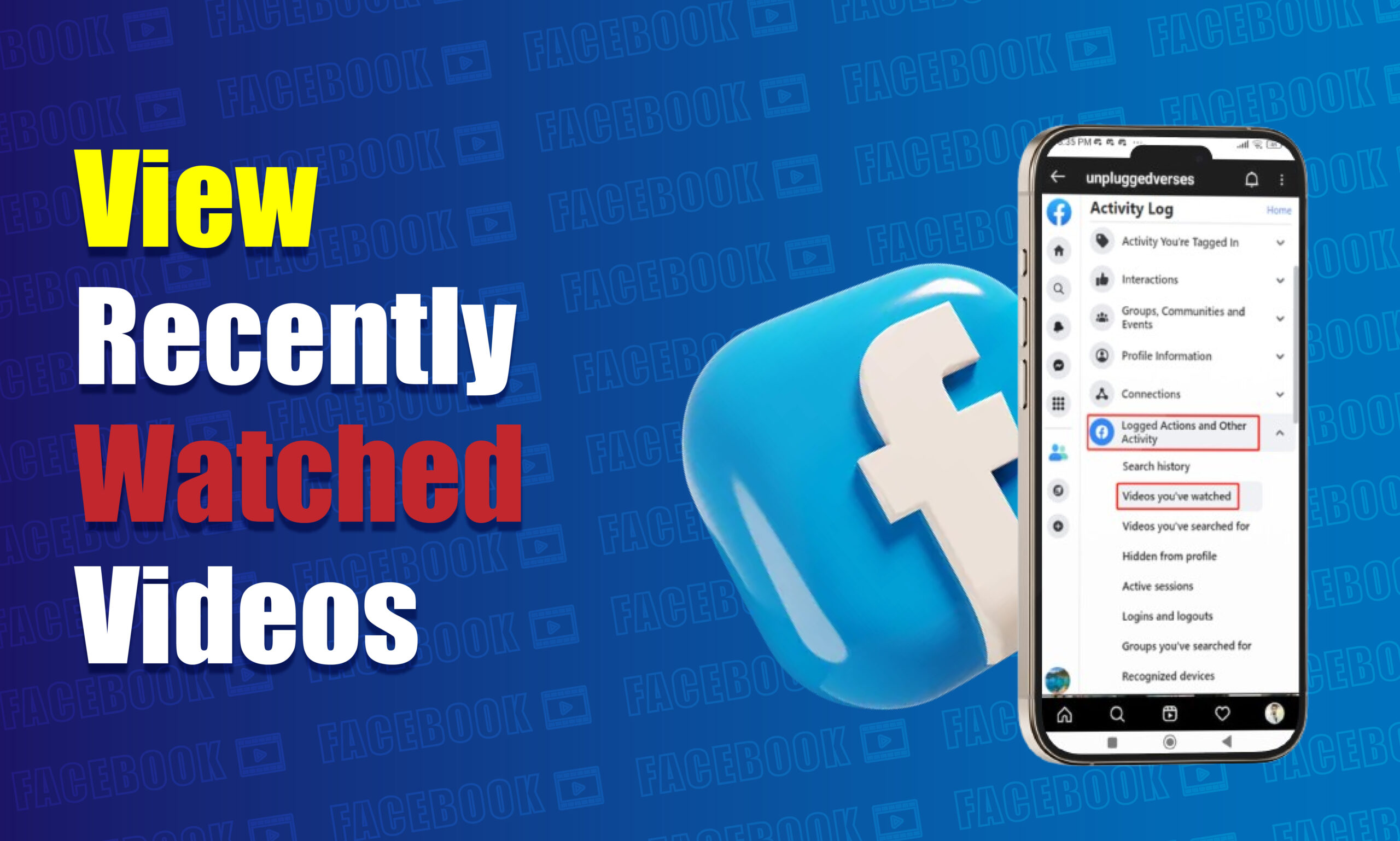
You can usually find videos you recently watched on Facebook through your Activity Log, where Facebook provides activity-related controls that can include video interactions and watch activity depending on the current account interface. On the Facebook mobile app, open your profile, go to Settings & privacy → Activity Log, and look for video-related activity or Videos you’ve watched if that option is available. On desktop, open your Facebook profile and access Activity Log, then use the available filters to locate video activity.
Facebook frequently changes the names and locations of settings, so the exact menu may look different on Android, iPhone, and desktop. If your watch history is not available, you can also check Saved, Liked, Search History, notifications, or the original creator’s profile.
This guide explains the practical ways to find recently watched Facebook videos on Android, iPhone, and desktop, including what to check when the normal watch-history option is missing.
What Is Facebook Watch History?
Facebook watch history refers to information associated with videos you have watched on Facebook. It is different from your Facebook search history, which records searches you perform, and different from Saved items, which contain content you deliberately save for later.
A video you watched does not necessarily appear in your Saved items. Likewise, searching for a video does not mean that the video itself will appear in your search history.
Facebook’s interface has changed over time, so the location and wording of video-history controls can vary. You may see a specific Videos you’ve watched activity category, a broader video activity section, or other activity-management options.
Watch History vs. Other Facebook Activity
Understanding these differences can make finding an old video much easier.
| Facebook feature | What it can help you find |
|---|---|
| Videos you’ve watched | Videos associated with your viewing activity when the feature is available |
| Saved | Posts, videos, Reels, and other content you deliberately saved |
| Liked activity | Content you interacted with using Like or similar reactions |
| Search history | Searches you performed on Facebook |
| Activity Log | Broader record of activities associated with your account |
| Notifications | Posts, comments, interactions, and other activity that generated notifications |
If you only watched a video without liking, saving, commenting, or sharing it, watch-related activity is usually the most relevant place to look.
How to View Recently Watched Videos on Facebook
The most useful starting point is Facebook’s Activity Log. The exact labels can change, but the general process is similar.
Step 1 — Open Facebook
Open the Facebook app on your Android phone or iPhone, or sign in to Facebook through a desktop browser.
Make sure you are using the account where you originally watched the video. If you have multiple Facebook accounts, checking the wrong account is a common reason that previous activity appears to be missing.
Step 2 — Open Your Profile Menu
On the Facebook mobile app, open your profile or menu area and look for Settings & privacy.
On desktop, open your Facebook profile and look for the account or profile menu. Facebook periodically changes the appearance of these menus, so you may see slightly different icons or labels.
Step 3 — Open Activity Log
Select Activity Log.
The Activity Log is designed to provide access to different types of activity associated with your Facebook account. Depending on the current Facebook interface, you may be able to filter activities by category and date.
Step 4 — Look for Video Activity
Within Activity Log, look for an option related to Videos you’ve watched, Video activity, or another video-related category.
If Facebook provides the specific watch-history option on your account, open it to review the videos associated with your viewing activity.
Step 5 — Filter the Activity
If you watched the video recently, start with a recent date range. If you remember approximately when you saw the video, filtering activity by date can reduce the number of results you need to examine.
For example, if you remember watching it last weekend, use the corresponding date range instead of searching through months of activity.
Step 6 — Open the Video
When you find the relevant activity, select the video or associated entry if Facebook provides a link to the original content.
The result may take you directly to the video, its post, the creator’s Page, or another Facebook location depending on how the content was originally published.
How to Find Recently Watched Videos on Facebook on Android
The Android Facebook app provides access to Activity Log, although the exact navigation can vary by app version.
Step 1 — Open the Facebook App
Launch the Facebook app and sign into the account where you watched the video.
Avoid relying on a different Facebook account simply because it is already logged in on your device.
Step 2 — Open Your Account Menu
Tap your profile picture or the menu icon to access Facebook’s account options.
Look for Settings & privacy and expand it if necessary.
Step 3 — Select Activity Log
Tap Activity Log.
You may see categories or filters for different kinds of account activity.
Step 4 — Find Video History
Look for a category such as Videos you’ve watched or a similar video-related activity option.
If it is available, select it to review your viewing history.
Step 5 — Use Date Filters
If there are many entries, use Facebook’s available date filters.
Searching a specific time period is particularly useful when you know approximately when you encountered the video.
Step 6 — Check the Result
Tap the relevant entry if it remains available.
If Facebook can still access the original content, the video should open or lead you toward the original post.
How to Find Recently Watched Videos on Facebook on iPhone
The process on iPhone is broadly similar to Android, although menu placement can differ between versions of the Facebook app.
Step 1 — Open Facebook
Launch Facebook and confirm that you are signed into the correct account.
Step 2 — Open Your Menu
Tap your profile picture or the appropriate menu control. Open Settings & privacy and then look for Activity Log.
Step 3 — Open Activity Log
Tap Activity Log to view the activity-management options available for your account.
Step 4 — Select Video-Related Activity
Look for Videos you’ve watched, Video activity, or a comparable option.
If Facebook does not display a dedicated watch-history category, continue with the alternative methods described later in this guide.
Step 5 — Narrow the Date Range
Use the date filter when possible.
For example, if you remember watching the video two days ago, checking recent activity is much more efficient than examining older records.
Step 6 — Open the Matching Video
Select the relevant entry to see whether Facebook still provides access to the original content.
If the video was deleted, made private, removed from Facebook, or otherwise became unavailable, the history entry may not lead to a playable video.
How to Find Recently Watched Videos on Facebook on Desktop
You can also check your Facebook activity through a desktop browser.
Step 1 — Sign In to Facebook
Open Facebook in your browser and sign into the account associated with the video.
Step 2 — Open Your Profile
Navigate to your Facebook profile and access the profile or account options.
Step 3 — Open Activity Log
Select Activity Log from the available profile options.
Facebook’s desktop interface can differ from the mobile app, but Activity Log remains the main place to review account activity.
Step 4 — Find Video Activity
Look through the activity categories for a video-related option, such as Videos you’ve watched.
If the current interface does not provide a dedicated category, use the available activity filters to narrow your search.
Step 5 — Apply a Date Filter
Select the approximate date or period when you watched the video.
This can be especially helpful if you have a large amount of Facebook activity.
Step 6 — Review the Results
Open the relevant entry if Facebook provides access to the original content.
If the original post has been removed or its visibility has changed, Facebook may not be able to display the video anymore.
What If “Videos You’ve Watched” Is Not Showing?
Not every Facebook account will necessarily display the same activity options. Facebook changes its interface and feature availability, and some activity categories can appear differently depending on account, device, region, and app version.
If you cannot find a Videos you’ve watched option, do not assume that the video is permanently lost.
Check the Activity Log Categories
Open Activity Log and examine the available categories carefully.
The relevant information may be grouped under a broader video or interaction category instead of appearing as a standalone menu item.
Check Saved Videos
If you previously tapped the Save option on the video, open your Facebook Saved section.
This is often more reliable than watch history when you intentionally saved the video.
Check Liked Content
If you reacted to the video, review your activity involving likes or reactions.
A like provides another route back to content even when you cannot remember the video’s title.
Check Comments
If you commented on the video, search your activity for your comments.
Your comment can provide a direct route back to the post or video.
Check Shared Posts
If you shared the video with friends or posted it to your profile, look through your relevant profile activity.
This can be particularly useful when the video originally appeared in your Feed.
How to Find a Facebook Video You Watched but Did Not Save
If you only watched a video and did not interact with it, start with the Activity Log.
If the relevant watch-history feature is unavailable, reconstruct the circumstances in which you saw the video.
Remember Where You Saw It
Ask yourself whether the video appeared in:
- Facebook Feed
- Facebook Watch
- Reels
- A Facebook Page
- A Facebook Group
- A friend’s profile
- Messenger
- Facebook search results
Knowing the original location can significantly narrow your search.
Search for the Creator or Topic
Use Facebook search to look for distinctive information you remember.
For example, instead of searching for a generic phrase such as “funny video,” search for the creator’s name, Page name, topic, location, product, or a memorable phrase from the video.
Check the Creator’s Profile
If you remember who published the video, open the person’s profile, Page, or creator account.
Look through their recent videos or Reels.
This method can work particularly well when the creator publishes content regularly.
Why Can’t I Find a Video I Recently Watched?
Several factors can prevent a previously watched video from appearing or opening.
| Problem | Possible reason | What to do |
|---|---|---|
| Watch history is missing | Facebook interface changed | Check Activity Log and available categories |
| Video appears but will not open | Original content unavailable | Check the creator’s profile |
| Video disappeared | Post may have been deleted | Search for the creator or topic |
| Wrong videos appear | Wrong account or date range | Confirm account and adjust filters |
| Search does not find it | Search terms are too general | Use distinctive words or creator information |
| Saved section is empty | Video was never saved | Check Activity Log instead |
| Mobile and desktop look different | Interface variation | Follow the equivalent Activity Log path |
What to Do If Facebook Watch History Is Not Working
When the expected history is unavailable, use a structured troubleshooting process rather than repeatedly refreshing the app.
Confirm the Facebook Account
First verify that you are signed into the account where you watched the video.
Activity is associated with the account, not simply the device.
Update the Facebook App
If you are using an outdated Facebook app, check whether an update is available through your device’s official app store.
An outdated application can display an interface that differs from Facebook’s current instructions.
Check Facebook in a Browser
If the option is missing from the mobile app, sign in to Facebook through a desktop or mobile browser and open Activity Log.
Different interfaces can expose settings differently.
Search Activity by Date
If the video was watched recently, narrow the Activity Log to the likely date.
This reduces the possibility of overlooking the relevant entry.
Try the Original Source
If you remember the creator, Page, group, or topic, search there directly.
The video may no longer be accessible through your activity history but may still exist in its original location.
Can You See Every Video You Have Ever Watched?
Not necessarily.
Facebook’s available activity records do not guarantee that every video you have ever watched will remain accessible through a simple watch-history list. Content can be deleted, restricted, made private, removed from Facebook, or otherwise become unavailable.
In addition, Facebook can change how activity information is displayed or managed.
Therefore, watch history should be treated as a useful discovery tool rather than a permanent personal archive of every video you have viewed.
Can You Recover a Deleted Facebook Video From Watch History?
Watch history does not guarantee that you can recover a deleted video.
If the original video has been removed by its creator, deleted by Facebook, restricted, or otherwise made unavailable, the activity record may not restore the content.
However, the history can sometimes help identify the original post, Page, or creator. Once you know that information, you can search for another copy or a newer version where appropriate.
What Is the Difference Between Facebook Watch History and Search History?
The two features record different types of activity.
- Facebook watch history relates to videos you viewed, where the relevant activity feature is available.
- Facebook search history relates to searches you performed on Facebook.
For example, if you searched for “football highlights” and then watched a particular video, your search history may contain the phrase football highlights, while your video-related activity may contain information associated with the video.
Using both can be helpful when you remember what you searched for but not the exact video.
How to Use Facebook Search to Find a Watched Video
Facebook search can be useful when watch history does not provide the answer.
Search the Main Topic
Start with the most distinctive subject you remember from the video. Avoid extremely broad searches.
Search the Creator
If you remember the creator’s name, search for that person or Page.
Search a Distinctive Phrase
If the video included a memorable phrase, product name, location, or event, use that information in your search.
Narrow the Results
Where Facebook provides filters for videos, Pages, people, groups, or other content types, use the most relevant category.
This can make the search more targeted than browsing your entire Feed.
What If the Video Was a Facebook Reel?
Reels can be harder to locate because short-form videos can appear repeatedly in different parts of Facebook.
If you watched a Reel, check your activity options for video or Reel-related activity where available.
You should also check:
- Saved items
- Likes and reactions
- Comments
- The creator’s profile
- Search history
- Recent searches
If you remember the creator, searching their profile is often more practical than scrolling through a large amount of Reels content.
What If You Watched the Video in a Facebook Group?
A video viewed inside a group may be easier to find if you remember the group.
Open the group and search for the topic, creator, or distinctive words associated with the video.
If you commented on or reacted to the post, your Activity Log may provide another route to it.
Private-group content can become inaccessible if you leave the group, lose access, or if the original post is removed.
What If You Watched the Video Through Messenger?
If someone sent the video to you through Messenger, check the relevant conversation.
Search the conversation for the message or media if Messenger provides the appropriate search and media options.
This can be more effective than looking through general Facebook watch activity because the video reached you through a direct message rather than through Facebook’s main Feed or Watch surfaces.
Common Mistakes When Looking for Watched Videos
Mistake 1 — Checking Saved Items First
Saved content and watched content are different.
Why it happens: Users often assume Facebook automatically saves every video they watch.
Why it matters: A video can be watched without being saved.
Correct approach: Check Activity Log or video-related activity first when you only watched the video.
Mistake 2 — Searching With Very General Terms
Searching for words such as “funny video” can produce an enormous number of results.
Why it happens: The user remembers the subject but not enough details.
Why it matters: Broad searches make the original video difficult to identify.
Correct approach: Add the creator, location, product, event, phrase, or other distinctive detail.
Mistake 3 — Using the Wrong Facebook Account
Your activity belongs to the account that performed it.
Why it happens: Several Facebook accounts may be signed in on different devices.
Why it matters: The correct video history will not necessarily appear on another account.
Correct approach: Confirm the profile before investigating the activity.
Mistake 4 — Assuming a Missing Video Was Deleted
A video that does not appear in your history is not automatically deleted.
Why it happens: Facebook can display different activity categories and interfaces.
Why it matters: You may stop searching too early.
Correct approach: Check Activity Log, search history, Saved items, interactions, creator profiles, and the original group or Page.
A Simple Decision Framework for Finding a Facebook Video
Use this sequence when you cannot remember where the video came from.
If You Only Watched It
Start with Activity Log → video-related activity.
If You Saved It
Open Saved and look for the video.
If You Liked It
Check your likes and reactions activity.
If You Commented
Look through your comment activity.
If Someone Sent It to You
Search the relevant Messenger conversation.
If You Remember the Creator
Search the creator’s profile or Page.
If You Remember Only the Topic
Use Facebook Search with several distinctive terms.
This approach prevents you from relying on one Facebook feature when another route may be more appropriate.
Expert Tips for Finding Facebook Videos Faster
Use Multiple Clues Together
The strongest searches usually combine more than one clue.
For example, instead of searching only for “cooking video,” combine the topic with the creator, recipe name, country, ingredient, or approximate date.
Start With the Most Recent Time Period
If you know you watched the video recently, begin with recent activity.
A smaller time window makes the search more efficient.
Save Important Videos Immediately
If you discover a video that you expect to need later, use Facebook’s Save feature rather than relying exclusively on your watch history.
Saved content is specifically intended to provide a later-access route to content you chose to keep.
Record the Creator When Content Matters
For important educational, professional, or research-related videos, note the creator or Page.
If the video later becomes unavailable, knowing the source makes it easier to locate related material.
Implementation Checklist
Before Searching
- Confirm the correct Facebook account.
- Remember approximately when you watched the video.
- Identify any creator, topic, phrase, or location you remember.
- Think about whether you liked, saved, commented on, or shared it.
During the Search
- Open Activity Log.
- Look for video-related activity.
- Apply a date filter where available.
- Check Saved items.
- Check likes, comments, and shares.
- Search Facebook using distinctive terms.
After Finding the Video
- Save the video if you may need it again.
- Note the creator or Page.
- Check whether the original post is still available.
- Avoid relying on watch history as a permanent archive.
Frequently Asked Questions
How do I see videos I recently watched on Facebook?
Open Facebook’s Activity Log and look for a video-related activity category such as Videos you’ve watched, if available on your account. Use the date filters to narrow the results.
Does Facebook have a watch history?
Facebook can provide access to video-related viewing activity through its Activity Log, although the exact feature name and location can vary with Facebook’s interface and account configuration.
Can I see all videos I have watched on Facebook?
You should not assume that every video you have ever watched will remain available in a complete, permanent watch-history list. Availability can depend on Facebook’s current activity controls and the status of the original content.
Why can’t I find my Facebook watch history?
Facebook may have changed the location or presentation of the feature, or the relevant activity may be grouped under another category. Check Activity Log, update the app, try Facebook in a browser, and use alternative discovery methods.
Can I find a Facebook video I watched but did not like?
Yes, potentially. Start with Activity Log and any available video-viewing activity. If that does not work, search by the creator, topic, date, group, Page, or other information you remember.
Can I recover a deleted Facebook video from my watch history?
Usually, watch history cannot restore a video that has been permanently removed or made unavailable. However, an activity entry may help you identify the original creator or post.
Where can I find Facebook Reels I watched?
Check Facebook’s available Activity Log and video-related activity options. If you interacted with the Reel, also check Saved items, likes, comments, and the creator’s profile.
How can I find a Facebook video someone sent me?
Open the Messenger conversation where you received it and look through the conversation’s media or search options. This can be more effective than checking general Facebook watch activity.
Read More
Key Takeaways
The most direct place to start when trying to find a recently watched Facebook video is Activity Log, particularly any available video or watch-history category. If the option is not visible, Facebook provides several alternative routes, including Saved items, likes, comments, shares, search history, Messenger conversations, creator profiles, Pages, and groups.
The important distinction is that watching a video does not automatically mean that it was saved. If you regularly need to return to specific videos, saving them or keeping track of the creator provides a more dependable way to find them later.

