

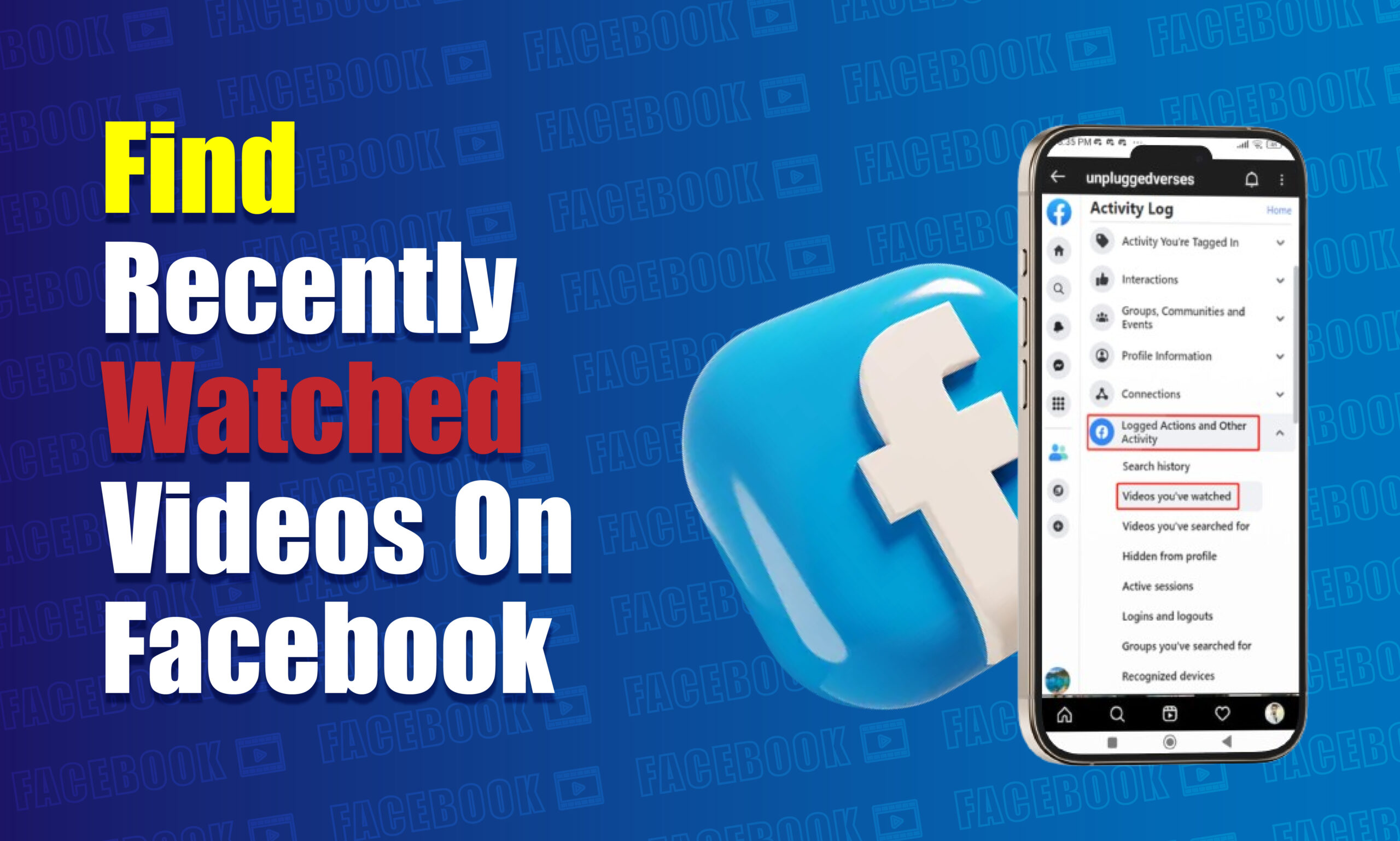
You can try to find recently watched videos on Facebook through your Activity Log, particularly the areas related to your video activity or interactions. The exact options can vary by Facebook app version, account, and device, so if a dedicated watch-history option is unavailable, use Facebook Search, your liked or saved content, Reels history where available, or your browser history as alternative ways to recover the video.
Finding a Facebook video you watched earlier can be surprisingly difficult when you did not like, save, comment on, or share it. A video may disappear from your Feed after you scroll past it, making it unclear where to look next.
Fortunately, there are several ways to retrace your steps. This guide explains the main methods for finding recently watched videos on Facebook, including Activity Log, video-related activity, Search, Saved items, liked content, Reels, and browser history. It also explains what to do when Facebook does not show a dedicated watch-history option.
What Is Facebook Watch History?
Facebook watch history refers to information associated with videos you have viewed on the platform. It can help Facebook understand your activity and personalize the content displayed in your Feed, Reels, and other video experiences.
However, Facebook does not necessarily present every user’s viewing activity through one clearly labeled, permanent Recently Watched Videos list. Menu names and available controls can also change as Facebook updates its interface.
This distinction is important because searching for a menu literally called “Watch History” may not work on every account or version of Facebook.
Can You See Recently Watched Videos on Facebook?
Yes, you may be able to locate previously watched videos through Facebook’s activity-related controls, but the exact route depends on your account, device, and the current Facebook interface.
If Facebook provides a relevant video-history or activity option on your account, it is generally the most direct place to start. If that option is unavailable, you can reconstruct your viewing history using interactions such as likes, comments, saves, searches, or browser history.
The important point is that watching a video alone does not guarantee that you will have an easily accessible list of every video you have watched.
How to Find Recently Watched Videos on Facebook
Method 1: Check Your Facebook Activity Log
The Activity Log is one of the most useful places to investigate your previous activity on Facebook.
On the Facebook mobile app:
- Open the Facebook app.
- Sign in to the account where you watched the video.
- Open your profile or Menu.
- Look for Settings & privacy.
- Open Activity Log.
- Review the available activity categories.
- Look for options related to videos, interactions, searches, or other content activity.
- If a relevant video activity section is available, open it and review the entries.
Facebook periodically changes the organization of Activity Log controls, so your screen may not match another user’s exactly.
The objective is to find an activity category that records the interaction associated with the video rather than expecting every watched video to appear in one universal list.
Method 2: Look for Video-Related Activity
If your Activity Log contains a category specifically related to video activity, use it to narrow the results.
The available options can differ depending on Facebook’s current interface. You may encounter categories connected with videos you interacted with rather than a complete list of every video you viewed.
For example, if you liked, commented on, or otherwise interacted with the video, the relevant activity may provide a much easier path back to it.
This method is especially useful when you remember approximately when you watched the video.
Method 3: Check Videos You Liked
If you remember liking the video, your interactions may provide a reliable way to locate it.
To investigate:
- Open your Facebook profile or Menu.
- Go to Settings & privacy.
- Open Activity Log.
- Find your interactions or reactions.
- Look for posts or videos associated with your likes or reactions.
- Open the relevant entry.
This method does not recover every video you watched. It only helps when you interacted with the content.
It is particularly useful when you remember pressing the Like button but cannot remember the creator, page, or video title.
Method 4: Check Your Saved Videos
Saving a video is one of the easiest ways to find it again later.
If you previously selected Save video, check your Facebook Saved items.
You can generally find saved content through your Facebook Menu or profile-related navigation. Depending on the current interface, saved items may be organized into categories.
Look for the video you remember saving and open it.
This method is more dependable than relying on memory because the video was deliberately added to a collection for later access.
Method 5: Search for the Video Again
Facebook Search can help when you remember something distinctive about the video.
Try searching for:
- The creator’s name
- The Facebook Page name
- A phrase from the caption
- A phrase spoken in the video
- A topic covered by the video
- A product shown in the video
- A location mentioned in the video
- A distinctive keyword from the post
For example, if you watched a cooking video about a particular recipe, searching for the recipe name and related terms may surface the original post or similar videos.
The more specific your remembered information is, the easier it is to narrow the results.
Method 6: Check Facebook Reels Activity
If the content was a Reel rather than a traditional Facebook video, look specifically within the Reels experience and your related activity.
Reels are short-form videos, and Facebook may present them differently from other video content.
If you remember that the video was a Reel, search using:
- Creator name
- Reel topic
- Caption phrase
- Hashtags
- Audio or song name
- Product name
- Location
If you interacted with the Reel, check your activity for the corresponding reaction, comment, or other interaction.
Method 7: Check Your Comments
A comment can be an excellent recovery point.
If you commented on the video, you have created an activity trail that may lead back to the original content.
Open your Activity Log and look for your comments or interactions. Locate the relevant comment and select the associated content when available.
This is particularly effective when you remember what you said but cannot remember the video’s title.
Method 8: Check Your Browser History
If you watched Facebook videos through a desktop browser or mobile browser, your browser history may provide another route.
Open the browser you used when watching the video and search your history for:
facebook.com
You can then narrow the results by date or time.
This method is particularly useful when:
- Facebook does not expose the video in your activity;
- you watched the video through a browser;
- you remember approximately when you watched it; or
- you opened the video as a separate Facebook page.
Browser history may not reveal the video itself if the relevant page has been removed, changed, or recorded differently by the browser.
Method 9: Search Your Facebook Notifications
If you interacted with the video, Facebook notifications may sometimes help you reconstruct what happened.
For example, if someone replied to your comment or interacted with your activity, the notification may point back to the relevant post.
This is not a general watch-history feature, so it should be considered a recovery method rather than a replacement for video history.
Method 10: Check Messenger Conversations
If you shared the video with someone, search your Messenger conversations.
Open the conversation where you believe you shared the video and scroll through the shared content.
This is often the fastest solution when you remember sending the video to a friend but cannot remember where you originally discovered it.
How to Find Recently Watched Videos on Facebook on Android
Step-by-Step Method
On Android, start by opening the Facebook app and signing into your account.
Then:
- Open the Menu or your profile controls.
- Go to Settings & privacy.
- Open Activity Log.
- Review the available activity categories.
- Look for video-related activity or interactions.
- Check your likes, comments, saves, or other relevant activity.
- If necessary, use Facebook Search to locate the video again.
Because Facebook updates its Android interface periodically, the exact position of Activity Log controls can change.
If you cannot find a video-history option, do not assume that your account has no activity information. Instead, use the alternative recovery methods described above.
How to Find Recently Watched Videos on Facebook on iPhone
Step-by-Step Method
The process on iPhone is broadly similar.
- Open the Facebook app.
- Open the Menu or profile controls.
- Select Settings & privacy.
- Open Activity Log.
- Review the available activity categories.
- Check relevant video interactions.
- Look through your liked, commented, or saved content.
- Use Facebook Search if you remember any details about the video.
The iOS interface can differ from Android, but the underlying concept is the same: use your account activity and content interactions to retrace the video.
How to Find Recently Watched Videos on Facebook on Desktop
Step-by-Step Method
If you watched the video on a computer, Facebook’s web interface can be useful because you can combine Facebook activity with browser history.
Start by opening Facebook in your browser.
Then:
- Sign into your Facebook account.
- Open your profile or account menu.
- Go to Settings & privacy.
- Open Activity Log.
- Review available activity categories.
- Look for relevant video interactions.
- Search your Facebook activity for likes, comments, or saved content.
- If necessary, open your browser history and search for Facebook pages visited around the time you watched the video.
Desktop browser history is especially useful when you remember the approximate date.
Why Can’t I Find My Recently Watched Facebook Videos?
There are several possible reasons.
Facebook Does Not Show a Dedicated Watch History
The most straightforward explanation is that your current Facebook interface may not provide a dedicated list of all videos you have watched.
Facebook’s controls can vary by account, app version, platform, and feature availability.
You Only Watched the Video
Watching a video is different from interacting with it.
If you did not like, comment on, save, share, or otherwise interact with the content, there may be fewer obvious activity records that you can manually use to find it.
The Video Was Removed
The original creator or Page may have deleted the video.
Facebook may also remove content that violates its rules or becomes unavailable for another reason.
If the original content no longer exists, your activity history may not provide a playable copy.
The Creator Changed the Audience
A video can become unavailable to you if its visibility changes.
For example, the creator may restrict who can see the post, change its audience, or otherwise modify access.
You Are Using a Different Account
If you have multiple Facebook accounts, check that you are signed into the account that originally watched the video.
Activity is associated with the relevant Facebook account, so switching accounts can make previously viewed content appear missing.
The App Interface Has Changed
Facebook frequently modifies its navigation and settings.
A tutorial showing an option in one location may become outdated after an interface update.
For this reason, focus on the underlying activity category rather than relying exclusively on the exact location of a menu item.
Troubleshooting: Facebook Recently Watched Videos Not Showing
| Problem | Possible Cause | Solution |
|---|---|---|
| No watch-history option | Feature or interface differs | Check Activity Log and use alternative methods |
| Video is missing | Video was removed or restricted | Search for the creator or topic again |
| Activity is empty | You used another account | Confirm the Facebook account |
| Search does not find it | Search terms are too broad | Use distinctive words, creator names, or captions |
| Saved video is missing | It was unsaved or removed | Search the original creator or topic |
| Facebook app looks different | Interface update | Check Settings & privacy and Activity Log |
| Browser history has no result | You watched in the app | Use Facebook activity instead |
| Reel cannot be found | It was a Reel | Search by creator, topic, caption, or audio |
What to Do When Facebook Watch History Is Missing
Start With Your Strongest Clue
Do not search randomly.
Think about what you remember:
- What was the video about?
- Who posted it?
- Was it a Reel?
- Did you like it?
- Did you comment?
- Did you save it?
- Did you send it to someone?
- Approximately when did you watch it?
- Did you watch it on your phone or computer?
Your answer determines which recovery method is most useful.
Use This Recovery Order
A practical recovery sequence is:
Activity Log → Likes/Comments → Saved Items → Messenger → Facebook Search → Browser History
This order prioritizes information that is directly associated with your Facebook account before moving to external browser records.
Can You Recover a Facebook Video You Watched Days Ago?
You may be able to locate it, but Facebook does not guarantee that every previously watched video will remain available in an easily accessible history.
Your chances improve if you interacted with the content or remember identifying information about it.
For example, remembering the creator and a phrase from the caption gives you two useful search signals. Remembering only that it was “a funny video” provides much less information.
Can You See All Videos You Have Ever Watched on Facebook?
Not necessarily.
You should not assume that Facebook provides every account with a permanent, complete list of every video ever watched.
Available activity controls can change, and some content may no longer be accessible because the creator removed it, changed its audience, or because Facebook itself removed or restricted it.
For this reason, Saved items, likes, comments, shares, and searches are useful complementary records.
How to Make Facebook Videos Easier to Find Later
Save Important Videos
If a video contains information you expect to need later, save it instead of relying on your watch history.
Saving creates an intentional collection of content you want to revisit.
Interact Carefully
If you genuinely want to remember a particular post, a meaningful interaction such as saving it is more useful for future retrieval than simply watching it and scrolling away.
Share Important Videos With Yourself or a Trusted Conversation
For content you need to reference later, sharing it through Messenger can create another route back to the original post.
However, availability can still change if the original video is removed or becomes restricted.
Record the Creator or Page
If a video is particularly useful, note the creator or Page name.
A creator name can dramatically narrow future Facebook searches.
Use Browser Bookmarks for Important Web Videos
If you watch Facebook content through a browser and need to revisit a specific page, bookmarking it can provide another recovery method.
Common Mistakes When Looking for Watched Facebook Videos
Searching Only for “Watch History”
A common mistake is assuming Facebook must have a menu with exactly this name.
Correct approach: Check Activity Log and relevant video-related activity, then use alternative recovery methods.
Expecting Every Watched Video to Appear
Not every viewing event necessarily gives you a convenient item you can manually retrieve.
Correct approach: Check whether you interacted with the video.
Ignoring Messenger
If you shared the video with another person, Messenger may contain the quickest route back to it.
Correct approach: Search conversations where you may have sent or received the video.
Searching With Generic Keywords
Searching “funny Facebook video” produces an enormous number of possibilities.
Correct approach: Use specific phrases, creator names, topics, products, locations, or captions.
Assuming a Missing Video Was Deleted
A missing video may have been made unavailable, restricted, moved, or become inaccessible for another reason.
Correct approach: Search for the creator or subject to determine whether another version or repost exists.
A Simple Decision Framework for Finding a Facebook Video
If You Liked or Commented
Start with Activity Log and your interactions.
If You Saved It
Start with Saved items.
If You Shared It
Start with Messenger.
If You Remember the Creator
Use Facebook Search and search for the Page or profile.
If You Remember Only the Topic
Use multiple specific search terms and look for related Reels, posts, or Pages.
If You Remember the Time
Check browser history if you watched the video through a browser.
If You Remember Almost Nothing
Try combinations of topic, approximate date, creator type, and keywords before assuming the video cannot be recovered.
Expert Tips for Finding Facebook Videos Faster
Search for the Source Instead of the Video
If you remember who published the video, finding the Page or profile first can be more efficient than searching Facebook globally.
Once you locate the creator, browse their video content and use distinctive terms from the original post.
Use Multiple Clues Together
A single keyword can produce too many results.
Combining a topic with a creator, phrase, product, location, or approximate date can significantly narrow the search.
Treat Reels Differently
If you remember a short vertical video, identify it as a Reel during your search.
Searching for the exact topic plus the creator or audio can be more effective than treating every Facebook video as the same type of content.
Save Videos You Need for Future Reference
The most reliable way to avoid repeating this search process is to save important videos when you first encounter them.
A watch event is easy to forget. A deliberate saved collection is easier to revisit.
Implementation Checklist
Before Searching
- Confirm the correct Facebook account.
- Remember the approximate time you watched the video.
- Identify whether it was a Reel or another video.
- Recall the creator, topic, or caption if possible.
During Searching
- Check Activity Log.
- Review likes and comments.
- Check Saved items.
- Search Messenger if you shared it.
- Search Facebook using specific keywords.
- Check browser history when appropriate.
After Finding the Video
- Save the video if you may need it again.
- Record the creator or Page.
- Share it to a relevant Messenger conversation if appropriate.
- Avoid relying solely on memory for important content.
Frequently Asked Questions
Can I see my recently watched videos on Facebook?
You may be able to find related activity through Facebook’s Activity Log, but Facebook does not necessarily provide every user with a complete, dedicated list of all videos they have watched.
Where is Facebook watch history?
The location and availability of video-related activity can vary. Start with Activity Log and review the categories available on your account.
Can I find a Facebook video I watched but did not like?
Possibly. Try Facebook Search, Activity Log, Reels search, or browser history. Recovery is easier if you remember the creator, topic, caption, or approximate viewing time.
How do I find a video I watched on Facebook yesterday?
Start with Activity Log and any available video-related activity. If that does not identify it, check your likes, comments, saved content, Messenger conversations, Facebook Search, and browser history.
Can I recover a Facebook video that was deleted?
You generally cannot restore another person’s deleted Facebook video through your account. You can search for the creator, Page, topic, or a repost if another copy remains available.
Why can’t I see my Facebook watch history?
Facebook’s available activity controls can differ by account and interface. You may also be looking for a dedicated watch-history list that is not available in your current version. Use Activity Log and alternative recovery methods instead.
Can I find a Facebook Reel I recently watched?
You may be able to locate it through your interactions, saved content, Facebook Search, or other activity available on your account. Searching for the Reel’s creator, topic, caption, or audio can also help.
Does Facebook save every video I watch?
You should not assume that every video you watch will remain available to you as a complete, user-accessible watch-history list. Facebook’s available activity controls and the video’s availability can affect what you can retrieve.
Read More
Conclusion
Finding a recently watched Facebook video is easiest when you have some record of interacting with it. Start with Activity Log, then check liked or commented content, Saved items, Messenger, Facebook Search, and browser history.
If Facebook does not display a dedicated watch-history option, that does not necessarily mean the video is impossible to find. Use the strongest clue you remember—such as the creator, caption, topic, Reel format, or approximate date—and combine multiple recovery methods.

