

Featured Social Media Software:
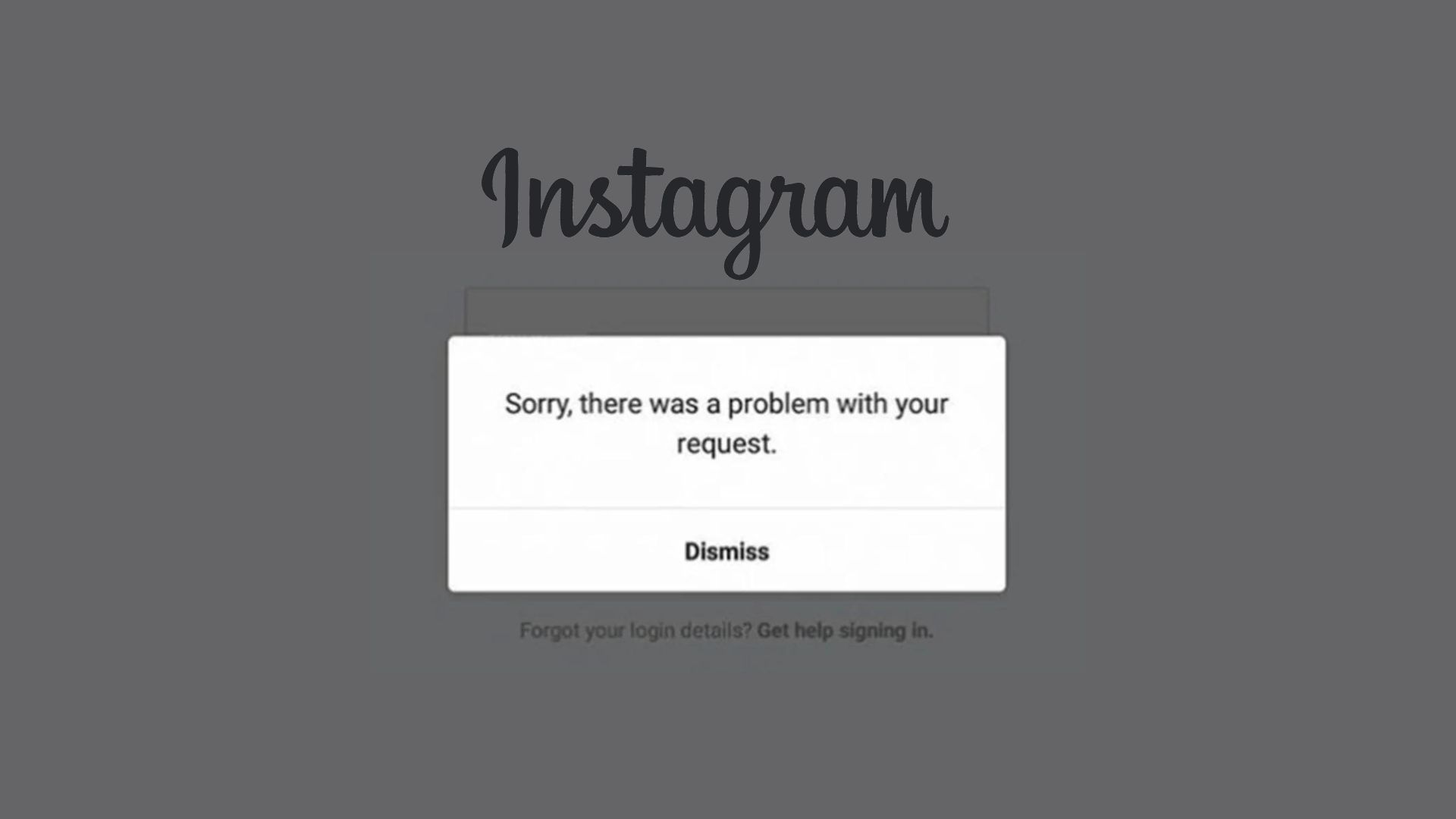
Instagram Not working?
Isn’t it frustrating when Instagram, one of the most addictive platforms, suddenly stops working? If you’ve been wondering why Instagram isn’t working, you’re not alone. In this guide, we’ll explore the common causes of Instagram issues and how to fix them.
When Instagram stops functioning, the issue is usually on Instagram’s end, not yours. As a popular social media app used for sharing photos and videos, Instagram is constantly updated to improve performance. However, users still experience occasional problems like not being able to upload posts. If you’re facing issues, don’t worry—there are ways to resolve them!
What is Instagram?
Instagram is an online platform designed for sharing photos and videos. Just like other social media apps, it allows you to follow people, like posts, and engage with content. Your feed will show the latest posts from those you follow, and you can interact by liking, commenting, and sharing.
In addition to regular posts, Instagram lets users share Stories, which are a series of photos or videos that disappear after 24 hours. This feature is similar to those found on other social media platforms like Snapchat.
How Does Instagram Work?
Instagram becomes more fun when you follow people whose content you enjoy. By clicking the magnifying glass icon on the bottom bar, you can access the Explore page, where Instagram suggests content you might like. As you engage with posts, the suggestions become more personalized.
To follow someone, just type their name in the search bar, visit their profile, and hit the Follow button. From then on, their posts will appear in your feed.
How to Fix Instagram Not Working on Android and iPhone?
When Instagram stops working on Android or iPhone, the issue is usually caused by temporary system glitches, unstable internet, outdated app versions, or corrupted cache data. Most of these problems are not serious and can be fixed in a few minutes using simple troubleshooting steps without affecting your account, followers, or posts.
Below is a clear, step-by-step explanation of the most effective fixes, written in a practical and easy-to-follow format.
1. Why Restarting Your Device Fixes Instagram Issues
Restarting your phone is the simplest and often the most effective fix because it clears temporary memory errors and stops background processes that may be interfering with Instagram. When your device runs for long periods, apps can conflict with each other or consume too much RAM, which leads to freezing, loading issues, or app crashes.
A restart refreshes the entire system and gives Instagram a clean environment to run properly again. To do this, simply turn your phone off and back on after a few seconds. On Android, you can use the restart option directly from the power menu, while on iPhone you can power off the device and restart it manually.
This method is especially useful when Instagram is stuck on the loading screen, not refreshing the feed, or behaving unusually slow. In many cases, it immediately restores normal performance without any further steps.
2. How Switching Network Type Fixes Connectivity Problems
Instagram depends heavily on a stable internet connection because it continuously loads photos, videos, and messages in real time. If your connection is weak or unstable, the app may fail to load content or send uploads properly.
Switching your network forces your device to reconnect to the internet with a fresh session, which often removes hidden connectivity issues. For example, you can switch from Wi-Fi to mobile data or from mobile data back to Wi-Fi. Even briefly turning airplane mode on and off can help reset the connection.
This fix is most effective when your feed is not loading, stories are not uploading, or messages are stuck in sending mode. In most cases, the issue is not with Instagram itself but with network instability or poor signal strength.
3. Why Updating Instagram Fixes Most Errors
Using an outdated version of Instagram is a common reason for bugs and performance issues. Instagram regularly updates its system to improve security, add features, and change how the app communicates with its servers. If your app is not updated, it may no longer match these changes properly.
Updating the app ensures everything stays compatible and runs smoothly. You simply need to open the Play Store or App Store, search for Instagram, and install the latest update if available.
This fix is especially helpful when the app keeps crashing, certain features like Reels or Stories are not working, or login problems appear. Once updated, most of these issues disappear because the app regains full compatibility with Instagram’s servers.
4. Why Reinstalling Instagram Fixes Deep Problems
Reinstalling Instagram is a more advanced fix because it removes all existing app files and installs a completely fresh version. Over time, app files can become corrupted due to crashes, incomplete updates, or storage issues, which cannot always be fixed through normal troubleshooting.
When you uninstall and reinstall Instagram, you reset everything back to default, including hidden errors and broken configurations.
This method is most useful when Instagram keeps crashing repeatedly, refuses to log in, or fails to upload posts entirely. After reinstalling, you simply log back into your account, and everything works as a clean installation.
5. How Clearing Cache Fixes Instagram Performance Issues (Android Only)
Cache is temporary data stored by Instagram to help it load faster, such as images, profile data, and previous sessions. While this improves speed, too much or corrupted cache can cause glitches, slow performance, or display errors.
Clearing cache removes this temporary data without deleting your account or personal information, so it is completely safe. On Android, you can do this through settings by going to the app storage section and clearing the cache. On iPhone, this is not available directly, so reinstalling the app performs the same function.
This fix is especially effective when Instagram feels slow, feeds are not updating properly, or reels and stories are not loading smoothly.
What Are Common Mistakes Users Make When Instagram Stops Working?
When Instagram stops working, users often try random fixes without identifying the real cause. Most issues are temporary, but wrong troubleshooting steps can make the situation worse instead of fixing it.
Below are the most common mistakes and why they create problems.
1. Why Reinstalling Instagram Repeatedly Is a Mistake
Many users keep uninstalling and reinstalling Instagram thinking it will fix everything. However, if Instagram servers are down, this does nothing because the issue is not on your device.
Repeated reinstalling can waste data, reset settings again and again, and sometimes trigger extra login verifications, making access more complicated.
2. Why Using Unstable VPNs Causes Problems
VPNs can change your IP address frequently, which Instagram may see as suspicious activity. This can lead to login errors, temporary blocks, or feed issues.
Unstable VPNs also slow down your connection, making reels, stories, and uploads fail more often. Turning off VPN usually fixes the issue faster.
3. Why Ignoring App Updates Breaks Instagram
Old versions of Instagram slowly become incompatible with new server updates. This leads to crashes, login issues, and missing features. Updating the app keeps it synced with Instagram’s latest system and fixes hidden bugs automatically.
4. Why Not Clearing Cache Slows the App
Cache stores temporary data, but when it becomes corrupted or too large, Instagram may lag or show outdated content. Not clearing cache can cause freezing, slow loading, and feed errors. Clearing it refreshes the app and improves performance.
5. Why Overloading Uploads Leads to Failures
Uploading too many posts or large files at once can trigger Instagram’s spam protection system. This may cause uploads to fail or get stuck. It’s better to upload gradually and keep file sizes optimized for smooth processing.
What Are Future Trends in Instagram Stability and Performance?
Expected improvements:
- AI-based error detection in real time
- Smarter caching systems
- Faster edge CDN deployment
- Automated crash recovery systems
- Predictive outage alerts
Industry shift:
Platforms are moving toward self-healing infrastructure that automatically detects and resolves app failures before users notice them.
Expert Framework
- Identify issue type (network, app, server, account)
- Verify global outage status
- Apply device-level fixes
- Clear or reset app data
- Reinstall if needed
- Validate account restrictions
- Optimize device performance
- Monitor stability post-fix
Implementation Checklist
- Check internet connection
- Test Instagram on browser
- Verify outage status
- Restart device
- Clear cache or reinstall app
- Update Instagram
- Check account restrictions
- Free device storage
- Disable VPN
- Retest upload/login/feed
Expert Insight
If Instagram isn’t working, the issue could be due to various reasons, from network problems to Instagram’s servers being down. Following the steps outlined above—like restarting your device, checking your internet connection, and clearing the cache—should help you resolve most issues.
If the problem persists, it may be a technical issue on Instagram’s side, which could take time to fix. In the meantime, try reinstalling the app or checking online for outage updates. With a little patience, you’ll be back to scrolling and posting in no time!
Frequently Asked Questions (FAQs)
Why can’t I upload more than one photo or video to Instagram?
This could be due to Instagram’s background refresh settings. If the feature is disabled, switching apps while posting can stop the process. Additionally, Instagram may temporarily block your account if it detects spamming activity, like posting too frequently.
Why can’t I post Instagram Stories?
If you’re trying to share a Story from a private account, it won’t work. Instagram only allows sharing from public accounts. Additionally, slow internet access can prevent you from uploading Stories.
Why is Instagram down right now?
If Instagram is down, reconnecting to the internet or updating the app can fix minor issues. For major outages, check sites like DownDetector or Instagram’s social media channels for updates.
How can I unlock my Instagram account?
If your account has been locked due to a violation of Instagram’s guidelines, you can appeal the decision by following the steps outlined in the notification. While there’s no guarantee, you can request a review of your case.
How long does an Instagram restriction last?
Restrictions can last anywhere from 48 hours to a week, depending on the violation. You’ll regain access to your account once the restriction is lifted.

