


To find archived chats in Telegram, open your main Chat List and look for Archived Chats at the top. If you cannot see it, pull/drag the chat list downward to reveal the Archive folder; if you use Chat Folders, switch to All Chats first. Open Archived Chats to see your hidden conversations. Telegram officially documents this behavior and says archived chats can be restored with Unarchive.
On Telegram, archiving does not delete a chat. It simply moves the conversation into the Archived Chats folder. Telegram also notes that an unmuted archived chat can return to the main chat list when a new notification arrives, while muted chats remain archived.
How to Find Archived Chats in Telegram in 2026
Telegram’s Archive feature is useful when you want to remove conversations from your main chat list without deleting the conversations themselves.
The feature works across Telegram’s connected apps, although the exact gestures and interface can differ between Android, iPhone, Desktop, and Web.
What Are Archived Chats in Telegram?
Archived Chats is a separate area in Telegram’s chat list where you can place conversations that you do not want displayed in your main list.
Archiving is different from deleting:
- Archive: moves the chat out of the main list.
- Unarchive: returns the chat to the main list.
- Delete: removes the chat or its history according to the deletion options you choose.
Telegram introduced Archived Chats as a way to organize active and inactive conversations. Its official announcement says that users can move chats into the archive and later bring them back.
This makes Archive particularly useful for:
- Old conversations
- Inactive groups
- Work chats
- Channels you want to keep but rarely open
- Personal conversations you want out of the main list
- Conversations you do not want to delete
Where Are Archived Chats in Telegram?
Archived chats are normally found in the Archived Chats folder at the top of your main Chat List.
However, Telegram allows the Archive section to be hidden from view. If it is hidden, it may look as though your archived conversations have disappeared.
The quickest solution is:

Telegram’s official issue tracker specifically recommends dragging the chat list down when the Archive folder is not visible.
If you use Telegram’s Chat Folders, switch to All Chats before looking for the Archive.
How to Find Archived Chats on Telegram Android
The Android interface has changed over Telegram’s various updates, but the Archive itself remains part of the chat-list system.
Step 1 — Open Telegram
Launch Telegram on your Android phone.
Make sure you are looking at the main Chat List, rather than inside a particular folder or conversation.
Step 2 — Check the Top of the Chat List
Look above your regular conversations for:
Archived Chats
If you see it, tap it.
Step 3 — If You Don’t See Archived Chats, Pull Down
Place your finger near the top of the chat list and drag/swipe downward.
Telegram says this gesture reveals the hidden Archive folder.
Step 4 — Open Archived Chats
Tap Archived Chats.
You should now see conversations that you previously moved into the archive.
Step 5 — Open the Conversation
Tap any archived chat to read your messages normally.
Important: Opening a chat does not necessarily mean you have unarchived it. The conversation can remain in the Archive unless you specifically restore it.
How to Find Archived Chats on Telegram iPhone or iPad
The same basic process works on iOS.
Step 1 — Open Telegram
Launch Telegram on your iPhone or iPad.
Step 2 — Go to the Main Chat List
If you are inside a conversation, return to the main list of chats.
Step 3 — Look for Archived Chats
Check the top of the chat list.
Step 4 — Pull the Chat List Down
If Archive is not visible, pull down on the chat list.
Telegram’s official guidance says this reveals the Archive when it has been hidden.
Step 5 — Tap Archived Chats
Open the folder to see your archived conversations.
If You Use Chat Folders
If you have multiple Telegram folders, switch to All Chats before trying to reveal the Archive. Telegram specifically recommends this when the Archive folder is not visible while folders are in use.
How to Find Archived Chats on Telegram Desktop
Telegram Desktop also provides an Archived Chats area.
Step 1 — Open Telegram Desktop
Launch Telegram Desktop on your Windows, macOS, or Linux computer.
Step 2 — Look at the Chat List
Check the top of the conversation list for Archived Chats.
Step 3 — Open the Archive
Click Archived Chats.
Your archived conversations should appear there.
Telegram’s Archive feature is synchronized across connected Telegram apps, with the exception of Secret Chats, which Telegram treats differently from its cloud-based chats. Telegram’s documentation states that ordinary Telegram data and chat folders synchronize across connected applications.
If You Cannot See the Archive
Try scrolling or interacting with the chat list to reveal the Archive section, and check whether you are viewing a specific Chat Folder instead of All Chats.
How to Find Archived Chats on Telegram Web
Telegram Web follows the same general concept:
Chat List → Archived Chats
If Archive is not immediately visible, check the top of the chat list and try revealing the hidden Archive area.
If you have multiple Chat Folders, switch to All Chats where the interface provides that option.
The exact appearance can vary between Telegram Web versions, so focus on the Archived Chats label rather than relying on a particular button location.
What to Do If Archived Chats Are Not Showing
This is the most common problem people encounter.
If you know that you archived a chat but cannot find the Archive folder, work through these steps in order.
1. Pull Down the Chat List
This is the first thing to try.
Telegram specifically says that the Archive can be hidden and can be brought back by dragging the chat list downward.
2. Switch to All Chats
If you use Chat Folders, you may not be looking at the complete chat list.
Switch to All Chats, then pull the list downward again. Telegram specifically recommends this when folders are enabled.
3. Check the Top of the List Carefully
The Archive can be easy to miss when the chat list contains many conversations.
Look above the first normal conversation for Archived Chats.
4. Use Telegram Search
If you remember the person’s name, username, group name, or channel name, use Telegram’s search function.
Search can help you locate the conversation even when you are not sure where it currently appears in the chat list.
5. Check Another Connected Device
Telegram’s cloud-based chats synchronize across connected apps, so if you have Telegram installed on another device, check there as well. Telegram describes its regular chats as synchronized across devices.
Why Did My Archived Chat Come Back to the Main List?
This can happen because of Telegram’s notification behavior.
Telegram explains that when an archived chat receives a notification, it can pop out of the Archive and return to the main chat list. Muted chats are treated differently and can remain archived.
So if you archived a conversation and later notice it back in your main chat list, that does not necessarily mean Telegram lost your Archive settings.
It may simply have received a new message or notification.
Example
You archive a conversation with a friend.
Later, that friend sends you a message.
If the chat is not muted, Telegram can move it back into your regular chat list.
If you want the conversation to remain archived, Telegram’s documentation indicates that muted chats stay archived.
How to Unarchive a Chat in Telegram
If you find the conversation and want it back in your normal chat list, you can unarchive it.
Telegram’s official bug tracker provides the following basic workflow:
Archived Chats → swipe left on the chat → Unarchive.
On Mobile
- Open Archived Chats.
- Find the conversation.
- Swipe left on the chat, where supported.
- Select Unarchive.
Telegram’s current interface also exposes Unarchive as an action for archived chats. Telegram’s interface translations include explicit Archive and Unarchive actions.
On Desktop
The available context-menu action may differ slightly by Telegram Desktop version.
Open the archived conversation’s menu and select the available Unarchive option.
Expected result: The conversation returns to the normal Chat List.
How to Archive a Chat Again
If you accidentally unarchived a conversation and want to put it back:
Mobile
- Find the conversation in your normal Chat List.
- Use the available archive gesture/action.
- Select Archive.
Telegram’s original Archive documentation describes moving a chat into the Archive using a swipe gesture.
Android With Chat Folders
Telegram notes that when Android users are already using folders, the normal swipe gesture may not be available for archiving.
In that case:
- Long-press the chat.
- Open the bulk-actions menu.
- Select Archive.
Telegram documents this difference in its Chat Folders and Archive announcement.
Archived Chats vs Deleted Chats
It is important not to confuse these two actions.
| Feature | Archived Chat | Deleted Chat |
|---|---|---|
| Removes chat from main list | Yes | Usually, depending on deletion action |
| Conversation remains accessible | Yes | May not |
| Can be restored from Archive | Yes | Not equivalent to restoring from Archive |
| Main purpose | Organization | Removal |
| Messages remain available | Generally yes | Depends on deletion action |
| Requires Archive folder | Yes | No |
Archive is an organization feature, not a deletion feature.
Telegram introduced the Archive specifically to separate active and inactive chats without requiring users to delete them.
What Happens to Messages in an Archived Chat?
Archiving does not mean that the conversation has been deleted.
The chat remains accessible through Archived Chats, and you can open it and continue using it.
The main difference is where Telegram places the conversation in your chat-list organization.
This is why Archive is useful for reducing clutter without losing access to a conversation.
Can Archived Chats Receive New Messages?
Yes.
Archiving does not prevent people, groups, or channels from sending new content.
Telegram explains that a notification from an archived chat can cause the chat to return to the main list. Muted chats can remain archived instead.
Therefore:
Archive = organize the chat
not
Archive = stop the chat from receiving messages
If you want fewer interruptions, consider muting the conversation as well.
How to Keep an Archived Chat From Returning
If an archived conversation keeps coming back to the main list because of notifications, muting it is the logical solution.
Telegram specifically states that muted chats stay archived, while unmuted archived chats can return to the main list when they generate a notification.
A practical workflow is:
Archive → Mute → Keep in Archive
This is especially useful for:
- Busy groups
- Promotional channels
- Work conversations you don’t need immediately
- High-volume chats
- Groups that generate frequent notifications
How to Hide the Archived Chats Folder
Telegram also lets users hide the Archive section itself.
This can be useful if you want your main Chat List to look cleaner.
Telegram’s original Archive announcement explains that the Archive can be hidden by swiping left on it and later revealed by dragging the screen downward.
So there are two separate concepts:
Archived Chats hidden: The folder itself is not visible.
Chat archived: A particular conversation is stored inside the folder.
This distinction explains why some users think their archived chats have disappeared.
What If I Accidentally Hid the Archive?
You probably have not lost your chats.
Try this:
- Open Telegram.
- Go to the main Chat List.
- Make sure you are in All Chats.
- Drag the chat list downward.
- Look for Archived Chats.
- Open the folder.
Telegram’s official guidance specifically recommends dragging the screen down when the Archive is hidden.
How to Find an Archived Group or Channel
Archived items are not limited to one-to-one conversations.
You can archive different types of Telegram chats, including groups and channels.
To locate one:
- Open Archived Chats.
- Scroll through the archived conversations.
- Look for the group or channel.
- Use Telegram Search if you remember its name.
If the Archive is missing, reveal it first by pulling down on the main Chat List.
How to Find Archived Chats When You Use Chat Folders
Chat Folders can make the Archive slightly confusing because your screen may show a particular folder rather than the complete chat list.
Telegram’s official guidance says that if you are using folders and cannot see Archived Chats, switch to All Chats first.
Recommended workflow
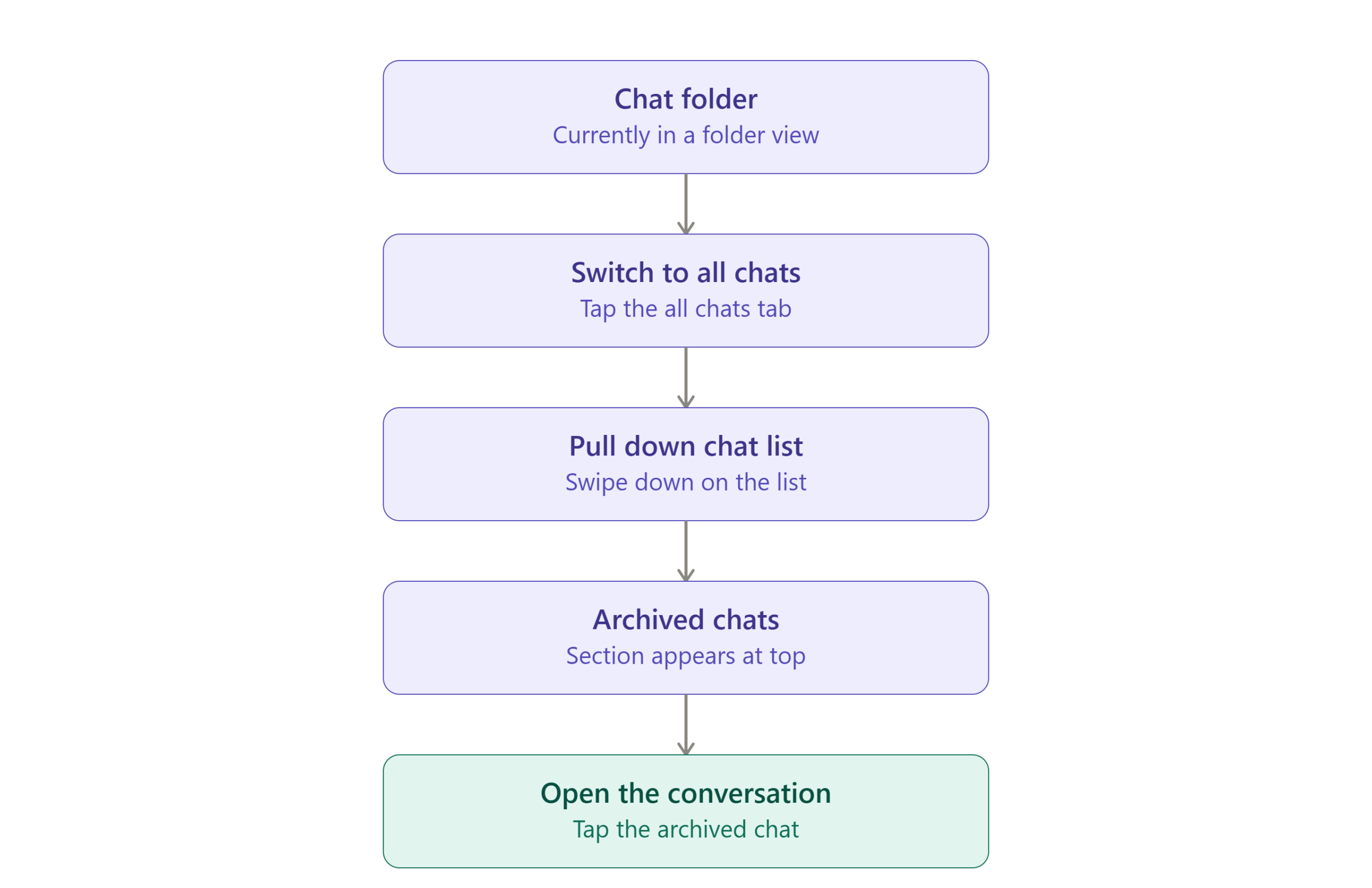
This is one of the most important troubleshooting steps for users who say the Archive has disappeared.
Can I Find Archived Chats on Multiple Devices?
Yes, for Telegram’s normal cloud-based chats, your conversations are designed to synchronize across connected devices.
Telegram describes itself as a cloud-based messaging application and says regular chats are synchronized across devices.
Telegram also says Chat Folders synchronize across connected applications, including its Desktop apps.
This means that if you archive a normal Telegram chat on your phone, you should generally be able to access that conversation through your other connected Telegram applications.
Important exception: Secret Chats are different from Telegram’s cloud chats and should not be treated as ordinary synchronized conversations. Telegram explicitly distinguishes Secret Chats from its regular cloud-based system.
What to Do If You Still Cannot Find the Archived Chat
Use this recovery sequence:
Problem 1: Archive folder is missing
Cause: Archive is hidden.
Check: Pull down the main Chat List.
Solution: Reveal the Archive.
Verify: “Archived Chats” appears at the top.
Problem 2: Archive is still missing
Cause: You may be viewing a Chat Folder.
Check: Look for All Chats.
Solution: Switch to All Chats, then pull down.
Verify: The Archive appears.
Problem 3: The Archive is visible but the chat is missing
Cause: The chat may have returned to the main list after receiving a notification.
Check: Search the normal Chat List.
Solution: Open the conversation or archive it again.
Verify: It appears in Archived Chats.
Telegram documents this notification behavior.
Problem 4: You cannot find the chat anywhere
Possible causes:
- You deleted the chat instead of archiving it.
- You are using a different Telegram account.
- You remember the wrong chat name.
- The conversation was removed.
- You are searching the wrong Chat Folder.
- You are dealing with a Secret Chat rather than a normal cloud chat.
Solution: Search by username/name, check your account, switch to All Chats, and verify whether the conversation was actually archived.
How to Troubleshoot the Common problems
| Problem | Possible Cause | Solution |
|---|---|---|
| Archived Chats isn’t visible | Archive is hidden | Pull down the Chat List |
| Archive disappears after using folders | You’re viewing a specific folder | Switch to All Chats |
| Archived chat returned to main list | New notification arrived | Archive it again or mute it |
| Chat is not in Archive | It may have been unarchived | Search the main Chat List |
| Chat cannot be found anywhere | It may have been deleted | Check your history/search and account |
| Archive works on one screen but not another | Interface differs by platform | Check the current Telegram app on that device |
| Group/channel is missing | Wrong folder or search context | Use All Chats and search |
| Archived chat keeps returning | Notifications are active | Mute the chat |
Common Mistakes to Avoid
Mistake 1: Assuming Archive Means Delete
Why it happens: The chat disappears from the main list.
Why it matters: Users may think the conversation has been permanently removed.
Correct approach: Open Archived Chats. Archive is an organizational feature, not the same as deletion.
Mistake 2: Searching Only the Main Chat List
Why it happens: The user expects archived chats to remain visible with normal conversations.
Why it matters: Archived conversations are intentionally separated.
Correct approach: Reveal and open Archived Chats.
Mistake 3: Forgetting to Pull Down the Chat List
Why it happens: Telegram allows the Archive section to be hidden.
Correct approach: Pull the main chat list downward to reveal it.
Mistake 4: Looking Inside the Wrong Chat Folder
Why it happens: Telegram Chat Folders can change which conversations are visible.
Correct approach: Switch to All Chats before searching for the Archive.
Mistake 5: Assuming Archive Stops Notifications
Why it happens: The chat disappears from view.
Why it matters: New notifications can cause an unmuted archived chat to return to the main list.
Correct approach: Mute the chat if you want it to remain archived.
Expert Insights
The most useful way to think about Telegram’s Archive is as a visibility-management tool, not a storage or privacy vault.
Use Archive when:
- You want to declutter your Chat List.
- You want to keep a conversation without seeing it every day.
- You have inactive groups or channels.
- You want to separate low-priority conversations from active chats.
Use Mute + Archive when:
- A conversation generates frequent notifications.
- You want it to stay out of your main list.
- You still want to keep the conversation accessible.
Use Chat Folders when:
- You want certain conversations to be easier to access rather than hidden.
- You need separate work, personal, or channel categories.
Telegram itself positions Chat Folders as a way to make selected chats more visible, while recommending Archive when the goal is to hide conversations from the main view.
Decision Framework: Which Telegram Feature Should You Use?
| Your Goal | Best Telegram Feature |
|---|---|
| Hide an inactive chat from the main list | Archive |
| Keep an archived chat from returning because of notifications | Mute + Archive |
| Organize important chats into categories | Chat Folders |
| Bring an archived chat back | Unarchive |
| Remove a conversation | Delete |
| Find a missing archived chat | All Chats → Pull Down → Archived Chats |
Implementation Checklist
Before Searching
- Open the correct Telegram account.
- Return to the main Chat List.
- Check whether you are using Chat Folders.
Find the Archive
- Switch to All Chats if necessary.
- Pull down on the Chat List.
- Look for Archived Chats.
- Open the Archive.
- Search for the required conversation.
If the Chat Keeps Returning
- Check whether it received a new notification.
- Mute the conversation if you want it to remain archived.
- Archive it again.
If You Want to Restore It
- Open Archived Chats.
- Select the conversation.
- Choose Unarchive.
- Confirm that it has returned to the main Chat List.
Frequently Asked Questions (FAQs)
Where are archived chats in Telegram?
Archived chats are located in the Archived Chats folder at the top of the main Chat List. If the folder is hidden, pull the chat list downward to reveal it.
Why can’t I see Archived Chats on Telegram?
The Archive may simply be hidden. Pull down on the main Chat List. If you use Chat Folders, switch to All Chats first.
How do I open archived chats on Telegram?
Open the main Chat List and select Archived Chats. If it is not visible, drag the list downward to reveal it.
How do I unarchive a Telegram chat?
Open Archived Chats, find the conversation, and use the Unarchive action. On mobile, Telegram’s documented workflow includes swiping left on the archived chat and selecting Unarchive.
Does archiving a Telegram chat delete it?
No. Archiving moves the chat out of your main list; it is not the same as deleting the conversation.
Why did my archived Telegram chat come back?
An archived chat can return to the main Chat List when it receives a notification. Telegram says muted chats remain archived.
Can I keep an archived chat permanently hidden?
You can keep it archived, but an unmuted archived chat may return to the main list when it generates a notification. Muting the chat helps keep it archived.
Can I find archived Telegram chats on another device?
Normal Telegram cloud chats synchronize across connected devices, so archived conversations can generally be accessed from your other Telegram apps. Secret Chats are an important exception to Telegram’s normal cloud synchronization model.
Can I archive multiple Telegram chats?
Yes. Telegram supports bulk actions for managing chats, including archiving multiple conversations, particularly through its chat-management controls. Telegram introduced bulk actions on Android alongside Archived Chats.
What is the difference between Archive and Chat Folders in Telegram?
Archive is primarily for moving chats out of the main view. Chat Folders are designed to organize and make selected groups of chats easier to access. Telegram recommends Archive when you want to hide chats from view.
Can I find archived channels and groups too?
Yes. Archived Chats can contain different types of conversations, including groups and channels. Open the Archive and search for the relevant conversation.
Key Takeaways
Finding archived chats in Telegram is usually much easier than it first appears.
The fastest workflow is:
Telegram → Main Chat List → Pull Down → Archived Chats
If you use Chat Folders, switch to All Chats first. Telegram’s official documentation specifically identifies these steps for situations where the Archive folder is not visible.
Remember these three points:
- Archive does not mean delete.
- Pull down the Chat List if Archived Chats is hidden.
- Mute an archived chat if you want it to stay archived despite new messages.
Telegram’s interface continues to evolve—the company released major Android interface changes in 2026—so screenshots and UI instructions should be checked against the current app before publication. Telegram’s official news archive confirms multiple major interface updates during 2026.

