


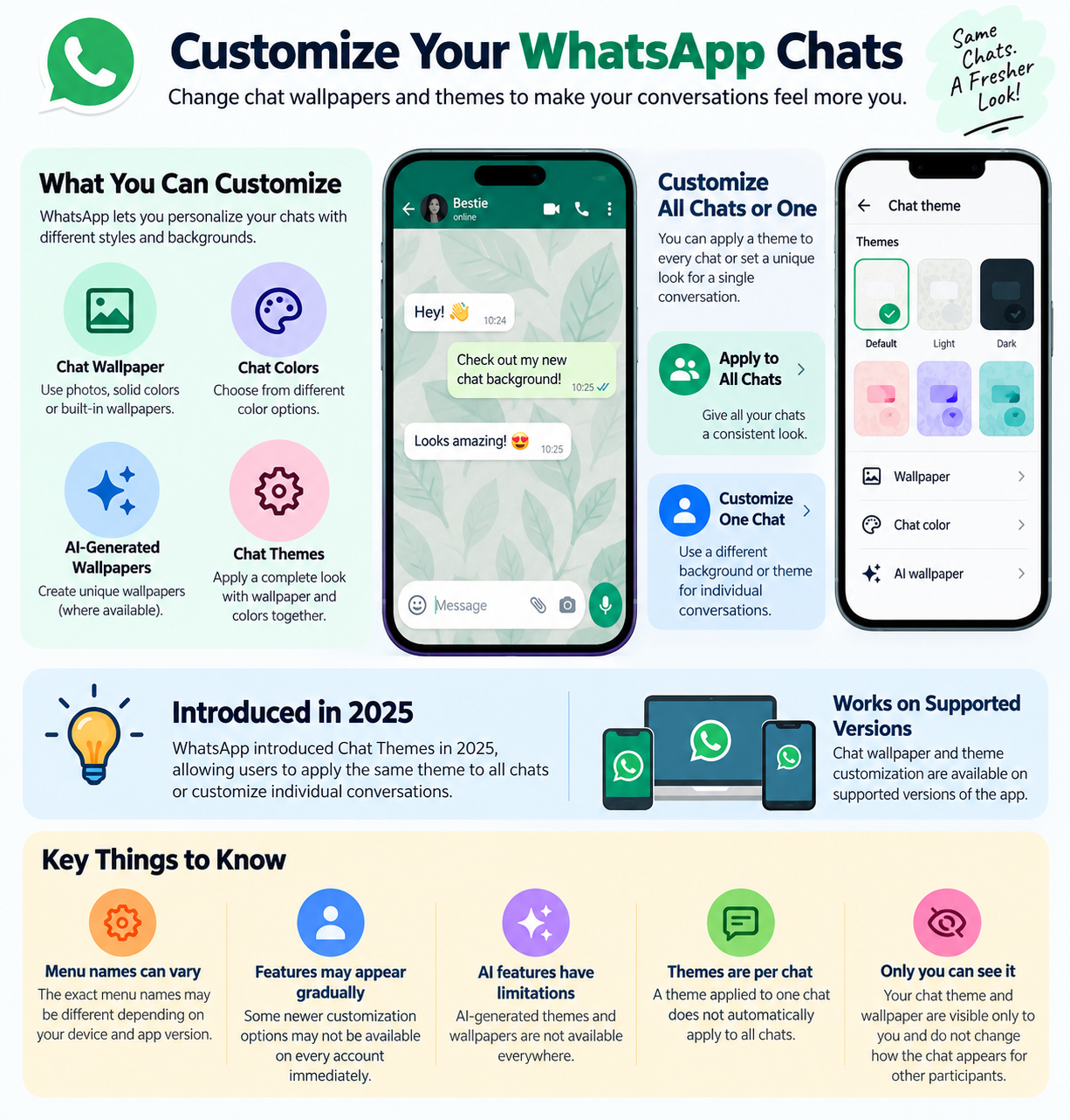
To change your WhatsApp chat background in 2026, open WhatsApp and go to Settings → Appearance → Default chat theme → Wallpaper on supported versions, then choose a wallpaper, photo, solid color, or available AI-generated background and apply it. On Android, the current WhatsApp Help Center places the setting under Settings → Appearance → Default chat theme → Wallpaper; on iPhone, the equivalent path is Settings → Appearance → Default chat theme → Wallpaper.
To change the background for only one conversation, open that chat, tap the chat name, select Chat theme → Wallpaper, choose the background, and tap Set. The other person does not see your personal chat-theme customization; WhatsApp says chat themes are visible only to you.
The instructions below focus on the current 2026 WhatsApp interface and include alternatives for situations where your menus look different.
What Is a WhatsApp Chat Background?
A WhatsApp chat background, also called a chat wallpaper, is the image, pattern, or color displayed behind messages inside a WhatsApp conversation.
It is part of WhatsApp’s chat customization system. Depending on the version and account, you can choose from WhatsApp’s available wallpapers, select a photo from your device, use a solid color, or use a chat theme that combines a wallpaper with chat colors.
The background is primarily a visual customization. It does not change the content of your conversation, your messages, your contact information, or the other person’s WhatsApp settings.
WhatsApp Background vs. WhatsApp Chat Theme
These terms are related but not identical.
A chat wallpaper changes the visual background behind messages. A chat theme can change the wallpaper and the appearance of chat bubbles together.
WhatsApp’s official Help Center describes a theme as something that sets both the chat wallpaper and chat color. You can therefore use a preset theme when you want a coordinated appearance, or customize the wallpaper and bubble color separately when you want more control.
WhatsApp Background vs. Phone Wallpaper
Your phone wallpaper is controlled by Android or iOS. A WhatsApp chat wallpaper is controlled by WhatsApp.
For example, changing your iPhone’s lock-screen photo will not automatically change the background inside your WhatsApp conversations. You need to change the WhatsApp chat wallpaper through WhatsApp’s own customization settings.
Can You Change the WhatsApp Chat Background in 2026?
Before You Start
Before changing the background, check a few basic things.
Update WhatsApp
Use the latest available version of WhatsApp from your device’s official app store.
This matters because WhatsApp has continued adding chat customization features. If a guide shows an older Chats → Wallpaper menu while your current app uses Appearance → Default chat theme, the difference may simply be the newer interface. WhatsApp’s current Help Center uses the newer Appearance and Default chat theme structure for current customization instructions.
Decide What You Want to Change
Choose between these two options:
- All chats: Use this when you want the same general background across conversations.
- One chat: Use this when you want a particular conversation to have its own wallpaper or theme.
This distinction is important because the paths are different.
Prepare a Photo if You Want a Custom Background
If you want to use your own image, make sure the photo is already available in your device’s Photos or Gallery app.
A simple image with good contrast usually works better than a highly detailed image. Message bubbles need to remain easy to read over the background.
Consider Readability
A visually attractive background is not necessarily a good chat background.
Avoid images with:
- Very bright areas behind text
- Strong patterns
- Tiny repeated details
- Extremely high contrast
- Important faces or objects positioned directly behind message bubbles
The goal is to customize the conversation without making messages difficult to read.
How to Change WhatsApp Chat Background for All Chats
If you want one background to appear across your WhatsApp conversations, use the default chat-theme settings.
The current official instructions use the Default chat theme area for this customization. On iPhone, WhatsApp places it under Settings → Appearance, while the Android Help Center similarly directs users through Settings → Appearance → Default chat theme.
Step 1 — Open WhatsApp Settings
Open WhatsApp on your phone.
On the settings screen, look for Settings or your profile/settings entry, depending on your version of WhatsApp.
The exact placement of the settings control can vary slightly between devices, but the destination you are looking for is the chat appearance customization area.
Step 2 — Open Appearance
Tap Appearance.
This section contains the controls used for chat themes, wallpapers, and chat colors on current versions of WhatsApp.
If you do not see Appearance, do not immediately assume that your account cannot change wallpapers. Your version may be using an older menu structure or may require an update.
Step 3 — Open Default Chat Theme
Tap Default chat theme.
This is the central customization area for the default appearance of your WhatsApp conversations.
A theme can change more than the wallpaper. WhatsApp explains that a chat theme can set both the chat wallpaper and chat color.
Step 4 — Choose Wallpaper
Tap Wallpaper.
WhatsApp will show the available background options.
Depending on your account and platform, you may be able to select an available WhatsApp wallpaper, choose a photo, select a solid color, or use an AI-generated option where supported.
Step 5 — Select the Background
Choose the background you want.
If you are using a built-in wallpaper, preview it before applying it. If you select a personal photo, consider whether the image provides enough contrast for your message bubbles.
You do not need to change your phone’s wallpaper to accomplish this. The selected image is being applied to the WhatsApp chat environment.
Step 6 — Apply the Wallpaper
Confirm the selection by tapping the appropriate Set or confirmation control shown by your WhatsApp version.
The wallpaper should then become the default background for chats covered by that setting.
Step 7 — Check a Conversation
Open one or more conversations and confirm that the background appears as expected.
Checking more than one chat is useful because it confirms that you changed the default appearance rather than accidentally customizing only one conversation.
How to Change WhatsApp Chat Background on iPhone
The current WhatsApp Help Center gives iPhone users a specific path through Settings → Appearance → Default chat theme → Wallpaper.
Step 1 — Open WhatsApp on Your iPhone
Launch WhatsApp and open the app settings.
Do not use the iPhone’s general Settings → Wallpaper controls. Those change the iPhone’s system wallpaper, not the WhatsApp chat background.
Step 2 — Tap Appearance
Open Appearance.
The current WhatsApp interface places chat-theme customization in this area.
Step 3 — Tap Default Chat Theme
Select Default chat theme.
This lets you customize the default appearance of your chats.
Step 4 — Tap Wallpaper
Choose Wallpaper.
WhatsApp currently provides options that can include built-in wallpapers, photos, colors, and an AI option where available.
Step 5 — Select a Wallpaper or Photo
Pick the background you want.
If you want a personal picture, use the Choose from Photos option when it is available.
If you prefer a minimal appearance, select a solid color instead.
Step 6 — Tap Set
Apply the selected wallpaper using Set.
Then return to one of your chats and check the result.
How to Change WhatsApp Chat Background on Android
On current Android versions, WhatsApp’s Help Center directs users through Settings → Appearance → Default chat theme → Wallpaper.
Step 1 — Open WhatsApp Settings
Open WhatsApp and tap the menu/settings control.
Depending on the current interface, this can be accessed through the three-dot menu or your profile/settings area.
Step 2 — Open Appearance
Tap Appearance.
If you are using a version of WhatsApp with an older interface, the menu may look different. Updating WhatsApp is the first troubleshooting step if the expected option is missing.
Step 3 — Select Default Chat Theme
Tap Default chat theme.
This controls the default visual appearance of chats.
Step 4 — Select Wallpaper
Tap Wallpaper.
Choose one of the available backgrounds.
Step 5 — Choose Your Background
Select a built-in wallpaper, a color, or another supported option.
For a personal image, use the available photo-selection option.
Step 6 — Apply the Change
Tap the confirmation or Set wallpaper control shown by your version.
Open a conversation afterward to verify that the background changed.
How to Change the Background for One WhatsApp Chat
You do not have to use the same background for every conversation.
WhatsApp supports individual chat customization, which means you can give one conversation its own wallpaper or chat theme without changing your other chats.
Step 1 — Open the Conversation
Open the specific WhatsApp chat you want to customize.
It can be an individual conversation or a group conversation, subject to the features available in your version of WhatsApp.
Step 2 — Open the Chat Information
On iPhone, tap the chat name at the top of the conversation.
On Android, the current Help Center describes opening the chat and using the chat’s Chat theme control through the conversation interface.
Step 3 — Tap Chat Theme
Select Chat theme.
This area lets you customize the appearance of that specific conversation.
Step 4 — Choose Wallpaper
Tap Wallpaper.
Select the background you want for this particular chat.
Step 5 — Choose a Photo, Color, or Available Wallpaper
Pick your preferred option.
If available, you can choose a photo from your device, use a solid color, or select an AI-generated wallpaper.
Step 6 — Tap Set
Tap Set to apply the change.
The selected background should now appear in that conversation.
Step 7 — Check Another Chat
Open a different WhatsApp conversation.
If you customized only one chat, the other conversation should retain its previous appearance. This is a useful way to confirm that you changed an individual chat rather than the default wallpaper.
How to Use a WhatsApp Chat Theme Instead of Only a Background
If you want to change the wallpaper and message-bubble appearance together, a Chat Theme may be more appropriate than changing the wallpaper alone.
WhatsApp describes chat themes as combinations that can change the chat wallpaper and chat color. The company introduced preset themes as well as the ability to mix and match colors.
Step 1 — Open Chat Theme
For an individual conversation, open the chat and select the chat’s name or relevant chat options.
Then choose Chat theme.
For all chats, open Settings → Appearance → Default chat theme.
Step 2 — Select a Preset Theme
Choose one of the available themes.
A preset theme can be useful if you want a coordinated appearance without manually selecting a wallpaper and bubble color.
Step 3 — Preview the Result
Look at both the wallpaper and message bubbles.
A theme that looks good in a preview may still be difficult to read with a particular conversation’s message density or colors.
Step 4 — Tap Set
Apply the theme.
WhatsApp states that chat themes are personal customization and are visible only to the user who applies them.
How to Use Your Own Photo as a WhatsApp Chat Background
Using a personal photo can make a conversation more recognizable, but the image should be chosen carefully.
Step 1 — Choose a Suitable Photo
Select a photo with relatively simple areas and enough contrast.
For example, a landscape with a large open sky can work better than a busy group photo with faces and small objects across the entire image.
Step 2 — Open Wallpaper Settings
For all chats, go to Settings → Appearance → Default chat theme → Wallpaper.
For one conversation, open the chat and go to Chat theme → Wallpaper.
Step 3 — Select From Photos
Choose the option to select a photo from your device when available.
Step 4 — Position the Image
Adjust the image if WhatsApp provides positioning or preview controls.
Pay attention to the areas where message bubbles appear.
Step 5 — Apply the Photo
Tap Set.
Then read several messages in the chat to make sure the background does not interfere with readability.
How to Use a Solid Color as a WhatsApp Background
A solid color is one of the simplest choices when readability is more important than decoration.
Step 1 — Open Wallpaper
Navigate to the wallpaper setting for all chats or an individual chat.
Step 2 — Choose a Color
Select the available solid-color option.
WhatsApp’s current Help Center specifically lists the ability to select a color as a wallpaper option.
Step 3 — Preview the Chat
Check the contrast between the background and the message bubbles.
Step 4 — Apply the Color
Tap Set or the equivalent confirmation control.
A plain background can be especially useful if you read long conversations frequently because it reduces visual distractions.
How to Create an AI WhatsApp Chat Background
WhatsApp also supports AI-generated chat themes and wallpapers for supported users.
The feature is not guaranteed to appear for every account. WhatsApp says Meta AI and some related experiences are available only in certain countries, and availability can differ even among users in the same country. WhatsApp also lists supported languages for the AI experience.
Step 1 — Open Chat Theme or Wallpaper
Open the wallpaper or chat-theme customization area.
Step 2 — Look for the AI Creation Option
If your account has the feature, WhatsApp may provide an option such as Create with AI.
If you do not see it, do not assume that the feature is broken. Availability can depend on the account, region, rollout, or supported experience.
Step 3 — Describe the Background You Want
Provide a prompt describing the visual style you want.
For example:
Minimal pastel sunset over mountains with soft clouds
This is a hypothetical example of a prompt, not a guaranteed output.
Step 4 — Review the Generated Result
Check whether the generated image has enough visual simplicity for a messaging background.
Highly detailed AI images can make message text harder to read.
Step 5 — Apply the Background
If you like the result, use the available option to apply it as your chat wallpaper or theme.
Meta has continued expanding AI-based customization in WhatsApp, including AI-generated chat themes.
How to Change the Background of One Chat Without Changing All Chats
The simplest decision is based on scope.
| What You Want | Use This Method |
|---|---|
| Same background for most or all conversations | Default chat theme |
| Different background for one conversation | Individual chat → Chat theme |
| Background and bubble color together | Chat theme |
| Personal photograph | Wallpaper → Photos |
| Simple background | Solid color |
| AI-created design | Create with AI, if available |
The key is to avoid changing the default setting when your goal is only to personalize one conversation.
How to Verify the WhatsApp Background Changed
After applying a new background, verify the result instead of assuming the change was saved.
Check the Current Chat
Return to the conversation where you made the change.
The selected background should appear behind the messages.
Check a Second Chat
If you changed the default background, open another conversation to confirm that the change applies more broadly.
If you customized only one conversation, open another chat to make sure it was not changed accidentally.
Check Message Readability
Send or view several messages and make sure:
- Text is easy to read.
- Message bubbles remain distinguishable.
- The background is not distracting.
- Important parts of the image are not hidden behind messages.
- Dark or light mode still looks comfortable.
Confirm the Scope of the Change
If you intended to change one chat but every chat changed, you probably modified the default chat theme instead.
If you intended to change all chats but only one changed, you probably customized an individual conversation.
Why Can’t I Find the WhatsApp Wallpaper Option?
The most common reason is that the interface shown in an older guide does not match the current version of WhatsApp.
WhatsApp’s current documentation uses Appearance → Default chat theme for many wallpaper customization workflows, while older instructions may refer directly to Chats → Wallpaper.
Problem — There Is No Appearance Option
Possible cause: Your WhatsApp version may use a different interface.
Solution: Update WhatsApp and reopen the application.
Verification: Return to settings and look for the current chat-theme or wallpaper controls.
Problem — Wallpaper Is Missing From Chat Theme
Possible cause: The interface may differ by platform or account version.
Solution: Update WhatsApp and check the official Help Center instructions for your platform.
Verification: Confirm that the chat customization menu contains wallpaper or theme controls.
Problem — AI Wallpaper Is Not Available
Possible cause: The AI feature may not be available for your account, region, or supported language.
Solution: Use a standard WhatsApp wallpaper, photo, or solid color instead.
Verification: If the regular wallpaper options work, your WhatsApp installation itself is functioning normally.
Problem — The Background Looks Different From the Preview
Possible cause: The image may be cropped or displayed differently depending on the screen and chat interface.
Solution: Choose an image with enough empty space and avoid placing important details close to the edges.
Verification: Read several messages after applying the image.
Problem — Messages Are Difficult to Read
Possible cause: The background is too busy or has poor contrast with the chat bubbles.
Solution: Choose a simpler image or solid color.
Verification: Read both incoming and outgoing messages under normal screen brightness.
WhatsApp Background Troubleshooting Table
| Problem | Possible Cause | Solution |
|---|---|---|
| Wallpaper option missing | Different or older interface | Update WhatsApp and check Appearance/Chat Theme |
| Appearance not visible | Interface variation | Look for Chat Theme or Wallpaper under chat settings |
| AI option missing | Feature availability | Use a normal wallpaper or photo |
| Custom photo unavailable | Photo permissions or platform variation | Check photo access and update WhatsApp |
| Only one chat changed | Individual customization was used | Change Default chat theme if you want all chats |
| All chats changed | Default customization was used | Customize the individual chat instead |
| Background is hard to read | Busy or high-contrast image | Use a simpler wallpaper |
| Theme changed more than wallpaper | Preset theme includes chat colors | Customize wallpaper and bubble color separately |
What to Do If WhatsApp Shows an Older Menu
Online tutorials often remain available after WhatsApp changes its interface.
If an article says:
Settings → Chats → Wallpaper
but your app shows:
Settings → Appearance → Default chat theme
follow the menu available in your current version rather than trying to reproduce an older interface.
WhatsApp’s current official documentation confirms that the newer customization workflow uses Appearance and Default chat theme on supported mobile versions.
The important concept has not changed: you are looking for the setting that controls the chat wallpaper or chat theme.
How WhatsApp Chat Themes Work
Chat Themes make WhatsApp customization broader than a simple background image.
A theme can combine:
- Chat wallpaper
- Chat bubble color
- Preset visual styling
- Individual-chat customization
- Default styling for multiple chats
WhatsApp introduced these themes in 2025 and explained that users could apply a theme to all chats or customize individual conversations.
Use a Theme When You Want a Coordinated Look
A preset theme is useful when you want the wallpaper and bubble colors to work together without manually choosing each element.
Use Wallpaper Alone When You Want More Control
If you already have a preferred background, changing the wallpaper separately lets you avoid changing other visual elements unnecessarily.
Use Individual Themes for Different Conversations
Individual customization is useful when you want one conversation to have a different visual identity.
For example, you might use a simple solid color for work-related conversations and a personal photo for a family chat. These are examples of customization choices, not WhatsApp requirements.
Does the Other Person See Your WhatsApp Background?
No. Your personal chat-theme customization is not automatically shown to the other participant.
WhatsApp stated when it introduced Chat Themes that the themes are visible only to the user who applies them.
This means changing your chat background is primarily a local visual customization of how you see the conversation.
For example, if you choose a blue background for a conversation with a friend, that does not mean the friend will automatically see the same blue background on their device.
Can You Change the WhatsApp Background Without Changing the Chat Theme?
Yes, where the current interface provides separate wallpaper controls.
WhatsApp’s Help Center distinguishes between using a complete chat theme and changing the wallpaper separately. The wallpaper controls can be used independently from chat-bubble color customization.
This is useful if you like the existing bubble colors but want a different background.
Can You Use a Different Background for Every WhatsApp Chat?
Yes, WhatsApp supports individual chat customization.
You can open a specific conversation, select Chat theme, and change its wallpaper independently from your default chat appearance.
If you want many conversations to have different backgrounds, you would need to customize them individually rather than selecting one default wallpaper for all chats.
Does Dark Mode Change the WhatsApp Chat Background?
Dark mode and chat wallpaper are related to the overall visual experience, but they are separate customization concepts.
WhatsApp describes dark mode as a feature that changes WhatsApp’s color scheme from light to dark. Its Help Center points users to separate wallpaper and chat-color customization for further personalization.
A dark interface can therefore be combined with suitable chat customization rather than being treated as a replacement for wallpaper settings.
Common Mistakes to Avoid
Mistake 1 — Changing the Phone Wallpaper Instead
Changing your Android or iPhone wallpaper does not change your WhatsApp chat background.
Use WhatsApp’s own Wallpaper or Chat theme controls.
Mistake 2 — Changing the Default Theme by Accident
If you only want one conversation to have a different background, do not change Default chat theme.
Open the individual conversation and customize its Chat theme instead.
Mistake 3 — Choosing a Beautiful but Unreadable Image
A detailed photo can look impressive in a preview but make text difficult to read.
Always evaluate the image behind actual message bubbles.
Mistake 4 — Assuming Every WhatsApp Feature Is Available Everywhere
New WhatsApp features can have staged or regional availability.
AI-generated chat themes are a good example. WhatsApp says Meta AI and some related experiences may not be available in every country or for every user.
Mistake 5 — Following an Outdated Menu Path
Older articles may show a different settings structure.
Compare the instructions with WhatsApp’s current Help Center when menu names do not match.
Mistake 6 — Using a Low-Contrast Background
The wallpaper should support the conversation rather than compete with it.
If message text is difficult to read, replace the image with a simpler photo or solid color.
Expert Tips for Choosing a WhatsApp Chat Background
Choose Simplicity Over Visual Noise
The most practical background is often one that does not demand attention.
Soft gradients, simple photographs, plain colors, and images with large areas of consistent color generally make it easier to read messages.
Keep Important Subjects Away From Message Areas
If you use a portrait or family photograph, consider where WhatsApp places the message bubbles.
A face directly underneath several message bubbles may become visually distracting.
Match the Background to Your Viewing Conditions
A background that looks comfortable in daylight may appear too bright at night.
If you frequently use dark mode, test the background in the visual environment in which you normally use WhatsApp.
Use Different Backgrounds Strategically
Individual chat customization can be useful for visual organization.
For example, you could use different subtle colors for different categories of conversations. The objective is not to create a complicated visual system; it is simply to make conversations easier to recognize.
Do Not Confuse More Customization With Better Usability
Adding multiple colors, themes, and detailed images does not automatically improve the WhatsApp experience.
If customization makes messages harder to read, simplify it.
Decision Framework: Which WhatsApp Background Method Should You Use?
Use this simple decision process.
If You Want One Background Everywhere
Use:
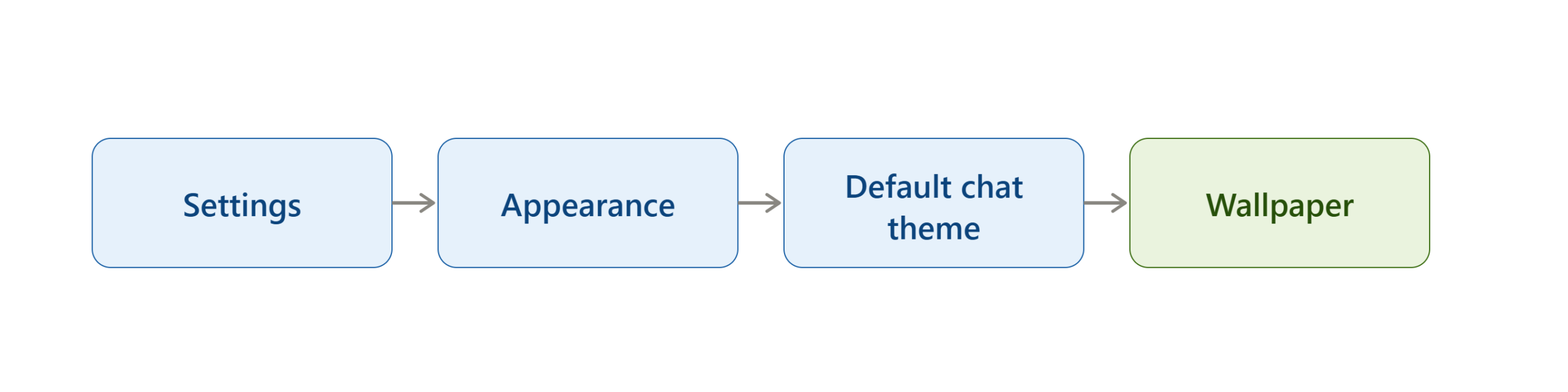
This is the appropriate path when you want a consistent appearance across chats.
If You Want One Special Chat to Look Different
Open that conversation and use:
Chat name → Chat theme → Wallpaper
This keeps the customization specific to that conversation.
If You Want the Background and Bubbles to Match
Use a Chat Theme.
A theme can control both wallpaper and chat color.
If You Want Your Own Image
Choose the photo option from the wallpaper controls.
If You Want a Minimal Appearance
Use a solid color.
If You Want an AI-Created Design
Use Create with AI if the option is available to your account.
Implementation Checklist
Before Starting
- Update WhatsApp if an update is available.
- Decide whether you want to change all chats or one chat.
- Choose a suitable photo if you want a custom background.
- Consider readability before selecting a highly detailed image.
During Implementation
- Open WhatsApp settings.
- Go to Appearance where available.
- Open Default chat theme for global customization.
- Open an individual chat’s Chat theme for single-chat customization.
- Select Wallpaper.
- Choose a wallpaper, photo, solid color, or available AI option.
- Apply the change.
After Completion
- Open the customized chat.
- Confirm that the background changed.
- Check message readability.
- If you changed the default wallpaper, check another chat.
- If you customized one chat, check another conversation to confirm it remained unchanged.
Frequently Asked Questions
How do I change my WhatsApp chat background?
Open WhatsApp and go to Settings → Appearance → Default chat theme → Wallpaper on supported current versions. Select a wallpaper, photo, color, or available AI-generated option, then apply it.
How do I change the background for only one WhatsApp chat?
Open the specific conversation, tap the chat name, select Chat theme → Wallpaper, choose your preferred background, and tap Set.
Can I use my own photo as a WhatsApp wallpaper?
Yes. WhatsApp’s current wallpaper controls can allow you to choose a photo from your device. The exact option name can vary by platform and current app interface.
Can I change the WhatsApp chat bubble color too?
Yes. WhatsApp’s current chat customization system allows chat-bubble color customization, separately from or together with chat themes depending on the workflow.
Does changing my WhatsApp background change it for the other person?
No. WhatsApp says chat themes are visible only to the user who applies them. Your personal chat customization does not automatically change the other participant’s appearance.
Why don’t I have the Create with AI wallpaper option?
AI-powered WhatsApp customization is not available to every user. WhatsApp says Meta AI and some related experiences are available only in certain countries and may not be available to everyone in a supported country.
Why does my WhatsApp settings menu look different from an online tutorial?
WhatsApp’s interface changes over time, and older guides may show previous menu paths. Current official documentation uses Appearance → Default chat theme for the newer chat customization workflow on supported mobile versions.
Can I have a different wallpaper for every WhatsApp chat?
Yes. WhatsApp supports individual chat customization, allowing you to apply different wallpapers or themes to individual conversations.
Is WhatsApp chat wallpaper the same as my phone wallpaper?
No. A WhatsApp chat wallpaper controls the background inside WhatsApp conversations. Your phone’s home-screen and lock-screen wallpapers are controlled separately by Android or iOS.
Read More:
Key Takeaways
Changing a WhatsApp chat background in 2026 is straightforward once you know whether you want to customize all chats or one specific conversation.
For a general default background, current WhatsApp instructions use Settings → Appearance → Default chat theme → Wallpaper. For an individual conversation, open the chat, select its Chat theme, and then choose Wallpaper.
You can also use a complete Chat Theme when you want to coordinate the wallpaper and chat-bubble appearance. WhatsApp supports built-in customization, photos, solid colors, and AI-generated options for users who have access to those features.
The most important practical point is to choose the method according to the scope of the change. Use the default chat theme when you want a broad change and individual chat customization when you want only one conversation to look different.

