

You cannot create a genuinely lossless MP3 from a YouTube video because MP3 uses lossy compression. The best practical approach is to start with the highest-quality source you are legally authorized to use, avoid repeated re-encoding, and choose an appropriate MP3 bitrate—typically 256 kbps or 320 kbps when an MP3 is required. If preserving the source audio as closely as possible is more important than having an MP3 file, keeping the original audio format or using a lossless format such as FLAC is preferable.
YouTube itself provides official offline downloads through supported features such as YouTube Premium, but those downloads are designed for playback within YouTube rather than exporting an MP3 file. YouTube also states that its service restrictions limit downloading content except where downloading is specifically permitted by the service, authorized by rights holders, or allowed by applicable law.
What Does “Without Losing Quality” Actually Mean?
When people search for a way to download a YouTube video as an MP3 without losing quality, they usually mean one of three things:
- They want the downloaded audio to sound as close as possible to the YouTube source.
- They want to prevent an unnecessarily low-quality conversion.
- They want to avoid creating a large file that sounds no better than a smaller one.
These are reasonable goals, but they are technically different from creating a lossless copy.
MP3 is a lossy audio codec. During MP3 encoding, some audio information is discarded to reduce file size. Once that information has been removed, increasing the bitrate later cannot restore it.
For example, converting a 128 kbps source to a 320 kbps MP3 does not turn the original recording into 320 kbps-quality audio. The resulting file may be larger, but the missing information from the original compression remains missing.
The practical goal should therefore be:
Use the highest-quality authorized source available and perform as few lossy conversions as possible.
That distinction is the foundation for getting the best result.
What Is the Difference Between YouTube Audio Quality and MP3 Quality?
YouTube distributes audio using modern codecs and delivery formats rather than treating every video as an MP3 file. Depending on the service and content, audio may be delivered using codecs such as AAC or Opus.
YouTube Music currently documents download audio settings of 48 kbps, 128 kbps, and 256 kbps for AAC/Opus, with 256 kbps representing its High download setting.
This matters because an MP3 conversion is another encoding stage.
A simplified quality chain looks like this:
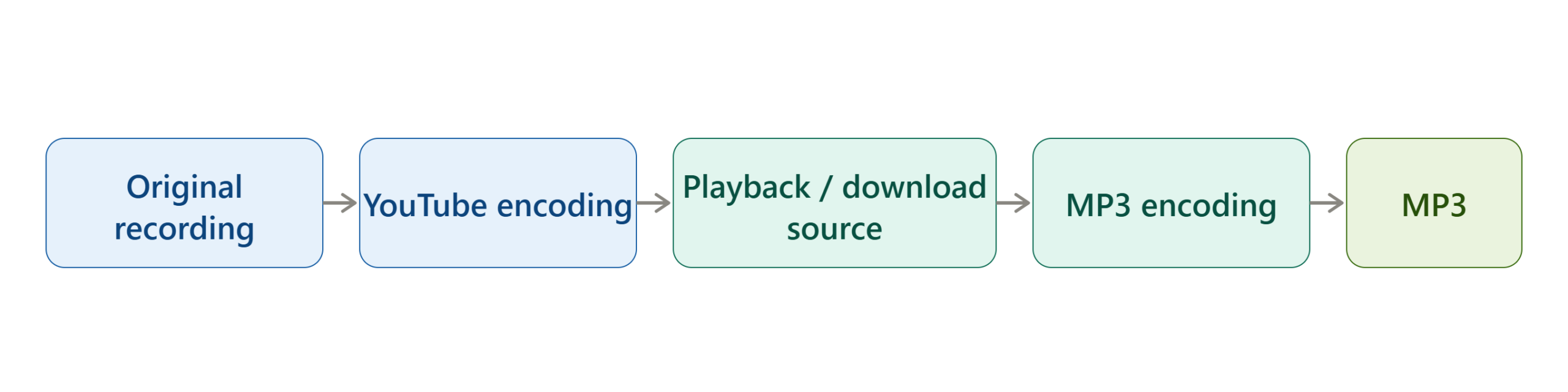
Every additional lossy encoding stage can potentially introduce additional artifacts.
That is why choosing the highest possible MP3 number does not automatically mean that the final file contains more original audio information.
Why 320 kbps Does Not Mean “Lossless”
320 kbps is commonly considered a high MP3 bitrate, but it is still MP3 compression.
The difference can be summarized as:
| Format | Compression | Can be lossless? | Main consideration |
|---|---|---|---|
| MP3 | Lossy | No | Very compatible and relatively small |
| AAC | Lossy | No | Efficient modern lossy codec |
| Opus | Lossy | No | Efficient for streaming and many modern applications |
| FLAC | Lossless | Yes | Preserves source information but creates larger files |
| WAV | Usually uncompressed PCM | Yes | Very large files but straightforward editing |
If the requirement is specifically MP3, choose a sensible high-quality bitrate and avoid unnecessary re-encoding.
If the requirement is maximum preservation, MP3 is not the ideal destination format.
Is It Possible to Download YouTube Videos Directly as MP3?
Not through YouTube’s standard official offline-download functionality.
YouTube’s help documentation says that audio, music, or MP3 files cannot be downloaded directly from the YouTube app. Official offline downloads are intended for playback within YouTube’s supported environment.
YouTube Premium allows eligible users to download videos for offline viewing, including on supported computers and mobile devices. Those downloads are managed through YouTube rather than being delivered as ordinary MP3 files that you can freely move between applications.
There is also an important distinction for videos you own.
If you uploaded a video yourself, YouTube provides an official download option through YouTube Studio. YouTube says uploaded videos can be downloaded as MP4 files, subject to its stated limitations.
For content belonging to someone else, you should use YouTube’s permitted offline features or obtain the file from the rights holder rather than assuming that a third-party downloader is authorized.
Before You Convert a YouTbe Video to MP3
Before thinking about bitrate or software, determine whether you actually have the right to obtain and convert the audio.
YouTube’s Terms of Service state that users may not access, reproduce, download, distribute, transmit, or otherwise use content except where the service specifically permits it, where YouTube and applicable rights holders have given permission, or where applicable law permits it.
A safe workflow is therefore:
- Use videos you created yourself.
- Use content for which the copyright holder has given you permission.
- Use content offered under a license that permits downloading and conversion.
- Use public-domain material where applicable.
- Use YouTube’s own offline functionality when you simply need offline playback.
- Check the applicable copyright rules in your country for any other situation.
This guide focuses on quality-preserving conversion of content you are authorized to download or convert.
How to Download YouTube Videos as MP3 Without Unnecessary Quality Loss
The exact workflow depends on what you are trying to accomplish.If you only want offline listening, YouTube’s official offline functionality is usually the simplest route.
If you own the video or have an authorized video file, converting that file locally gives you much more control over the resulting audio.
The important principle is to separate obtaining the authorized source from converting the source.
Step 1 — Start With the Highest-Quality Authorized Source
Quality begins before the MP3 conversion. If you own the original video, use the original video file rather than downloading a lower-quality copy from another source.
For example:
Better workflow:
Original video file → audio extraction/conversion → final MP3
Less desirable workflow:
Compressed online copy → another conversion → MP3 → another conversion The second workflow introduces more opportunities for quality degradation.
If you are working with your own YouTube upload, YouTube provides an official way to download uploaded videos through YouTube Studio.
Step 2 — Check the Source Audio Before Converting
Before choosing 320 kbps MP3, find out what the source actually contains.
Look at:
- Existing codec
- Source bitrate
- Sample rate
- Number of channels
- Duration
- Whether the source is already compressed
A source that is already heavily compressed cannot be transformed into genuinely higher-quality audio by choosing a larger output bitrate.
For example, if the source effectively contains 128 kbps compressed audio, exporting it as a 320 kbps MP3 produces a 320 kbps file but does not restore the audio information that was previously discarded.
This is sometimes called up-converting or transcoding to a higher nominal bitrate. It increases the file’s bitrate without increasing the original audio information.
Step 3 — Decide Whether MP3 Is Actually Necessary
Ask a simple question:
Do I specifically need an MP3 file?
If yes, continue with MP3.
If no, consider keeping the original audio or using a lossless format.
For archival work, editing, mastering, or repeated future conversions, a lossless source is generally more useful than repeatedly converting compressed audio.
For ordinary compatibility across devices and applications, MP3 remains convenient.
Step 4 — Choose the MP3 Bitrate Carefully
When MP3 is required, use a bitrate appropriate to the source and purpose.
A practical guide is:
| MP3 Bitrate | Typical Use | Quality Consideration |
|---|---|---|
| 96 kbps | Speech where storage matters | Noticeable compression |
| 128 kbps | Basic speech/music | More compression |
| 192 kbps | General listening | Reasonable compromise |
| 256 kbps | High-quality everyday listening | Strong practical choice |
| 320 kbps | Maximum conventional MP3 bitrate | Large file; still lossy |
For music where file size is not a major concern, 256 kbps or 320 kbps is generally more appropriate than aggressively reducing the bitrate.
If the source itself is lower quality, 320 kbps cannot reconstruct the missing information.
Step 5 — Avoid Multiple Conversions
One of the easiest ways to reduce quality unnecessarily is to repeatedly convert the same file.
For example:
Video → MP3 → AAC → MP3
is generally less desirable than:
Authorized source → final MP3
Each lossy conversion can introduce additional artifacts. If you need MP3, make the MP3 once and keep the original source separately.
Step 6 — Use a Reliable Local Converter for Authorized Files
If you already have an authorized video file, a local converter gives you control over the encoding process.
One widely used command-line tool is FFmpeg.
For example, an authorized local video file can be converted to a high-bitrate MP3 with:
ffmpeg -i input.mp4 -vn -c:a libmp3lame -b:a 320k output.mp3Here:
-i input.mp4identifies the source file.-vntells FFmpeg not to include video.-c:a libmp3lameselects the MP3 encoder.-b:a 320krequests a 320 kbps audio stream.output.mp3is the resulting MP3 file.
This does not make the audio lossless. It simply creates a high-bitrate MP3 from the authorized source.
For a smaller file, you could use:
ffmpeg -i input.mp4 -vn -c:a libmp3lame -b:a 256k output.mp3Step 7 — Preserve the Original File
Do not immediately delete the source after conversion. Keep the original authorized file if storage permits. This gives you a clean source for future conversions.
For example:
Original: video-original.mp4
Listening copy: video-256kbps.mp3
Archive copy: video-original.mp4 or a lossless audio file where appropriate
If you later discover that you need a different format, you can convert from the original instead of repeatedly converting the MP3.
How to Choose Between 256 kbps and 320 kbps MP3
The difference between 256 kbps and 320 kbps is primarily a trade-off between file size and encoding bitrate. A 320 kbps MP3 consumes more storage than a 256 kbps MP3 for the same duration.
But the higher number does not guarantee that the final result will sound dramatically better. The source quality remains the limiting factor.
Use 256 kbps When
256 kbps can be a practical choice when:
- You want high-quality everyday listening.
- Storage matters somewhat.
- You are converting a source that is already compressed.
- You want a good balance between size and quality.
- The file is primarily for portable listening.
Use 320 kbps When
320 kbps can make sense when:
- You specifically need a high-bitrate MP3.
- Storage is not a major concern.
- You want to minimize additional MP3 compression.
- You are creating a final MP3 for broad compatibility.
- You are working from a sufficiently good authorized source.
But remember: 320 kbps MP3 is still lossy.
What Audio Format Should You Use If Quality Matters More Than MP3?
If maximum preservation is the real objective, consider keeping the original audio or converting to a lossless format instead of MP3.
MP3
MP3 is useful when compatibility and small file sizes are priorities. Its main advantage is broad support. Its disadvantage is that it is lossy.
AAC
AAC is another lossy codec and can provide efficient compression. It is commonly encountered in digital media ecosystems and can be preferable when the target device or application supports it well.
Opus
Opus is a modern, efficient codec widely used for internet audio and real-time communication. YouTube Music documentation identifies Opus and AAC among its audio formats and lists up to 256 kbps for its High audio-quality setting.
FLAC
FLAC is lossless. It is useful when you want to preserve the decoded audio without the additional losses associated with a lossy MP3 conversion. The trade-off is larger file size and less universal compatibility than MP3.
WAV
WAV commonly stores uncompressed PCM audio. It can be useful for editing and production workflows but produces substantially larger files than compressed formats.
How to Verify the Quality of Your MP3
After conversion, do not judge quality only by the file size or filename. Check the actual technical properties.
Useful properties include:
- Codec
- Bitrate
- Sample rate
- Channel configuration
- Duration
- File size
A 320 kbps label confirms the encoded MP3 bitrate. It does not prove that the source contained 320 kbps of original audio information.
Listen for Compression Artifacts
When comparing the output with the source, pay attention to:
- High-frequency sounds
- Cymbals
- Sibilance in vocals
- Stereo separation
- Transient sounds
- Dense musical passages
- Background ambience
Compression artifacts can sometimes appear as metallic, watery, smeared, or unusually harsh sounds.
The effect depends heavily on the source and encoding process.
Compare the Beginning, Middle, and Loudest Sections
Do not listen only to the first few seconds.
Compare several portions of the audio:
- A quiet section.
- A normal section.
- A dense or loud section.
- A section containing high-frequency instruments or vocals.
This provides a better practical quality check.
How to Check an MP3’s Technical Information
On a computer, media-information tools can show the properties of the resulting file.
For example, FFmpeg’s ffprobe can inspect an audio file:
ffprobe output.mp3You can use the resulting information to confirm details such as the codec, bitrate, sample rate, and duration.
For a quality-controlled workflow, compare those values with the source rather than assuming the output is better simply because its bitrate is higher.
Troubleshooting: Why Does My YouTube MP3 Sound Worse?
Quality problems usually have a small number of causes.
| Problem | Possible Cause | Solution |
|---|---|---|
| MP3 sounds muffled | Low-quality source or aggressive compression | Start with the highest-quality authorized source and use a higher MP3 bitrate |
| 320 kbps file sounds poor | Source was already low quality | Use a better source; increasing output bitrate cannot restore lost information |
| Audio contains artifacts | Multiple lossy conversions | Convert directly from the best available source |
| File is much larger than expected | High bitrate or long duration | Use 256 kbps if appropriate |
| Audio volume changed | Normalization or processing during conversion | Avoid unnecessary processing and compare source/output levels |
| MP3 has missing metadata | Converter did not transfer tags | Add metadata after conversion |
| Downloaded YouTube video is unavailable outside the app | Official offline download is protected for in-app playback | Use the supported YouTube offline feature rather than treating it as an ordinary MP3 file |
| Conversion produces no audio | Source/container or codec issue | Inspect the source with a media-information tool before converting |
Why Does a 320 kbps MP3 Sometimes Sound Bad?
This is one of the most misunderstood aspects of audio conversion. Suppose the source audio has already undergone lossy compression.
You then create:
Source → 320 kbps MP3
The final MP3 is encoded at 320 kbps, but it still contains the limitations of the source. The encoder cannot recover information that was removed earlier.
This is why:
320 kbps output ≠ 320 kbps original-quality audio
A high bitrate is useful for reducing the additional compression introduced by your final encoding stage. It is not a restoration tool.
Why Does Converting a 128 kbps File to 320 kbps Not Improve Quality?
Because bitrate and information content are not the same thing.
Imagine a low-resolution image that is enlarged from 720 pixels to 4K. The resulting file may have more pixels, but the enlargement does not recreate the details that were absent from the original.
Audio up-conversion works similarly.
A 128 kbps compressed source can be encoded into a 320 kbps MP3, but the output does not magically regain the audio information removed during the earlier compression process.
Therefore, source quality is more important than simply selecting the largest output bitrate.
What If YouTube’s Official Download Is Good Enough?
If your goal is simply to listen offline rather than obtain a standalone MP3 file, YouTube’s official offline functionality may be more appropriate.
YouTube Premium supports offline downloads on supported devices and browsers, with download quality settings available through YouTube. Higher-quality downloads can require more storage and data.
This route has an important advantage: you do not need to perform an external conversion.
It also has an important limitation: official offline downloads are not equivalent to receiving a normal MP3 file that can be freely copied into any audio player.
YouTube says downloaded videos are stored in an encrypted form on the device and can only be watched through the YouTube app in the supported offline system.
What If You Own the YouTube Video?
If you uploaded the video yourself, the situation is different.
YouTube provides official downloading through YouTube Studio. According to YouTube’s current help documentation, uploaded videos can be downloaded as MP4 files, with available resolutions depending on the video.
A quality-focused workflow can therefore look like:
Your original video → YouTube Studio download or original file → local audio conversion → MP3
If you still have the original master file, that is usually the preferred starting point because it avoids using an additional platform copy.
Common Mistakes That Reduce Audio Quality
Mistake 1 — Assuming 320 kbps Means Lossless
320 kbps is a high MP3 bitrate, but MP3 remains a lossy format.
Correct approach: Treat 320 kbps as a high-bitrate MP3 setting, not a lossless setting.
Mistake 2 — Converting the Same Audio Multiple Times
Repeated lossy encoding can accumulate additional artifacts.
Correct approach: Keep the original source and create the final MP3 directly from it whenever possible.
Mistake 3 — Increasing the Bitrate of a Low-Quality Source
Changing 128 kbps audio into a 320 kbps MP3 does not restore missing information.
Correct approach: Improve the source rather than simply increasing the destination bitrate.
Mistake 4 — Choosing a Converter Based Only on “320K” Marketing
A website or application advertising 320 kbps output does not necessarily have a high-quality source.
Correct approach: Evaluate the source, conversion process, codec, and resulting file—not just the advertised number.
Mistake 5 — Deleting the Original After Conversion
If you delete the original and later need FLAC, AAC, WAV, or another format, you may have to begin with an already compressed MP3.
Correct approach: Archive the original authorized file.
Mistake 6 — Treating File Size as Proof of Quality
A larger file is not automatically a better file.
Correct approach: Check the codec, bitrate, source quality, and actual listening result.
Mistake 7 — Using Multiple Audio Filters Unnecessarily
Normalization, equalization, noise reduction, and other processing can change the audio.
Correct approach: Do not apply additional processing unless you actually need it.
How to Choose the Right Audio Workflow
Different users have different requirements.
| Your Goal | Recommended Approach |
|---|---|
| Listen offline inside YouTube | Use YouTube’s supported offline feature |
| Convert your own video | Download the authorized source and convert locally |
| Need an MP3 for compatibility | Use a high-quality MP3 conversion |
| Need maximum preservation | Keep the original or use a lossless format |
| Need editing/mastering | Work from the original or lossless source |
| Need small files | Use an appropriate lower bitrate |
| Need archival quality | Preserve the original source rather than MP3 |
The most important decision is not simply “256 or 320 kbps?”
It is:
What is the highest-quality source I am authorized to use, and what do I actually need the final file for?
That question prevents most unnecessary quality problems.
Can You Preserve 100% of YouTube Audio Quality in MP3?
No—not in the strict technical sense.
If the YouTube source is already encoded using a lossy codec, converting it into MP3 introduces another lossy encoding stage.
Even if the MP3 is encoded at 320 kbps, the result cannot be guaranteed to contain every piece of information from the original recording.
If your priority is maximum preservation, avoid MP3 when possible.
If your priority is MP3 compatibility, use a high-quality source and perform one final conversion at an appropriate bitrate.
That is the practical distinction between lossless preservation and minimizing additional loss.
Frequently Asked Questions
Is 320 kbps MP3 the best quality for YouTube audio?
320 kbps is a high MP3 bitrate, but it is not lossless. It can reduce the amount of additional compression introduced during MP3 encoding, but it cannot restore information already removed from the source.
Can I convert a YouTube video to MP3 without losing any quality?
Not if the final format must be MP3. MP3 uses lossy compression. To preserve audio information more completely, keep the original source or use a lossless format such as FLAC where appropriate.
Does converting 128 kbps audio to 320 kbps improve quality?
No. It creates a larger 320 kbps file but does not restore audio information removed from the 128 kbps source.
What bitrate should I use for a YouTube MP3?
For high-quality everyday listening, 256 kbps or 320 kbps can be reasonable choices when MP3 is required. The best setting depends on the quality of the source and the purpose of the file.
Is YouTube Premium download the same as downloading an MP3?
No. YouTube Premium supports offline video playback through YouTube’s supported system. The downloaded content is not provided as a freely transferable MP3 file.
Can I download my own YouTube videos?
Yes. YouTube provides tools for downloading videos that you have uploaded, including through YouTube Studio. Certain restrictions can apply, such as videos affected by copyright or Community Guidelines issues.
Which is better for quality: MP3 or FLAC?
FLAC is lossless, while MP3 is lossy. If preserving the available audio information is the priority, FLAC or the original source is preferable. If compatibility and smaller file sizes are more important, MP3 is often more convenient.
Why does my downloaded MP3 sound worse than the YouTube video?
Possible causes include a lower-quality source, additional lossy encoding, an aggressive bitrate setting, or unnecessary audio processing. Start with the best authorized source and avoid repeated conversions.
Conclusion
The best way to get high-quality MP3 audio is not to chase the largest bitrate. It is to protect the quality chain from beginning to end: use the best authorized source available, avoid unnecessary conversions, choose MP3 only when you actually need it, and keep a master copy before creating compressed versions.
If maximum audio preservation is more important than MP3 compatibility, retain the original source or use a lossless format instead. If MP3 is required for compatibility, create one final high-quality MP3 and avoid converting that file again.

