

The easiest way to transcribe a WhatsApp voice message in 2026 is to use WhatsApp’s built-in Voice Message Transcripts feature when it is available on your device and supports the language you need. WhatsApp says its native transcripts are generated on your device, keeping personal voice messages protected by end-to-end encryption.
If WhatsApp’s built-in option is unavailable or you need more advanced capabilities, you can save or export the audio and upload it to an AI transcription service such as Notta, TurboScribe, Otter, HappyScribe, or Transkriptor. These services can provide additional capabilities such as multilingual transcription, transcript editing, speaker recognition, translation, summaries, and downloadable formats, depending on the platform and plan.
AI speech-to-text technology makes this much easier. Instead of repeatedly playing a voice message, you can convert the spoken audio into a written transcript and then read, copy, edit, summarize, translate, or save the information.
This guide explains the available approaches, how to use them, which type of user each option suits, what can go wrong, and how to choose a transcription workflow without sacrificing privacy or accuracy.
What Are AI Tools to Transcribe WhatsApp Audio to Text?
AI WhatsApp transcription tools use speech-recognition technology to convert spoken words from a WhatsApp voice message or exported audio file into written text.
The workflow normally looks like this:
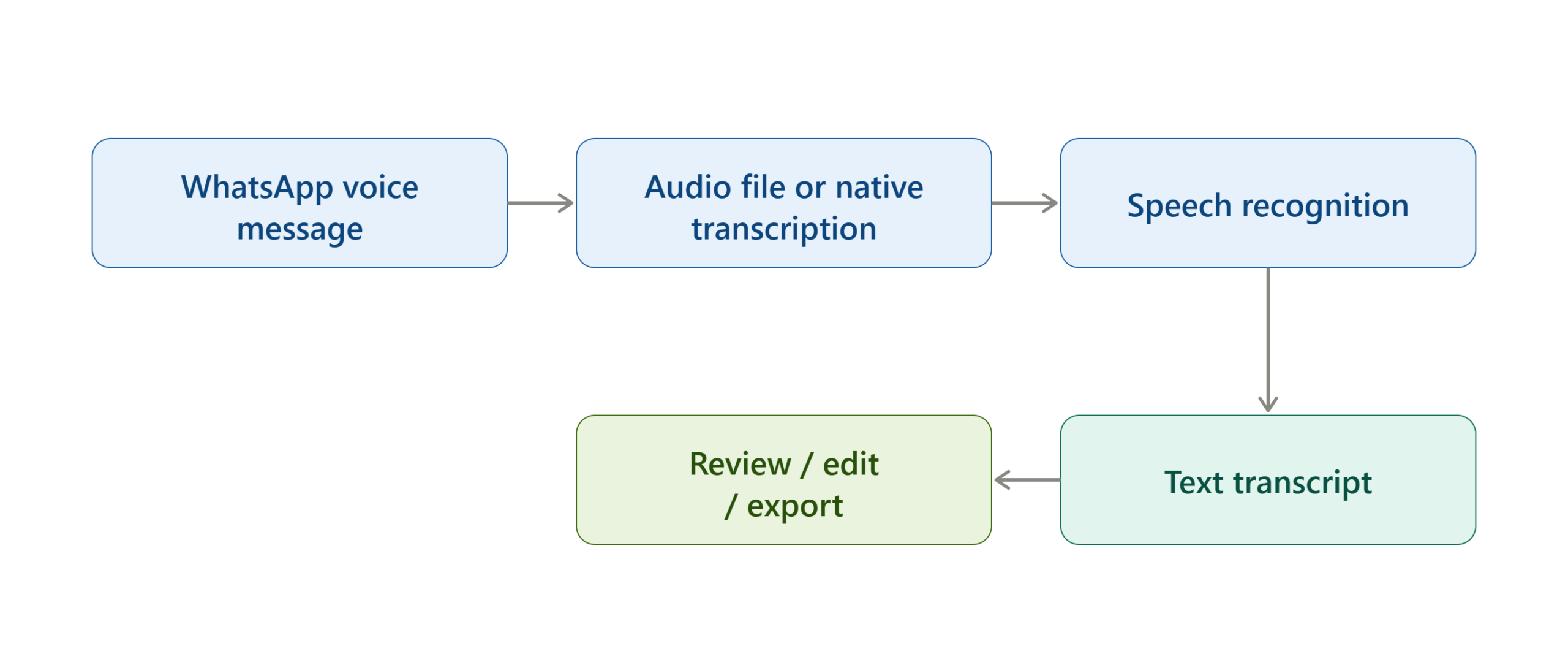
There are two main categories.
Native WhatsApp Transcription
WhatsApp’s built-in Voice Message Transcripts feature lets eligible users transcribe voice messages directly inside the WhatsApp application. WhatsApp says the transcription is generated on the user’s device and that personal voice messages remain protected by end-to-end encryption.
This is the simplest approach because you do not need to download the audio and upload it to another company.
External AI Transcription Tools
External services work differently. You first make the WhatsApp recording available as an audio file, then upload that file to a transcription platform.
Services such as Notta and TurboScribe support common audio formats and provide browser-based transcription workflows. Otter also supports importing audio and video files for automatic transcription.
External tools become particularly useful when you need capabilities that go beyond simply reading a WhatsApp voice note.
Why Are AI WhatsApp Transcription Tools Useful?
The main benefit is that they turn a time-based communication format into searchable and editable information.
Save Time
Reading a transcript can be faster than listening to a long recording, especially when you only need to locate one specific detail.
For example, if someone sends a five-minute WhatsApp voice message containing a meeting update, a transcript lets you scan the message for names, dates, tasks, or decisions instead of listening to the entire recording.
Read Messages in Quiet Environments
A transcript is useful when playing audio would disturb other people.
This can matter in offices, classrooms, libraries, public transport, waiting rooms, and other situations where listening to a voice message is inconvenient.
Make Voice Messages Searchable
Once audio has been converted into text, you can search, copy, edit, quote, or organize the information more easily.
External transcription platforms may also allow you to export transcripts into formats such as TXT, DOCX, PDF, or subtitle files, depending on the service.
Improve Accessibility
Text transcripts can make voice-based communication more accessible for people who cannot conveniently listen to audio.
The transcript can also be easier to review for users who prefer reading over listening.
Work Across Languages
Language support varies significantly between transcription methods. WhatsApp’s current Android help documentation lists English, Portuguese, Spanish, and Russian for its native transcription feature, while its platform-specific availability can differ.
Dedicated transcription platforms can provide substantially broader language coverage. For example, Notta currently advertises transcription across dozens of languages, while TurboScribe advertises support for more than 100 languages.
How Do AI Tools Transcribe WhatsApp Audio?
The underlying process is generally based on automatic speech recognition, commonly called ASR.
Step 1 — Obtain the Audio
The audio may remain inside WhatsApp if you use native transcription.
For an external service, you generally need an accessible audio file that can be uploaded.
Step 2 — Process the Speech
The transcription engine analyzes the audio and identifies spoken words.
Modern AI transcription systems can use contextual information to improve recognition of names, terminology, accents, and multilingual speech. OpenAI’s current GPT-Transcribe model, for example, supports keyword hints and language hints for completed audio-file transcription.
Step 3 — Generate the Transcript
The speech-recognition system converts the recognized speech into text.
The resulting transcript may then be formatted with paragraphs, timestamps, speaker labels, or other information depending on the tool.
Step 4 — Review the Result
AI transcription is not guaranteed to be perfect.
Background noise, overlapping speech, accents, low recording quality, unusual names, technical vocabulary, code-switching, and unclear pronunciation can all produce mistakes.
Important information should therefore be checked against the original audio before it is published, quoted, or used for a consequential decision.
Best AI Tools to Transcribe WhatsApp Audio to Text in 2026
There is no single tool that is ideal for every WhatsApp transcription scenario. The right option depends on whether you prioritize privacy, convenience, language support, file limits, editing, summaries, or professional workflows.
1. WhatsApp Voice Message Transcripts
Best for: Users who want the simplest and most private built-in option.
WhatsApp’s native transcription should be the first method to check because it works directly with voice messages and does not require sending the recording to a separate transcription service.
WhatsApp says transcripts are generated on the device and that personal voice messages remain protected by end-to-end encryption.
The feature is disabled by default according to WhatsApp’s current help documentation.
To enable it on supported devices:
- Open WhatsApp.
- Go to Settings.
- Open Chats.
- Find Voice Message Transcripts.
- Turn the feature on.
- Choose the appropriate transcript language.
- Return to a voice message.
- Press and hold the message.
- Select Transcribe.
2. Notta
Best for: Users who want a dedicated online transcription workspace with editing and export features.
Notta can transcribe uploaded audio and video files and supports a broad selection of common formats. Its current online audio transcription tool supports files such as WAV, MP3, M4A, CAF, AIFF, and several video formats.
A WhatsApp workflow is straightforward:
- Save or export the WhatsApp audio file to your device.
- Open Notta’s audio transcription tool.
- Upload the recording.
- Select the spoken language.
- Start transcription.
- Review the generated text.
- Edit obvious recognition errors.
- Export or share the finished transcript.
Notta also provides transcript editing and export options, making it more useful than a simple text converter when the transcript needs additional processing.
3. TurboScribe
Best for: Long audio files, broad language coverage, and flexible file-based transcription.
TurboScribe is a browser-based transcription service that accepts common audio formats including MP3, M4A, WAV, OGG, and OPUS. It currently advertises files up to 5 GB and 10 hours, along with transcription in more than 100 languages.
That makes it particularly relevant when a WhatsApp recording is too long or complicated for a basic voice-message workflow.
To use it:
- Save the WhatsApp audio to your device.
- Open TurboScribe.
- Drag the audio file into the upload area or browse for it.
- Select the appropriate language.
- Enable speaker recognition if it is useful for the recording.
- Start transcription.
- Review the output.
- Export the transcript in the format you need.
TurboScribe also provides translation features and transcript exports such as DOCX, TXT, PDF, and SRT.
4. Otter
Best for: Users who want transcription combined with AI-generated notes and structured information.
Otter supports importing audio and video files from computers or mobile devices and automatically generates transcripts from imported recordings. Its current documentation says imported files can also be processed into AI summaries, action items, outlines, and other meeting-note formats.
For a WhatsApp recording, the basic workflow is:
- Save the WhatsApp audio file.
- Open Otter.
- Use the import option.
- Select the audio file.
- Wait for automatic transcription.
- Review the transcript.
- Use available AI features to extract important information.
Otter currently lists OGG among its supported audio formats, along with MP3, M4A, WAV, AAC, and WMA.
5. HappyScribe
Best for: Multilingual transcription, translation, subtitles, and professional content workflows.
HappyScribe supports AI transcription across more than 150 languages, although exact language coverage depends on the feature being used. It also offers human transcription when a professionally reviewed result is required.
For WhatsApp audio, the relevant workflow is file-based:
- Export or save the voice message.
- Upload the audio file to HappyScribe.
- Select the original spoken language.
- Generate the transcript.
- Review and edit the text.
- Translate or create another supported output if required.
- Download or share the result.
This approach is particularly useful when a WhatsApp voice note is part of a larger content workflow rather than something you simply want to read once.
6. Transkriptor
Best for: Users who want a dedicated AI transcription platform for multilingual audio workflows.
Transkriptor is another general-purpose AI transcription platform that can be used with saved recordings rather than being limited to WhatsApp itself.
Its value in a WhatsApp workflow is therefore based on the ability to process the audio file after it has been obtained from WhatsApp.
A typical workflow is:
- Save the WhatsApp recording.
- Upload it to Transkriptor.
- Select the language.
- Let the AI process the audio.
- Check names, terminology, and unclear sentences.
- Export or reuse the transcript.
Transcription software comparisons published in 2026 commonly position Transkriptor among current AI transcription services, particularly for multilingual workflows.
7. OpenAI Speech-to-Text Models
Best for: Developers and businesses building their own WhatsApp transcription workflow.
OpenAI provides speech-to-text models through its API, including the current GPT-Transcribe model. The official documentation describes GPT-Transcribe as a high-accuracy model for completed audio-file transcription and supports contextual information, keyword hints, and language hints.
This is different from using a normal consumer transcription website.
A developer could build a workflow in which an authorized WhatsApp audio file is passed into a backend transcription process and the resulting text is returned to:
- Database
- CRM
- Customer-Support system
- Internal application.
OpenAI’s current audio API documentation also lists transcription models and output formats such as text, SRT, VTT, and JSON for supported models.
This option is most appropriate when you need automation or custom integration, not simply a quick transcript of one voice message.
WhatsApp Transcription Tools Compared
| Tool | Main Workflow | Best Use | Language Coverage | Extra Capabilities |
|---|---|---|---|---|
| WhatsApp Transcripts | Directly inside WhatsApp | Quick private transcription | Platform-dependent | Native transcript |
| Notta | Upload audio file | General transcription | 58+ languages advertised | Editing, exports, translation |
| TurboScribe | Upload audio file | Long/multilingual recordings | 100+ languages advertised | Speaker recognition, translation, exports |
| Otter | Import audio/video | Structured notes | Tool-dependent | Summaries, action items, outlines |
| HappyScribe | Upload audio/video | Professional multilingual workflows | 150+ languages across features | Translation, subtitles, human transcription |
| Transkriptor | Upload recording | Multilingual transcription | Tool-dependent | AI transcription workflow |
| OpenAI GPT-Transcribe | API | Custom applications | Multiple language capabilities | Automation, contextual hints, API integration |
Language counts and feature availability can change, and they can differ by plan or product feature. Always check the provider’s current documentation before selecting a service for a specific language or file.
How to Transcribe WhatsApp Audio to Text Using WhatsApp
For supported users, the native WhatsApp method is the shortest workflow.
Step 1 — Open WhatsApp Settings
Open WhatsApp and enter Settings.
On supported versions, open Chats and look for Voice Message Transcripts.
Step 2 — Enable Transcription
Turn on Voice Message Transcripts.
WhatsApp’s documentation says the feature is disabled by default and requires you to select a transcript language.
Step 3 — Select the Language
Choose the language that matches the majority of the voice messages you want to transcribe.
Choosing the wrong language can reduce the usefulness of the generated transcript.
Step 4 — Select a Voice Message
Return to the chat containing the voice message.
Press and hold the voice message and choose Transcribe.
Step 5 — Read the Transcript
WhatsApp generates the transcript and displays it with the voice message.
The transcript may take a short time to appear, and WhatsApp warns that transcription can contain inaccuracies.
Step 6 — Check Important Information
Do not assume an AI-generated transcript is automatically perfect.
Pay particular attention to: Names, Numbers, Addresses, Date, Technical terms, Product names, Financial informati, Legal wording, Medical terminology.
For important information, compare the text with the original recording.
How to Transcribe WhatsApp Audio With an AI Tool
If native transcription is unavailable or insufficient, use a file-based workflow.
Step 1 — Save the WhatsApp Audio
First make the voice message available as an audio file on your phone or computer.
The exact export process varies between Android, iPhone, WhatsApp Web, and desktop workflows, so the important requirement is simply that the recording becomes accessible to the transcription tool.
Step 2 — Check the Audio Format
WhatsApp voice messages may use formats that are different from the MP3 files people commonly expect.
Do not automatically convert the file before checking whether your chosen transcription service already supports the format.
For example, Otter lists OGG among its supported audio formats, while TurboScribe supports OGG and OPUS alongside several other common formats.
Step 3 — Choose the Transcription Tool
Use this decision framework:
Need the transcript directly inside WhatsApp?
→ Try WhatsApp’s native transcription.
Need a simple browser upload?
→ Consider Notta or TurboScribe.
Need long recordings and broad language coverage?
→ Consider TurboScribe or another multilingual transcription platform.
Need summaries and action items?
→ Consider Otter.
Need multilingual content or subtitles?
→ Consider HappyScribe.
Need an automated business workflow?
→ Consider an API-based speech-to-text solution such as OpenAI’s GPT-Transcribe.
Step 4 — Upload the File
Select the saved WhatsApp audio and upload it to the chosen service.
Before uploading sensitive recordings, check the provider’s privacy and data-retention terms.
Step 5 — Select the Correct Language
If the service allows manual language selection, use the actual spoken language rather than relying blindly on automatic detection.
This becomes especially important with accents, mixed-language conversations, and code-switching.
Step 6 — Generate the Transcript
Start transcription and wait for the processing to finish.
Longer files may take more time than short voice notes.
Step 7 — Review the Text
Read through the transcript and correct errors.
A useful review sequence is:
Names → Numbers → Dates → Technical terms → Missing sentences → Context
Step 8 — Export or Reuse the Transcript
Depending on the tool, you may be able to export the result as TXT, DOCX, PDF, SRT, or another supported format. TurboScribe and Notta both advertise multiple export options.
How to Choose the Right WhatsApp Transcription Method
The best workflow depends on the problem you are actually trying to solve.
| Your Situation | Recommended Approach |
|---|---|
| One short supported voice message | WhatsApp native transcription |
| Privacy is the highest priority | WhatsApp native transcription |
| WhatsApp does not offer transcription | External AI transcription |
| Unsupported language | Check multilingual external tools |
| Long audio file | Dedicated file transcription service |
| Need translation | Tool with translation support |
| Need downloadable files | Notta, TurboScribe, HappyScribe, or similar |
| Need summaries/action items | Otter or an AI-enabled transcription platform |
| Need automated integration | Speech-to-text API |
| Need professional human review | Human transcription service such as HappyScribe’s professional option |
This is a workflow comparison, not an overall ranking. Different tools solve different problems.
How to Verify That the Transcription Worked
A successful transcription should satisfy more than simply producing a block of text.
Check the Content
Confirm that the transcript contains the major points from the recording.
If the recording says three things and the transcript only captures one, the result needs review.
Check Names and Numbers
AI systems can confuse proper names, phone numbers, prices, dates, and unfamiliar terminology.
These errors can materially change meaning.
Check the Language
If the output is full of unrelated words, verify that the correct transcription language was selected.
Compare Difficult Sections With the Audio
You do not necessarily need to listen to the entire recording again.
Instead, focus on: Unclear sentences, Missing words, Strange names, Numbers, Sentences that do not make contextual sense.
Confirm the Export
If you need the transcript for another application, open the exported file and confirm that the text has been preserved correctly.
WhatsApp Audio Transcription Troubleshooting
| Problem | Possible Cause | Solution |
|---|---|---|
| Transcribe option is missing | Feature unavailable or not enabled | Check WhatsApp Settings → Chats → Voice Message Transcripts |
| Transcript contains wrong words | Poor audio quality or speech recognition error | Listen to unclear sections and manually correct them |
| Wrong language appears | Incorrect transcript language | Select the language spoken in the recording |
| External tool rejects the file | Unsupported format | Try another compatible service or convert the audio format |
| Upload fails | File-size or duration restriction | Use a service with a higher file limit or split the recording |
| Names are incorrect | Unfamiliar proper nouns | Review names against the original audio |
| Mixed-language speech is inaccurate | Code-switching | Choose a tool that supports the languages involved |
| Transcript is incomplete | Audio quality, processing problem, or service limitation | Retry the upload and compare with the original recording |
| Sensitive audio raises privacy concerns | External upload sends audio outside WhatsApp | Prefer WhatsApp’s on-device transcription when available |
Why Is My WhatsApp Transcription Inaccurate?
AI transcription quality depends heavily on the recording itself.
Background Noise
Traffic, music, multiple conversations, fans, and other sounds can make speech recognition harder.
Multiple People Speaking
Overlapping voices can cause words to be attributed incorrectly or omitted.
Accents and Pronunciation
An AI model may understand a heavily accented or unusual pronunciation differently from a human listener.
Names and Specialized Vocabulary
A transcription engine may correctly understand a sentence while still producing the wrong spelling for a person’s name, company, product, or technical term.
Mixed Languages
If a speaker switches between languages during one recording, some tools may perform better than others.
Very Low Audio Quality
Compressed, distorted, distant, or extremely quiet recordings can reduce transcription quality regardless of the tool used.
Privacy: Should You Upload WhatsApp Audio to an AI Tool?
Privacy should be part of the tool-selection process, particularly when voice messages contain private conversations.
WhatsApp states that its native voice-message transcripts are generated on the device and that personal voice messages remain protected by end-to-end encryption.
An external transcription workflow is different because the audio must be provided to another service for processing.
That does not automatically mean an external tool is unsafe. It means the privacy model is different.
Before uploading sensitive WhatsApp audio, check:
- Where the service processes data
- How long audio is retained
- Whether files can be deleted
- Whether transcripts are stored
- Whether data can be used for model improvement
- Whether the provider offers business or enterprise controls
- Whether your organization permits external processing
- Whether you have permission to process another person’s recording
For especially sensitive conversations, the native WhatsApp transcription option may be preferable when it supports the required language and device.
What About Confidential or Sensitive WhatsApp Messages?
Treat the transcript as sensitive information if the original audio is sensitive.
A transcript can contain the same confidential information as the original recording, including names, addresses, business information, personal details, or private discussions.
Therefore, do not assume that converting audio to text makes the information less sensitive.
If you use an external platform, review its current privacy documentation before uploading the file.
Can AI Transcription Translate WhatsApp Voice Messages?
Yes, some AI transcription platforms combine transcription and translation.
The workflow is generally:
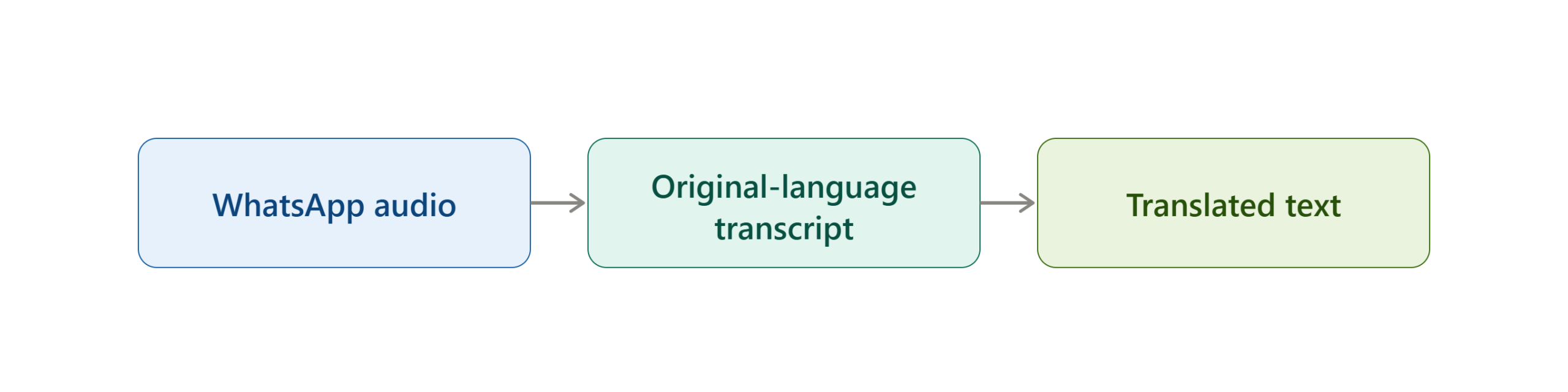
This is preferable to asking a system to guess both the spoken content and translation simultaneously when accuracy matters.
TurboScribe currently advertises transcript translation into more than 134 languages, while HappyScribe offers transcription and translation capabilities across a broad language set.
For important communications, review the original transcript before relying on the translation.
Can AI Tools Summarize WhatsApp Voice Messages?
Yes, but summarization is a separate task from transcription. A transcription attempts to represent what was said. A summary attempts to identify the important information.
For example:
Transcript:
A five-minute message containing a detailed project update.
Summary:
Three tasks were assigned, the deadline was moved to Friday, and one issue requires client approval.
Tools such as Otter combine imported-file transcription with AI-generated summaries, action items, and outlines.
For important decisions, retain the original transcript rather than relying only on the summary.
Common Mistakes When Transcribing WhatsApp Audio
Choosing a Tool Before Checking WhatsApp
Users sometimes immediately install another application without checking whether WhatsApp already supports the required transcription.
Better approach: Check the native Voice Message Transcripts option first.
Uploading Sensitive Audio Without Checking Privacy
Convenience should not replace data awareness.
Better approach: Review the service’s current privacy and retention information before uploading confidential recordings.
Assuming AI Transcripts Are Perfect
Even good transcription systems can make mistakes.
Better approach: Verify important names, numbers, dates, and decisions against the audio.
Selecting the Wrong Language
A language mismatch can make an otherwise clear recording difficult to transcribe.
Better approach: Select the actual spoken language whenever the service provides a language setting.
Converting the File Unnecessarily
Users sometimes convert an audio file before checking whether their chosen service already supports the original format.
Better approach: Check supported formats first.
Using a Consumer Tool for Sensitive Business Data
A convenient consumer workflow may not satisfy organizational data requirements.
Better approach: For business use, review the provider’s enterprise security, retention, access-control, and compliance documentation.
Advanced Tips for Better WhatsApp Transcriptions
Use the Original Audio
Avoid repeatedly converting or recompressing the recording before transcription.
Every unnecessary conversion can potentially alter audio quality.
Specify the Language
When a tool offers language selection, use it instead of relying entirely on automatic detection.
Add Context Where Supported
Some advanced transcription systems allow contextual information or keyword hints.
For example, if the audio discusses specialized software, providing relevant terminology can help a transcription workflow handle uncommon terms more effectively.
Review High-Value Information First
If you have limited time, verify: Names, Numbers, Dates, Addresses, Prices, Technical terms, Decisions, and Action items.
Separate Transcription From Interpretation
First establish what the speaker actually said. Then summarize, translate, classify, or analyze it.
This creates a cleaner workflow and makes it easier to identify whether an error came from transcription or interpretation.
Expert Insight: Think in Workflows, Not Just Tools
The biggest mistake when choosing WhatsApp transcription software is treating every transcription service as interchangeable.
A better framework is:
Where is the audio?
→ Inside WhatsApp or saved as a file?
How sensitive is it?
→ Private, ordinary, confidential, or highly sensitive?
What language is spoken?
→ One supported language or multilingual?
How long is the recording?
→ Short voice note or long recording?
What output is required?
→ Raw text, edited transcript, translation, summary, subtitles, or structured data?
How much automation is required?
→ One recording or thousands of recordings?
Once these questions are answered, tool selection becomes much easier.
For example, a person who simply wants to read a one-minute English voice note may not need a dedicated transcription platform at all. A researcher processing hundreds of recordings has a completely different requirement. A business building an automated WhatsApp support system has a third requirement and may need an API rather than a consumer transcription website.
Future of WhatsApp Audio Transcription
The direction of AI transcription is moving beyond simply turning speech into words.
Modern systems increasingly combine:
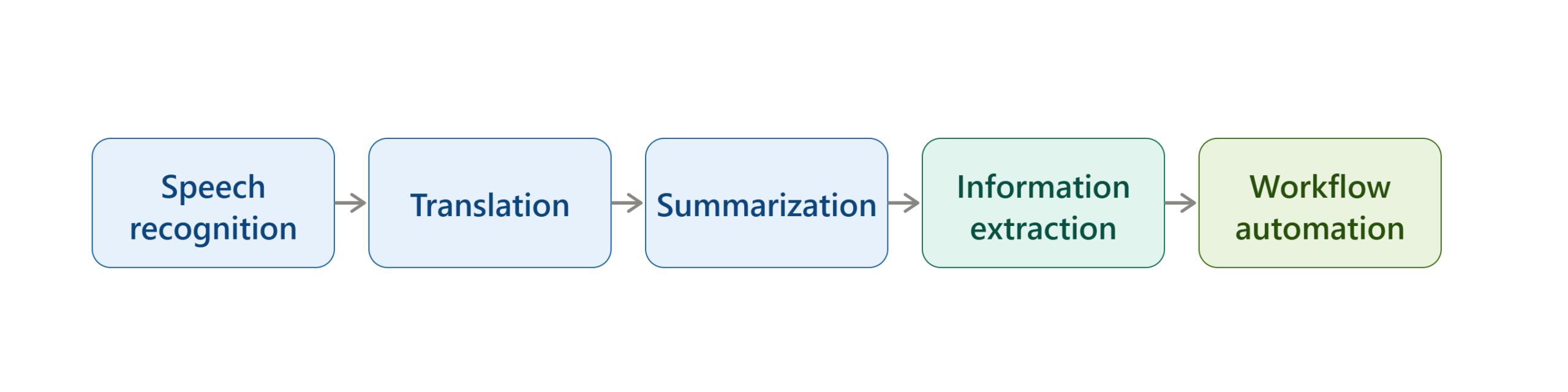
This means a future WhatsApp transcription workflow may not stop at producing a transcript.
For example, an organization could potentially turn an incoming voice message into:
Voice message → transcript → summary → action items → CRM record
The technical components for this type of workflow already exist. OpenAI’s current transcription models support completed audio transcription and contextual hints, while transcription platforms increasingly combine speech recognition with summaries, translation, and structured outputs.
The key challenge will remain accuracy, privacy, consent, and appropriate human review.
Implementation Checklist
Before Transcribing
- Check whether WhatsApp’s native transcription is available.
- Confirm that the required language is supported.
- Decide whether the recording contains sensitive information.
- Choose native or external transcription based on your privacy needs.
- Check the external tool’s supported audio formats.
During Transcription
- Use the original audio whenever possible.
- Select the correct language.
- Avoid unnecessary file conversions.
- Enable speaker recognition when it is genuinely useful.
- Keep the original recording available for verification.
After Transcription
- Review names and numbers.
- Check dates and technical terms.
- Compare unclear passages with the original audio.
- Correct obvious transcription errors.
- Export the transcript if needed.
- Do not rely exclusively on an AI summary for important decisions.
Frequently Asked Questions
Can WhatsApp automatically transcribe voice messages?
Yes. WhatsApp provides a built-in Voice Message Transcripts feature on supported devices and languages. The feature must be enabled in WhatsApp settings before a voice message can be transcribed.
Is WhatsApp voice transcription private?
WhatsApp says its personal voice-message transcripts are generated on the device and that the underlying personal voice messages remain protected by end-to-end encryption.
Can I transcribe a WhatsApp audio file with AI?
Yes. You can save or export the audio and upload it to a compatible AI transcription service. Tools such as Notta, TurboScribe, Otter, and HappyScribe support file-based audio transcription.
What is the easiest way to transcribe a WhatsApp voice note?
If the feature is available on your device and supports the message’s language, WhatsApp’s built-in Voice Message Transcripts feature is the simplest approach because it works directly inside the app.
Can AI transcription tools translate WhatsApp voice messages?
Yes. Some services can first transcribe the original audio and then translate the resulting text into another language. TurboScribe and HappyScribe currently advertise translation capabilities.
Why is my WhatsApp transcript inaccurate?
Common causes include background noise, unclear speech, overlapping speakers, accents, incorrect language selection, low-quality audio, and unfamiliar names or technical terms. Always review important information against the original recording.
Can I summarize a WhatsApp voice message after transcribing it?
Yes. Once the audio has been converted into text, an AI tool can summarize the transcript, identify action items, or extract key information. Some transcription platforms provide these capabilities as part of their workflow.
Can developers automate WhatsApp audio transcription?
Yes, provided the workflow uses authorized access to the audio and complies with applicable platform, privacy, and consent requirements. API-based speech-to-text models such as OpenAI’s GPT-Transcribe can process completed audio files and support contextual and language hints.
Read More:
Conclusion:
In 2026, converting WhatsApp audio to text no longer requires manually typing every word. The first option to check is WhatsApp’s native Voice Message Transcripts feature because it works directly inside WhatsApp and WhatsApp says the transcription is generated on the device.
When native transcription does not meet your requirements, a file-based AI transcription service can provide additional flexibility. Notta is useful for general online transcription and editing, TurboScribe supports large files and broad language coverage, Otter adds structured AI notes, HappyScribe is suited to multilingual and professional workflows, and OpenAI’s transcription API is relevant when developers need automation.
The most important selection criteria are not simply the advertised accuracy percentage. Consider privacy, language support, audio quality, file limits, editing, export options, workflow requirements, and whether the recording contains sensitive information. For important content, always verify the generated transcript against the original audio.

