

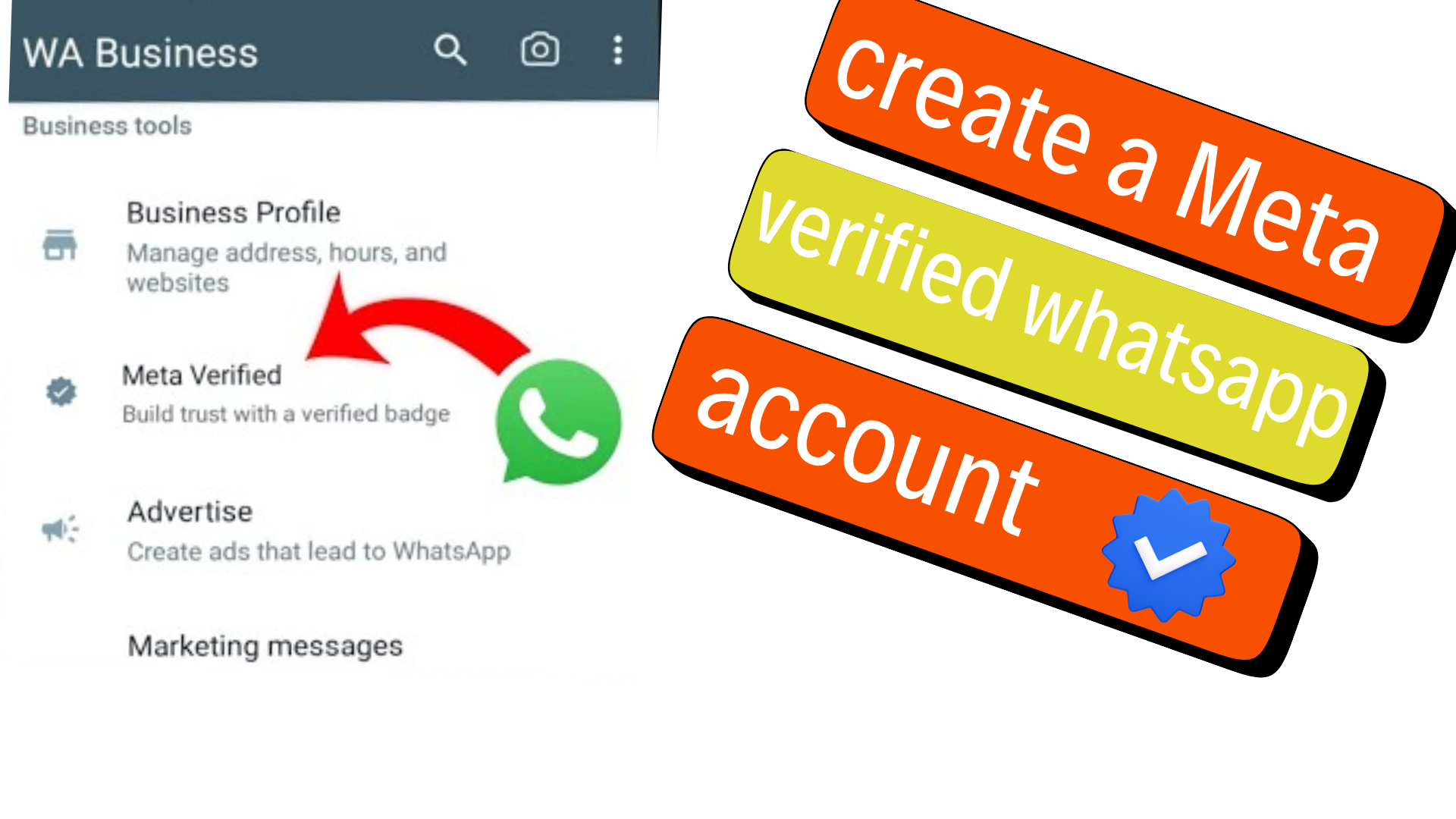
To create a Meta-Verified WhatsApp account in 2026, you generally need to use a WhatsApp Business account, make sure your business information is accurate, and check whether Meta Verified is available under your WhatsApp Business settings or Business Tools. If eligible, select the available Meta Verified plan, complete the subscription and verification process, and wait for Meta’s review. Meta says the review can take up to three business days in some cases, although processing can take longer during periods of high submission volume.
The verified badge is not simply a profile setting that you can turn on manually. Meta verifies the business based on information, activity, and/or documents and provides the badge only after the applicable verification process is completed.
What Is a Meta-Verified WhatsApp Account?
A Meta-Verified WhatsApp account is a verified business account on WhatsApp that has completed Meta’s applicable verification process and receives a verified badge.
The badge helps customers distinguish an authenticated business from accounts that may be pretending to represent the same company. Meta says verified business accounts are authenticated through a multi-step verification process, while Meta Verified is a paid subscription that can also provide support and impersonation protection.
A Meta Verified subscription can therefore be understood as more than a badge. Depending on the plan, location, eligibility, and account, benefits can include a verified badge, impersonation protection, enhanced support, verified channels, a business web page, and support for multiple linked devices.
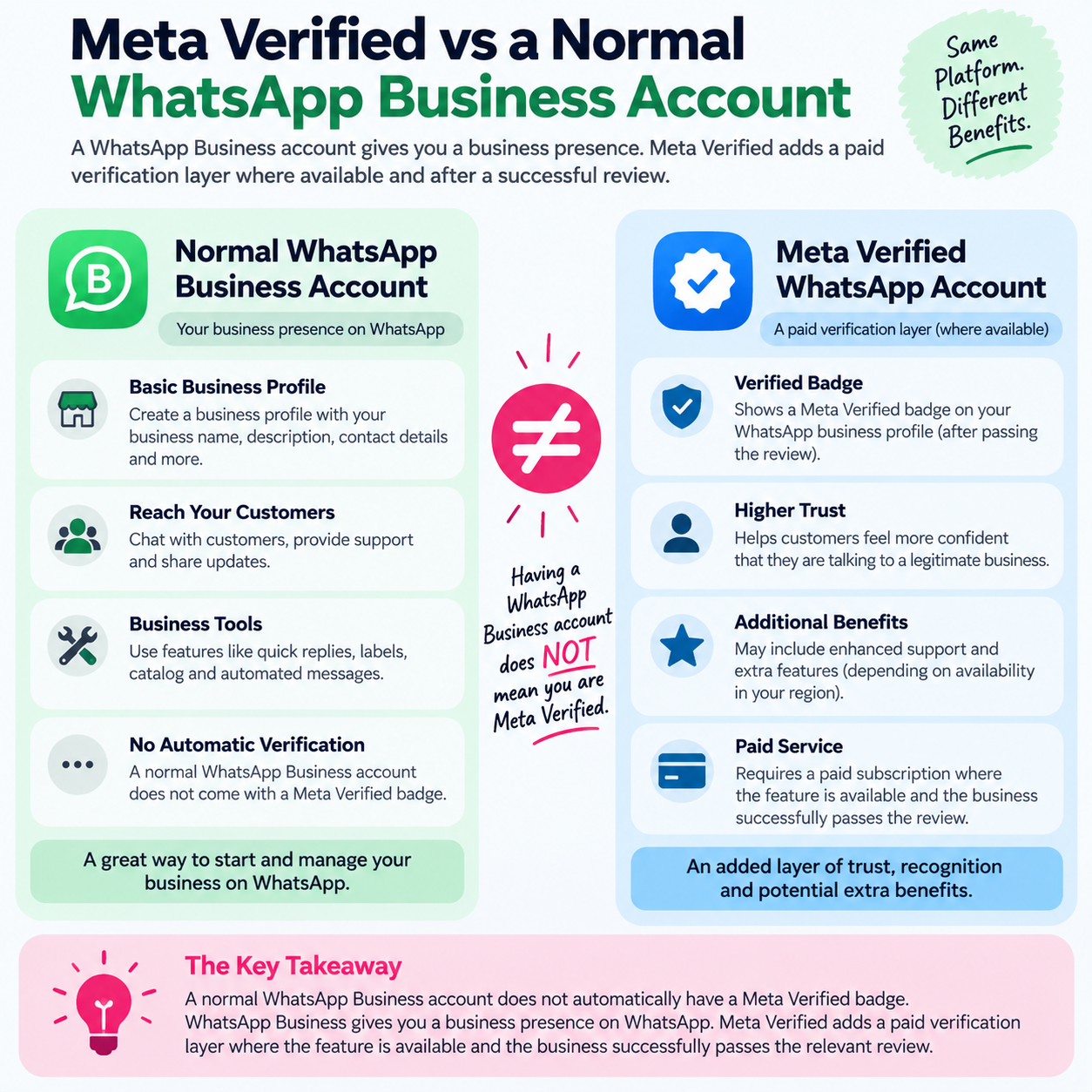
Meta Verified vs a Normal WhatsApp Business Account
Why Is Meta Verification Important for WhatsApp Businesses?
Meta verification can be useful for businesses that need customers to distinguish their official WhatsApp presence from impersonators.
Builds a Recognizable Business Presence
The verified badge provides a visible signal that Meta has verified the business under its applicable verification process. The badge can appear in places including business profiles, chats, call-related surfaces, context cards, and incoming calls from verified businesses.
Provides Impersonation Protection
Meta Verified includes impersonation protection as part of its business subscription benefits. This can be particularly relevant for brands whose names or identities are frequently copied online.
Provides Additional Support
Meta Verified subscriptions include access to Meta Verified support. Depending on the subscription level, businesses can receive standard or prioritized support.
Supports Larger Business Operations
Some Meta Verified business plans support multiple verified channels, protected business accounts, and additional linked devices. The exact benefits depend on the plan available to the business.
How Does Meta Verification Work on WhatsApp?
The process is subscription-based for businesses using the Meta Verified offering.
The general process is:
- Create or use a WhatsApp Business account.
- Complete the business profile accurately.
- Check whether Meta Verified is available.
- Review the plan presented to your business.
- Subscribe and submit the application.
- Complete any verification requirements Meta requests.
- Wait for Meta’s review.
- Check whether the verified badge appears.
- Keep business information accurate after verification.
Meta determines which subscription offering is available based partly on business activity, including the volume of interactions with consumers on WhatsApp. Plans and benefits can also be limited by location or business eligibility.
What You Need Before Starting
Before attempting verification, prepare the business information associated with your WhatsApp Business profile.
Use WhatsApp Business
Meta Verified for businesses on WhatsApp is intended for business accounts rather than a standard personal WhatsApp account.
If you are currently using ordinary WhatsApp Messenger for personal conversations, first determine whether your business should be using WhatsApp Business.
Keep Your Business Information Accurate
Check your: Business name, Profile picture, Business category, Business address, where applicable, Business email, Business website, Linked Facebook or Instagram accounts, if applicable
Meta specifically warns that business information should be updated before subscribing. After subscribing, some information may be locked or changes may require additional review.
Make the Business Name Consistent
Your business name should match the profile name associated with your WhatsApp Business account.
Meta says that if the business name does not match the WhatsApp Business profile name, verification may not be completed. In some situations, WhatsApp may provide an option to update the profile name and submit it for review.
Prepare Supporting Information
Depending on your account and the verification flow presented by Meta, you may be asked to provide information or documents about the business.
Do not upload random documents or alter information simply to pass verification. Use accurate business information that genuinely represents the business.
How to Create a Meta-Verified WhatsApp Account
The exact interface can differ because Meta rolls features out according to account, location, subscription type, and platform. The following workflow reflects the current WhatsApp documentation.
Step 1 — Create or Open Your WhatsApp Business Account
Install and open the official WhatsApp Business app if you do not already have a business account. Complete the business profile with the information customers need to identify your company.
At minimum, review the business name, category, profile image, and other information shown in your account.
The objective at this stage is not to obtain the badge immediately. It is to establish an accurate business identity that can be reviewed by Meta.
Step 2 — Review Your Business Profile
Before subscribing, inspect the profile carefully.
Check whether: The business name is correct, The profile image represents the business, The business category is appropriate, Your website is correct, your contact information is current, Your linked Meta accounts are correct.
This step is important because Meta says that changing business information after subscribing can trigger additional review and, in some circumstances, changes can affect the subscription.
Step 3 — Check Whether Meta Verified Is Available
Open your WhatsApp Business account and look for Meta Verified in the available settings or Business Tools.
Meta’s current WhatsApp Help Center specifically says to check Settings or Business Tools in the WhatsApp Business app. If you do not see Meta Verified, the feature may not currently be available to your business.
This is an important checkpoint.
If Meta Verified is visible: continue to the next step.
If Meta Verified is not visible: do not assume that your account has been rejected. The feature may simply not be available for your account, business, or location yet.
Step 4 — Review the Available Meta Verified Plan
If the Meta Verified option is available, review the subscription presented to your business.
WhatsApp currently documents several business subscription levels, including:
| Plan | Examples of documented benefits |
|---|---|
| Business Standard | Verified badge, impersonation protection, in-app support, one verified channel, business web page, up to four linked devices |
| Business Plus | Standard benefits plus prioritized support, three verified channels, and up to six linked devices |
| Business Premium | Additional support, protected business accounts, five verified channels, and up to eight linked devices |
| Business Max | Higher limits including protected business accounts, ten verified channels, and up to ten linked devices |
These benefits are subject to availability and may change. Meta also says plans can be limited to selected businesses or locations.
Do not select a plan simply because it has a higher tier. Choose according to the features your business actually needs.
Step 5 — Confirm Your Business Details
Review the information displayed during the subscription process before making payment. Pay particular attention to the business name and profile information.
If your profile contains outdated information, correct it before submitting the verification request.
Meta recommends updating business information before subscribing because changes after subscription may result in additional reviews or affect the subscription.
Step 6 — Complete the Subscription
Follow the payment and subscription instructions presented inside the official WhatsApp or Meta flow.
Do not use websites, agencies, individuals, or unofficial services claiming that they can “sell” you a WhatsApp verification badge. The official process is connected to Meta’s own subscription and verification systems.
Pricing can change, and Meta says subscription prices may vary because of offers and availability. The current price shown in your official subscription flow should therefore be treated as the applicable price for your account.
Step 7 — Complete Any Verification Review
After payment and submission, Meta reviews the application. You may be asked to provide additional information or documents depending on the verification process applicable to your business.
The key principle is simple: the information submitted should accurately represent the business associated with the WhatsApp account.
Meta says the verification process may take up to three business days and may take longer in some cases because of high submission volumes.
Step 8 — Wait for the Verification Decision
Do not repeatedly submit new applications while an existing review is still being processed. Instead, monitor the account for Meta’s status update.
If the verification succeeds, the verified badge should become associated with the verified business account and may appear across supported WhatsApp surfaces.
Step 9 — Confirm the Badge
Once Meta completes the process, open your business profile and check for the verified badge. Depending on the account and rollout, the badge may also be visible in other WhatsApp experiences such as chats, calls, context cards, or incoming calls.
Do not rely only on a third-party screenshot or email claiming that your business has been verified.
The important confirmation is that the status is reflected inside the official WhatsApp/Meta account experience.
How to Verify That Your WhatsApp Account Is Really Meta Verified
Verification should be checked inside WhatsApp rather than through an external seller or website.
Check the Business Profile
Open the business profile and look for the verified badge associated with the business.
Check the Meta Verified Area
If your account has the relevant subscription controls, review the Meta Verified section for subscription and verification status.
Check Meta Notifications
Meta may provide account notifications relating to subscription or verification issues. WhatsApp also documents an Alerts Center where businesses can receive alerts related to Meta Verified subscription.
Check Whether the Expected Benefits Are Available
Depending on your plan, account, and region, features such as enhanced support, verified channels, protected accounts, or linked-device limits may be available.
What If Meta Verified Is Not Showing on WhatsApp?
This is one of the most common points of confusion.
If you cannot find Meta Verified, it does not automatically mean that your business failed verification.
WhatsApp says Meta Verified may not be available to every business yet. Availability can depend on eligibility and location.
Check That You Are Using WhatsApp Business
Meta Verified for business is associated with WhatsApp Business rather than a standard personal account.
Update the App
Make sure you are using the current official WhatsApp Business app available through your device’s legitimate app store.
Review Your Business Information
Make sure your business profile is complete and accurate.
Check Again Later
Feature availability can change as Meta expands or adjusts its offerings.
Avoid paying a third party that claims it can manually activate Meta Verified for you. The official availability indicator inside WhatsApp is the relevant source for your account.
What If Meta Rejects the Verification?
A failed verification attempt does not necessarily mean that your business cannot ever become verified.
Start by checking the reason provided by Meta.
Business Name Does Not Match
A mismatch between your business name and WhatsApp Business profile name can prevent successful verification.
Solution: Correct the profile name where appropriate and follow the review process provided by WhatsApp.
Business Information Is Outdated
Incorrect websites, addresses, categories, or other business details can create inconsistencies.
Solution: Review the information carefully and use genuine, current business details.
Required Information Is Missing
If Meta asks for additional business information or documents, provide the requested information through the official verification flow.
Solution: Do not substitute unrelated documents or information.
The Feature Is Not Available
A business may not have access to Meta Verified even if another business in the same country does.
Solution: Check the account’s official Meta Verified section rather than assuming another business’s availability applies to your account.
Meta-Verified WhatsApp Troubleshooting Table
| Problem | Possible Cause | Solution |
|---|---|---|
| Meta Verified does not appear | Feature unavailable for the account or location | Check WhatsApp Business Settings or Business Tools again |
| Verification fails | Business information does not satisfy the review | Review the information and follow Meta’s instructions |
| Business name cannot be verified | Profile name does not match the business identity | Update the profile name where appropriate |
| Verification takes longer than expected | High submission volume or additional review | Wait for Meta’s status update before resubmitting |
| Badge is not visible | Verification has not completed or the account is not verified | Check the official account status |
| Business details need changing | Information was changed after subscription | Follow the applicable review/update process |
| Support is needed | Subscription or verification issue | Use Meta Verified support inside WhatsApp Business |
How to Update Your WhatsApp Business Information Before Verification
It is better to correct your profile before subscribing than to make major changes afterward.
Meta says business name, category, address, email, website, and other profile information can be subject to restrictions after subscribing.
Check Your Business Name
Use the actual business identity you intend to verify.
Check Your Profile Image
Use a genuine business logo or appropriate business image rather than an unrelated graphic.
Check Your Website
Make sure the website points to the legitimate business website and does not contain temporary or misleading information.
Check Linked Meta Accounts
If you plan to link Facebook or Instagram accounts, review those connections before subscribing.
Meta warns that changing linked accounts after a WhatsApp Meta Verified subscription can affect the subscription in some situations.
What Happens After You Become Meta Verified?
Getting the badge is not necessarily the end of the process.
A verified business should continue maintaining accurate account information and complying with WhatsApp’s applicable policies.
Your Profile May Have Update Restrictions
Meta says some business profile information can be locked after subscribing, while later changes may require review.
For example, Meta currently documents limits around changing the business profile picture and business name after verification, although availability and timing can vary.
You May Receive Enhanced Support
Meta Verified subscribers have access to Meta Verified support through WhatsApp Business. The documented support path is:
WhatsApp Business → Tools → Meta Verified → Enhanced Support
From there, businesses can select support for WhatsApp features, the Meta Verified account, or another issue.
Additional Business Features May Be Available
Depending on the subscription, Meta Verified can provide additional capabilities such as verified channels, business web pages, protected business accounts, additional linked devices, advertising tools, and business broadcasts. Availability varies.
What Happens If You Cancel Meta Verified?
Cancellation can affect the benefits connected to the subscription.
Meta’s WhatsApp documentation says that canceling the subscription can remove some linked devices and eventually remove the business web page. The verified badge and associated benefits require resubscription if the business later wants to regain them.
This is why businesses should treat Meta Verified as an ongoing subscription rather than a one-time badge purchase.
Before canceling, review which business assets and features are connected to the subscription.
Can You Get a Meta-Verified Badge on a Personal WhatsApp Account?
The important distinction is between personal WhatsApp and WhatsApp Business.
The Meta Verified product documented for WhatsApp businesses is intended for business accounts and business operations. It should not be interpreted as a method for turning an ordinary personal WhatsApp Messenger account into a verified business account.
If your goal is to verify a company, store, agency, service, or organization, use the appropriate WhatsApp Business setup.
Is Meta Verification the Same as WhatsApp Business Verification?
Not exactly.
WhatsApp uses the broader concept of verified business accounts, while Meta Verified is a paid subscription product that includes a verified badge and additional benefits.
Meta explains that some verified accounts belong to notable people, brands, or entities, while others are verified through subscription products such as Meta Verified or Meta One.
Therefore, do not assume that every verified badge was obtained through exactly the same route.
Meta Verified vs Meta One on WhatsApp
Meta introduced Meta One as a separate subscription service that can bundle benefits across Meta platforms, including WhatsApp, Facebook, Instagram, Messenger, and Meta AI depending on availability.
Meta’s September 2026 announcement says Meta One business plans can include a verified badge, verified WhatsApp channel, and impersonation protection, subject to successful verification and availability.
This means businesses should check the actual subscription options shown in their account rather than assuming that every business receives the same Meta Verified interface.
| Option | General Purpose | Verification |
|---|---|---|
| WhatsApp Business | Business communication and profile | Does not automatically mean Meta Verified |
| Meta Verified for Business | Verification plus business protection/support features | Verified badge subject to applicable review |
| Meta One | Broader Meta subscription with bundled features | Badge and verification depend on plan/account availability |
The exact features, prices, and availability can change, so the official subscription screen should be treated as the current source for your account.
Common Mistakes to Avoid
Paying a Third Party for a Badge
A third party cannot replace Meta’s official verification process.
Correct approach: Use the Meta Verified option inside the official WhatsApp Business experience.
Changing the Business Name Just to Pass Verification
Do not create an artificial business identity simply to satisfy a verification review.
Correct approach: Use the legitimate business name and correct inconsistencies before applying.
Applying With Inconsistent Information
Different business names, websites, or account information can create unnecessary verification problems.
Correct approach: Review your business profile before subscribing.
Assuming Every Country Has the Same Features
Meta Verified features and plans are not necessarily identical everywhere.
Correct approach: Check the actual options displayed for your account.
Assuming Payment Guarantees Verification
A subscription does not mean that every business automatically receives the badge.
Correct approach: Complete the applicable verification process and wait for Meta’s decision.
Expert Insights for Businesses
Treat Verification as an Identity System
The most useful way to think about Meta Verified is not simply as a checkmark.
For a business, it is connected to identity, support, impersonation protection, and customer confidence.
That means the information surrounding the badge should also be consistent. Your WhatsApp profile, website, business name, and other public business identities should present the same legitimate organization.
Prepare Before Paying
One of the simplest ways to reduce avoidable problems is to complete the profile first.
Review your:
Business name → Profile image → Category → Website → Contact details → Linked accounts → Verification information
Only then start the subscription process.
Choose Features Based on Operations
A small business with one WhatsApp channel may not need the same plan as a company managing multiple business accounts and employees.
Meta currently documents plans with different limits for verified channels, protected accounts, linked devices, and support.
The useful decision is therefore not “Which plan is highest?” but:
Which plan contains the capabilities my business actually needs?
Do Not Confuse the Badge With Guaranteed Sales
A verified badge can provide an authenticity signal and access to additional features, but it should not be treated as a guarantee of increased sales, conversions, engagement, or customer trust.
Business results still depend on factors such as product quality, customer service, pricing, reputation, response time, and the overall customer experience.
Frequently Asked Questions
Can I get Meta Verified on WhatsApp in 2026?
Yes, Meta Verified for businesses is available on WhatsApp in supported markets and for eligible businesses. However, Meta says the feature may not be available to every business or location.
Is Meta Verified on WhatsApp free?
The Meta Verified business product is a paid subscription. The exact plan and price shown can vary, and Meta says subscription prices and offers may change.
How long does WhatsApp Meta verification take?
Meta says its review may take up to three business days and can take longer in some cases because of high submission volumes.
Why can’t I see Meta Verified on WhatsApp Business?
The feature may not currently be available to your account or location. WhatsApp specifically instructs businesses to check Settings or Business Tools for availability.
Does paying for Meta Verified guarantee the badge?
No. The business still needs to complete the applicable verification process. Meta may review the business information or request documentation, depending on the account and verification flow.
Can I change my business information after verification?
Some information can be changed, but Meta says profile changes may require review and some information can be locked or restricted after subscribing. It is therefore better to make your business information accurate before verification.
Does Meta Verified protect my WhatsApp business from impersonation?
Impersonation protection is one of the documented benefits of Meta Verified business subscriptions, although the exact benefits depend on the available plan.
Can I use Meta Verified on multiple WhatsApp devices?
Some Meta Verified business plans provide support for multiple linked devices. The current limits depend on the subscription level available to the business.
Can I cancel Meta Verified later?
Yes, Meta provides subscription-management and cancellation options. However, canceling can remove subscription benefits and may affect linked devices, the business web page, and the verified badge.
Implementation Checklist
Before Starting
- Use a legitimate WhatsApp Business account.
- Confirm that your business information is accurate.
- Check the business name and profile picture.
- Review your website and contact details.
- Review linked Facebook or Instagram accounts.
- Check whether Meta Verified appears in Settings or Business Tools.
During Verification
- Select the official Meta Verified option.
- Review the available plan.
- Confirm the displayed business information.
- Complete payment through the official Meta/WhatsApp process.
- Provide requested verification information or documents.
- Wait for the review.
After Verification
- Check the business profile for the verified badge.
- Review Meta Verified subscription details.
- Confirm that the expected benefits are available.
- Keep business information accurate.
- Use Meta Verified support if an account or subscription problem occurs.
Conclusion
Creating a Meta-Verified WhatsApp account in 2026 is primarily a business verification and subscription process, not a manual badge-setting process.
The most important steps are to use WhatsApp Business, maintain accurate business information, check whether Meta Verified is available, select the official subscription presented to your account, complete the verification process, and confirm the resulting status inside WhatsApp.
The exact experience can differ by country, account, business activity, and subscription availability. Therefore, the Meta Verified option and information shown directly inside your WhatsApp Business account should take precedence over outdated third-party guides.

