


You can change the phone number linked to your WhatsApp account without starting a new account by using WhatsApp’s built-in Change Number feature. The process transfers your account information and settings, including your profile, individual chats, group chats, and privacy settings, to the new number. Before starting, make sure your new number can receive SMS or phone calls and that your current WhatsApp account is still registered on your old number.
If you are also moving to a new phone, change the number on your old phone first, then back up the account using the new number before setting up WhatsApp on the new device. WhatsApp specifically warns that registering the new number directly on the new phone without first changing the number can result in losing access to the old chat history.
This guide explains how to change your WhatsApp number on Android and iPhone, what happens to your chats and groups, how contact notifications work, what to do when moving to a new phone, and how to troubleshoot verification or backup problems.
What Is the WhatsApp Change Number Feature?
WhatsApp’s Change Number feature allows you to replace the phone number associated with your existing WhatsApp account while transferring supported account information to the new number.
According to WhatsApp, the migration transfers your profile photo, username, display name, privacy settings, WhatsApp contacts, individual chats, and group chats. The WhatsApp account associated with the old number is then deleted, so your contacts will no longer see that old number as the number connected to your WhatsApp account.
The feature is different from simply registering a second number as a new WhatsApp account. Using the built-in Change Number option is the appropriate route when your goal is to keep your existing account information and conversations.
The feature is also performed on your primary phone. WhatsApp does not allow you to change the registered number from WhatsApp Web, WhatsApp Desktop, or another linked device.
Can You Change Your WhatsApp Number Without Losing Chats?
Yes. You can normally keep your WhatsApp account information and chats by using the built-in Change Number feature correctly.
WhatsApp states that changing the number transfers individual chats and group chats along with other account information and settings. However, backup handling becomes particularly important if you are also moving to another phone.
There is an important distinction between these situations:
| Situation | Recommended approach |
|---|---|
| New number, same phone | Use Change Number on the existing phone |
| New number and new Android phone | Change the number on the old phone, create a new-number backup, then set up the new phone |
| New number and new iPhone | Change the number on the old phone, create the appropriate backup, then register the new number on the new phone |
| New phone but same number | Register the existing number on the new phone and use WhatsApp’s supported transfer/backup process |
| New number without needing old chats | Register the new number as a new WhatsApp account |
If you want to preserve your existing WhatsApp history, do not skip the number-change process on the old phone when moving to a new device. WhatsApp explicitly says that registering the new number on the new phone first can cause you to lose the old chat history.
Before You Change Your WhatsApp Number
Before opening the Change Number screen, check a few important requirements. Completing these checks first reduces the chance of getting stuck during verification or discovering afterward that your backup cannot be restored.
Make Sure the New Number Can Receive Verification
Your new phone number must be able to receive SMS messages or phone calls because WhatsApp needs to verify the new number.
WhatsApp also requires the new number to have an active cellular connection.
If the new SIM is not active yet, activate it before beginning the migration.
Confirm Your Old Number Is Still Registered
Your existing WhatsApp account should still be registered to your old phone number before you start the change.
You can check the number associated with the account through your WhatsApp profile or account settings. If you have already lost access to the old number, the normal Change Number workflow may not be the correct solution.
WhatsApp recommends contacting your mobile provider if you need to recover a lost SIM with the same number.
Use a Supported Phone Number
WhatsApp does not support every type of telephone number for registration.
Its Help Center lists unsupported examples including: VoIP numbers, Toll-free numbers, Paid premium numbers, Universal access numbers, Personal numbers, Landlines, except where supported by WhatsApp Business.
If the new number falls into an unsupported category, the verification process may fail.
Create a Backup Before Starting
Although the Change Number feature is designed to transfer your account information, creating a current chat backup is an important precaution.
WhatsApp explains that cloud backups are associated with the phone number used when the backup is created. After changing your number, backups created under the old number cannot be used in the same way to restore the account.
WhatsApp recommends creating a new backup after the number change so that you have an accessible backup associated with the new number.
Tell Important Contacts About the New Number
WhatsApp can notify selected contacts about your number change, but you may still want to communicate with important people directly.
This is especially useful if you use WhatsApp for work, customer communication, family groups, or other situations where missing a message could cause a problem.
If you manage a broadcast list, WhatsApp recommends telling recipients to save your new number. Only people who have added the new number to their contacts will receive a broadcast message.
How to Change Your Phone Number on WhatsApp
The core process is similar on Android and iPhone. The names or locations of a few interface elements can vary slightly between platforms, but the essential workflow is the same.
Step 1 — Insert and Activate Your New SIM
If you are using a physical SIM, insert the SIM containing your new phone number into your phone.
Make sure the new number has cellular service and can receive SMS messages or calls. If you use an eSIM, make sure the new mobile line is activated and available on the device.
Do not begin the migration until you can actually receive a verification message or call on the new number.
Step 2 — Open WhatsApp on Your Primary Phone
Open WhatsApp on the phone where your existing account is currently active.
Do not try to perform the number change from WhatsApp Web or a linked desktop device.
WhatsApp states that the Change Number feature must be used on the primary device.
Step 3 — Open Account Settings
On Android, open WhatsApp and tap the three-dot menu, then select Settings.
On iPhone, open WhatsApp and tap Settings.
From there, open Account and select Change Number.
Step 4 — Select Change Number
Tap Change Number.
WhatsApp will present information explaining that your account information can be transferred to the new number. Tap Next to continue.
At this point, make sure you actually want to replace the number associated with your current account. Changing the number through this feature is not something you should do casually as a test.
Step 5 — Enter Your Old and New Numbers
Enter your existing WhatsApp number in the first field. Enter your new phone number in the second field.
Both numbers should be entered in full international format, including the appropriate country code. WhatsApp’s official instructions specifically require the numbers to be entered in international format.
For example, do not rely on a local dialing format if WhatsApp expects the international version. Check both numbers carefully before continuing. A mistake here can send the verification process toward the wrong number.
Step 6 — Decide Whether to Notify Contacts
After entering the numbers, WhatsApp gives you a Notify contacts option. Depending on the available options, you can choose whether to notify: All contacts, Contacts you have chats with, Specific contacts using the custom option.
WhatsApp also states that your group chats are notified when you change your phone number, regardless of whether you choose to notify your individual contacts.
This distinction is important: turning off individual contact notifications does not mean the number change is completely invisible inside WhatsApp groups.
Step 7 — Tap Done and Verify the New Number
After reviewing your selections, tap Done.
WhatsApp will then prompt you to register the new phone number. Complete the verification process using the SMS or phone-call verification method offered to you.
Enter the verification code carefully. If verification succeeds, your existing WhatsApp account is now associated with the new number.
Step 8 — Confirm Your Account Information
After the number change is complete, open your profile and account settings.
Check that your: Profile information, Chats, Groups, Privacy settings, Contacts, Account settings are available as expected.
WhatsApp says these account elements are transferred as part of the Change Number process.
How to Change Your WhatsApp Number on Android
Android users can follow the same basic workflow, with the settings path beginning from the three-dot menu.
Android Steps
- Open WhatsApp.
- Tap the three-dot menu.
- Select Settings.
- Open Account.
- Tap Change Number.
- Tap Next.
- Enter your old number in the first field.
- Enter your new number in the second field.
- Use full international format for both numbers.
- Choose your contact-notification preference.
- Tap Done.
- Register and verify the new number.
WhatsApp’s current Android guidance confirms this workflow and states that group chats are notified automatically when the number changes.
How to Change Your WhatsApp Number on iPhone
On iPhone, the menu layout is slightly different because WhatsApp’s main navigation uses the Settings tab rather than Android’s three-dot menu.
iPhone Steps
- Open WhatsApp.
- Tap Settings.
- Open Account.
- Tap Change Number.
- Tap Next.
- Enter your old phone number.
- Enter your new phone number.
- Use full international format.
- Choose whether to notify contacts.
- Tap Done.
- Verify the new number.
WhatsApp’s iPhone guidance confirms that the new number must be capable of receiving SMS or phone calls and that the old number must currently be registered on the phone.
How to Change Your WhatsApp Number When You Also Get a New Phone
Changing both your number and phone requires more care because there are two migrations happening at once.
The safest sequence is:
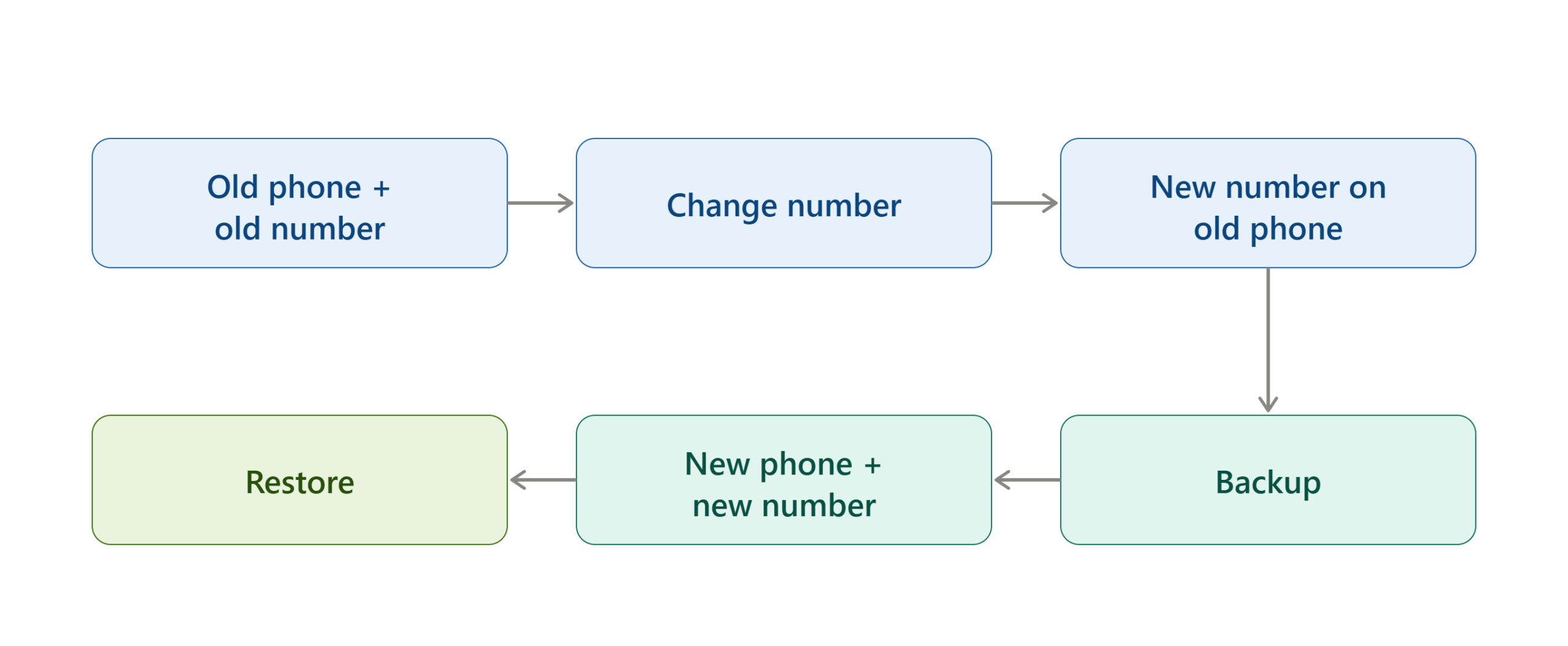
WhatsApp specifically recommends changing the phone number on the old device first if you want to keep your chat history.
Step 1 — Change the Number on the Old Phone
Keep WhatsApp active on your old phone.
Use the Change Number feature and transfer the existing account from the old number to the new number.
Step 2 — Create a New Backup
After changing the number, create a new backup associated with the new phone number.
WhatsApp explains that backups are tied to the phone number used when the backup was created. Creating the new backup after the number change helps ensure that the backup corresponds to the number you will register on the new device.
Step 3 — Install WhatsApp on the New Phone
Install WhatsApp on the new phone.
Register the new phone number that you already transferred to on the old device.
Step 4 — Restore or Transfer Your Chats
Use the supported backup or transfer method for your platform.
WhatsApp’s guidance for changing phones explains that the exact transfer method depends on the devices involved, including whether you are moving between Android devices, iPhones, or different operating systems.
What Happens to Your WhatsApp Account After Changing the Number?
Changing your number affects more than the number displayed on your profile. WhatsApp treats it as an account migration.
Your Profile Information Moves
WhatsApp says your profile photo, username, display name, and related account information are transferred to the new number.
Your Individual Chats Move
Your individual conversations are transferred as part of the Change Number process. This is one of the main reasons to use the built-in feature instead of simply creating a new WhatsApp account.
Your Group Chats Move
Your group memberships are transferred when you use the Change Number feature. However, WhatsApp states that group chats are notified of the number change automatically.
Your Privacy Settings Move
WhatsApp states that privacy settings are among the account information transferred during a number change. It is still worth reviewing your privacy settings afterward, particularly if the reason for changing your number involves privacy or unwanted contact.
Your Blocked Contacts Stay Blocked
WhatsApp says blocked contacts remain blocked after changing your number and are not notified about the updated number through the number-change notification process.
Your Old WhatsApp Account Is Removed
WhatsApp explains that the account associated with the old phone number is deleted when the number is changed successfully. Your contacts therefore stop seeing the old number as the WhatsApp number associated with that account.
How WhatsApp Notifies Contacts About a Number Change
WhatsApp provides control over individual contact notifications, but the behavior is not identical for contacts and groups.
Individual Contact Notifications
You can choose whether to notify all contacts, contacts with whom you have chats, or selected contacts.
If you do not want to notify every contact, the custom option can be used to select specific people.
Group Notifications
Group chats are handled differently. WhatsApp states that groups are notified when you change your phone number regardless of your individual contact-notification selection.
Therefore, there is no normal Change Number setting that lets you silently change the number while keeping your group membership completely undisclosed.
Should You Notify Everyone?
There is no universal answer. If the number is your main personal or business contact number, notifying relevant people can prevent missed messages.
If the number is changing for privacy reasons, you may prefer to notify only people who genuinely need the new number. A practical approach is to review your contact list before starting and decide which people actually need your new number.
Can You Change Your WhatsApp Number Without Notifying Contacts?
Yes, you can choose not to notify individual contacts through the Notify contacts option.
However, this does not make the change completely invisible. WhatsApp says your group chats are notified automatically when you change the number.
If you need to keep the new number away from specific individuals, review your groups before making the change and consider whether those group memberships are appropriate for your privacy requirements.
Also remember that WhatsApp’s contact-notification controls do not replace your own responsibility to update important people, businesses, or services that use your phone number.
How to Verify That the Number Change Worked
A successful number change should be easy to confirm.
Check Your Profile
Open your WhatsApp profile and verify that the account is now associated with the new number.
Check Your Existing Chats
Open several important individual conversations. Confirm that your previous chat history remains available.
Check Your Groups
Open your group list and confirm that your existing groups are still present. Remember that groups are automatically notified about the number change.
Check Your Privacy Settings
Review important settings such as: Profile visibility, About information, Last seen and online visibility, Status privacy, Group privacy, .Blocked contacts
Create a Fresh Backup
Once everything looks correct, create a new chat backup associated with the new number.
What to Do If You Cannot Change Your WhatsApp Number
A failed number change usually has a specific cause. Start with the most basic checks before repeating the process.
| Problem | Possible Cause | Solution |
|---|---|---|
| Verification code does not arrive | New number cannot receive SMS/calls | Check cellular service and try the available verification method |
| Change Number is unavailable | You are using a linked device | Perform the change on your primary phone |
| New number is rejected | Unsupported number type | Use a supported mobile number |
| Old account cannot be accessed | Old number is no longer available | Recover the old number through your mobile provider if necessary |
| Backup cannot be restored | Backup is associated with the old number | Create a new backup after changing the number |
| Chats appear missing on a new phone | Number was registered directly on the new device | Follow the old-phone-first migration process |
| Number already belongs to a WhatsApp account | Previous owner may have used the number | Follow WhatsApp’s guidance for recycled numbers |
| Change process fails repeatedly | Connection, storage, or device issue | Check connectivity, storage, and supported device status |
WhatsApp’s troubleshooting guidance specifically recommends checking your connection, device storage, and whether the new number is supported. It also explains that the Change Number option can be unavailable on a linked or companion device.
Why Is the Change Number Option Greyed Out?
The most common reason is that you are using WhatsApp on a linked or companion device instead of the primary phone.
WhatsApp states that the phone-number change must be completed on the primary device. WhatsApp Web and desktop versions cannot perform the number change.
Move back to the phone where your primary WhatsApp account is registered and open the Account settings there.
What If You Cannot Receive the Verification Code?
First, confirm that the new number is active and can receive ordinary SMS messages or phone calls.
Then check:
- The country code is correct.
- The full number is entered correctly.
- The SIM or eSIM is active.
- The phone has cellular connectivity.
- The number is not an unsupported number type.
- You are attempting verification on the intended primary device.
If the number still cannot receive verification, contact your mobile carrier before repeatedly attempting the WhatsApp registration process.
WhatsApp’s troubleshooting guidance also recommends checking the connection and ensuring the device has sufficient storage.
What If the New Number Is Already Registered on WhatsApp?
This can happen with recycled telephone numbers.
A mobile provider may eventually assign a number that was previously used by another person. WhatsApp acknowledges this possibility in its troubleshooting information.
Do not assume that seeing the number associated with WhatsApp means the previous owner’s account or conversations belong to you.
Follow WhatsApp’s account-registration and recycled-number guidance rather than attempting to access information belonging to another person.
What If You Already Lost Access to Your Old Number?
The Change Number feature is intended for situations where your existing WhatsApp account is still registered on the old number.
If you have lost the SIM but still want to use the same number, WhatsApp recommends contacting your mobile provider to obtain a replacement SIM with that number so you can recover access.
If you have both lost access to the old number and want to move to a completely different number, the process can be different from the standard Change Number workflow.
Do not delete your existing WhatsApp account prematurely if you still need its data.
What If You Changed the Number by Mistake?
Be careful before confirming the change.
WhatsApp’s Help Center states that if you change your number by mistake, there is no way to simply reverse that change. If you later resume using the original number and need to regain access to groups, you may need to ask group administrators to invite you again.
This is why checking both phone numbers carefully before tapping Done is an important verification step.
Alternative Method: Create a Completely New WhatsApp Account
If you do not need your existing chats, groups, or account information, you can simply install WhatsApp on the relevant device and register the new phone number as a new account.
This is fundamentally different from changing the number on an existing account.
Use a New Account When
A new account can make sense when:
- You do not need your old chat history.
- You want a completely separate WhatsApp identity.
- You do not need your existing group memberships.
- You are intentionally starting over.
Use Change Number When
Use the built-in Change Number feature when:
- You want to keep your existing account.
- You want to retain individual chats.
- You want to retain group memberships.
- You want to transfer your existing settings and profile information.
- You want WhatsApp to handle the number migration.
For most account-preservation scenarios, these are two different workflows and should not be treated as interchangeable.
Common Mistakes When Changing a WhatsApp Number
Registering the New Number Directly on a New Phone
This is one of the biggest mistakes when someone wants to preserve their old chats.
WhatsApp says that if you are changing both your number and phone, you should first change the number on the old phone.
Skipping the Backup
A backup provides an additional recovery path and becomes particularly important when changing devices.
Create a current backup before the migration and another backup associated with the new number afterward.
Entering Numbers Without the Correct Country Code
WhatsApp requires the old and new numbers to be entered in full international format.
Double-check the country code and number before continuing.
Assuming Contacts Will Automatically Save Your New Number
WhatsApp can notify contacts, but notification is not the same as updating someone’s phone address book.
For important contacts, tell them directly and ask them to save your new number.
Assuming Groups Will Stay Silent
Individual contact notifications can be controlled, but WhatsApp says groups are automatically notified of the number change.
Using WhatsApp Web to Change the Number
The number-change feature is not available on WhatsApp Web or desktop. Use your primary phone.
Deleting the Old Account Manually First
If your goal is to migrate an existing account, do not delete the old account as a substitute for using Change Number.
The built-in feature is specifically designed to transfer the existing account information to the new number.
Expert Tips for a Safer Number Change
Plan the Migration Before the Old SIM Stops Working
The easiest situation is one where both numbers are under your control during the transition.
Make sure the new number works before allowing the old number to become inactive.
Change the Number Before Moving Devices
If you are changing both the number and phone, keep the existing account available on the old phone until the number migration is complete.
This follows WhatsApp’s recommended sequence for preserving chat history.
Back Up Again After the Migration
Do not treat the pre-change backup as your final backup.
Because WhatsApp associates cloud backups with the number used when the backup is created, create a fresh backup after the new number has been registered.
Review Privacy Settings Afterward
A number change is a good opportunity to review who can see your profile information, status, last seen and online information, and other privacy controls.
WhatsApp provides these settings under its Privacy controls.
Update Important Services Separately
Changing your WhatsApp number does not automatically update the phone number stored by: Banks, Email accounts, Social networks, Government services, Delivery services, Employers, Customer accounts, Two-factor authentication systems
WhatsApp’s account migration and your wider digital identity are separate things.
If your old number is also used for account recovery or two-factor authentication elsewhere, update those services separately before permanently giving up the old number.
Implementation Checklist
Before Starting
- Confirm your current WhatsApp account uses the old number.
- Make sure the new number is active.
- Confirm the new number can receive SMS or calls.
- Check that the number is supported by WhatsApp.
- Create a current chat backup.
- Decide which contacts should receive a number-change notification.
During the Change
- Use your primary phone.
- Open WhatsApp settings.
- Select Account → Change Number.
- Enter the old number correctly.
- Enter the new number in international format.
- Select your contact-notification preference.
- Confirm the change.
- Verify the new number.
After the Change
- Check your profile.
- Open several existing chats.
- Confirm your groups are still available.
- Review privacy settings.
- Confirm blocked contacts remain as expected.
- Create a new backup associated with the new number.
- Tell important contacts to save your new number.
- Update your phone number separately on other services that use it.
Frequently Asked Questions
Can I change my WhatsApp number without losing my chats?
Yes. WhatsApp’s Change Number feature is designed to transfer your individual chats, group chats, profile information, contacts, and settings to the new number. If you are also changing phones, follow the old-phone-first process and create an appropriate backup before setting up the new device.
Will my WhatsApp groups remain after changing my number?
Yes. WhatsApp says group chats are transferred when you change the number through the supported Change Number feature. However, your groups are also notified that the number has changed.
Will WhatsApp notify all my contacts when I change my number?
Not necessarily. WhatsApp provides options to notify all contacts, contacts with whom you have chats, or selected contacts. However, group chats are notified automatically.
Can I change my WhatsApp number from WhatsApp Web?
No. WhatsApp says the Change Number feature must be used on your primary phone and cannot be performed from WhatsApp Web or desktop.
What happens to my old WhatsApp number?
When the number change is completed, WhatsApp deletes the account associated with the old number and transfers the supported account information to the new number.
Can I change my WhatsApp number if my new number cannot receive SMS?
The new number must be capable of receiving the verification required to register it. If SMS is unavailable, WhatsApp may offer another supported verification method, such as a phone call, but the number still needs to be capable of completing WhatsApp’s verification process.
Can I change my WhatsApp number after getting a new phone?
Yes, but if you want to preserve your existing chat history, WhatsApp recommends changing the number on the old phone first. Afterward, create the appropriate backup and set up the new phone using the new number.
What happens to my blocked contacts?
Your blocked contacts remain blocked after changing the number, and WhatsApp says they are not notified about the updated number through the number-change process.
What should I do if I changed my number by mistake?
WhatsApp states that there is no simple way to reverse a number change. If you return to the old number and need access to groups again, you may need to ask group administrators to invite you back.
Read More:
Final Takeaway
You do not need to create a completely new WhatsApp account simply because your phone number has changed. WhatsApp’s built-in Change Number feature is specifically designed to transfer your existing account information to a new number while retaining important chats, groups, profile information, and settings.
The most important precaution is to distinguish between changing your number and changing your phone. If both are changing, perform the number change on your old phone first and then create a backup associated with the new number before setting up WhatsApp on the new device.
Once the migration is complete, verify your account and create a fresh backup. That gives you a cleaner starting point for using WhatsApp with the new number.

