

If WhatsApp is not working, first check whether your internet connection works in another app, then switch between Wi-Fi and mobile data and restart your phone. Next, update WhatsApp, check that your device and operating system are supported, and make sure notifications, background data, permissions, and date/time settings are correct. WhatsApp itself recommends connection checks, restarting the device, updating the app, checking the operating system, and clearing the app cache as general troubleshooting steps.
WhatsApp problems can look similar even when their causes are completely different. A message stuck on one check mark, calls that fail immediately, notifications that appear only after opening the app, media that refuses to download, and WhatsApp Web that will not connect can each require a different fix.
The fastest approach is to identify what is actually broken before making major changes. This guide walks through that process for Android, iPhone, WhatsApp Web, and WhatsApp Desktop, starting with the safest fixes and progressing to more involved troubleshooting.
The instructions also cover situations where WhatsApp works for some functions but not others, including messaging, calls, notifications, photos and videos, login, verification, and linked devices.
What Does “WhatsApp Not Working” Mean?
“WhatsApp not working” is a broad problem description rather than a single technical error. The app may open normally while one specific feature fails.
Common symptoms include:
- WhatsApp will not open or keeps crashing.
- Messages remain pending or fail to send.
- Incoming messages do not arrive.
- Photos and videos will not download.
- Voice or video calls fail.
- Notifications do not appear.
- WhatsApp Web will not connect.
- WhatsApp Desktop stops syncing.
- A verification code does not arrive.
- The app becomes unusually slow.
- Contacts, profile pictures, or status updates do not load.
- WhatsApp works on Wi-Fi but not mobile data, or vice versa.
Identifying the exact symptom is important because it immediately narrows the troubleshooting path.
Check What Is Actually Failing
Before changing anything, test three simple things:
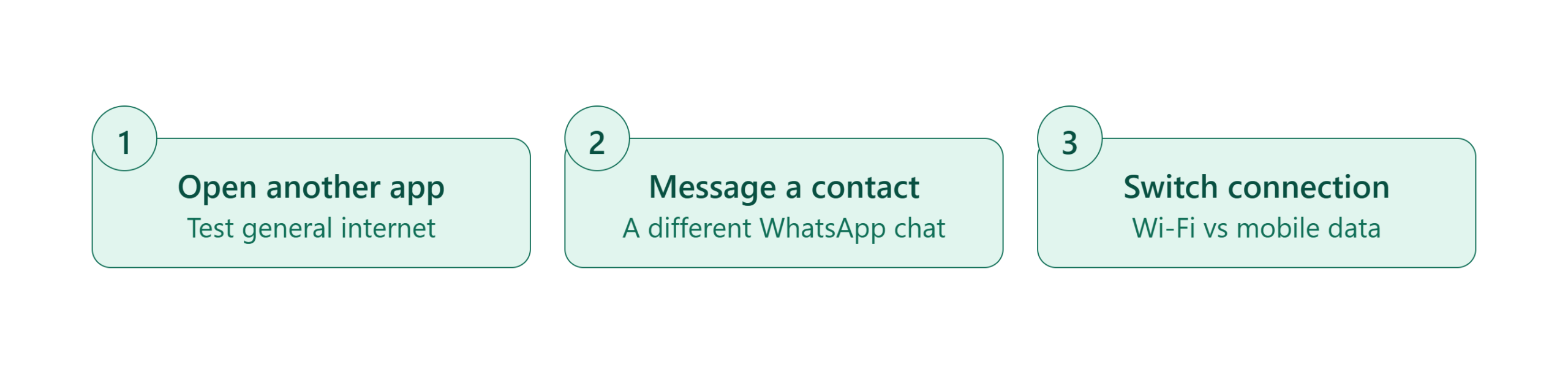
If other internet services also fail, the problem is probably not specific to WhatsApp. If WhatsApp works with mobile data but not Wi-Fi, investigate the Wi-Fi network, router, VPN, firewall, DNS, or network restrictions.
If WhatsApp works with other contacts but not one person, the problem may be specific to that chat or recipient rather than your entire account. WhatsApp notes that a single-contact messaging problem can have different causes, including the recipient changing their number, deleting their account, or potentially blocking you.
Is WhatsApp Down Right Now?
Before changing your phone settings, determine whether the problem is widespread.
A service outage can make WhatsApp appear broken even when your phone, internet connection, and app installation are functioning correctly.
Check for a Widespread Outage
One practical option is to check an outage-monitoring service such as Downdetector. Its reports are based on user-submitted incident data, so they indicate reported problems rather than providing an official WhatsApp service-status declaration.
As of September 21, 2026, recent reporting showed a brief Meta-related disruption affecting Facebook and Instagram in the United States, while the available reporting did not establish a broad WhatsApp outage at that time. Reuters reported that Facebook and Instagram reports declined substantially after the disruption, while noting that Downdetector data represents user reports rather than the total number of affected users.
Therefore, if WhatsApp is failing for you right now, do not automatically assume that WhatsApp itself is down.
Use This Simple Outage Test
Ask:
- Do other apps work?
- Can you access websites?
- Does WhatsApp work on another network?
- Are other WhatsApp users experiencing the same problem?
- Is the problem limited to one feature?
- Does WhatsApp Web fail as well?
- Did the problem begin immediately after an app or operating-system update?
If only your device is affected, continue with the troubleshooting steps below.
Why Is WhatsApp Not Working?
WhatsApp can stop working because of connectivity problems, app issues, device settings, unsupported software, notification restrictions, network filtering, storage limitations, or problems involving linked devices.
The most common causes include:
| Problem | Likely Cause | First Action |
|---|---|---|
| Messages will not send | Weak or blocked connection | Switch Wi-Fi/mobile data |
| Messages arrive late | Background or notification restrictions | Check background access |
| Calls fail | Network or permissions | Test another network |
| Photos will not download | Connection or media settings | Check connection and auto-download |
| Notifications do not appear | Device or WhatsApp notification settings | Enable notifications |
| App crashes | App bug, outdated software, or device issue | Update and restart |
| WhatsApp Web fails | Browser, network, or linked-device issue | Refresh and relink |
| Verification fails | SMS/call or account-registration issue | Check number and connection |
| App is slow | Cache, storage, device, or software issue | Restart and clear cache where applicable |
WhatsApp’s own troubleshooting documentation identifies poor internet connectivity as a common reason for problems involving messages, photos, videos, and audio.
Before You Start
Before attempting advanced fixes, protect your chat history and gather a little information.
Check Your Internet Connection
Try loading a website in your browser.
Then switch between: Wi-Fi and mobile data, Your home Wi-Fi and another Wi-Fi network, Mobile data and a hotspot.
WhatsApp specifically recommends switching networks or using a hotspot when a Wi-Fi network may be causing connection problems. Office, school, university, and other managed networks can sometimes restrict WhatsApp traffic.
Check Your Device Software
WhatsApp currently lists Android phones running Android 6.0 or newer and iPhones running iOS 15.1 or newer among its supported mobile operating systems. WhatsApp also states that beginning November 30, 2026, iPhones will need iOS 15.5 or newer for support.
If your device is running older software, update the operating system if your manufacturer supports it.
Back Up Before Reinstalling
Do not immediately uninstall WhatsApp because you hope a fresh installation will solve the problem.
If you eventually need to reinstall the app, make sure your chats are backed up first. WhatsApp itself recommends backing up and saving chat history before updating or reinstalling in relevant troubleshooting situations.
How to Fix WhatsApp Not Working
The following troubleshooting sequence moves from low-risk fixes to more involved solutions.
Step 1 — Test Your Internet Connection
Open your browser and load a few websites.
- If they do not load, fix your internet connection first.
- If websites work, open WhatsApp and try sending a short text message.
- If the message sends successfully, your basic WhatsApp connection is functioning.
- If it does not, continue with the next steps.
WhatsApp recommends switching between Wi-Fi and mobile data, restarting your device, and trying another network or hotspot when connection problems occur.
Step 2 — Switch Between Wi-Fi and Mobile Data
This is one of the fastest ways to determine whether your current network is responsible.
On your phone:
- Turn off Wi-Fi.
- Enable mobile data.
- Open WhatsApp.
- Send a message.
- Try downloading a small image.
- Test a voice call.
If WhatsApp works on mobile data but not Wi-Fi, your phone and WhatsApp installation are probably functioning, while the Wi-Fi network deserves further investigation.
You can then restart your router, reconnect to Wi-Fi, or try another Wi-Fi network.
Step 3 — Turn Airplane Mode On and Off
A temporary network connection problem can sometimes be cleared by reconnecting the device to the mobile network.
- Turn Airplane Mode on.
- Wait several seconds.
- Turn Airplane Mode off.
Then wait for the phone to reconnect to Wi-Fi or mobile data and test WhatsApp again.
WhatsApp includes toggling Airplane Mode among its recommended connection troubleshooting measures on iPhone.
Step 4 — Restart Your Phone
A restart can clear temporary networking, memory, notification, or application-state problems.
WhatsApp’s troubleshooting guidance explicitly recommends restarting the device as a general troubleshooting step.
After restarting:
- Wait for the phone to reconnect to the internet.
- Open WhatsApp.
- Wait a few seconds for synchronization.
- Send a test message.
- Test the feature that originally failed.
If the problem remains, continue rather than repeatedly restarting the phone.
Step 5 — Update WhatsApp
An outdated version can contain bugs or compatibility problems.
WhatsApp recommends using the latest version because updates include new features and bug fixes.
On Android
- Open the Google Play Store.
- Search for WhatsApp Messenger.
- If an Update button appears, tap it.
- Wait until the update finishes and then open WhatsApp.
- WhatsApp’s Help Center confirms that Android users can update WhatsApp through Google Play.
On iPhone
- Open the Apple App Store.
- Search for WhatsApp Messenger.
- Tap Update if an update is available.
- The current App Store listing also shows frequent WhatsApp releases and version updates during 2026.
Step 6 — Check Your Phone’s Date and Time
Incorrect date or time settings can create unexpected problems with applications and message timestamps.
WhatsApp recommends enabling automatic date, time, and time-zone settings on the device.
- On your phone, open the system Date & Time settings.
- Enable automatic date and time.
- Also enable automatic time zone if the option is available.
- Then reopen WhatsApp and test messaging.
Step 7 — Check WhatsApp Notifications
If WhatsApp works but you are not receiving alerts, the app itself may not be broken.
WhatsApp distinguishes between push notifications that appear when the app is closed or running in the background and in-app notifications that appear while you are using WhatsApp.
Check both WhatsApp’s internal notification settings and your phone’s notification permissions.
On Android, check:
Settings → Apps → WhatsApp → Notifications
On iPhone, check:
Settings → Notifications → WhatsApp
Make sure notifications are allowed.
Also check whether:
- Do Not Disturb is enabled.
- Focus mode is blocking alerts.
- A particular chat is muted.
- Notification sounds are disabled.
- Battery restrictions are preventing background activity.
WhatsApp notes that device-level notification settings can override WhatsApp’s own notification settings.
Step 8 — Check Background Data and Battery Restrictions
If messages appear only after opening WhatsApp, the problem may involve background activity.
On Android, look for WhatsApp’s battery and mobile-data settings.
Depending on the phone manufacturer, options may include:
- Background data
- Unrestricted data usage
- Battery optimization
- Background activity
- Auto-start
- Sleeping apps
Avoid applying a generic setting without checking what your device calls it.
On iPhone, check whether Background App Refresh and relevant notification settings are enabled. WhatsApp includes allowing Background App Refresh among its iPhone connection troubleshooting recommendations.
Step 9 — Clear WhatsApp Cache on Android
If WhatsApp is slow, freezing, or behaving unexpectedly, clearing its cache can be useful.
On many Android phones:
Settings → Apps → WhatsApp → Storage → Clear Cache
The exact menu names vary by manufacturer and Android version.
Choose Clear Cache, not Clear Storage/Data, unless you fully understand the consequences and have confirmed that your chat history is backed up.
WhatsApp’s messaging troubleshooting guidance specifically lists clearing the WhatsApp cache among general troubleshooting steps.
Step 10 — Check Available Storage
A phone with very little free storage can experience problems with applications and media.
Check your device’s storage.
If storage is almost full:
- Remove unnecessary downloads.
- Delete unused applications.
- Move large personal files elsewhere.
- Review large videos and photos.
- Avoid deleting WhatsApp data blindly.
If the problem specifically involves receiving photos, videos, or documents, insufficient available storage is worth investigating alongside connection and media settings.
Step 11 — Temporarily Test Without a VPN
VPNs, private DNS configurations, firewalls, security applications, or network filtering can interfere with application connectivity.
WhatsApp’s iPhone connection troubleshooting documentation specifically states that:
- WhatsApp cannot be used with VPN services.
- If you use a VPN, disconnect it temporarily
- Then test WhatsApp again.
If WhatsApp immediately starts working, investigate the VPN or network configuration rather than repeatedly reinstalling WhatsApp.
Step 12 — Try a Different Network
This is particularly useful if you are connected to:
- Workplace Wi-Fi
- School or university Wi-Fi
- Hotel Wi-Fi
- Public Wi-Fi
- Corporate networks
- Managed networks
WhatsApp says that office or university networks can cause connection issues and recommends trying another Wi-Fi network or a hotspot.
If WhatsApp works on another network, contact the network administrator or investigate network restrictions rather than changing your WhatsApp account.
Step 13 — Check Whether Your Operating System Is Supported
An outdated operating system can eventually prevent WhatsApp from functioning normally.
WhatsApp currently recommends:
- Android 6.0 or newer
- iOS 15.1 or newer
- An announced iOS support change to iOS 15.5 or newer from November 30, 2026.
If your phone cannot update to a supported version, you may eventually need a newer device to continue using WhatsApp.
Step 14 — Log Out or Relink WhatsApp Web
If WhatsApp works on your phone but not on your computer, focus on the linked device instead of changing mobile settings.
First refresh WhatsApp Web.
Then try:
- Closing the browser tab.
- Reopening WhatsApp Web.
- Checking the browser’s internet connection.
- Logging out of the linked session.
- Opening WhatsApp on your phone.
- Going to Linked devices.
- Linking the computer again.
WhatsApp states that linked devices can operate independently but need the primary phone to be logged into WhatsApp periodically; WhatsApp’s current documentation says the primary phone must be used at least once every 14 days to keep linked devices connected.
Step 15 — Reinstall WhatsApp as a Last Resort
Reinstallation should come near the end of your troubleshooting process.
Before uninstalling:
- Open WhatsApp.
- Check your chat backup.
- Confirm that your phone number can receive SMS or calls.
- Make sure you know the information needed to sign back in.
- Confirm that the device is supported.
- Only then consider uninstalling.
WhatsApp’s troubleshooting guidance includes uninstalling and reinstalling as a general step, but advises backing up chats first.
After reinstalling, download WhatsApp from the official app store rather than an unofficial APK or modified application.
How to Fix WhatsApp Messages Not Sending
Messages that will not send are among the most common WhatsApp problems.
Check the Message Status
The indicator beside the message can help identify the problem. A message that remains pending generally points toward a connection or delivery issue.
If you can message other people but cannot message one particular contact, the problem may be specific to that person or conversation.
WhatsApp’s own guidance notes that a single-contact issue can occur when the recipient has changed their number, deleted their WhatsApp account, or blocked you.
Try a Small Text Message
If you are attempting to send a large video or image, send a short text message first.
If text works but media does not, your general connection may be functioning while the problem is related to the media file, network conditions, storage, or media settings.
WhatsApp recommends trying a smaller file when troubleshooting message-sending problems.
How to Fix WhatsApp Calls Not Working
If WhatsApp messages work but voice or video calls fail, test your network separately.
Test Wi-Fi and Mobile Data
Make a test call over Wi-Fi. If that fails, switch to mobile data. If mobile data works, the Wi-Fi network may be interfering with the call.
WhatsApp recommends switching networks when investigating connection problems and notes that managed networks can sometimes interfere with WhatsApp traffic.
Check Microphone and Camera Permissions
For video calls, WhatsApp needs camera access.nFor voice and video calls, it needs microphone access.
On desktop, WhatsApp states that voice and video calling requires an active internet connection, audio output and microphone access, and camera access for video calls.
Check your device’s privacy settings and ensure WhatsApp has the permissions it needs.
How to Fix WhatsApp Notifications Not Working
If new messages appear only after you open WhatsApp, you likely have a notification or background-delivery problem rather than a messaging problem.
Check Device-Level Notifications
WhatsApp’s notification documentation emphasizes that device notification settings can override settings configured inside WhatsApp.
Check:
- WhatsApp notifications are enabled.
- Lock-screen notifications are allowed.
- Notification sounds are enabled if desired.
- Focus or Do Not Disturb is not blocking alerts.
- Battery restrictions are not preventing background activity.
- The individual conversation has not been muted.
Check WhatsApp Notification Settings
Open WhatsApp’s settings and review notification preferences for messages, groups, and calls.
WhatsApp allows notification settings to be managed for messages, groups, calls, sounds, and other alerts.
If only one chat fails to notify you, inspect that chat’s individual notification settings rather than changing every WhatsApp notification.
How to Fix WhatsApp Photos and Videos Not Downloading
If text messages work but images or videos will not download, first check your connection.
WhatsApp states that connection problems can affect uploading and downloading photos and videos.
Check Media Auto-Download
Open WhatsApp’s storage and data settings. Review the media auto-download options for:
- Mobile data
- Wi-Fi
- Roaming
WhatsApp allows users to choose whether photos, videos, voice messages, and documents download automatically over mobile data, Wi-Fi, or roaming.
If media is set to download only over Wi-Fi, it will not automatically download while you are using mobile data.
Check Your Storage
If your phone has almost no free space, media downloads may fail. Free up some storage and try downloading the file again.
For HD media, remember that WhatsApp also notes that internet connection quality affects the sending and receiving experience.
How to Fix WhatsApp Web Not Working
WhatsApp Web has its own troubleshooting path.
Refresh WhatsApp Web
If the page shows a connection warning: Refresh the page, Check your computer’s internet connection, Try another browser, Log out and log back in, Try another network.
WhatsApp recommends refreshing WhatsApp Web, clearing browser cache and cookies, logging out and back in, and trying a different network when connection issues persist.
Check Browser Notifications
If WhatsApp Web works but notifications do not appear, check browser notification permissions.
For Chrome, WhatsApp instructs users to allow notifications for web.whatsapp.com through the browser’s site settings.
Safari users likewise need to allow notifications for the WhatsApp Web site in Safari’s website notification settings.
Check Linked Devices
Open WhatsApp on your phone and review Linked devices.
Remove devices you no longer recognize or use.
WhatsApp recommends regularly checking linked devices and provides an option to log out of individual sessions.
How to Fix WhatsApp Desktop Not Working
If WhatsApp Desktop fails while the phone app works, determine whether the issue is with the computer, application, network, or linked session.
Check Windows Compatibility
WhatsApp currently states that WhatsApp for Windows supports Windows 10 64-bit version 1903 and newer.
If you are using an unsupported version of Windows, update the operating system where possible or use WhatsApp Web as an alternative.
Check Microphone and Camera Access
For desktop calling, make sure the operating system permits WhatsApp to use your microphone and camera.
WhatsApp specifically requires microphone access for voice calls and camera access for video calls.
What to Do When WhatsApp Says “Waiting for This Message”
The “Waiting for this message. This may take a while” message can occur for several reasons.
WhatsApp explains that it can appear when a message failed to deliver, when you or the sender recently reinstalled WhatsApp, when one of you is using an outdated version, or when the primary device was replaced.
Try these steps:
- Make sure you have a good internet connection.
- Ask the sender to open WhatsApp.
- Make sure both users have current versions of WhatsApp.
- Ask the sender to resend the message.
- If you are using a linked device, switch to your primary phone.
WhatsApp states that both users may need to be online at the same time for the message to complete processing in this situation.
What to Do If WhatsApp Is Not Sending a Verification Code
Verification problems are different from ordinary messaging problems.
Check Your Phone Number
Make sure you entered the correct country code and phone number.
Your phone must be capable of receiving SMS or calls during the registration process. WhatsApp explicitly requires this for account setup.
Use the Available Verification Method
WhatsApp may provide SMS or voice-call verification options depending on the circumstances.
WhatsApp also documents phone-call verification methods for registration.
Do not repeatedly request codes without considering any timer or restriction shown by WhatsApp.
Troubleshooting Table
| Problem | Possible Cause | Solution |
|---|---|---|
| WhatsApp will not connect | Internet problem | Switch Wi-Fi/mobile data |
| Messages stay pending | Weak or blocked connection | Test another network |
| Only one contact is affected | Contact/account-specific issue | Check the contact and try another conversation |
| Notifications arrive late | Background restrictions | Check notification and battery settings |
| Photos will not download | Connection/media settings/storage | Check network, auto-download, and storage |
| Calls fail | Network or permissions | Switch networks and check microphone/camera |
| WhatsApp Web will not connect | Browser/network/linking issue | Refresh and relink |
| App keeps crashing | Software/app issue | Update and restart |
| WhatsApp is slow | Cache/storage/device issue | Clear cache on Android and free storage |
| Verification code does not arrive | SMS/call problem | Check number, network, and phone reception |
| Linked device stopped working | Session/device issue | Check Linked devices and relink |
| “Waiting for this message” appears | Delivery/encryption synchronization issue | Update, reconnect, and ask sender to resend |
How to Verify That WhatsApp Is Working Again
Do not assume the problem is fixed simply because WhatsApp opens. Run a short verification test.
Test Messaging
Send a text message to a trusted contact. Confirm that it sends normally and that replies arrive.
Test Media
Send or receive a small image. If media was previously failing, confirm that it now uploads or downloads normally.
Test Notifications
Close or background WhatsApp. Ask someone to send you a message. Confirm that the notification appears without manually opening WhatsApp.
Test Calling
Make a short voice call. If calls were failing, also test a video call.
Test WhatsApp Web
If your computer was affected, open WhatsApp Web and confirm that messages synchronize correctly.
Common WhatsApp Troubleshooting Mistakes
Reinstalling Too Early
Reinstalling can sometimes solve application problems, but doing it before checking your backup can create unnecessary risk.
Better approach: troubleshoot connection, update, permissions, cache, and device settings first.
Assuming Every Problem Is an Outage
A global outage is only one possible explanation.
Better approach: test another website, another WhatsApp contact, and another network.
Clearing App Data Instead of Cache
On Android, Clear Cache and Clear Storage/Data are not equivalent.
Better approach: use cache clearing first when appropriate and confirm your backup before taking actions that could affect locally stored application data.
Changing Too Many Settings at Once
If you change network settings, permissions, notifications, battery settings, and application data simultaneously, you may not know which change solved the problem.
Better approach: make one meaningful change, test WhatsApp, and continue only if the problem remains.
Decision Framework: Which Fix Should You Try?
Use the symptom to choose the shortest troubleshooting path.
WhatsApp does not work anywhere
→ Test internet
→ Switch networks
→ Restart phone
→ Update WhatsApp
→ Check supported OS
WhatsApp works, but notifications do not
→ Check phone notifications
→ Check WhatsApp notifications
→ Check Focus/Do Not Disturb
→ Check background activity and battery restrictions
Messages work, but calls do not
→ Switch network
→ Check microphone/camera permissions
→ Test Wi-Fi versus mobile data
Phone WhatsApp works, but WhatsApp Web does not
→ Refresh browser
→ Check browser connection
→ Check browser notifications
→ Log out/relink device
Text works, but photos/videos do not
→ Check connection
→ Check media auto-download
→ Check available storage
→ Try a smaller file
Only one contact is affected
→ Test another contact
→ Check whether the recipient’s account or number has changed
→ Consider contact-specific circumstances
This approach prevents unnecessary changes to settings that are unrelated to the actual problem.
Advanced Tips for Keeping WhatsApp Working
Keep WhatsApp Updated
WhatsApp regularly releases application updates, and its Help Center recommends using the latest version for features and bug fixes.
Keeping the application current reduces the chance of troubleshooting an issue that has already been corrected in a newer release.
Keep Your Operating System Supported
WhatsApp regularly reviews supported operating systems and stops supporting older software over time.
This makes operating-system maintenance part of long-term WhatsApp troubleshooting rather than a separate concern.
Review Linked Devices Regularly
If you use WhatsApp Web, Windows, Mac, tablets, or other linked devices, periodically review the devices connected to your account.
WhatsApp provides a Linked devices section where you can review and log out of sessions.
Avoid Unnecessary Network Restrictions
Corporate, school, hotel, and public networks can apply restrictions that do not exist on a normal home connection.
WhatsApp’s own connection guidance recommends trying a different Wi-Fi network or hotspot in this situation.
Maintain Enough Device Storage
WhatsApp depends heavily on local storage for media, temporary files, and application operation.
Regularly review large files and unnecessary downloads so that the device does not become critically full.
WhatsApp Troubleshooting Checklist
Before Starting
- Check whether other apps have internet access.
- Test WhatsApp with another contact.
- Identify whether messaging, calls, notifications, media, or WhatsApp Web is affected.
- Check for a broader outage.
- Confirm that your phone is running a supported operating system.
- Make sure your important chats are backed up before reinstalling.
During Troubleshooting
- Switch between Wi-Fi and mobile data.
- Restart the phone.
- Toggle Airplane Mode.
- Update WhatsApp.
- Check date and time.
- Review notifications.
- Check background activity.
- Test without a VPN.
- Check storage.
- Clear WhatsApp cache on Android when appropriate.
- Reconnect WhatsApp Web if necessary.
After the Fix
- Send a test message.
- Receive a test message.
- Test media.
- Test notifications.
- Test voice or video calls if affected.
- Test WhatsApp Web or Desktop if affected.
- Confirm that the original problem has disappeared.
Frequently Asked Questions
Why is WhatsApp not working today?
WhatsApp may fail because of a local internet problem, device settings, an outdated app, an unsupported operating system, a network restriction, or a broader service disruption. Test another network and another WhatsApp contact before assuming there is a global outage.
Why is WhatsApp connected but messages are not sending?
A connection can appear active while WhatsApp traffic is still being disrupted. Switch between Wi-Fi and mobile data, restart your phone, update WhatsApp, and test a different network. WhatsApp identifies poor internet connectivity as a common cause of sending and receiving problems.
Why am I not getting WhatsApp notifications?
Check WhatsApp’s notification settings and your phone’s notification permissions. Also check Focus or Do Not Disturb, battery restrictions, and background activity. WhatsApp notes that device-level notification settings can override WhatsApp’s internal settings.
Why does WhatsApp work on mobile data but not Wi-Fi?
The Wi-Fi network may be blocking or interfering with WhatsApp traffic. Try another Wi-Fi network or hotspot. WhatsApp specifically notes that office and university networks can cause connection problems.
Why is WhatsApp Web not working while WhatsApp works on my phone?
The problem may involve your browser, network, notifications, or linked-device session. Refresh WhatsApp Web, check your browser connection, log out of the linked device, and reconnect it from your phone’s Linked devices section.
Why won’t WhatsApp download photos or videos?
Check your internet connection, media auto-download settings, and available device storage. WhatsApp allows users to control automatic media downloads separately for mobile data, Wi-Fi, and roaming.
What should I do if WhatsApp keeps crashing?
Update WhatsApp, restart your phone, check available storage, and make sure your operating system is supported. On Android, clearing WhatsApp’s cache can also be part of troubleshooting. If the problem persists and your chats are backed up, reinstalling WhatsApp may be appropriate.
Can an old phone stop supporting WhatsApp?
Yes. WhatsApp regularly reviews the operating systems it supports. Its current documentation lists Android 6.0 or newer and iOS 15.1 or newer, with iOS 15.5 becoming the minimum supported version from November 30, 2026.
Read More:
Final Takeaway
When WhatsApp is not working, start with the simplest diagnosis rather than immediately reinstalling the application. Test your internet connection, switch between Wi-Fi and mobile data, restart your device, update WhatsApp, and verify that your operating system is supported.
Then match the fix to the symptom. Notifications require notification and background checks, calls require network and permission checks, media problems require connection and storage checks, and WhatsApp Web problems require browser and linked-device checks. This symptom-first approach is faster and reduces the risk of changing settings that have nothing to do with the problem.
If you eventually need to reinstall WhatsApp, protect your chat history first. The goal is not merely to make WhatsApp open again; the goal is to verify that the exact feature that failed—messages, calls, notifications, media, login, or linked devices—is working normally.

