

To check whether someone else is using your WhatsApp account, open WhatsApp → Settings → Linked Devices on your phone and review every connected device. If you see a device, browser session, or computer you do not recognize, open it and select Log Out. WhatsApp also recommends enabling additional security features such as two-step verification, passkeys, and app lock.
If you have received a WhatsApp registration code that you did not request, been logged out unexpectedly, or seen a message saying your phone number was registered on a new device, treat the situation more seriously. Re-registering your phone number with the six-digit code sent to your phone can log other devices out and restore control of the account.
What Does It Mean If Someone Else Is Using Your WhatsApp Account?
Someone else may have access to your WhatsApp account in several different ways. The most straightforward situation is an unfamiliar device linked to your account through WhatsApp Web, WhatsApp Desktop, a companion phone, or another supported linked device. WhatsApp allows users to connect multiple devices to the same account, so seeing several devices does not automatically mean your account has been compromised.
The important question is whether you recognize every linked device and remember authorizing it. WhatsApp specifically recommends checking linked devices regularly and logging out devices you do not recognize. WhatsApp also states that it cannot tell you who accessed an account or provide the exact time and location of that access.
Why Is Checking WhatsApp Linked Devices Important?
Linked Devices is the most direct place to inspect active connections associated with your WhatsApp account. WhatsApp currently supports multiple linked devices, including Windows, Mac, Web, Android tablets, iPads, companion phones, and certain other supported devices.
This matters because an attacker does not necessarily need to take over your primary phone to create a linked session. If someone obtains access to your phone at the right moment and successfully links another device, that device may remain connected until you remove it or WhatsApp disconnects it according to its rules.
Regularly reviewing the list gives you a simple way to identify connections that no longer belong to you.
What You Should Look For
When reviewing Linked Devices, check for:
- A computer you do not own.
- A browser session you do not recognize.
- An unfamiliar phone or tablet.
- A device name that does not match your own equipment.
- A recently connected device that you did not authorize.
- Multiple sessions that you cannot explain.
- A device associated with a location or activity that does not make sense to you.
Do not rely on the device name alone. Someone may have a device with a generic name, and your own devices can sometimes appear differently after reinstalling software or changing settings.
The strongest warning sign is a device that you know you did not link.
How Do You Check If Someone Else Is Using Your WhatsApp Account?
The quickest approach is to inspect Linked Devices from your primary WhatsApp phone. The exact placement of the menu differs slightly between Android and iPhone, but the purpose is the same.
Step 1 — Open WhatsApp on Your Primary Phone
Open the official WhatsApp application on the phone that you normally use to register your WhatsApp number.
Make sure you are using the official WhatsApp application rather than an unofficial modified version.
If WhatsApp opens normally and you can access your chats, continue to the next step.
Step 2 — Open Linked Devices
On Android, open WhatsApp and tap the three-dot menu, then select Linked devices.
On iPhone, open WhatsApp, go to Settings, and select Linked Devices.
WhatsApp’s current Help Center identifies Linked Devices as the place to review devices connected to your account.
Step 3 — Review Every Listed Device
Look through the complete list rather than checking only the most recent device.
For each entry, ask: Do I own this device?, Have I used WhatsApp Web recently?, Did I connect WhatsApp to a work computer?, Did I recently change phones?, Did I intentionally connect a tablet or companion phone?, Does the device type make sense?
Remember that WhatsApp supports multiple linked devices, so several entries can be completely legitimate. The presence of several devices is not itself evidence of unauthorized access.
Step 4 — Inspect Any Device You Do Not Recognize
If an entry looks unfamiliar, select it to view its available information. Do not assume that an unfamiliar-looking device is definitely malicious.
First consider whether it could belong to: An old laptop, A shared computer, A workplace computer, A browser you used temporarily, A tablet, A companion phone, A device you previously linked and forgot about.
If you are certain that you never authorized the device, remove it.
Step 5 — Log Out the Unknown Device
Select the unfamiliar device and choose Log Out.
This removes the linked session from your account. WhatsApp specifically recommends logging out devices you do not recognize.
If you find several unfamiliar sessions and cannot determine which one is legitimate, review them carefully and log out the sessions you do not recognize.
Step 6 — Check the List Again
Return to Linked Devices and confirm that the suspicious session is no longer listed.
This is your first verification checkpoint. If the unknown device has disappeared, you have removed that particular linked session.
However, if you continue receiving unexpected registration notifications or see suspicious activity afterward, continue with the account-security steps below.
How Can You Tell If Your WhatsApp Account Has Actually Been Compromised?
A suspicious linked device is important, but not every unusual WhatsApp event means your account has been hacked. Look at the evidence as a whole.
The following situations deserve immediate attention:
- WhatsApp tells you that your phone number was registered on a new device.
- You are unexpectedly logged out of your WhatsApp account.
- You receive a six-digit WhatsApp registration code without requesting one.
- Someone asks you for your WhatsApp verification code.
- You discover a linked device that you definitely did not authorize.
- Messages have been sent from your account that you did not send.
- Friends or family tell you that your account contacted them unexpectedly.
WhatsApp explains that an unexpected registration-code notification can mean someone entered your phone number and requested a registration code. However, it can also happen because another person accidentally entered your number.
Signs That Are Not Proof of Account Access
Some unusual behavior can be misleading.
For example:
- Seeing someone appear online does not establish that another person has taken control of that account.
- Likewise, changes in Last Seen, profile visibility, or read receipts can be affected by privacy settings and other normal circumstances.
- WhatsApp also states that it is not possible to see who viewed your profile.
- Privacy settings can affect what other people can see about an account.
The safest approach is therefore to use account-level security evidence rather than guessing from ordinary activity indicators.
What Does an Unexpected WhatsApp Verification Code Mean?
An unexpected verification code is one of the most important warning signals to understand correctly.
WhatsApp says it sends a notification when someone tries to register a WhatsApp account using your phone number. This may happen because another user entered your number by mistake, or because someone is attempting to take over your account.
The critical rule is simple:
Never give your six-digit WhatsApp registration code to another person.
WhatsApp states that the registration code is required to activate the account, and users should never share it with anyone, including friends or family.
If you did not request the code, do not enter it anywhere for another person and do not send it to anyone who contacts you claiming to be WhatsApp support, a friend, a family member, or another trusted person.
What Should You Do If You See an Unknown Linked Device?
If you discover an unknown linked device, act immediately rather than waiting to see what happens.
Step 1 — Log Out the Device
Open the unknown device entry and choose Log Out.
This removes the linked session from your account.
Step 2 — Check for Other Unknown Devices
Do not stop after removing one device. Review the entire list again.
If multiple devices are unfamiliar, remove each one that you cannot verify.
Step 3 — Enable Additional Account Security
Once you have regained control, enable the security options available to your account.
WhatsApp currently provides several security layers, including two-step verification, passkeys, app lock, chat lock, and encrypted backups.
Step 4 — Protect Your Phone
WhatsApp security cannot fully protect an unlocked phone that another person can physically access.
Use a strong device passcode and enable biometric protection where appropriate. You can also use WhatsApp’s app-lock features where supported.
Step 5 — Review Your Account Again
After making the changes, return to Linked Devices and verify that only devices you recognize remain connected.
How Do You Secure WhatsApp With Two-Step Verification?
Two-step verification provides an additional authentication layer after the phone-number registration process.
WhatsApp currently describes two-step verification as an optional security feature. Its current registration documentation also notes that WhatsApp is upgrading the traditional six-digit two-step PIN experience toward a password-based system, so users may see different terminology depending on their account and version.
Enable Two-Step Verification
Open WhatsApp and go to the account-security area where Two-step verification is available.
Follow the on-screen instructions to create the requested additional authentication method and provide a recovery email if WhatsApp offers that option.
The exact interface may change as WhatsApp rolls out its updated security experience.
Why It Matters
The registration code proves access to the phone-number verification channel. Two-step verification adds another layer to help prevent unauthorized re-registration.
However, it is important to understand the limitation: enabling security features does not automatically remove someone who has already taken over an account.
WhatsApp recommends recovering the account first if you have lost control, then strengthening its security.
Should You Set Up a WhatsApp Passkey?
If passkeys are available on your account and device, they can provide another authentication method.
WhatsApp explains that a passkey connects the account to the device’s security system, such as a fingerprint, face authentication, or screen lock.
A passkey can be particularly useful when you want authentication to rely on a protected device rather than repeatedly entering a traditional password or code.
Availability depends on the device, operating system, and WhatsApp rollout, so use the option shown inside your own WhatsApp security settings rather than relying on an outdated menu path.
How Do You Check Whether Your Account Has Been Taken Over?
There is a major difference between a suspicious linked session and losing control of the WhatsApp account itself.
If WhatsApp still works normally on your phone, start with Linked Devices.
If you have lost access to the account, WhatsApp’s official recovery procedure becomes more important.
Signs of a Possible Takeover
A possible takeover may involve:
- Being unexpectedly logged out.
- Seeing a message that your phone number was registered on another device.
- Being unable to complete normal WhatsApp registration.
- Receiving unexpected registration-code requests.
- Discovering that someone has changed account security settings.
- Contacts receiving messages that you did not send.
None of these signals should be interpreted in isolation, but several occurring together warrant immediate recovery action.
How to Recover a Compromised WhatsApp Account
If you believe someone has taken control of your WhatsApp account but you still have access to the phone number, WhatsApp provides a specific recovery process.
Step 1 — Start WhatsApp Login
Tap Log back in or the relevant login option shown by WhatsApp.
Step 2 — Enter Your Phone Number
Enter your full international phone number when prompted.
Step 3 — Enter the Six-Digit Registration Code
WhatsApp will send the registration code through the available verification method, such as SMS or a phone call.
Enter that code into WhatsApp.
Step 4 — Complete Additional Verification if Requested
If two-step verification has been enabled, WhatsApp may ask for the associated PIN or password.
If another person enabled two-step verification and you do not know the credential, WhatsApp explains that there may be a waiting period.
Step 5 — Review Linked Devices
After recovering access, immediately check Linked Devices again.
Remove anything you do not recognize.
Step 6 — Strengthen the Account
Enable appropriate security protections such as two-step verification or a passkey and review your recovery information.
WhatsApp recommends reviewing linked devices after account recovery and enabling security features to protect the account.
What If You Receive a WhatsApp Registration Code You Did Not Request?
Do not share the code.
There are two common possibilities:
- Someone accidentally entered your phone number.
- Someone is attempting to register your number on another device.
WhatsApp says that without the registration code sent to your phone, another user cannot complete the phone-number verification process.
If the notifications continue, take the opportunity to review your security settings and Linked Devices. If you subsequently lose account access, follow WhatsApp’s official account-recovery process rather than trying third-party recovery tools.
Can Someone Read Your Old WhatsApp Messages From Another Device?
WhatsApp’s security model makes this question more complicated than simply asking whether another device is linked.
WhatsApp states that personal messages and calls are end-to-end encrypted. It also explains that messages are stored on the device and that someone accessing the account on another device cannot simply use that access to read your past conversations stored on your primary device.
However, a compromised account or device can still create significant privacy risks. A person with access to an active linked session may be able to interact with information available through that session.
For that reason, removing an unknown device quickly is still important even when end-to-end encryption is enabled.
How Do You Check WhatsApp on a Computer?
If you regularly use WhatsApp Web or WhatsApp Desktop, checking your linked sessions should become part of your normal security routine.
Check WhatsApp Web Sessions
Open WhatsApp on your primary phone and go to Linked Devices. Review the computers and browser sessions shown there.
If you recognize your current computer, there is normally no reason to remove it. If you see a browser or computer you no longer use, log it out.
WhatsApp specifically recommends checking linked devices regularly and provides the ability to log out of active WhatsApp Web sessions from the phone.
What If You Share a Computer With Someone?
A shared computer deserves additional attention.
If you use WhatsApp Web on a computer that another person can access, logging out when you finish can reduce the risk of another person opening your active session.
WhatsApp also provides an app-lock option for WhatsApp Web. Its current Help Center explains that app lock can require a password before WhatsApp Web can be accessed and allows automatic locking after selected periods.
For a personal computer, you should also protect the operating-system account with a strong password or other supported authentication.
What If Someone Knows Your WhatsApp Phone Number?
Knowing your phone number alone does not give someone access to your WhatsApp account.
WhatsApp explains that account registration requires verification of the phone number through a registration code.
The real security risk comes when someone obtains authentication information, gains access to your unlocked phone, tricks you into sharing a code, or otherwise compromises an authentication channel.
This is why unexpected requests for your six-digit code should always be treated cautiously.
Can Someone Use WhatsApp Without Your Phone Being Online?
WhatsApp’s linked-device architecture allows supported linked devices to work without the primary phone remaining continuously online. WhatsApp states that linked devices can be used independently, although linked-device sessions have specific connection and activity requirements.
This is one reason why simply checking whether your phone is currently connected to the internet is not a reliable way to determine whether another device is using your account.
Instead, check Linked Devices.
What Are the Most Common Reasons People Think Their WhatsApp Was Hacked?
Many suspected compromises turn out to have a simpler explanation.
An Old Linked Computer
You may have linked WhatsApp Web or Desktop months earlier and forgotten about it.
Correct approach: Check the device name and log it out if you no longer use it.
A Verification Code Sent by Mistake
Someone may have entered your number accidentally.
Correct approach: Never share the code. Monitor the situation and secure the account if attempts continue.
Privacy Settings Changed
Changes to Last Seen, profile photo, About information, or online visibility do not necessarily indicate account access.
Correct approach: Review Privacy settings rather than assuming your account has been compromised.
A Shared or Unlocked Phone
Someone with physical access to your unlocked phone may be able to interact with WhatsApp.
Correct approach: Protect the device itself with a strong passcode and supported biometric security.
Troubleshooting: What to Do When Something Looks Wrong
| Problem | Possible Cause | Solution |
|---|---|---|
| Unknown computer appears in Linked Devices | Old or unauthorized WhatsApp Web session | Select the device and log it out |
| You receive an unexpected verification code | Mistyped number or registration attempt | Never share the code; monitor and secure the account |
| You were unexpectedly logged out | Your number may have been registered elsewhere | Re-register with the six-digit code sent to your phone |
| Two-step verification asks for an unknown credential | Another person may have enabled it | Follow WhatsApp’s recovery process and waiting requirements |
| You cannot identify a linked device | Generic device name or forgotten session | Consider your own devices, then log out anything you cannot verify |
| Friends receive messages you did not send | Account or device may be compromised | Recover the account, review linked devices, and notify contacts |
| Security settings do not remove an active takeover | Security features cannot restore lost access | Re-register the account using the six-digit code |
| WhatsApp Web remains accessible on a shared computer | Existing session was not logged out | Log out the computer from Linked Devices and consider app lock |
WhatsApp explicitly notes that changing a password or enabling additional security does not by itself remove someone who has already taken over the account. In that situation, account recovery through phone-number re-registration is the necessary first step.
What Should You Do If Your Phone Is Lost or Stolen?
If your phone containing your WhatsApp account is lost or stolen, the priority is to protect the phone number and recover the WhatsApp account.
Use your mobile carrier’s procedures to secure the SIM or phone number, and then follow WhatsApp’s official account-recovery instructions when you regain access to the number.
Once you can access WhatsApp again, review Linked Devices and remove anything you do not recognize.
Also review other accounts that could be exposed through the lost device, particularly your email account and device-level authentication.
How Can You Prevent Someone Else From Using Your WhatsApp Account?
Account security works best as several layers rather than one setting.
Protect Your Registration Code
Never share your six-digit WhatsApp registration code.
WhatsApp explicitly states that users should never share the code with other people.
Review Linked Devices Regularly
Make it a habit to check Linked Devices, especially after using WhatsApp Web on another person’s computer, a workplace computer, or a temporary device.
Enable Additional Authentication
Use the security options available on your account, such as two-step verification or a passkey.
WhatsApp lists these among its additional account-security features.
Protect Your Phone
Use a strong screen lock and supported biometric authentication.
Someone who can freely access an unlocked phone may be able to interact with account settings even when the WhatsApp account itself has strong online protections.
Avoid Unofficial WhatsApp Apps
WhatsApp warns that unofficial applications and websites may create security and privacy risks and may result in account restrictions.
Install WhatsApp from an official app store and use official WhatsApp Web or desktop applications.
Protect Your Backups
WhatsApp supports end-to-end encrypted backups protected by a passkey, password, or 64-digit encryption key, depending on the available configuration.
If you enable encrypted backups, store the recovery credential safely. WhatsApp warns that it cannot recover an encrypted backup for you if you lose the necessary password, key, or passkey.
What Is the Difference Between a Linked Device and a New Registration?
This distinction is essential when diagnosing a suspected WhatsApp compromise.
- A linked device is an additional device intentionally connected to an existing WhatsApp account, such as WhatsApp Web, a desktop computer, tablet, or companion phone.
- A new registration involves registering the phone number on another device using WhatsApp’s verification process.
These situations require different responses.
| Situation | What It Usually Means | What to Do |
|---|---|---|
| Recognized device in Linked Devices | Normal account usage | No action required |
| Old device you no longer use | Forgotten active session | Log it out |
| Unknown linked device | Potential unauthorized access | Log it out immediately |
| Unexpected registration code | Someone requested registration using your number | Never share the code |
| “Phone number registered on a new device” notification | Someone attempted or completed registration | Re-register your number and recover the account |
| Complete loss of WhatsApp access | Possible account takeover | Follow official account recovery |
The distinction prevents two common mistakes: assuming every unusual notification means your account was hacked, and ignoring a genuine unauthorized session because the account still works normally.
Expert Insights for WhatsApp Account Security
The most useful security habit is not checking WhatsApp every few hours. It is knowing which evidence actually matters.
A practical security hierarchy is:
Unknown Linked Device → Unexpected Registration Attempt → Loss of Account Access
An unfamiliar linked device means there is a session you need to investigate. An unexpected registration code means someone has requested registration but does not necessarily have control. Losing account access or receiving a new-device registration notification requires the more serious recovery process.
Another important point is that security settings are preventive controls, not magic recovery tools. WhatsApp specifically explains that features such as passwords, two-step verification, and other security measures require you to have access to the account and do not automatically remove someone who has already taken it over.
The practical sequence is therefore:
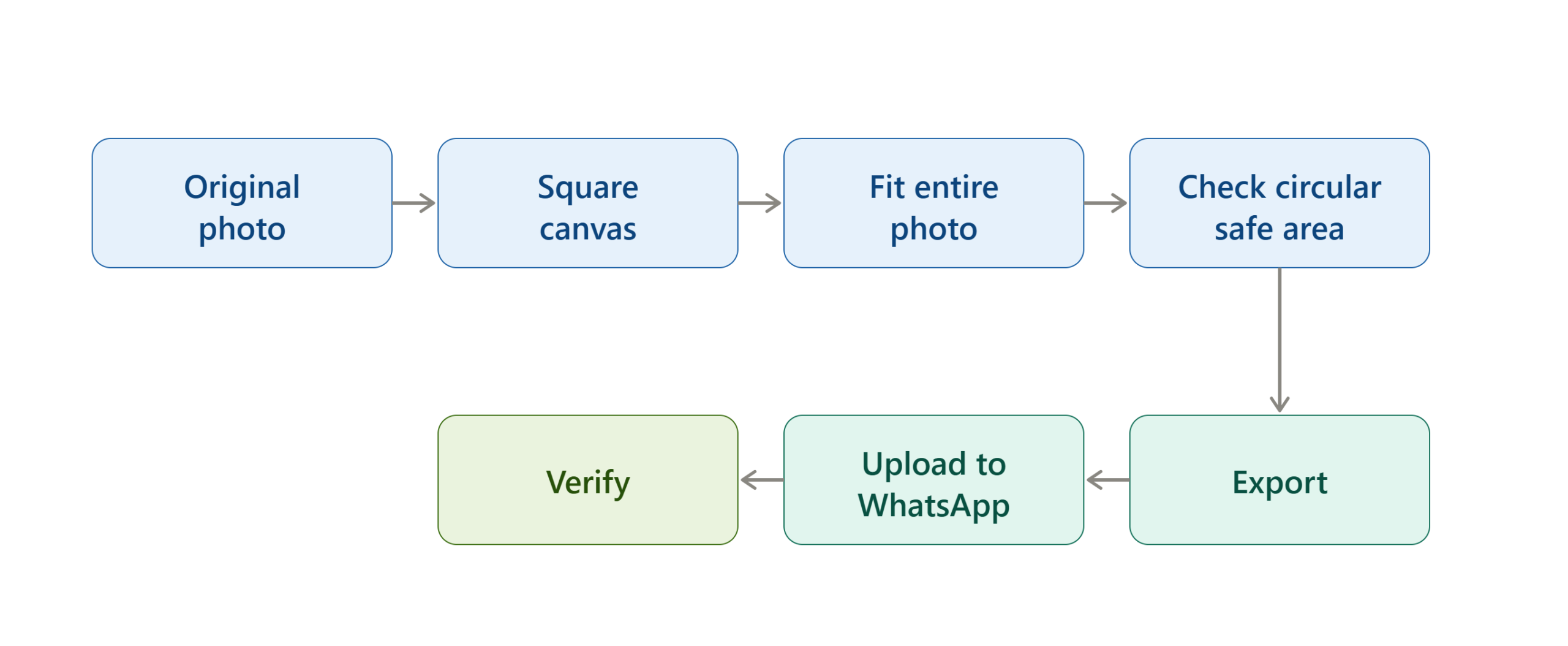
This sequence avoids wasting time on unrelated settings when the real problem is an active unauthorized session.
Common Mistakes to Avoid
Mistake 1 — Assuming Every Verification Code Means You Were Hacked
An unexpected code can result from someone entering your number incorrectly.
Correct approach: Keep the code private and look for additional evidence.
Mistake 2 — Ignoring Linked Devices
Some users check their chats but never review connected computers.
Correct approach: Make Linked Devices the first account-access check.
Mistake 3 — Changing Security Settings Instead of Recovering a Taken-Over Account
Security settings cannot necessarily remove an attacker who already controls the account.
Correct approach: If you have lost access, follow WhatsApp’s recovery process first.
Mistake 4 — Using Third-Party “WhatsApp Hacker” Tools
Websites or apps claiming they can reveal who is secretly reading your WhatsApp messages can create additional privacy and security risks.
Correct approach: Use WhatsApp’s own Linked Devices, security, and account-recovery features.
Mistake 5 — Sharing the Six-Digit Code
This is one of the most dangerous mistakes.
Correct approach: Never provide your WhatsApp registration code to another person.
Mistake 6 — Forgetting About Shared Computers
A WhatsApp Web session on a shared computer can remain available after you leave.
Correct approach: Log out when finished and review Linked Devices regularly.
How to Verify That Your WhatsApp Account Is Secure Again
After taking corrective action, use this verification sequence.
Check 1 — Linked Devices
Only devices you recognize should remain connected.
Check 2 — Account Access
You should be able to open WhatsApp normally and use your account.
Check 3 — Registration Alerts
You should not continue receiving unexplained registration attempts.
Check 4 — Recent Activity
Check whether messages, profile changes, or other account actions occurred that you did not authorize.
Check 5 — Security Settings
Confirm that the additional security options you intentionally enabled remain active.
Check 6 — Recovery Information
Make sure your recovery information is current and accessible to you.
If all six checks are satisfactory, you have completed the main account-security review.
WhatsApp Security Checklist
Before Starting
- Have access to your primary WhatsApp phone.
- Make sure WhatsApp is updated.
- Know your own linked computers and phones.
- Keep your phone number active.
- Do not share any WhatsApp registration code.
During the Security Check
- Open Linked Devices.
- Review every connected device.
- Remove unfamiliar sessions.
- Check for unexpected registration notifications.
- Review available account-security features.
- Secure your phone itself.
After Completion
- Confirm only recognized devices remain.
- Enable appropriate additional authentication.
- Protect your recovery information.
- Review encrypted backup options if needed.
- Repeat the Linked Devices check periodically.
Frequently Asked Questions
Can I tell exactly who is using my WhatsApp account?
No. WhatsApp says it cannot provide information identifying who accessed your account or the exact time and location of that access. You can inspect linked devices and remove sessions you do not recognize.
How do I know if someone is reading my WhatsApp messages?
There is no official WhatsApp feature that tells you that another person is actively reading a particular conversation. The practical account-security check is to review Linked Devices and investigate unfamiliar sessions.
Can someone use my WhatsApp if they know my phone number?
Knowing your phone number alone is not enough to complete WhatsApp registration. The registration process requires verification using a code sent through WhatsApp’s supported verification process.
What should I do if I get a WhatsApp code I did not request?
Do not share the code. WhatsApp explains that the notification can occur because someone entered your number by mistake or because someone is attempting to register your number.
Does logging out an unknown linked device protect my whole account?
It removes that particular linked session. You should still review the rest of your linked devices and strengthen your account security if you suspect unauthorized access.
What if someone registered my WhatsApp number on another phone?
Re-register your phone number using the six-digit code sent to your phone. WhatsApp states that successful re-registration automatically logs other devices out.
Can WhatsApp recover an account that someone else has taken over?
WhatsApp provides an account-recovery process based on re-registering the phone number. If another person has enabled two-step verification and you do not know the credential, WhatsApp explains that a waiting period may apply.
Does two-step verification remove someone already using my account?
No. WhatsApp specifically states that security features such as two-step verification are designed to protect an account you still have access to; they do not remove someone who has already taken over the account. Recover the account first if necessary.
Read More:
Final Takeaway
The simplest way to check whether someone else is using your WhatsApp account is to open Linked Devices and review every connected device. An unfamiliar computer, browser, phone, or tablet that you did not authorize should be logged out immediately.
Unexpected verification codes and new-device registration notifications require a different response. Never share a WhatsApp registration code, and if you have lost control of the account, re-register your phone number using the official six-digit verification process. After recovering access, review Linked Devices and enable appropriate security features such as two-step verification or a passkey.
The key principle is simple: check the connected devices, remove anything you do not recognize, recover the account if access has been lost, and then strengthen its security.

