

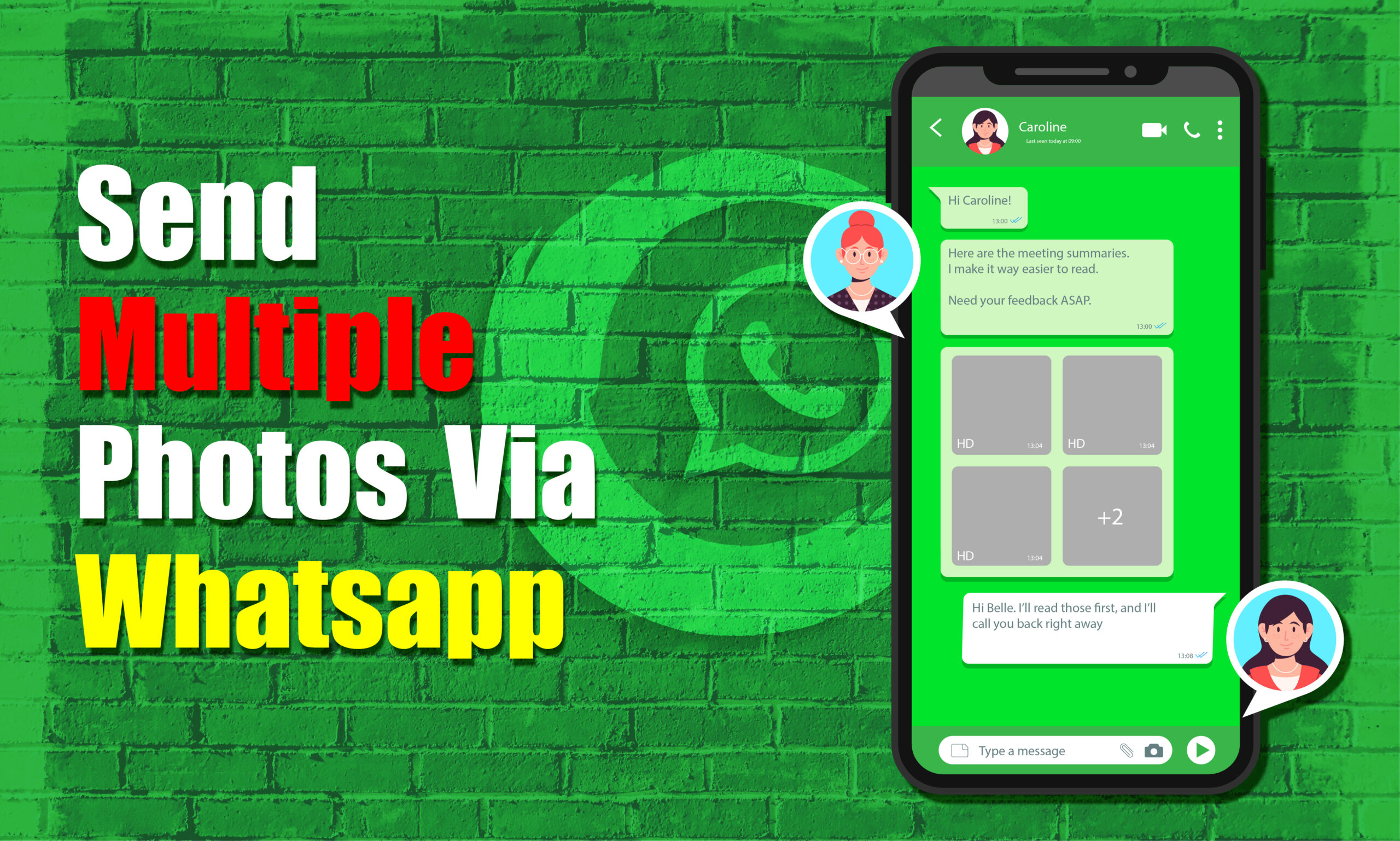
To send multiple photos via WhatsApp, open the individual or group chat, tap the attachment or + button, choose Gallery or Photos and Videos, select multiple images, review them, and tap Send. WhatsApp currently supports selecting up to 100 photos or videos at once in its documented media-sharing workflows.
If you want better image quality, select HD before sending. If preserving the original file is more important than having a normal photo preview, send the images as documents instead. WhatsApp notes that normal media sharing can compress photos, while its HD option provides higher-quality media.
What Does Sending Multiple Photos on WhatsApp Mean?
Sending multiple photos on WhatsApp means selecting several images during one attachment process and sending them together in a single chat rather than attaching each picture separately.
This works in individual conversations as well as group chats. You can normally select photos from the WhatsApp media picker, your phone’s gallery, or a computer when using WhatsApp Web or the desktop application.
The exact buttons differ slightly between Android, iPhone, and desktop. On Android, WhatsApp commonly uses the attachment button followed by Gallery. On iPhone, the equivalent workflow uses the + button and Photo & Video Library. On desktop, WhatsApp uses the + button followed by Photos and Videos.
The important idea is the same on every platform: enter the multi-selection interface, choose the photos you want, review the selection, and send the batch.
Can You Send Multiple Photos at Once on WhatsApp?
Yes. WhatsApp supports sending multiple photos or videos together rather than requiring users to send each image separately.
WhatsApp’s Help Center currently documents selection of up to 100 photos or videos at one time in its media-sharing workflow. WhatsApp also advises sending fewer photos at a time if sharing a large batch causes problems.
This means you can usually send a small group of pictures, a larger collection from an event, or several screenshots without repeating the attachment process for every image.
However, the practical experience can depend on your device, available storage, internet connection, photo sizes, and the version of WhatsApp you are using. If a large batch does not upload successfully, dividing it into smaller groups is a useful troubleshooting step.
How Many Photos Can You Send on WhatsApp at Once?
WhatsApp currently documents a limit of up to 100 photos or videos at once in its supported media-selection workflows. WhatsApp’s Web documentation also states that users can select up to 100 photos or videos from a computer.
If you have more than 100 images, divide them into multiple batches. For example, a collection of 250 photos can be sent as three separate batches rather than attempting to attach all 250 simultaneously.
The 100-item limit should not be confused with the document size limit. WhatsApp separately states that documents can be up to 2 GB, so sending photos as documents is a different workflow with different constraints.
Before You Start
Before sending a large batch of photos, check a few basic requirements.
Check Your Internet Connection
Multiple photos can require significantly more data than a single image. A weak or unstable connection can cause uploads to pause or fail.
For a large batch, Wi-Fi is often more practical when available, particularly if your mobile data allowance is limited.
Check Your Photos
Make sure the images you want to send are actually stored on your device or accessible through the selected photo library.
If a photo is only available in cloud storage, WhatsApp may need the device to download it before it can be attached.
Check Available Storage
Your phone needs enough available storage to process and upload media. Very large photo collections can also consume storage on the recipient’s device.
Decide Which Quality You Need
Before sending, decide whether you want: Standard quality for faster sharing and lower data use, HD quality for greater visual detail and Document/file sharing when preserving the original file is the priority.
WhatsApp’s Help Center explains that standard-quality media uses less data and is sent faster, while HD media provides higher quality but uses more data and can take longer to send.
How to Send Multiple Photos on WhatsApp from Android
The simplest Android method is to select several images directly from a WhatsApp conversation.
Step 1 — Open WhatsApp
Launch WhatsApp on your Android phone and open the individual or group chat where you want to send the pictures.
Make sure you have selected the correct conversation before attaching the photos, particularly if the images are private or intended for a specific group.
Step 2 — Open the Attachment Menu
Tap the attachment icon near the message field.
Depending on the WhatsApp interface and device, this may appear as a paperclip-style attachment button.
Step 3 — Select Gallery
Choose Gallery to browse photos already stored on your phone.
WhatsApp’s Help Center describes this workflow as opening a chat, using the attachment control, and selecting the gallery to choose existing photos or videos.
Step 4 — Select Multiple Photos
Tap and hold a photo to enter multi-selection mode, then tap the other pictures you want to include.
You can continue selecting images until you have chosen everything needed for that message. WhatsApp currently documents support for up to 100 photos or videos in this workflow.
Step 5 — Review the Selection
Before sending, review the selected images.
Remove any photo that was accidentally included and check that the images are in the intended order if their sequence matters.
Step 6 — Choose HD if Needed
If image quality matters, tap the HD option when it is available and choose HD quality.
WhatsApp explains that HD media is clearer than standard-quality media but uses more data and can take longer to send.
Step 7 — Add a Caption if Needed
Add a short caption if you want to provide context.
For example, you could write:
Vacation photos from Day 1
or:
Product images for the new listing
Step 8 — Tap Send
Tap the send button.
WhatsApp will upload the selected images and display them in the conversation.
Step 9 — Confirm Delivery
Check the chat after sending. The photos should appear as sent media rather than remaining in an upload state.
If some images remain stuck, do not immediately repeat the entire batch. First check the troubleshooting section below.
How to Send Multiple Photos on WhatsApp from iPhone
The iPhone process is similar but uses the iOS-style attachment interface.
Step 1 — Open the Conversation
Open WhatsApp and enter the individual or group chat where you want to send the photos.
Step 2 — Tap the Plus Button
Tap the + button beside the message field. WhatsApp’s iPhone Help Center identifies the photo and video library as the place to select existing media.
Step 3 — Choose Photo & Video Library
Select Photo & Video Library.
Your iPhone’s available photos and videos will appear.
Step 4 — Select the First Photo
Tap the first picture you want to send.
If WhatsApp opens that picture in a preview, look for the option to add additional media rather than immediately sending it.
Step 5 — Add More Photos
Use the add-media option to return to the photo selection interface and choose additional pictures.
Continue selecting the images you want to include.
Step 6 — Review Your Selection
Check the complete collection before sending.
This is particularly useful when sharing a large album because an accidental photo can easily be included during multi-selection.
Step 7 — Select HD Quality if Required
Tap HD and select HD quality if you want higher-quality media.
WhatsApp currently describes standard quality as faster and less data-intensive, while HD provides clearer images at the cost of more data and potentially longer upload times.
Step 8 — Edit Individual Photos if Necessary
WhatsApp allows supported media to be edited before sending. Its Help Center documents tools for cropping, rotating, adding text, stickers, drawings, filters.
Only make these changes if they are actually needed. Editing every image can make a large batch take considerably longer to prepare.
Step 9 — Tap Send
Once the selection is ready, tap the send button.
The selected images will be uploaded to the conversation.
How to Send Multiple Photos Through the iPhone Photos App
You can also begin from Apple’s Photos app instead of starting inside WhatsApp.
Step 1 — Open Photos
Open the Photos app on your iPhone.
Step 2 — Tap Select
Choose Select and mark the photos you want to share.
Step 3 — Open the Share Menu
Tap the share button and look for WhatsApp among the available sharing options.
Step 4 — Choose WhatsApp
Select WhatsApp and choose the contact or group where the photos should be sent.
Step 5 — Confirm the Share
Review the destination and send the selected images.
This method can be convenient when you are already browsing an album and do not want to switch back and forth between Photos and WhatsApp.
How to Send Multiple Photos on WhatsApp Web or Desktop
WhatsApp also supports sending multiple photos from a computer.
Step 1 — Open WhatsApp Web or Desktop
Open WhatsApp Web or the WhatsApp desktop application and enter the conversation where you want to send the images.
Step 2 — Click the Plus Button
Click the + or attachment button beside the message field.
Step 3 — Select Photos and Videos
Choose Photos and Videos from the attachment options.
WhatsApp’s current desktop/Web documentation states that users can select up to 100 photos or videos at once and can also drag a photo or video directly into the text-entry area.
Step 4 — Choose Multiple Images
Use your computer’s file picker to select several images. On Windows, you can usually hold Ctrl while clicking individual files or use Shift to select a continuous range.
On macOS, use Command to select individual files or Shift for a range.
Step 5 — Open the Selection
Click Open after selecting the photos.
WhatsApp will prepare the images for sending.
Step 6 — Review and Send
Review the attachments, add a caption if appropriate, and click Send.
You can also drag and drop supported photos or videos directly into the WhatsApp conversation.
How to Send Multiple Photos Without Losing Quality
Normal WhatsApp photo sharing can compress media. If preserving image detail matters, you have two main options: use HD quality or send the photos as documents when appropriate.
Method 1 — Use HD Quality
HD is the simplest option when you want better visual quality while still sending the pictures as normal WhatsApp media. Open the photo-selection preview, tap HD, choose HD quality, and then send the images.
WhatsApp specifically notes that HD photos and videos are clearer than standard-quality media but require more data and may take longer to send.
HD is useful for:
- High-resolution personal photos
- Documents photographed with a phone
- Product images
- Travel photography
- Images where fine details matter
Method 2 — Send Photos as Documents
If retaining the original file is more important than having the normal photo experience, consider sending the images as documents.
This can be useful for
- photographers
- Designers
- Students
- Businesses
- Anyone transferring files for later editing.
The trade-off is that documents do not provide the same convenient photo preview experience as normal media messages. WhatsApp’s current documentation states that documents can be up to 2 GB.
Which Quality Method Should You Use?
| Your Goal | Recommended Method |
|---|---|
| Send ordinary photos quickly | Standard quality |
| Preserve more visible detail | HD quality |
| Transfer files for editing | Send as documents |
| Share a very large original file | Document method, subject to the 2 GB document limit |
| Save mobile data | Standard quality |
The key distinction is that HD improves normal media quality, while document sharing is designed around file transfer rather than a conventional photo-message presentation.
How to Send Photos as Documents on WhatsApp
Sending photos as documents is useful when maintaining the original file is more important than displaying the images as ordinary WhatsApp photos.
On Android
Open the WhatsApp chat, tap the attachment icon, choose Document, and then select the relevant photo files from your device.
WhatsApp’s current Help Center lists documents as a separate attachment type and states that documents can be up to 2 GB.
On iPhone
Open the WhatsApp conversation, tap +, choose Document, and use the available file-selection options to locate the images.
The exact file-selection interface can vary according to how the photos are stored on the iPhone.
On Desktop
Click the attachment button, select Document, choose the image files, and click Open followed by Send.
This method is particularly practical when the photos are already organized in folders on your computer.
What Happens When You Send Many Photos Together?
When you send multiple photos through WhatsApp, the service processes them as a group of media attachments within the conversation.
The recipient can then open the photos individually from the chat.
The exact appearance can vary with the WhatsApp version and platform, but the main advantage remains the same: you do not have to compose a completely separate message for every image.
For a large collection, however, the upload may take longer because every selected image must be processed and transferred.
Troubleshooting: Multiple Photos Are Not Sending
If the batch fails, work through the likely causes in order.
Problem: Only One Photo Is Selected
Possible cause: You tapped a photo without entering multi-selection mode.
Solution: Return to the media picker and use the multi-selection behavior for your device. On Android, this generally means tapping and holding the first image before selecting additional pictures. On iPhone, use the available add-media or multi-selection controls.
Verify: Several photos should appear in the attachment preview before you press Send.
Problem: Some Photos Do Not Appear
Possible cause: WhatsApp cannot access the relevant photos, or the images are not locally available.
Solution: Check WhatsApp’s photo permissions in your device settings. Also confirm that the missing images are actually available in your device’s photo library.
Verify: Return to WhatsApp and check whether the missing images now appear in the picker.
Problem: The Upload Is Stuck
Possible cause: Weak internet connectivity, a large batch, or unusually large media files.
Solution: Check your connection first. If the connection is stable, cancel the failed upload and try a smaller batch. WhatsApp’s Help Center specifically notes that if sharing files causes problems, users should try sending fewer photos at a time.
Verify: Send a small test group and confirm that it completes before sending the remaining images.
Problem: Photos Look Lower Quality After Sending
Possible cause: Standard-quality media can be compressed.
Solution: Select HD quality before sending when available. If preserving the original file is essential, consider the document method.
WhatsApp confirms that shared media can be lower quality because files are generally compressed and provides an HD option for higher-quality media.
Verify: Open the received image and compare its visible detail with the original.
Problem: WhatsApp Does Not Show the HD Option
Possible cause: The selected media or current WhatsApp interface may not expose the option in that particular context.
Solution: Update WhatsApp through your device’s official app store and retry the normal photo-sharing workflow.
Verify: Open a fresh chat attachment and check whether the HD control appears in the media preview.
Problem: WhatsApp Says It Cannot Send the File
Possible cause: The file may be too large, unsupported, unavailable locally, or affected by a temporary connection problem.
Solution: Try sending one photo first. If that works, divide the larger collection into smaller batches.
For unusually large files, consider document sharing, keeping in mind WhatsApp’s current 2 GB document-size limit.
Verify: Send a test file and confirm that the recipient can open it.
Alternative Ways to Share Multiple Photos
WhatsApp is convenient, but it is not always the most suitable method for every large photo collection.
Use a Cloud Storage Link
For hundreds or thousands of photos, a cloud-storage folder can be easier than sending many individual WhatsApp attachments.
This is especially useful when the recipient needs to download an entire collection rather than view individual images inside a chat.
Create an Archive
If the photos need to remain together as a single downloadable package, you can create an archive such as a ZIP file and send it as a document.
This is useful for organized file transfer but less convenient for someone who simply wants to browse photos in WhatsApp.
Send Smaller WhatsApp Batches
If WhatsApp is the preferred communication method, divide a large collection into smaller groups.
For example:
- Batch 1 — Photos 1–50
- Batch 2 — Photos 51–100
- Batch 3 — Photos 101–150
This can make failed uploads easier to identify and manage.
Common Mistakes When Sending Multiple Photos
Selecting Photos One at a Time
Sending every picture separately creates unnecessary work and can clutter the conversation.
Correct approach: Use the media picker’s multi-selection feature and send a batch.
Ignoring Image Quality
Some users send an important high-resolution image using standard quality without checking the quality setting.
Correct approach: Choose HD when the additional detail is important.
Sending a Huge Batch Without Testing
A very large upload can be inconvenient if the connection is unstable.
Correct approach: For a large collection, send a smaller test batch first or divide the collection into manageable groups.
Forgetting the Destination
A large group chat can make it easy to send personal photos to the wrong conversation.
Correct approach: Confirm the chat name before pressing Send.
Using Normal Media When the Original File Matters
A photo intended for professional editing may need its original file characteristics preserved.
Correct approach: Consider sending the image as a document when file preservation is more important than the normal photo preview.
Using Mobile Data for a Large Collection
A large batch of high-resolution images can consume significant data.
Correct approach: Use Wi-Fi when appropriate and review WhatsApp’s media-download and data settings if you regularly exchange large amounts of media.
Expert Tips for Sending Multiple Photos Efficiently
Organize Photos Before Opening WhatsApp
If you need to send a specific collection, create an album or folder first.
This reduces the chance of accidentally selecting unrelated pictures and makes large batches easier to manage.
Use Standard Quality for Routine Sharing
If the recipient only needs to see the photos on a phone, standard quality may be sufficient.
WhatsApp states that standard-quality media uses less data and is sent faster than HD media.
Use HD Selectively
HD is more useful when details matter.
You do not necessarily need to send every casual photo in HD, especially when you are sharing many images over a limited connection.
Use Documents for File Transfer
Think of document sharing as a file-transfer workflow rather than a normal photo-sharing workflow.
It is more appropriate when the recipient needs the actual image file for editing, archiving, printing, or further processing.
Break Large Collections Into Logical Groups
Instead of sending a random sequence of 100 images, organize them by:
- Date
- Event
- Location
- Person
- Project
- Product
- Topic
This makes the conversation easier to understand later.
Decision Framework: Which WhatsApp Photo Method Should You Use?
| Situation | Recommended Approach |
|---|---|
| A few everyday photos | Normal photo sharing |
| Many everyday photos | Multi-select and send together |
| High-quality images for viewing | HD quality |
| Original files needed | Send as documents |
| More than 100 photos | Split into multiple batches |
| Hundreds of photos for download | Cloud folder or archive |
| Weak connection | Smaller batches |
| Limited mobile data | Standard quality and Wi-Fi |
The simplest rule is:
- Want convenience? Use normal photo sharing.
- Want better visual quality? Use HD.
- Want the file itself? Use document sharing.
- Want to distribute a very large collection? Consider a cloud folder or archive.
How to Verify That the Photos Were Sent Successfully
Successful completion should be easy to confirm.
Check the WhatsApp Chat
The selected photos should appear in the conversation rather than remaining in an upload state.
Check for Failed Uploads
If one or more images show a retry or failed-upload indicator, those files were not successfully sent.
Open a Sent Photo
Tap a sent image to make sure it opens correctly.
Ask the Recipient to Confirm Important Files
For professional, legal, academic, or business-related images, do not assume that an upload completing on your side means the recipient has successfully downloaded or opened every file.
A quick confirmation can prevent problems when the photos are important.
WhatsApp Photo-Sending Checklist
Before Sending
- Open the correct WhatsApp conversation.
- Confirm the photos are available on the device.
- Check your internet connection.
- Decide whether standard or HD quality is appropriate.
- Use Wi-Fi when practical for large batches.
During Selection
- Enter multi-selection mode.
- Select only the intended images.
- Review the complete selection.
- Remove accidental photos.
- Use HD when necessary.
After Sending
- Confirm the images appear in the chat.
- Check for failed uploads.
- Open important images to verify them.
- Ask the recipient to confirm important files.
- Split future batches if a large upload repeatedly fails.
Frequently Asked Questions
Can I send 100 photos at once on WhatsApp?
Yes. WhatsApp currently documents support for selecting up to 100 photos or videos at once in its supported media-sharing workflows. If you have more than 100, divide them into additional batches.
How do I send multiple photos on WhatsApp without sending them one by one?
Open the chat, choose the attachment or + button, open the photo or gallery picker, select multiple images, review the selection, and tap Send. The exact button names differ between Android, iPhone, and desktop.
Does WhatsApp reduce photo quality?
Normal WhatsApp media sharing can reduce image quality because media may be compressed. WhatsApp provides an HD quality option for clearer photos and videos.
How do I send multiple photos in HD on WhatsApp?
Select multiple photos, open the media preview, tap HD, choose HD quality, and then send the images. HD uses more data and can take longer to send than standard-quality media.
Can I send photos as documents on WhatsApp?
Yes. WhatsApp provides Document as a separate attachment option. This can be useful when the recipient needs the image files rather than ordinary compressed photo media. WhatsApp currently states that documents can be up to 2 GB.
Why can I select only one photo on WhatsApp?
You may not have entered multi-selection mode. Try returning to the gallery or photo picker and using the selection method appropriate for your device. On Android, this commonly involves tapping and holding the first image before selecting additional images.
What should I do if multiple photos fail to send?
Check your internet connection and try sending a smaller number of photos. WhatsApp specifically recommends sending fewer photos at a time when sharing a large batch causes problems.
Can I send multiple photos from WhatsApp Web?
Yes. WhatsApp’s current Web/Desktop guidance allows users to select photos and videos from a computer, with up to 100 photos or videos at once in the documented workflow. You can also drag and drop photos into the message area.
Read More:
Final Takeaway
Sending multiple photos via WhatsApp is straightforward once you use the multi-selection feature instead of attaching pictures individually. On Android, open the chat, choose the attachment option and Gallery, select multiple images, review them, and send. On iPhone, use + → Photo & Video Library, select the desired pictures, review them, and send. On WhatsApp Web or desktop, use + → Photos and Videos or drag images into the chat.
For ordinary sharing, standard quality is convenient and uses less data. When image detail matters, choose HD. When the recipient needs the original image file rather than a normal photo message, consider sending it as a document. For collections larger than 100 images, divide the photos into multiple batches or use a cloud folder when a full gallery needs to be distributed.

