

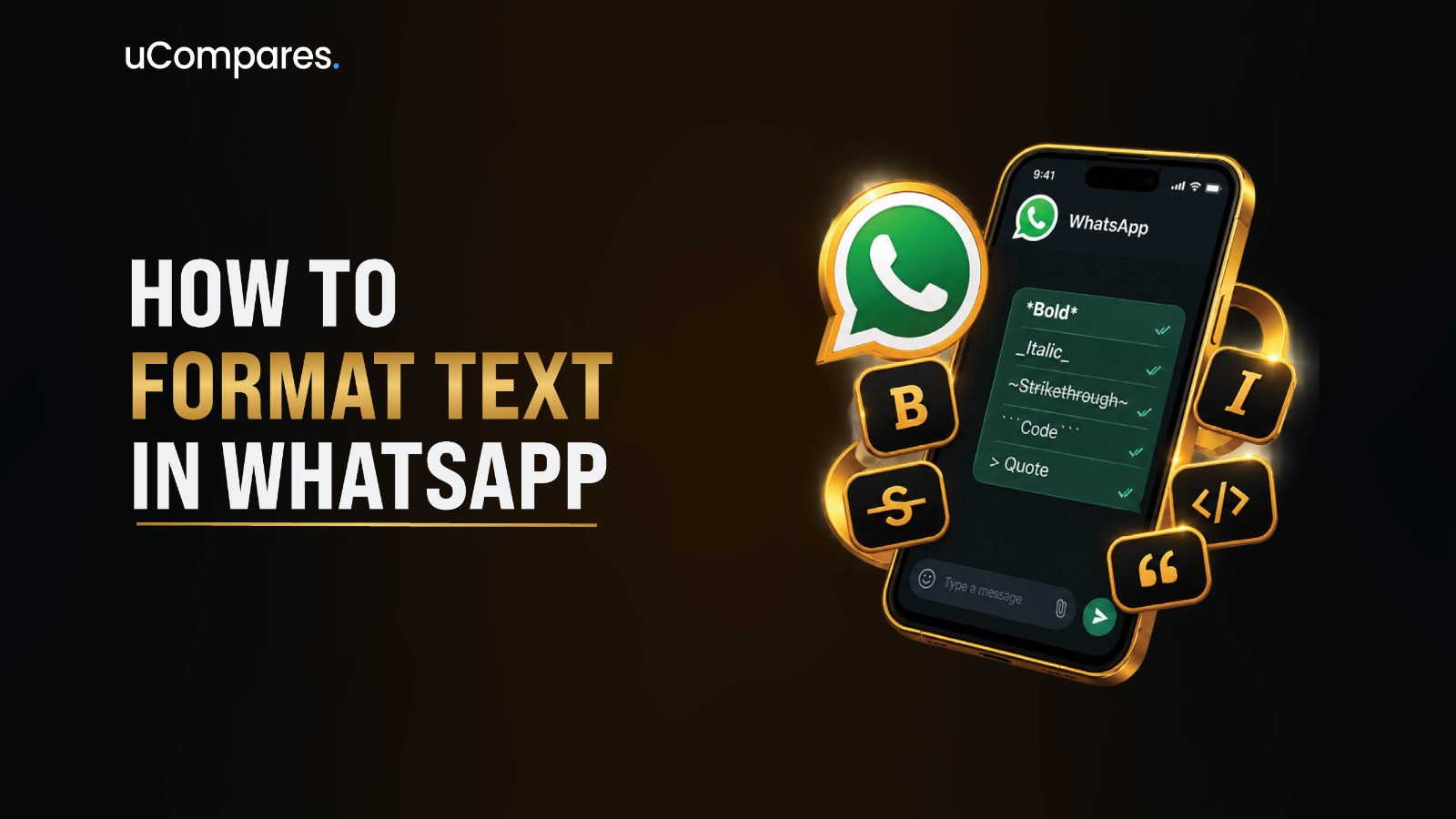
WhatsApp lets you format messages with simple symbols or, for some formats, by selecting text and using the formatting menu. Use *text* for bold, _text_ for italic, ~text~ for strikethrough, and three backticks around text for monospace. WhatsApp also supports bulleted lists, numbered lists, quotes, and inline code.
For example, type *Important* and WhatsApp displays Important after formatting is applied. The same basic formatting syntax works across supported WhatsApp platforms, while the location of menu controls can vary by device and app version.
What Is WhatsApp Text Formatting?
WhatsApp text formatting is a set of built-in tools that lets you change the visual presentation of text inside a message. Instead of sending every message as plain text, you can emphasize words, mark changes, structure instructions, quote someone, or display technical text differently.
WhatsApp’s official formatting options include bold, italic, strikethrough, monospace, bulleted lists, numbered lists, quotes, and inline code.
The formatting is part of the WhatsApp message itself. You do not need a separate font application simply to make ordinary WhatsApp messages bold or italic. You can either type the appropriate formatting characters or use the text-selection formatting controls available on supported versions.
Formatting is particularly useful for long messages. A bold heading can make an important point easier to notice, a numbered list can make instructions easier to follow, and a quote can visually separate a statement from your own response.
Why Should You Format Text in WhatsApp?
Text formatting can make a message easier to scan and understand, especially when the message contains several pieces of information.
Make Important Information Stand Out
Bold formatting is useful for information that the recipient should notice quickly, such as a deadline, price, appointment time, or action.
For example:
*Meeting starts at 7 PM*
This is easier to scan than placing the same information inside a long paragraph.
Organize Instructions
Numbered and bulleted lists can separate individual actions or items.
For example:
1. Open WhatsApp
2. Open the chat
3. Type your message
This structure is more useful for instructions than one large paragraph.
Show Changes Clearly
Strikethrough can indicate that information has changed.
For example:
~Friday~ Monday
This can communicate that Friday was the original option and Monday is now being used.
Separate Technical Information
Monospace and inline code are useful when sharing technical terms, commands, identifiers, or text where the visual distinction helps.
The important point is to use formatting for clarity, rather than decorating every sentence.
WhatsApp Text Formatting Codes at a Glance
The following cheat sheet covers the formatting syntax currently documented by WhatsApp.
| Formatting | What to Type | Example |
|---|---|---|
| Bold | *text* |
text |
| Italic | _text_ |
text |
| Strikethrough | ~text~ |
|
| Monospace | Three backticks around text | text |
| Bulleted list | - text or * text at the start of a line |
• text |
| Numbered list | 1. text at the start of a line |
1. text |
| Quote | > text at the start of a line |
Quoted text |
| Inline code | Single backtick around text | text |
These formatting methods are documented in the official WhatsApp Help Center.
How to Format Text in WhatsApp
There are two main approaches: manually entering formatting symbols or selecting text and using WhatsApp’s formatting controls.
Method 1 — Use Formatting Symbols
The fastest method for many users is to type the required symbol directly around the text. For example, to create bold text, enter:
*This is important*
WhatsApp interprets the asterisks as formatting markers and displays the enclosed words in bold.
The same approach works for the other inline formatting styles. You do not need to install another application simply to use these standard WhatsApp formatting features.
Method 2 — Select Text and Choose a Format
On supported mobile versions, you can type your message, select part of the text, and choose an available formatting option.
The exact appearance of the selection menu can differ between Android and iPhone and may also change as WhatsApp updates its interface. WhatsApp’s Help Center currently documents text-selection shortcuts for formatting, while the underlying formatting syntax remains a reliable way to create the styles.
How to Make Text Bold in WhatsApp
Bold text is one of the most commonly used WhatsApp formatting options.
Step 1 — Type an Asterisk Before the Text
Place one asterisk immediately before the text you want to make bold. Example:
*Important
Step 2 — Add Another Asterisk After the Text
Close the formatting with another asterisk.
Example:
*Important*
Step 3 — Send or Preview the Message
After the formatting is recognized, the enclosed text appears in bold.
For example:
*Payment received*
becomes:
Payment received
WhatsApp’s official instructions specify an asterisk on both sides of the text for bold formatting.
How to Make Text Italic in WhatsApp
Italic formatting is useful for emphasis without giving the text the stronger visual weight of bold.
Step 1 — Add an Underscore Before the Text
Type an underscore immediately before the words.
Example:
_Important
Step 2 — Close the Formatting
Place another underscore after the text.
Example:
_Important_
Step 3 — Send the Message
WhatsApp displays the enclosed text in italic formatting.
Example:
_Please read this carefully._
The official WhatsApp syntax for italic text uses an underscore on both sides of the selected text.
How to Add Strikethrough Text in WhatsApp
Strikethrough places a line through the text and can be useful for showing corrections, changes, or removed information.
Step 1 — Type a Tilde
Place ~ before the text.
Step 2 — Add the Closing Tilde
Place another ~ after the text.
Step 3 — Send the Message
For example:
~Old price~
WhatsApp displays the text with a line through it.
A practical example is:
~$50~ $40
This can visually distinguish an old price from an updated one.
WhatsApp’s official Help Center specifies a tilde on both sides of the text for strikethrough.
How to Use Monospace Text in WhatsApp
Monospace displays characters using a fixed-width style. It can be useful for technical content, identifiers, commands, or text where character spacing matters.
Step 1 — Add Three Backticks
Place three backticks before the text.
Step 2 — Type Your Content
Enter the text you want to display in monospace.
Step 3 — Close With Three Backticks
Add another three backticks after the text.
The basic pattern is:
your textIn WhatsApp’s syntax, three backticks are placed on both sides of the text. For example, you might use monospace when sending:
ORDER-2026-4581
This can make the identifier visually distinct from the rest of the message.
How to Create a Bulleted List in WhatsApp
WhatsApp supports bulleted lists, which are useful for shopping lists, requirements, reminders, and short collections of information.
Step 1 — Start the Line With a Hyphen
Type a hyphen followed by a space.
Example:
- Apples
Step 2 — Add Each Item on a New Line
For example:
- Apples
- Bananas
- Oranges
WhatsApp formats these lines as a bulleted list.
The official Help Center also documents an asterisk followed by a space as an alternative list marker.
A useful shopping list could therefore be written as:
- Milk
- Bread
- Eggs
- Coffee
This is easier to scan than putting every item into one sentence.
How to Create a Numbered List in WhatsApp
Numbered lists are useful when the order of actions matters.
Step 1 — Enter a Number
Start the line with a number followed by a period and a space.
Example:
1. Open WhatsApp
Step 2 — Add the Remaining Steps
Continue with additional lines.
Example:
1. Open WhatsApp
2. Open the conversation
3. Type your message
4. Send the message
WhatsApp recognizes the number-period-space structure as a numbered list.
Numbered lists are especially useful for tutorials because the recipient can follow the sequence without confusing the order of actions.
How to Add a Quote in WhatsApp
The quote format is useful when you want to visually distinguish a quotation or referenced statement from your response.
Step 1 — Start the Line With a Greater-Than Symbol
Type:
>
Step 2 — Add a Space
Place a space immediately after the symbol.
Step 3 — Enter the Quoted Text
For example:
> Please send the document before 5 PM.
WhatsApp displays the line as a quote.
This can be useful when responding to a particular sentence in a longer conversation or when separating quoted information from your own explanation. WhatsApp officially documents > followed by a space as the quote format.
How to Use Inline Code in WhatsApp
Inline code is different from the larger monospace format. It is designed for short pieces of text within a normal sentence.
Step 1 — Add One Backtick
Place a single backtick immediately before the text.
Step 2 — Add the Closing Backtick
Place another backtick immediately after the text.
For example: Use the username shown in the settings.
The word between the backticks is displayed using inline code formatting. WhatsApp’s official Help Center lists a single backtick on both sides of the text as the syntax for inline code.
How to Combine WhatsApp Text Formatting
WhatsApp can be used to emphasize text with more than one style when the formatting markers are correctly placed.
Bold and Italic
A common combination is bold plus italic.
Example:
*_Important update_*
This can produce bold italic emphasis. Use combined formatting selectively. If an entire message uses multiple styles, the visual hierarchy becomes less useful because nothing stands out from anything else.
Bold and Strikethrough
You can also combine emphasis with a correction.
For example:
*~Old information~*
However, combined styles are most useful when there is a clear reason for the combination.
Keep Monospace Separate When Appropriate
Monospace has a different purpose from ordinary emphasis. Use it primarily when the fixed-width appearance provides useful distinction, such as for identifiers or technical text.
The goal should be readable communication rather than using every available formatting option.
How to Format Text on Android
The formatting syntax is generally the same on Android as on other supported WhatsApp platforms.
Use Formatting Symbols
Open a chat, type your message, and enter the appropriate symbols around the text.
For example:
*Important message*
Then send the message.
Use the Text Selection Menu
You can also select text you’ve entered and choose an available formatting option from the selection controls.
If the formatting options are not immediately visible, the interface may place additional options behind a menu.
The exact controls can change as WhatsApp updates its Android application, so the formatting symbols documented by WhatsApp provide a useful platform-independent method.
How to Format Text on iPhone
iPhone users can format messages using either the supported text-selection controls or formatting characters.
Select the Text
Type the message in a WhatsApp chat and select the word, sentence, or passage you want to format.
Open the Formatting Controls
Use the formatting option presented by WhatsApp’s text-selection menu. Depending on the available screen space and software version, you may need to open an additional menu to see the available styles.
Choose the Format
Select the appropriate formatting style, such as bold, italic, strikethrough, or monospace.
You can alternatively enter the symbols manually. The official WhatsApp Help Center documents the same core syntax for iOS.
How to Format Text on WhatsApp Web and Desktop
WhatsApp also supports message formatting when using its web and desktop versions.
Type the Formatting Characters
The most straightforward approach is to enter the formatting syntax directly in the message field.
For example:
*Bold text*
or:
_Italic text_
or:
~Deleted text~
Check the Message Before Sending
If you are preparing a long message, check that every opening formatting character has a corresponding closing character.
WhatsApp’s current Help Center specifically lists Web, Mac, and Windows alongside Android and iOS for its message-formatting documentation.
How to Format a Professional WhatsApp Message
Formatting is particularly useful for business communication, customer support, appointments, instructions, and announcements.
Start With a Clear Opening
Use bold for the most important information rather than formatting every word.
Example:
*Appointment Confirmation*
Then provide the details underneath.
Use Lists for Multiple Details
If the recipient needs to remember several items, use bullets.
Example:
- Date: September 25
- Time: 3:00 PM
- Location: Main Office
Use Numbers for Instructions
If the recipient needs to complete actions in a specific order, use a numbered list.
Example:
1. Open the payment page
2. Enter your reference number
3. Confirm the amount
4. Submit the payment
Use Formatting Sparingly
A professionally formatted message should remain easy to scan. Too much bold, italic, or strikethrough can make the message visually noisy.
The purpose of formatting is to create hierarchy, not decoration.
How to Format a Long WhatsApp Message
Long messages can become difficult to read when every sentence appears as one continuous block.
Separate Major Points
Use short paragraphs instead of one large block of text.
Bold the Key Information
Highlight only the information the recipient is most likely to need.
Use Lists for Related Items
For example:
*Documents Required*
- Passport
- Proof of address
- Application form
Number Actions When Order Matters
For example:
*How to Submit*
1. Complete the form
2. Review the details
3. Attach the documents
4. Submit the application
This structure helps recipients find the information they need without reading every sentence.
How to Format WhatsApp Messages for Business
WhatsApp formatting can also make customer-facing messages easier to understand.
Use Bold for Important Details
Use bold for details such as an order status, deadline, appointment time, or confirmation.
Use Bullets for Product or Service Details
For example:
*Order Details*
- Product: Wireless Headphones
- Quantity: 1
- Delivery: Monday
Use Quotes for Customer Questions
A support agent can quote a customer’s specific question and then provide the answer below it.
This makes the context clearer in longer conversations.
Avoid Overformatting
Formatting should improve communication rather than make a message look promotional or difficult to scan. This is especially important for businesses because WhatsApp provides users with controls over their business conversations and messaging experience.
How to Verify WhatsApp Formatting Worked
The easiest verification method is to inspect the message after WhatsApp applies the formatting.
Check Bold
If you entered:
*Important*
the word should appear visually heavier rather than showing the surrounding asterisks as ordinary text.
Check Italic
If you entered:
_Important_
the text should appear italicized.
Check Strikethrough
If you entered:
~Important~
the text should display with a line through it.
Check Lists
A line beginning with the appropriate list syntax should appear as a structured list rather than ordinary text.
Check Quotes
A line beginning with > should appear as a quoted block.
Check Inline Code
Text enclosed by single backticks should appear in the inline-code style.
If the symbols remain visible instead of being interpreted as formatting, check the troubleshooting section below.
WhatsApp Formatting Not Working? Troubleshooting Guide
Formatting usually fails because of incorrect syntax, spacing, incomplete markers, or an interface difference.
| Problem | Possible Cause | Solution |
|---|---|---|
| Bold does not work | Missing closing * |
Add an asterisk after the text |
| Italic does not work | Missing closing _ |
Add an underscore after the text |
| Strikethrough does not work | Missing ~ |
Add the closing tilde |
| Monospace does not work | Incorrect number of backticks | Use three backticks on both sides |
| List is not created | Missing space after the marker | Use - text or 1. text |
| Quote is not created | Missing space after > |
Use > text |
| Inline code does not work | Incorrect backticks | Use one backtick on each side |
| Formatting looks different from expected | App or interface variation | Try the documented syntax directly |
| Formatting menu is missing | Interface variation | Type the formatting characters manually |
Check for Missing Closing Symbols
Formatting markers normally need to surround the text.
Incorrect:
*Important
Correct:
*Important*
If the closing marker is missing, WhatsApp cannot interpret the intended formatting correctly.
Check Spaces Inside Formatting
The formatting character should be placed directly against the text when using the paired formatting syntax.
Use:
*Important*
rather than:
* Important *
For lists and quotes, the structure is different: the marker appears at the beginning of the line and is followed by a space.
Check the Number of Backticks
Monospace uses three backticks around the text, while inline code uses one backtick on each side. Mixing these two patterns is a common source of confusion.
Try the Manual Syntax
If the formatting menu has moved or is not visible, manually typing the official formatting syntax is a practical alternative.
What to Do If WhatsApp Formatting Looks Different on Your Device
WhatsApp’s interface can change as applications are updated, so the location of formatting controls may not always look identical across devices.
First Check the App Version
Make sure you are using a current version of WhatsApp from your device’s official app store.
Use the Formatting Syntax
If the menu does not appear where you expect it, manually type the documented formatting characters.
Test in a Small Message
Before preparing a long announcement, test a short example: *Test*
Then verify how WhatsApp displays it. This separates a syntax problem from an interface problem.
Common WhatsApp Text Formatting Mistakes
Using Markdown Syntax From Another Platform
WhatsApp formatting resembles some Markdown conventions but is not a general-purpose Markdown editor.
For example, bold WhatsApp text uses:
*text*
Do not automatically assume that syntax from another platform will work identically.
Forgetting the Closing Character
An opening symbol without its matching closing symbol can prevent the intended formatting.
Putting Spaces in the Wrong Place
For paired styles, keep the formatting characters next to the text.
Using Too Many Styles
If every word is bold, italic, crossed out, or monospace, the reader loses the visual hierarchy.
Formatting Without a Purpose
Use bold to emphasize something important, lists to structure multiple items, and quotes to separate referenced text.
Formatting should answer a communication need.
WhatsApp Formatting Decision Framework
If you are unsure which style to use, match the formatting to the purpose.
Use Bold When
Use bold when the recipient should notice information immediately.
Examples include: Deadlines, Important warnings, Order statuses, Meeting times,Key actions.
Use Italic When
Use italic for lighter emphasis, terminology, or a phrase that needs visual distinction without strong emphasis.
Use Strikethrough When
Use strikethrough when showing an old, removed, or replaced piece of information.
Use Monospace When
Use monospace for technical identifiers, commands, codes, or other text where a fixed-width presentation helps.
Use Bullets When
Use bullets when the items do not need to be completed in a particular order.
Use Numbers When
Use numbered lists when sequence matters.
Use Quotes When
Use quotes when separating another person’s statement or a referenced passage from your response.
Use Inline Code When
Use inline code for short technical values that appear inside an ordinary sentence.
Expert Tips for Better WhatsApp Formatting
Build a Visual Hierarchy
A useful message normally has a clear beginning, supporting details, and an obvious action.
For example:
*Delivery Update*
Your order has been dispatched.
- Tracking: ABC123
- Delivery: Tuesday
- Contact: Support Team
This is easier to scan than placing the same information into one paragraph.
Format the Information, Not Every Sentence
A common mistake is treating formatting as decoration. Instead, identify the information that deserves emphasis.
If the recipient only needs to remember one deadline, bold the deadline rather than bolding the entire message.
Keep Lists Consistent
If one section uses bullets, use bullets consistently for comparable items. If actions must happen in sequence, use a numbered list.
Consistency reduces the mental effort required to understand the message.
Keep Technical Text Distinct
When sharing a reference number or command, formatting it as monospace or inline code can visually separate it from conversational text.
Test Long Messages Before Sending
For an important announcement, send a test message to yourself or review the message carefully before posting it to a large group.
This is particularly useful when the message contains multiple formatting styles.
Practical WhatsApp Formatting Examples
Example 1 — Appointment Message
*Appointment Confirmed*
Your appointment is scheduled for Tuesday at 3:00 PM.
- Location: Main Office
- Room: 204
- Reference: ABC123
Example 2 — Instructions
*How to Complete the Process*
1. Open the application
2. Sign in to your account
3. Select Settings
4. Confirm the changes
Example 3 — Price Update
*Special Offer*
Regular price: ~£50~
Current price: *£35*
Example 4 — Technical Message
The error appears as ERR_CONNECTION_FAILED.
This keeps the technical error visually separate from the surrounding sentence.
Example 5 — Quoted Statement
> Please send the final document before Friday.
I will send the updated version tomorrow.
These examples demonstrate how formatting can organize a message without making it unnecessarily complicated.
Can You Format WhatsApp Messages Without a Third-Party App?
Yes. WhatsApp provides native message-formatting functionality, so a separate font generator is not required for the standard formatting options covered in this guide.
The official WhatsApp Help Center provides syntax for bold, italic, strikethrough, monospace, bulleted lists, numbered lists, quotes, and inline code.
Third-party “font” tools may produce Unicode characters rather than using WhatsApp’s native formatting system. Those are a different technique and should not be confused with WhatsApp’s built-in message formatting.
Does WhatsApp Formatting Work on All Devices?
WhatsApp’s Help Center currently provides formatting documentation for Android, iOS, Web, Mac, and Windows.
The important distinction is between the formatting syntax and the interface used to select formatting. The underlying symbols are useful when the menu is unavailable or looks different on a particular device.
For that reason, users who regularly prepare formatted messages should learn the basic symbols rather than depending entirely on the location of a particular menu button.
Can You Format WhatsApp Status Text?
The formatting described in this guide primarily concerns WhatsApp messages. Do not automatically assume that every formatting option available in a chat behaves identically in Status, profile fields, or other WhatsApp surfaces.
WhatsApp regularly changes and expands features, so formatting support should be checked against the relevant product surface before publishing instructions specifically for Status or another feature.
Does WhatsApp Have an Underline Option?
WhatsApp’s official message-formatting documentation lists bold, italic, strikethrough, monospace, bulleted lists, numbered lists, quotes, and inline code. It does not list a native underline style among those message-formatting options.
If a third-party tool claims to create “underlined WhatsApp text,” it may be using Unicode characters rather than WhatsApp’s native formatting mechanism.
Can You Remove WhatsApp Formatting?
Yes. If you manually entered formatting characters, you can edit the message before sending it and remove the corresponding symbols.
For example, change:
*Important*
back to:
Important
If you are using a selection-based formatting control, the available editing options can depend on the platform and current WhatsApp version.
Is WhatsApp Text Formatting Useful for Business Messages?
Yes, when used selectively. Formatting can help separate headings, instructions, deadlines, product information, and customer responses.
However, formatting does not replace good message structure. A clear message should still contain the relevant information, use concise wording, and avoid unnecessary repetition.
For businesses using WhatsApp at scale, message formatting also needs to be considered alongside WhatsApp’s broader business messaging rules and product-specific requirements. Meta states that businesses using the WhatsApp Business Platform must use pre-approved templates when initiating messages, and that WhatsApp applies quality controls and enforcement around business messaging.
Implementation Checklist
Before Writing
- Identify the main purpose of the message.
- Decide which information deserves emphasis.
- Choose bullets or numbers based on whether order matters.
- Decide whether any text needs to be quoted or shown as code.
While Writing
- Use
*text*for bold. - Use
_text_for italic. - Use
~text~for strikethrough. - Use three backticks for monospace.
- Use
- textor* textfor bullets. - Use
1. textfor numbered lists. - Use
> textfor quotes. - Use single backticks for inline code.
- Keep formatting consistent.
Before Sending
- Check that every paired formatting marker is closed.
- Check that list and quote markers have the required spaces.
- Make sure important information is actually easy to find.
- Remove unnecessary formatting.
- Preview or test the message if it is important or going to a large audience.
Frequently Asked Questions
How do I make text bold on WhatsApp?
Place one asterisk before and one after the text, such as *important*. WhatsApp uses this syntax to display the enclosed text in bold.
How do I make text italic on WhatsApp?
Place an underscore on both sides of the text, such as _important_.
How do I cross out text on WhatsApp?
Place a tilde on both sides of the text, such as ~old text~. WhatsApp displays the enclosed text with a strikethrough.
How do I create a bullet list in WhatsApp?
Start each item with an asterisk or hyphen followed by a space. For example, - Item one and - Item two.
How do I create a numbered list in WhatsApp?
Start each line with a number, period, and space, such as 1. First step and 2. Second step.
How do I quote text in WhatsApp?
Start the line with a greater-than symbol followed by a space: > Quoted text.
How do I write monospace text in WhatsApp?
Place three backticks before and after the text. WhatsApp uses this syntax for monospace formatting.
Why is my WhatsApp formatting not working?
First check that you used the correct symbol, closed the formatting marker, and used the required spaces for lists and quotes. If the formatting menu is unavailable or has moved, enter the official formatting syntax manually.
Read More:
Conclusion
WhatsApp makes text formatting straightforward once you know the correct syntax. Use *asterisks* for bold, _underscores_ for italic, ~tildes~ for strikethrough, and three backticks for monospace. You can also structure longer messages with bulleted lists, numbered lists, quotes, and inline code.
For the best results, use formatting to improve readability and information hierarchy, not simply to make every part of a message look different. Start with the formatting cheat sheet, choose the style that matches your communication goal, and verify the message before sending it.

