

To put a full picture on your WhatsApp profile without cutting off important parts, first turn the photo into a square image without cropping the original. Place the complete portrait, landscape photo, group picture, or logo inside a square canvas and fill the extra space with a blurred background, solid color, or another suitable background. Then upload that prepared square image as your WhatsApp profile photo and adjust the preview without zooming in.
WhatsApp lets you edit your profile photo from your profile settings, but the easiest way to avoid unwanted cropping is to prepare the image before uploading it. WhatsApp’s current Help Center confirms that profile photos can be uploaded and changed, while current 2026 guides recommend square padding when the original image is not square.
What Does “Full Picture” Mean on WhatsApp?
A full WhatsApp profile picture means keeping the important content of the original photo visible rather than allowing the profile-photo crop to remove the edges.
For example, imagine that you have a vertical portrait showing a person from head to toe. If you upload the original portrait directly, making the image fit the profile-photo area can remove some of the top or bottom. The same problem can happen with a wide group photograph where people at the left and right edges are important.
The solution is not to force the original rectangular photo into a square by cutting it. Instead, you create a square canvas large enough to contain the entire original image.
This produces a result like this:
- Original photo: Vertical 4:5 portrait
- Prepared image: Square canvas with the complete portrait centered inside
- Extra space: Filled with a background
- WhatsApp result: The complete subject remains visible within the profile-photo area
The same approach works for horizontal photos, family pictures, wedding photographs, travel images, product images, screenshots, and logos.
Can You Put a Full Photo on WhatsApp Without Cropping?
Yes, you can preserve the entire original photo by preparing it on a square canvas before uploading it to WhatsApp.
However, there is an important limitation: you cannot make a rectangular photograph physically fill a square profile-photo area without either cropping part of the photograph or adding space around it. Those are the two basic mathematical possibilities.
For example, a tall portrait can either:
- Be cropped from the top and bottom.
- Be reduced until the complete portrait fits, leaving empty space on the sides.
A wide landscape image has the opposite problem:
- It can be cropped on the left and right.
- Or it can be reduced until the entire image fits, leaving space above and below.
The second option is what you need when your priority is preserving the entire photo.Current 2026 guides commonly recommend placing the original photo on a square canvas and filling the remaining area with padding or a background.
Why Square Padding Is the Best Solution
Square padding solves the problem before WhatsApp has to make a difficult crop. Suppose your original photo is 1080 × 1350 pixels. It is taller than it is wide. If you crop it to 1080 × 1080, approximately 270 pixels of vertical content must disappear.
Instead, you can place the entire 1080 × 1350 photo inside a larger square canvas. The photo remains intact, while the unused width is filled with a suitable background.
The same principle works in reverse for a landscape photo. This method has four important advantages:
- The original photo remains intact.
- Faces and important objects are easier to keep visible.
- The image is already square before WhatsApp processes it.
- You control the background instead of leaving the final crop entirely to the app.
Current 2026 image-fitting tools and guides specifically use this square-canvas approach to preserve the complete image.
Before You Start
Before changing your WhatsApp profile photo, prepare the original image and decide what you want the final profile picture to look like.
Choose the Original Photo
Use the highest-quality original version available on your device. Avoid repeatedly downloading, screenshotting, and re-editing the same picture because each additional processing step can reduce quality.
For a profile picture, check that:
- The main subject is recognizable.
- Faces are reasonably centered.
- Important text is not near the edge.
- Logos have enough surrounding space.
- The image is not already heavily compressed.
- You have permission to use the image when it belongs to someone else.
Decide Whether You Need a Background
If the original photograph is rectangular, you will normally have empty space after fitting it inside a square.
You can use:
- A blurred version of the same photo.
- A plain white background.
- A plain black background.
- A color that matches the photo.
- A brand color for business use.
- A subtle gradient.
- A mirrored extension of the image.
For personal photographs, a blurred extension often looks more natural than a completely unrelated color.
How to Put a Full Picture on WhatsApp Profile
The most reliable workflow is:
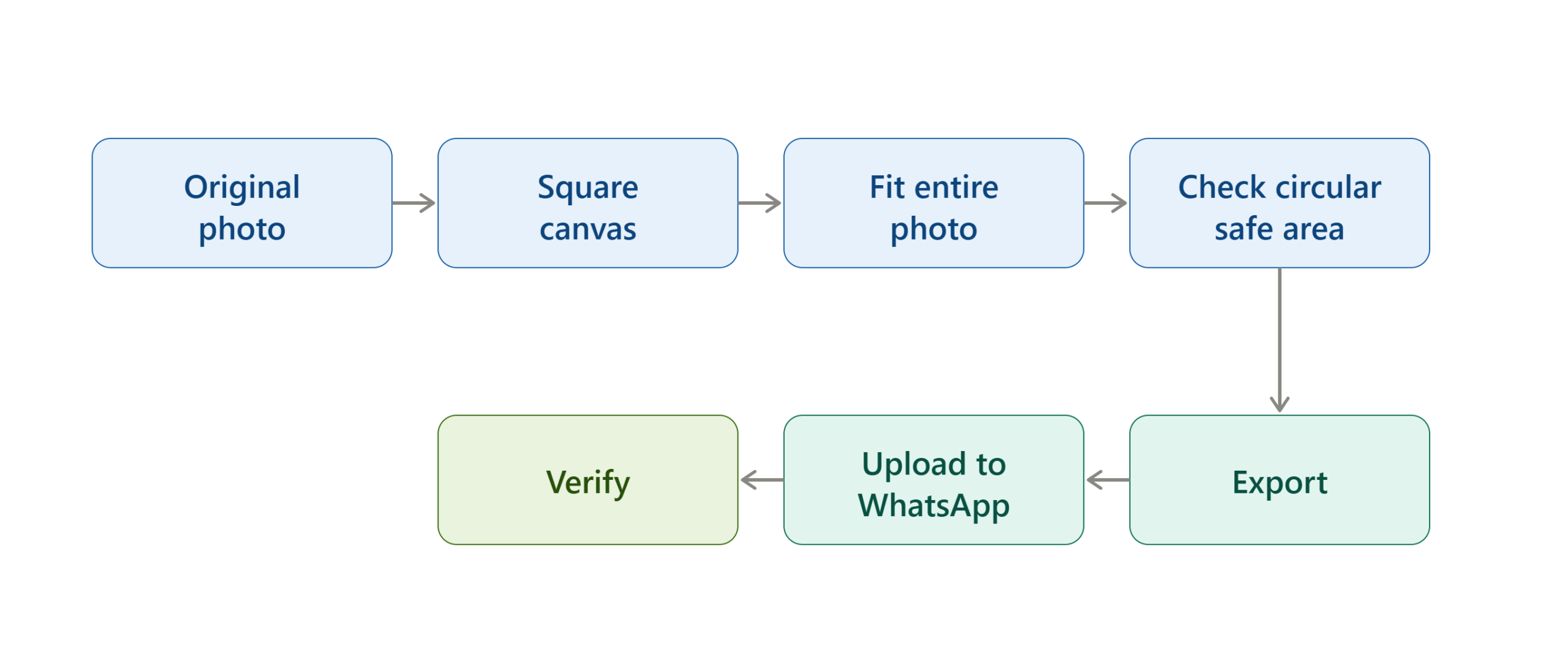
Follow the steps below.
Step 1 — Select the Photo You Want to Use
Open your phone’s Photos, Gallery, or Files application and select the image you want to use as your WhatsApp profile picture. Do not immediately crop it into a square.
First ask:
What parts of this image must remain visible?
- For a portrait, that might include the person’s entire head and shoulders.
- For a group photo, it could mean keeping every person in the frame.
- For a logo, it could mean preserving the entire wordmark.
- For a travel photo, it might mean keeping the main landscape rather than zooming tightly into one object.
This decision determines how much padding you need.
Step 2 — Put the Photo on a Square Canvas
Open the image in an image editor that allows you to change the canvas or aspect ratio without cropping the original.
Create a 1:1 square canvas.
The exact pixel dimensions are less important than maintaining the square shape. A common practical approach is to work with a square canvas such as 1080 × 1080 pixels, provided your editing tool supports it.
The important point is this:
Change the canvas, not the original photograph.
If your editing application offers options such as “Fit,” “Contain,” or “Canvas,” use the option that keeps the entire photograph visible.
Avoid an option called “Fill” if it automatically crops the image.
Step 3 — Fit the Entire Photo Inside the Square
Scale the photograph down until every part you want to preserve is inside the square canvas.
- Do not enlarge it until the edges disappear.
- For a tall photo, you will normally have unused space on the left and right.
- For a wide photo, you will normally have unused space above and below.
That unused space is not a problem. It is what prevents the original photograph from being cropped.
Step 4 — Add a Suitable Background
Now fill the unused space.
The simplest choices are:
Blurred background: Best when you want the profile picture to feel like a natural extension of the original photograph.
- Solid background: Useful for logos, professional portraits, illustrations, and clean business profiles.
- Color-matched background: Choose a color already present in the photograph.
- Gradient: Useful when a simple background looks too plain.
- Mirrored background: Can work well for photographs where extending the dominant visual pattern looks natural.
Avoid backgrounds that compete with the main subject.
The purpose of the background is to support the original photograph, not become the most noticeable part of the profile picture.
Step 5 — Center the Important Subject
Before exporting, check the position of the subject. A person’s face should generally sit comfortably inside the central safe area.
If you are using a group photograph, make sure people near the outer edges are not so close to the boundary that the circular presentation could obscure them.
- For logos, leave sufficient breathing room around the wordmark.
- For text-based images, keep letters away from the corners.
- A useful visual test is to imagine a circle inside the square.
- Anything essential should remain comfortably inside that imaginary circle.
Step 6 — Preview the Circular Area
This is one of the most important steps.
A square image can look perfect in an image editor but still lose visual information when displayed as a profile photo. If your editor has a circular preview, turn it on. If it does not, temporarily place a circle over the square image using an editing or design application.
Check:
- Top of the head
- Bottom of the shoulders
- People at the sides
- Logo edges
- Text
- Important objects
- Decorative elements
Current guidance on preparing WhatsApp profile photos specifically emphasizes allowing enough margin because the profile photo may be viewed through a circular presentation.
Step 7 — Export the Prepared Image
Export the completed square image as JPG or PNG.
- For a normal photograph, JPG is usually sufficient.
- For logos, graphics, or images containing sharp text, PNG may preserve edges more cleanly.
- Do not repeatedly export and re-edit the same file if you can avoid it.
Keep the final prepared version so that you can reuse it later if you change your WhatsApp profile photo again.
Step 8 — Open WhatsApp
Open WhatsApp on your primary phone.
WhatsApp’s current Help Center confirms that users can edit their profile photo and upload a photo from their device.
On supported versions, the exact labels can vary slightly by platform and interface version, but the profile area is the starting point.
Step 9 — Open Your Profile
Go to your profile area and select your existing profile photo.
If you do not currently have a profile picture, select the profile-photo icon.
WhatsApp’s current desktop guidance describes the process as opening the profile, selecting the existing photo or profile-photo icon, and choosing a photo from the device.
Step 10 — Select the Prepared Square Image
Choose the square version you created in the earlier steps.
Do not select the original portrait or landscape photo if your goal is to preserve the entire image.
The prepared square version has already solved the aspect-ratio problem before WhatsApp receives the image.
Step 11 — Adjust the Preview Carefully
When WhatsApp shows the profile-photo preview, check the entire composition.
Avoid zooming in unnecessarily.
If you zoom into a carefully prepared square image, you can undo the work you did to preserve the complete photograph.
Check that:
- The face is visible.
- The complete logo remains readable.
- Important people are still present.
- No essential text is clipped.
- The background does not overwhelm the subject.
When the preview looks correct, confirm the change.
Step 12 — Verify the Final Profile Picture
Return to your WhatsApp profile and look at the newly uploaded image.
Then, if possible, view it from another chat or profile context where the picture appears smaller.
This matters because a profile picture can look acceptable at a large preview size but lose readability when reduced.
The goal is not simply:
“Did WhatsApp accept the image?”
The better question is:
“Does the image still communicate what I intended at the size people actually see?”
How to Put a Full Picture on WhatsApp on Android
The preparation process on Android is the same as the general method: make the photograph square without cropping the original, then upload the prepared image.
The main difference is how you access your profile and select the image.
Step 1 — Open WhatsApp
Launch the latest version of WhatsApp on your Android phone.
If your interface looks different from an older tutorial, follow the current labels displayed in your version rather than relying on an outdated screenshot.
WhatsApp recommends keeping the application updated when troubleshooting account and profile-related problems.
Step 2 — Open Your Profile
Open the profile area from WhatsApp’s settings or profile interface and select your current profile picture.
Step 3 — Choose the Prepared Square Image
Select the square image you created earlier.
If Android shows your recent photos first, look for the edited or exported version rather than the original rectangular image.
Step 4 — Check the Crop
Use the preview to make sure the complete image remains inside the visible area.
If the preview suddenly cuts off the subject, go back and add more padding to your square canvas.
Step 5 — Save and Check
Confirm the profile-picture change and then inspect the image at normal WhatsApp viewing size.
If the result looks too zoomed in, do not repeatedly move the image inside WhatsApp. Instead, return to the square source and create more surrounding space.
How to Put a Full Picture on WhatsApp on iPhone
The same principle applies on iPhone.
Because iPhone photographs are often taller or wider than the square profile-photo composition, preparing a square version before uploading is still the most predictable way to preserve the complete image.
Step 1 — Open Photos
Find the original photograph in the Photos app.
Keep the original untouched so you can create another version if necessary.
Step 2 — Create a Square Version
Use an image editor or design application that lets you place the original image inside a square canvas.
Choose a fit or contain option rather than a crop or fill option.
Step 3 — Add Padding
Fill the empty areas with a background that matches the image.
A blurred copy of the same photograph is particularly useful for portraits and travel images because it keeps the overall color and visual atmosphere consistent.
Step 4 — Check the Safe Area
Make sure faces, text, logos, and other essential elements remain comfortably away from the edges.
Step 5 — Upload the Square Image
Open WhatsApp, go to your profile, select the profile photo, and choose the prepared image.
WhatsApp’s current profile documentation confirms that users can upload a profile photo from their device.
Step 6 — Confirm the Result
Check the final profile image at normal size.
If anything important is still clipped, create another version with more padding rather than sacrificing part of the original photograph.
How to Put a Full Picture on WhatsApp Web or Desktop
You can also manage profile information from supported desktop versions of WhatsApp.
WhatsApp’s current Help Center documents profile-photo editing on Web, Windows, and Mac, including selecting the existing profile photo and uploading an image from the device.
Step 1 — Open WhatsApp Web or Desktop
Launch the WhatsApp desktop or web experience and sign in to your account.
Step 2 — Open Your Profile
Click your profile photo and open the profile settings.
Step 3 — Select the Existing Profile Photo
Click the profile photo and choose the option to upload a new image.
Step 4 — Select the Square Image
Choose the prepared square image from your computer.
Step 5 — Adjust and Save
Use the available positioning controls to make sure the important part of the image remains visible, then confirm the change.
The desktop interface may differ slightly from mobile versions, so follow the controls displayed in your current WhatsApp version.
Which Method Should You Use?
There are several ways to make a full photo work as a WhatsApp profile picture, but they are not equally useful in every situation.
| Situation | Recommended method | Why |
|---|---|---|
| Tall portrait | Square canvas + blurred sides | Preserves the full person |
| Wide landscape | Square canvas + top/bottom padding | Keeps the complete scene |
| Group photo | Square canvas + generous margins | Reduces edge clipping |
| Business logo | Square canvas + solid background | Keeps branding readable |
| Screenshot | Square canvas + simple background | Preserves text and interface |
| Product image | Square canvas + neutral background | Keeps the complete product visible |
| Professional headshot | Square canvas + subtle background | Provides safe space around the face |
The common principle is the same: fit the complete image into a square rather than cropping the image to create a square.
How to Make a Full WhatsApp Profile Picture Look Good
Simply preserving the entire photo is not enough. The finished image should also remain visually clear at the small size used for profile photos.
Keep the Main Subject Large Enough
Do not add so much empty space that the actual photograph becomes tiny. The objective is to preserve the complete image while still giving the subject enough visual presence.
For example, if a full-body portrait is important, reduce the photograph only enough to fit the complete body and necessary surroundings.
Keep Faces Away From the Edge
Faces positioned close to the edge are more vulnerable to the circular presentation. Give the face some breathing room.
This is particularly important for: Selfies, Wedding portraits, Couple photographs, Family photographs, Professional headshots.
Avoid Tiny Text
A logo or screenshot may technically fit inside the square while becoming impossible to read when displayed as a small profile image.
If the text is essential, consider using a simpler version of the design rather than squeezing too much information into one profile photo.
Use a Background That Supports the Photo
A highly contrasting background can make the profile picture look artificial.
A blurred extension of the original image is often a good compromise because it creates additional space without introducing a completely different visual element.
How to Put a Full Body Picture on WhatsApp Profile
Full-body photographs are one of the most common cases where direct uploading creates an unwanted crop.
A full-body photo is usually taller than the square profile-photo area. If WhatsApp or the image picker crops it aggressively, the feet, hair, shoulders, or surrounding scenery may disappear.
The better workflow is:
- Open the full-body photograph.
- Create a square canvas.
- Scale the complete body until it fits inside the square.
- Add background space to the left and right.
- Keep the head and feet away from the outer boundary.
- Preview the circular safe area.
- Export the square image.
- Upload the square version to WhatsApp.
- Confirm that the complete body remains visible.
If the person still looks too small, reduce the amount of decorative background rather than cropping the body.
How to Put a Full Group Photo on WhatsApp Profile
Group photos are more difficult because several people may be distributed across the width of the original image.
If you crop a wide group photograph into a square, the people at the sides are usually the first to be affected.
Instead:
- Keep the original group photograph intact.
- Place it on a square canvas.
- Reduce the photograph until everyone fits.
- Add space above and below if required.
- Check the circular preview.
- Make sure no person’s face sits directly against the edge.
- Upload the final square image.
If the resulting people appear too small, consider using a closer group photograph with fewer background elements rather than forcing a large group into a tiny profile image.
How to Put a Logo on WhatsApp Profile Without Cropping
Business logos require a slightly different approach.
The main problem is often not the photograph’s aspect ratio but the amount of empty space around the logo.
A wide wordmark may become unreadable when forced into a circular profile area.
For a business profile:
- Use a square canvas.
- Center the logo.
- Keep the entire wordmark inside the safe area.
- Avoid placing small text near the edge.
- Use a clean background.
- Test the logo at small size.
- Consider a simplified icon version if the full wordmark becomes unreadable.
WhatsApp Business provides profile-photo editing for business profiles, and WhatsApp notes that business profile pictures are public by default.
What to Do If WhatsApp Still Crops Your Full Picture
If the prepared image is still being cropped, work through the following troubleshooting process.
| Problem | Possible Cause | Solution |
|---|---|---|
| Top of photo disappears | Subject is too close to the edge | Add more top padding |
| Bottom is missing | Image is positioned too close to bottom | Reduce the photo slightly |
| People at the sides disappear | Group photo is too wide | Add more side space |
| Logo is cut off | Logo reaches the safe-area boundary | Reduce logo size |
| Photo looks zoomed in | WhatsApp preview is enlarged | Reset/reduce zoom before saving |
| Face is too close to edge | Insufficient safe area | Recreate image with more margin |
| Image looks tiny | Too much padding | Increase photo size while preserving safe margins |
| Image looks stretched | Photo was resized disproportionately | Preserve the original aspect ratio |
| Profile photo does not appear to others | Privacy settings may restrict visibility | Check Profile Photo privacy |
| New photo does not appear correctly | App or connection issue | Restart/update WhatsApp and retry |
WhatsApp’s own troubleshooting guidance recommends checking profile-photo privacy settings and, where relevant, contact synchronization and the network connection when profile photos cannot be viewed correctly.
Fix a WhatsApp Profile Picture That Looks Different to Other People
Sometimes the image is uploaded correctly but another person cannot see it.
That is not necessarily a cropping problem.
WhatsApp provides profile-photo privacy controls that determine who can see your profile photo. Current WhatsApp settings include:
- Everyone
- My contacts
- My contacts except…
- Nobody
These controls can affect whether another person sees your profile picture.
If someone cannot see your photo, check:
- WhatsApp privacy settings.
- Whether the person is saved as a contact where relevant.
- Whether either person needs to resync contacts.
- Whether a temporary network issue is involved.
- Whether the other person has blocked or restricted communication with you.
WhatsApp specifically identifies privacy settings, contact synchronization, blocking, contact status, and temporary network problems as possible reasons profile information may not be visible.
Common Mistakes to Avoid
Mistake 1 — Cropping the Original Before Uploading
If you crop a tall or wide photograph into a square before uploading, you have already removed the content you wanted to preserve.
Correct approach: create a square canvas and fit the complete photograph inside it.
Mistake 2 — Stretching the Photo
Stretching a portrait horizontally or vertically technically keeps every pixel but changes the proportions. Faces can become wider, buildings can lean visually, and objects can look distorted.
Correct approach: maintain the original aspect ratio and use padding for the remaining space.
Mistake 3 — Putting Important Content in the Corners
A square image does not mean every corner will remain visually prominent in the final profile-photo presentation.
Correct approach: keep essential content within a central safe area.
Mistake 4 — Using Too Much Padding
Padding solves cropping, but excessive padding can make the actual photograph too small.
Correct approach: use the minimum amount of background needed to preserve the complete photo safely.
Mistake 5 — Ignoring Small-Size Readability
A photograph can look excellent at full resolution but become unclear when displayed as a small avatar.
Correct approach: test the final image at approximately the size it will actually appear.
Mistake 6 — Using the Original Photo After Preparing a Square Version
This sounds obvious, but it is a common workflow mistake. If you create a perfectly padded square version and then accidentally select the original photo from your gallery, WhatsApp may once again crop the image.
Correct approach: clearly rename or save the prepared version so you can identify it immediately.
Mistake 7 — Repeatedly Zooming During Upload
If you zoom in after creating the square image, you can reintroduce the exact cropping problem you were trying to avoid.
Correct approach: make the composition correct before uploading and keep the WhatsApp adjustment minimal.
Expert Tips for a Better WhatsApp Profile Picture
Design for the Smallest Display Size
A profile picture is rarely viewed at the same size as the original photograph.
At smaller sizes: Faces need sufficient contrast, Logos need simple shapes, Text needs to be large enough to remain recognizable, Busy backgrounds can disappear into visual noise.
Therefore, preserving the entire photograph is only half the job. You should also make sure the subject remains recognizable.
Use a Safe-Area Mental Model
Imagine a circle centered inside your square image. Place the most important information inside that circle. Then leave a small margin between the important information and the imaginary boundary.
This approach gives you protection against the outer edges being visually clipped or obscured.
The safe-area idea is especially useful for: Company logos, Full-body photographs, Group photographs, Text-based graphics, Product images.
Keep the Original File
Always retain the original photograph separately from the WhatsApp-ready version.
The original is your source file. The square version is your distribution file. This makes future editing much easier because you can create a new square composition without repeatedly degrading the original.
Use Different Versions for Different Purposes
A photo that works well as an Instagram post may not work equally well as a WhatsApp profile picture.
Likewise, a business logo designed for a website header may not be suitable for a small circular avatar.
Instead of forcing one image into every platform, create platform-specific versions while keeping the original asset intact.
A Simple Decision Framework
If you are unsure which approach to use, follow this decision process:
Is the original image already square?
- Yes: Upload it and check the circular safe area.
- No: Continue.
Do you need to preserve the entire image?
- Yes: Put it on a square canvas without cropping.
- No: A normal square crop may be sufficient.
Does the subject reach the edges?
- Yes: Add more padding and reduce the image slightly.
- No: Continue.
Is the subject too small after adding padding?
- Yes: Reduce unnecessary background space or choose a more suitable original photo.
- No: Upload the prepared square version.
This prevents you from repeatedly experimenting inside WhatsApp’s upload screen.
Alternative Methods
You do not need a complicated professional editing workflow.
Method 1 — Use Your Phone’s Built-In Editor
If your phone’s editing application supports canvas resizing or adding borders without cropping, you may be able to prepare the image directly on the device.
The key requirement is not the name of the editor.
The requirement is that it must allow you to fit the complete image into a square without cutting it.
Method 2 — Use an Image Resizer
A dedicated image-resizing tool can automatically place a portrait or landscape image on a square canvas.
Some current tools specifically provide WhatsApp profile-photo modes and circular previews.
If you use a third-party service, check its privacy practices before uploading personal, confidential, or sensitive photographs.
Method 3 — Use a Design Application
A design application gives you more control over: Canvas size, Background, Position, Zoom, Text, Logo placement, Safe areas, Export format.
This is particularly useful for WhatsApp Business accounts and professional branding.
Method 4 — Use a Blurred Background
For personal photographs, a blurred duplicate of the original image is often the simplest way to make the extra space look intentional.
The foreground remains the original photograph, while the background provides the additional square area.
This technique works particularly well with portraits and travel photos.
Does WhatsApp Require a Specific Pixel Size?
You do not need to obsess over one exact pixel dimension to solve the cropping problem.
The more important characteristic is the 1:1 square composition.
Some third-party tools recommend specific output sizes such as 500 × 500, 640 × 640, or 1080 × 1080, but these should be treated as practical editing presets rather than a universal WhatsApp requirement unless WhatsApp itself specifies such a requirement. Current third-party tools use several square output sizes for WhatsApp-oriented workflows.
For most users, a good-quality square source with the entire image properly fitted is more useful than chasing a particular pixel number.
Does WhatsApp HD Improve Profile Picture Quality?
No. WhatsApp’s current Help Center explicitly states that HD media is not currently available for profile pictures. The HD setting applies to supported photo and video messages rather than giving profile pictures a separate HD upload mode.
Therefore, selecting HD when sending a normal photo in a chat does not solve a profile-picture cropping problem.
If your profile photo looks poor, focus first on:
- Starting with a good original.
- Preparing a square image.
- Avoiding excessive zoom.
- Keeping the subject within the safe area.
- Avoiding unnecessary recompression.
How to Verify That the Full Picture Worked
A successful result should pass four checks.
Check 1 — Full Original Is Preserved
Confirm that the complete intended photograph appears in the prepared square image.
Check 2 — Important Elements Are Inside the Safe Area
Check faces, logos, text, and other critical details.
Check 3 — WhatsApp Preview Looks Correct
Open the profile-photo preview and confirm that WhatsApp is not enlarging or repositioning the image in a way that removes important content.
Check 4 — Small-Size View Is Still Clear
Look at the profile photo where it appears naturally in WhatsApp.
The image should remain recognizable without requiring someone to open a large preview.
What If the Picture Is Still Too Small?
This is usually a design trade-off rather than a technical failure.
If your original photograph has a very tall aspect ratio, preserving every part of it requires more side padding. That means the actual photograph occupies less of the square.
You can improve the result by:
- Choosing a less vertically extreme photograph.
- Cropping only unimportant background areas before fitting.
- Moving the subject closer to the center.
- Using a better-composed original image.
- Removing unnecessary blank areas from the original.
- Using a closer photograph of the same subject.
The goal is not always to preserve every original pixel. The goal is to preserve the important visual content while making the profile picture recognizable.
WhatsApp Profile Picture Privacy Considerations
Uploading a full photograph does not change who can see it. Visibility is controlled separately through WhatsApp’s privacy settings.
WhatsApp currently allows users to control profile-photo visibility using options such as Everyone, My Contacts, My Contacts Except…, and Nobody.
Therefore, distinguish between two different problems:
Image problem:
“My picture is being cropped.”
Privacy problem:
“Someone cannot see my picture.”
The first is solved by preparing the image correctly.
The second may require checking WhatsApp’s privacy settings or contact synchronization.
Frequently Asked Questions
Can I put my entire photo on WhatsApp without cropping?
Yes. The practical method is to place the entire photo inside a square canvas and fill the unused area with padding or a suitable background before uploading it to WhatsApp.
How do I stop WhatsApp from zooming into my profile picture?
Prepare a square version of the photo first, keep the subject inside the central safe area, and avoid unnecessarily zooming the image during WhatsApp’s profile-photo adjustment. If the image is still too close to the edges, create another square version with more padding.
How do I put a full-body photo on WhatsApp?
Place the entire full-body photograph on a square canvas, reduce it until the complete body fits, and add background space around it. Keep the head and feet away from the outer edges before uploading the square image.
How do I put a full group photo on WhatsApp?
Use the complete group photo inside a square canvas rather than cropping it into a square. Reduce the image until everyone remains visible and add padding above and below as necessary.
Can I put a rectangular photo on WhatsApp without cropping it?
Yes, if you first fit the rectangular photo inside a square canvas. The extra space around the rectangle must be filled with a background, because a rectangular image cannot completely fill a square area without either cropping or distortion.
Why does my WhatsApp profile picture still look cropped?
The most common reasons are insufficient padding, important content positioned too close to the edge, excessive zoom during upload, or using the original rectangular photo instead of the prepared square version. Recreate the square image with more safe space and upload that version.
Why can some people not see my WhatsApp profile picture?
Profile-photo visibility depends on WhatsApp’s privacy settings and can also be affected by contact synchronization, blocking, or temporary network problems. WhatsApp provides profile-photo visibility controls under Privacy settings.
Does WhatsApp have a setting to show the whole rectangular photo automatically?
The reliable approach is not to depend on an automatic no-crop setting. Instead, prepare the image as a square before uploading it so that the complete photograph is already inside the format used for the profile picture.
What size should a WhatsApp profile picture be?
The important practical requirement for avoiding unwanted cropping is a square 1:1 composition. Several third-party tools offer different square output sizes, so there is no need to focus on one unofficial pixel number. Use a sufficiently high-quality square image and prioritize correct composition.
Read More:
Conclusion:
The easiest way to put a full picture on your WhatsApp profile in 2026 is to prepare the photograph before uploading it. Instead of cropping a portrait or landscape image into a square, place the entire photograph on a square canvas, add suitable padding or a background, and keep important content inside the central safe area.
Then upload the prepared square image through WhatsApp’s profile settings, check the preview carefully, and confirm that the image remains recognizable at normal profile-photo size. WhatsApp’s current documentation confirms that profile photos can be uploaded and edited, while its privacy controls separately determine who can see the resulting picture.
The key principle is simple:
Do not make the photo square by cutting it. Make the canvas square while keeping the entire photo.
That approach works for portraits, full-body photographs, group pictures, landscapes, logos, screenshots, product images, and most other situations where preserving the complete original matters.

