

You generally cannot download a WhatsApp cloud backup from Google Drive or iCloud as a normal, readable chat file. WhatsApp backups are intended to be restored through WhatsApp and are protected by encryption. If you want a readable copy of a particular conversation, use WhatsApp → Open chat → Export chat, then choose whether to include media. If you want to move your complete WhatsApp history to another phone, use WhatsApp’s supported backup or chat-transfer process instead.
The important distinction is between backup, export, and transfer. A backup is primarily designed to let WhatsApp restore your chat history. An export creates a separate copy of an individual conversation. A transfer moves WhatsApp data from one device to another.
Once you understand that distinction, the process becomes much easier. This guide explains what you can actually download, how to export individual chats, how to restore cloud backups, how Android and iPhone differ, and what to do when WhatsApp does not detect your backup.
What Is a WhatsApp Backup?
A WhatsApp backup is a stored copy of your WhatsApp chat history and related data that can be used to restore your account and conversations.
The storage method depends on the device. On Android, WhatsApp can back up chat history using a Google Account. WhatsApp’s current documentation says Android backups require a Google Account, Google Play services, sufficient device and account storage, and a stable internet connection.
On iPhone, WhatsApp chat history can be backed up through iCloud. WhatsApp’s restoration instructions state that an existing iCloud backup can be used to restore chat history on an iPhone after reinstalling WhatsApp and verifying the account.
A backup should therefore be thought of as a restore point, rather than an ordinary file such as a PDF, ZIP archive, or Word document.
Backup vs. Export vs. Transfer
These three functions solve different problems:
| Method | Main Purpose | Can You Read It Outside WhatsApp? | Can It Restore WhatsApp? |
|---|---|---|---|
| WhatsApp backup | Restore chat history | No, not as a normal readable file | Yes |
| Export Chat | Save an individual conversation | Yes | No |
| Chat transfer | Move WhatsApp data to another phone | No | Yes, as part of migration |
| Screenshot/manual copy | Save selected information | Yes | No |
WhatsApp specifically states that an exported chat is a text file and cannot be re-imported because it is not a backup file.
Can You Actually Download a WhatsApp Backup?
You normally cannot download a WhatsApp cloud backup as an ordinary readable backup file and then open the contents on your computer.
On Android, the backup is associated with the Google Account and phone number used to create it. WhatsApp manages the backup rather than treating it like a normal Google Drive document. WhatsApp also states that Google Account backups are not end-to-end encrypted unless you enable WhatsApp’s end-to-end encrypted backup feature.
On iPhone, WhatsApp uses iCloud for chat backups, but the supported process is to restore the backup through WhatsApp rather than download the backup as a conventional file. WhatsApp’s official restore procedure requires reinstalling WhatsApp, verifying the phone number and Apple ID, and selecting Restore Chat History when prompted.
So the correct method depends on what you mean by “download.”
If You Want a Readable Conversation
Use Export Chat.
If You Want to Restore Your WhatsApp History
Use the existing WhatsApp backup.
If You Want to Move Everything to a New Phone
Use WhatsApp’s supported chat-transfer or backup restoration method.
If You Want a Copy of the Cloud Backup File Itself
WhatsApp does not provide the same kind of ordinary file-download workflow that you would use for a PDF or photo stored in Google Drive.
Before You Start
Before attempting to save, export, restore, or transfer WhatsApp data, determine what you actually need.
Decide What You Need
Choose the closest option:
- One conversation: Export the chat.
- Several important conversations: Export each relevant chat individually.
- Complete WhatsApp history: Use a backup or supported transfer.
- Move to a new Android phone: Use WhatsApp’s Android backup or transfer process.
- Move to an iPhone: Use WhatsApp’s supported cross-platform transfer process where applicable.
- Recover a previous backup: Confirm that the required Google Account or iCloud backup still exists.
Check Your Account Details
For cloud restoration, account matching matters. WhatsApp states that Android backups are tied to the phone number and Google Account used to create them.
For iCloud restoration, WhatsApp requires the appropriate account credentials and phone number during the restore process.
Check Available Storage
Insufficient storage can prevent a backup or restoration from completing. WhatsApp recommends having enough available space on both the device and the relevant cloud account.
For large backups, use a reliable Wi-Fi connection and connect the phone to power where practical.
How to Download a WhatsApp Backup
There are several different approaches depending on what you mean by downloading a backup. The safest approach is to use WhatsApp’s own supported features rather than attempting to extract encrypted cloud-backup data.
Method 1 — Export a WhatsApp Chat
If your goal is to obtain a copy of a conversation that you can save or read outside WhatsApp, Export Chat is the appropriate built-in feature.
Step 1 — Open WhatsApp
Launch WhatsApp on your Android phone or iPhone. Make sure you are using the account containing the conversation you want to save.
Step 2 — Open the Conversation
Open the individual or group chat that you want to preserve. This method works at the individual-chat level rather than creating one downloadable file containing your entire WhatsApp account.
Step 3 — Open the Chat Options
On Android, open the chat menu and select: More options → More → Export chat. WhatsApp’s official instructions use this route for exporting chat history.
Step 4 — Choose Media Settings
WhatsApp gives you the option to export the conversation: Without media or Include media. Choosing without media produces a smaller export containing the conversation text.
Step 5 — Choose Where to Save It
WhatsApp provides sharing options depending on your device, such as messaging, email, Notes, or other available applications. Select a destination that you control and can access later.
Step 6 — Verify the Export
Open the exported file or destination and confirm that: The expected conversation is present, The messages are readable, Important attachments were included if you selected media, The file was successfully saved.
Method 2 — Restore a WhatsApp Backup on Android
If you mean “download my backup so I can get my chats back,” you should restore it through WhatsApp rather than trying to download the encrypted backup manually.
Step 1 — Confirm the Google Account
Make sure the Android device is using the Google Account associated with the WhatsApp backup.
WhatsApp states that Android backups are associated with both the phone number and Google Account used when the backup was created.
Step 2 — Install WhatsApp
Install WhatsApp on the Android device if it is not already installed.
Use the official application rather than an unofficial modified version.
Step 3 — Verify Your Phone Number
Open WhatsApp and register the same phone number associated with the backup.
Using a different number can prevent WhatsApp from identifying the expected backup because WhatsApp backups are tied to the number used to create them.
Step 4 — Allow WhatsApp to Find the Backup
During setup, WhatsApp checks for an available backup associated with the account and number.
If the correct backup is detected, follow the on-screen restoration instructions.
Step 5 — Restore the Backup
Select the restore option when WhatsApp offers it.
Wait for the restoration process to complete before assuming that your complete chat history is available.
Step 6 — Verify Your Chats and Media
Open several conversations after restoration. Check: Recent messages, Older messages, Group chats, Photos, Videos, Documents and Important conversations.
Do not assume that a successful app installation means that the correct backup was restored. WhatsApp notes that messages sent or received after the latest backup cannot be restored from that backup.
Method 3 — Restore a WhatsApp Backup on iPhone
On iPhone, WhatsApp uses iCloud for cloud chat backups.
Step 1 — Check Whether an iCloud Backup Exists
WhatsApp’s official instructions say you can check:
WhatsApp → Settings → Chats → Chat Backup
If a backup exists, WhatsApp displays information such as the time and size of the latest backup.
Step 2 — Confirm the Required Accounts
Make sure the iPhone is using the relevant Apple account and that you can verify the WhatsApp phone number associated with the backup.
Step 3 — Reinstall WhatsApp if Necessary
If you are restoring after deleting WhatsApp, install the application again.
Step 4 — Verify Your Phone Number
Open WhatsApp and verify the phone number associated with the backup.
Step 5 — Choose Restore Chat History
When WhatsApp detects the available iCloud backup, select: Restore Chat History
WhatsApp states that the phone and iCloud account must have enough available space for the restoration.
Step 6 — Check the Restored Content
After the restoration completes, inspect several conversations and confirm that important media is present.
Videos are restored only when the Include Videos option was enabled before the relevant backup was created.
How to Download WhatsApp Backup to a PC
If by “download” you mean save your complete Google Drive or iCloud WhatsApp backup directly to a Windows PC or Mac, the situation is different.
A cloud WhatsApp backup is not intended to function like an ordinary document stored in your personal file directory. It is managed by WhatsApp and designed for WhatsApp restoration.
For Android, Google Drive or Google Account storage can contain the WhatsApp backup, but that does not mean you can open it as a normal file containing readable chats. Current Google support-community guidance also explains that WhatsApp backups are encrypted and are not ordinary files that can simply be opened or restored through Google Drive’s normal file interface.
The practical options are:
- Export individual chats if you need readable copies.
- Restore the backup to a compatible phone if you need the complete WhatsApp history.
- Use WhatsApp’s supported transfer process when moving to another phone.
- Avoid relying on unknown software that claims it can decrypt or extract a protected WhatsApp cloud backup.
If a tool asks for your WhatsApp credentials, backup password, encryption key, or account verification information, treat the request cautiously.
How to Transfer WhatsApp Instead of Downloading the Backup
Sometimes the real reason someone searches for a downloadable backup is that they are changing phones.
In that situation, transferring WhatsApp data is usually more appropriate than trying to extract the backup.
WhatsApp supports moving account information and chat history between compatible devices. Its current documentation covers both same-platform transfers and transfers between Android and iPhone.
Android to Android
Google’s current Android guidance describes transferring WhatsApp data to a new Android device using the old phone and WhatsApp backup or transfer functionality.
The important preparation is to keep the old phone available, maintain a stable connection, and ensure that the required WhatsApp account information is correct.
Android to iPhone
WhatsApp supports transferring WhatsApp information from Android to iPhone using Apple’s Move to iOS process under supported conditions.
WhatsApp currently lists requirements including Android 5 or later, iOS 15.5 or later, the Move to iOS app, the latest available WhatsApp versions, the same phone number, and an iPhone that is factory new or has been factory reset for the supported migration process.
The supported workflow involves selecting WhatsApp during the Move to iOS process, allowing WhatsApp to prepare the data, completing the transfer, and then signing into WhatsApp on the iPhone with the same number.
iPhone to Android
WhatsApp also supports transferring WhatsApp information between iPhone and Android under supported device and software conditions.
The exact process depends on the devices involved, so users should follow the current WhatsApp and device-maker instructions rather than using an unofficial migration method.
How to Protect Your WhatsApp Backup
A backup is useful only if you can access it when you need it.
WhatsApp provides end-to-end encrypted backups as an additional security layer. Its documentation says these backups can be protected using a passkey, a 64-digit encryption key, or a password, depending on the supported setup.
Enable End-to-End Encrypted Backup
In WhatsApp, go to:
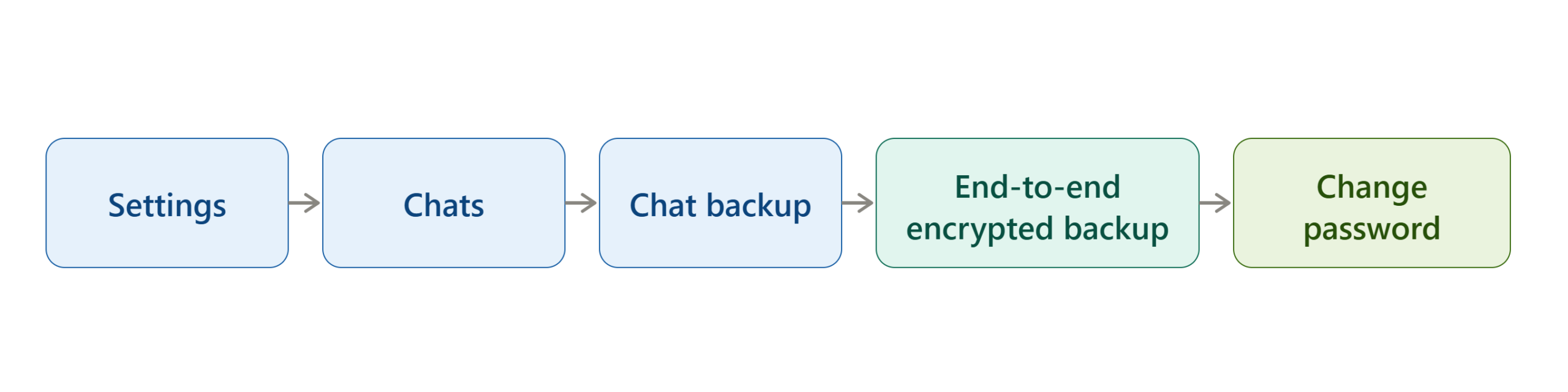
Settings → Chats → Chat backup → End-to-end encrypted backup
Then choose the available setup option and follow the prompts. WhatsApp currently documents passkeys, passwords, and 64-digit encryption keys as available protection methods.
Store Your Recovery Information Safely
This is especially important if you use a password or 64-digit encryption key.
WhatsApp states that it cannot access your encrypted backup and cannot reset the password or provide a copy of the encryption key if you lose the required credentials.
A backup-protection credential should therefore be stored somewhere secure that you can access independently of the phone.
What Happens If You Forget Your Encrypted Backup Password?
An encrypted backup is intentionally designed so that the protection mechanism cannot simply be bypassed.
WhatsApp says that the password or 64-digit encryption key is required to access an end-to-end encrypted backup. If you lose the password or key and no longer have access to your WhatsApp chats, WhatsApp cannot reset the password or restore the encrypted backup for you.
If you still have access to WhatsApp, WhatsApp provides a password-change process through:
The available recovery path depends on your current access and the type of backup protection you configured.
How to Verify That Your WhatsApp Backup Worked
Creating a backup is not the same as confirming that it can be restored.
Android Verification
Open:
WhatsApp → Settings → Chats → Chat backup
Check the displayed backup information and confirm that the latest backup time corresponds to the backup you intended to create.
Also verify that you are using the expected Google Account.
iPhone Verification
Open:
WhatsApp → Settings → Chats → Chat Backup
Confirm that the displayed backup information shows a recent backup. WhatsApp specifically recommends checking the time and size of the latest backup when verifying an iCloud backup.
Content Verification
For important data, check more than the timestamp.
Confirm that:
- Recent conversations are included.
- Important group chats are present.
- Important media has been included where applicable.
- Videos were included if you specifically needed them.
- The backup is associated with the correct account and phone number.
For particularly important information, exporting critical individual chats provides an additional readable copy.
Troubleshooting WhatsApp Backup Problems
WhatsApp provides several troubleshooting recommendations for backups that become stuck or fail to restore.
| Problem | Possible Cause | Solution |
|---|---|---|
| Backup is stuck | Network or device issue | Restart the phone and retry using a stable connection |
| Backup fails because of storage | Insufficient device/cloud space | Free storage and retry |
| Backup is not detected | Wrong account or phone number | Confirm the account and number used for the backup |
| Restore stops | Connection or storage problem | Check internet, available storage, and power |
| Old chats are missing | They were created after the backup | A later backup is required to include newer messages |
| Videos are missing | Videos were not included | Enable video inclusion before creating the relevant backup |
| Encrypted backup cannot be opened | Password/key/passkey unavailable | Recover the required credential while you still have access |
| iPhone restore fails | Insufficient iCloud/iPhone storage | Free space and retry the restoration |
Backup Is Stuck
WhatsApp recommends restarting the device, checking the internet connection, trying another connection where appropriate, reducing backup size when necessary, ensuring sufficient battery or connecting to power, and force-closing WhatsApp.
Backup Is Not Appearing
First verify the account information.
On Android, the Google Account and phone number matter because the backup is associated with them.
On iPhone, check WhatsApp’s Chat Backup screen to determine whether an iCloud backup exists.
Restore Finds No Backup
Do not immediately create a new backup on top of an uncertain situation.
Instead, confirm: You are using the correct phone number, You are signed into the correct Google Account or Apple account, The original backup actually exists, Your device has enough storage, WhatsApp is updated, Your internet connection is stable.
Only Some Messages Are Missing
A restore can only recover what existed in the backup being restored.
WhatsApp states that messages sent and received after the latest backup cannot be restored from that backup.
This is why checking the backup timestamp before deleting WhatsApp or changing devices is important.
Common Mistakes to Avoid
Mistake 1 — Treating a Backup Like a Normal File
A WhatsApp cloud backup is not equivalent to a PDF or ZIP file that you can simply download and open.
Correct approach: Use WhatsApp’s restore function for backups and Export Chat when you need a readable conversation copy.
Mistake 2 — Using the Wrong Google Account
An Android backup may exist but remain undetected if the device is using a different Google Account.
Correct approach: Confirm the Google Account that was used when the backup was created.
Mistake 3 — Using a Different Phone Number
WhatsApp states that backups are tied to the phone number used to create them.
Correct approach: Use the same number during restoration, or follow WhatsApp’s supported number-change procedure before migrating.
Mistake 4 — Assuming an Export Is a Backup
An exported chat is not restorable into WhatsApp.
Correct approach: Use export for archiving and backup for restoration.
Mistake 5 — Forgetting Encrypted Backup Credentials
End-to-end encrypted backups add protection, but losing the password, key, or passkey can prevent access.
Correct approach: Store the recovery credential securely before you need it.
Mistake 6 — Deleting WhatsApp Before Checking the Backup
If you are trying to preserve important chats, verify the latest backup before uninstalling the application or wiping the phone.
Correct approach: Check the backup date, account, size, and important content first.
Alternative Methods
Not every WhatsApp data-saving situation requires the same method.
Use Export Chat for Individual Conversations
Choose this when you want a readable record of a particular conversation.
This is especially useful for: Important personal conversations, Business discussions, Receipts or agreements contained in chats, Research conversations, Records you need outside WhatsApp.
Use Backup and Restore for Full Chat History
Choose this when you want WhatsApp itself to recreate your conversations on a supported device.
Use Chat Transfer for Device Migration
Choose this when your main objective is moving WhatsApp from an old phone to a new phone.
Use Screenshots for Small Amounts of Information
Screenshots are not a replacement for backup or export, but they can be useful when only a few messages need to be preserved.
Expert Insights for Safer WhatsApp Backup Management
The most reliable approach is to avoid depending on one preservation method for information that is genuinely important.
A practical strategy is:

The cloud backup protects the broader WhatsApp history, while exported copies can preserve particularly important conversations in a format that is easier to read outside WhatsApp.
Another important distinction is availability versus portability. A WhatsApp backup may be available for restoration without being portable as a conventional file. Trying to force a cloud backup into a normal downloadable-file workflow can create unnecessary risks.
For users with sensitive conversations, end-to-end encrypted backups provide an additional security layer. However, stronger encryption also means that recovery credentials become more important because WhatsApp cannot simply decrypt the backup for you if the required credentials are lost.
Decision Framework: Which WhatsApp Method Should You Use?
Use this simple decision process:
Do you need one readable conversation?
→ Yes: Use Export Chat.
Do you need your complete WhatsApp history restored?
→ Yes: Use WhatsApp Backup and Restore.
Are you moving to a new phone?
→ Yes: Use WhatsApp’s supported transfer or migration process.
Do you want a downloadable cloud backup file for your computer?
→ WhatsApp does not provide the same normal file-download workflow for its cloud backups. Use export, restore, or supported transfer instead.
Do you need stronger backup protection?
→ Consider enabling End-to-End Encrypted Backup and securely storing the required recovery credential.
Implementation Checklist
Before Starting
- Identify whether you need a backup, export, or transfer.
- Confirm the WhatsApp phone number.
- Confirm the Google Account or iCloud account.
- Check available device storage.
- Check available cloud storage.
- Make sure WhatsApp is updated.
During Backup or Export
- Use a stable internet connection.
- Keep the phone connected to power for large operations where practical.
- Confirm the latest backup timestamp.
- Select Include media if exported media is required.
- Store exported files somewhere you control.
After Completion
- Open the exported file and verify it.
- Check the backup date and size.
- Confirm important chats are present after restoration.
- Check important media.
- Securely store any encrypted-backup password or key.
Frequently Asked Questions
Can I download my entire WhatsApp backup?
Not generally as a normal readable file. WhatsApp cloud backups are designed primarily for restoration through WhatsApp. If you need readable copies, use the Export Chat feature for individual conversations.
Can I download my WhatsApp backup from Google Drive?
A WhatsApp backup stored through a Google Account is not handled like an ordinary document in Google Drive. It is an encrypted backup managed for WhatsApp restoration. The practical method is to restore it through WhatsApp rather than treating it as a conventional downloadable file.
Can I download a WhatsApp iCloud backup to my computer?
WhatsApp’s supported iPhone workflow is to restore the backup through WhatsApp rather than download it as a normal readable archive. The official restoration process uses the existing iCloud backup during WhatsApp setup.
How can I save a WhatsApp conversation as a file?
Open the conversation and use Export Chat. WhatsApp lets you export with or without media and then choose an available sharing destination.
Can an exported WhatsApp chat be imported back into WhatsApp?
No. WhatsApp states that an exported chat is a text file rather than a backup file, so it cannot be re-imported as a WhatsApp backup.
Can I restore a WhatsApp backup to a different phone number?
Ordinary backup restoration depends on the phone number associated with the backup. WhatsApp’s documentation says cloud backups are linked to the phone number used to create them. If you are changing numbers, use WhatsApp’s supported number-change process before creating the new backup.
What happens if I lose my encrypted backup password?
If you lose the password or 64-digit encryption key and no longer have access to your WhatsApp chats, WhatsApp says it cannot reset the password or restore the encrypted backup for you.
Can WhatsApp restore a backup that is several months old?
A backup can be restored only while it remains available and compatible with the account and device. Android backup retention can also matter: WhatsApp currently warns that Google Account backups that have not been updated for five months may be automatically deleted by Google.
Can I recover messages that were sent after my last backup?
No. Messages sent or received after the latest backup are not included in that backup and therefore cannot be recovered from it.
Can I back up WhatsApp from WhatsApp Web?
WhatsApp’s backup and restoration process is performed through the phone rather than WhatsApp Web. WhatsApp’s Help Center states that backups and restoration are not performed on linked devices such as WhatsApp Web, Mac, or Windows.
Read More:
Conclusion
Downloading a WhatsApp backup is not the same as downloading a regular file from Google Drive or iCloud. WhatsApp backups are primarily designed for restoring chat history, while the Export Chat feature is the better option when you need a readable copy of a specific conversation outside WhatsApp.
Before switching phones, deleting WhatsApp, or restoring your data, confirm the correct phone number, Google Account or iCloud account, backup date, storage availability, and encryption credentials. For important conversations, consider exporting critical chats in addition to maintaining a current backup. Following these steps helps protect your WhatsApp data and makes future restoration or device transfers much easier.

